
Working with sensitive information in office documents means that protecting these files is paramount. Whether it's financial reports, client data, or internal strategy documents, ensuring they are secure from unauthorized access is a core responsibility. However, simply applying a password isn't always enough; proper organization is key to maintaining both security and usability. A well-organized system makes it easier to manage who has access to what, track versions, and ensure compliance.
My own journey in software engineering has often involved dealing with the fallout from poorly managed secure files. I've seen how a lack of clear organization can lead to lost passwords, accidental data leaks, or simply the inability to find critical information when it's needed most. It's not just about applying a lock; it's about building a robust system around your protected office documents that works for everyone involved.
Table of Contents
Understanding Document Protection
Before diving into organization, it's crucial to understand the different levels of protection available for office documents. Most common applications, like Microsoft Word, Excel, and PowerPoint, offer built-in features for password protection, encryption, and restricting editing. These tools are your first line of defense against casual snooping.
Levels of Security
You can typically set passwords to open a document, which encrypts the file itself, or passwords to modify it, which allows viewing but prevents changes. For highly sensitive data, employing stronger encryption methods provided by the software or third-party tools is advisable. Understanding these options helps in deciding how each document needs to be secured.
Effective Naming Conventions

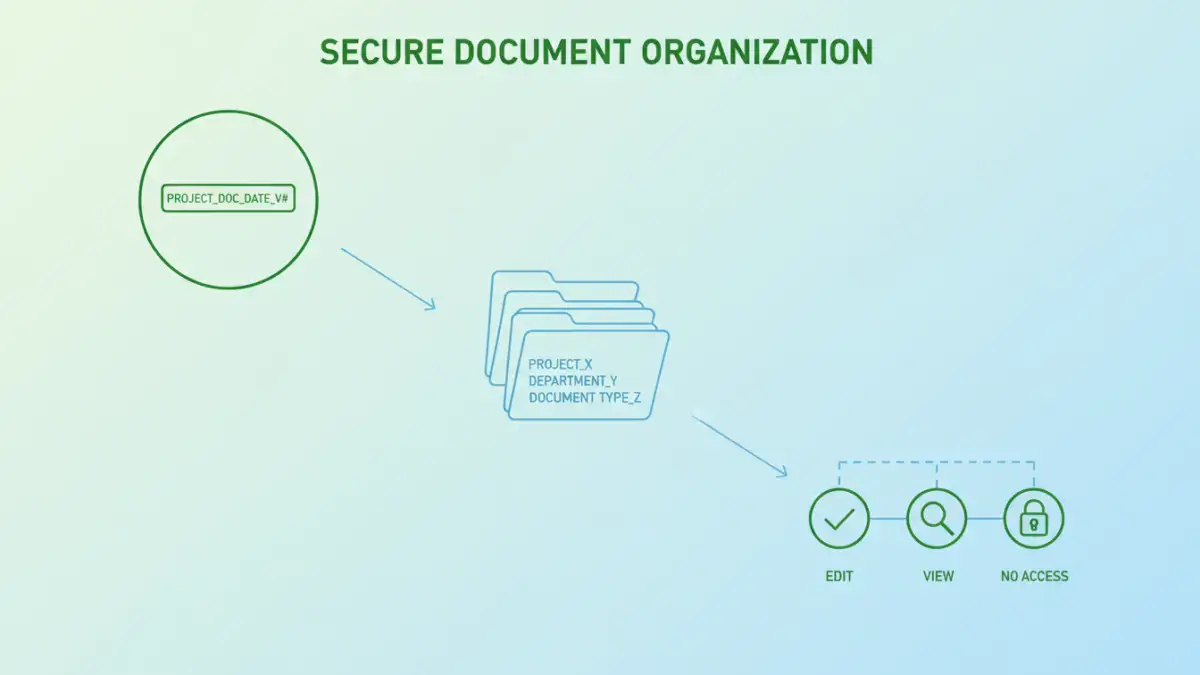
A consistent naming convention is the bedrock of any organized file system. For protected office documents, this means including information that helps identify the document's content, sensitivity, and perhaps its protection status. Think about including dates, project names, version numbers, and a clear indicator of sensitivity (e.g., 'Confidential' or 'Internal Use Only').
For instance, instead of saving a file as 'Report.docx', a better name might be '2023-10-27_ProjectX_Confidential_v3.docx'. This makes it immediately clear what the file is, its recency, and that it requires special handling. This clarity is invaluable when dealing with multiple versions of sensitive documents.
Creating a Logical Folder Structure
A well-defined folder structure is just as important as file naming. Grouping documents logically by project, department, or client makes them easier to find and manage. For secure files, consider creating specific 'Protected' or 'Confidential' folders, perhaps nested within relevant project or department directories.
This hierarchical approach ensures that sensitive files are kept separate from general documents. It also helps in applying broader security measures to entire folders. Regularly review and refine your folder structure to ensure it remains intuitive and effective as your projects evolve.
Managing Access and Permissions
Password protection is one aspect, but controlling who can access these documents is another. For shared drives or cloud storage, leverage built-in permission settings. Assign read-only access to most users and grant edit or full control only to those who absolutely need it. This is crucial for maintaining the integrity of your protected office documents.
I've found that a 'least privilege' approach is always best. Users should only have the minimum permissions necessary to perform their job functions. This minimizes the risk of accidental deletion, modification, or unauthorized sharing of sensitive information.
Backup and Recovery Strategies
Even with the best organization, data loss can occur. Implementing a robust backup strategy is essential for all your documents, especially those that are protected. Ensure backups are stored securely, ideally in a separate physical location or a secure cloud service, and that they are encrypted.
Crucially, regularly test your recovery process. Knowing you have backups is one thing; being able to restore them quickly and efficiently when needed is another. This includes having a secure, documented method for managing the passwords or encryption keys required to access these backups.
Comparison Table
| Method | Pros | Cons | Best For |
|---|---|---|---|
| Built-in Office Protection | Easy to use, readily available | Limited encryption strength, can be bypassed with owner password | Basic password protection for individual files |
| File Encryption Software | Stronger encryption, more control | Requires installation, potential cost | Securing highly sensitive individual files or folders |
| Cloud Storage Permissions | Granular control over access, collaboration features | Reliance on provider security, potential subscription costs | Team collaboration on shared sensitive documents |
| Physical Security Measures | High security for physical documents | Not applicable for digital files, cumbersome | Archived physical records |
Advanced Tips for Secure Document Management
Beyond the basics, consider implementing more advanced techniques for managing your protected office documents. This could involve using document management systems (DMS) that offer built-in security features, audit trails, and version control. Such systems centralize your files and provide a more comprehensive security framework.
Another advanced tip is to regularly conduct security audits. Review who has access to what, check for outdated permissions, and ensure your password policies are being followed. This proactive approach helps identify and mitigate potential security risks before they become problems.