When you need to send important documents, especially large ones, over the internet, ensuring their security is paramount. Accidental leaks or unauthorized access to sensitive information can have serious consequences. Fortunately, there are reliable ways to protect your files, and one of the most accessible methods involves using password-protected PDFs. This approach offers a robust layer of security without requiring highly technical expertise.
Over my years working with various software solutions, I've found that many people overlook the simple yet effective power of PDF encryption. It's a practical solution for individuals and businesses alike who need to maintain confidentiality. Let's explore how you can leverage this capability to keep your large files safe during transfer.
Table of Contents
Understanding Password Protected PDFs
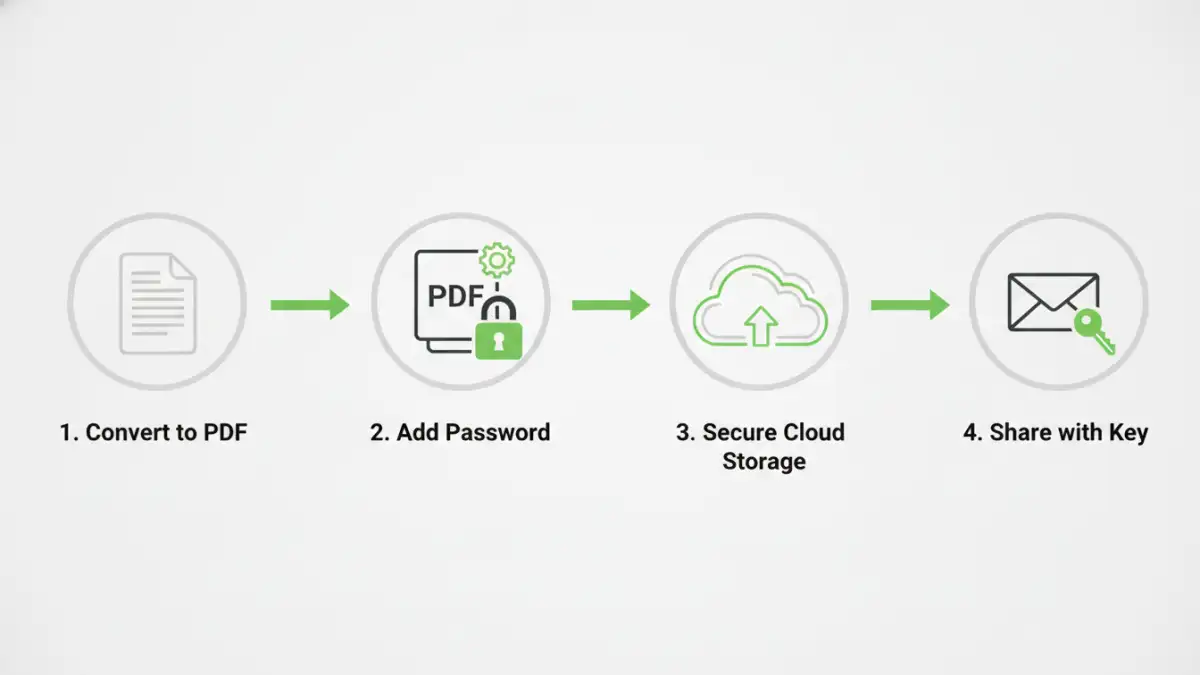
A password-protected PDF is essentially a digital document that requires a specific password to open or modify its contents. This encryption acts as a barrier, preventing anyone without the correct credentials from viewing or tampering with your data. It's a fundamental security feature that adds a significant layer of protection for sensitive information.
Why Use Password Protection?
The primary reason is confidentiality. Whether you're sharing financial reports, legal documents, personal information, or proprietary business data, password protection ensures that only intended recipients can access it. This is especially crucial for large file transfer scenarios where data might be more vulnerable during transit.
Creating Password Protected PDFs
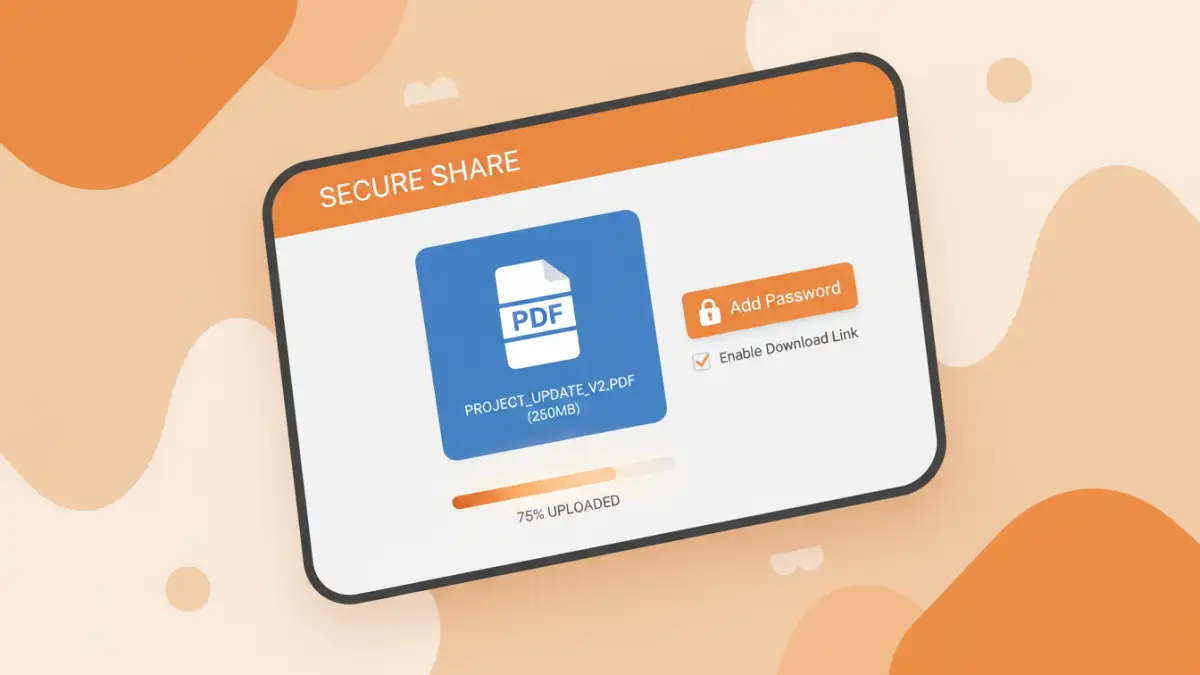
Creating a password-protected PDF can be done through several methods, ranging from built-in operating system features to dedicated software. The process usually involves selecting an option to encrypt the document and then setting a strong password.
Using Adobe Acrobat Pro
For those who regularly work with PDFs, Adobe Acrobat Pro offers comprehensive tools. After opening your document, navigate to 'File' > 'Protect Using Password'. You can choose whether the password is required to open the document or to restrict editing and printing. For secure document delivery, setting a password to open is generally the most effective.
Using Online PDF Converters and Tools
Numerous free and paid online tools can convert documents to password-protected PDFs. While convenient for occasional use, be mindful of the privacy policies of these services, especially when dealing with highly sensitive data. Upload your file, select the encryption option, set your password, and download the secured PDF. This method is often used for large file transfer when you don't have specialized software readily available.
Using Built-in OS Features (macOS)
On macOS, you can create a password-protected PDF directly from most applications. When you go to 'File' > 'Print', select 'Save as PDF' from the PDF dropdown menu in the print dialog. Then, click 'Security Options' to set a password for opening the document.
Sharing Large Files Securely
Sharing large files often presents challenges, especially when security is a concern. Email attachments have size limits, and cloud storage services, while convenient, require careful configuration of sharing permissions. Using a password-protected PDF can simplify this process while enhancing security.
Once your large file is converted into a password-protected PDF, you can share it through your preferred method. You can upload it to a cloud storage service and share the link, or if the file size permits and your email provider allows, send it directly. It's crucial to communicate the password to the recipient through a separate, secure channel, such as a phone call, text message, or encrypted chat application, to avoid compromising the security of the password itself. This two-channel communication is a vital part of secure file sharing pdf protocols.
Alternatives and Best Practices
While password-protected PDFs are excellent, they aren't the only solution. For extremely large files or when dealing with highly sensitive data, consider dedicated secure file transfer services. These platforms often offer end-to-end encryption and more robust tracking features.
Tips for Strong Password Protection
- Use a combination of uppercase and lowercase letters, numbers, and symbols.
- Avoid using easily guessable information like names, dates, or common words.
- Consider using a password manager to generate and store complex passwords.
- Change passwords periodically, especially for highly sensitive documents.
- Inform your recipient about the password separately and securely.
Comparison Table: PDF Security Methods
| Method | Pros | Cons | Best For |
|---|---|---|---|
| Password Protected PDF (Built-in) | Free, readily available on most OS | Limited features, may not be strong enough for extreme sensitivity | General document protection, moderate security needs |
| Password Protected PDF (Acrobat Pro) | Advanced encryption options, granular control | Requires paid subscription | Professional use, complex security requirements |
| Online PDF Tools | Convenient, fast, no software needed | Potential privacy risks, requires internet access, variable security strength | Quick, non-sensitive file protection |
| Secure File Transfer Services | End-to-end encryption, large file support, tracking | Can be costly, requires account setup | High-value data, large files, business-critical transfers |