Working with password-protected documents can be frustrating, especially when you need quick access or have forgotten the password. If you've stored such a file in Google Drive and are wondering how to proceed, you're not alone. Many of us encounter situations where we need to access a PDF, but a forgotten password stands in the way. Fortunately, there are methods to navigate this common digital hurdle.
In my line of work, I've often had to help colleagues or clients regain access to their important files stored in cloud services like Google Drive. The process of dealing with encrypted documents, particularly PDFs, requires a clear understanding of the available tools and techniques. Let's explore how you can effectively remove a PDF password from your Google Drive storage.
Table of Contents
Understanding PDF Passwords and Google Drive
PDF password protection is a security feature designed to prevent unauthorized access to sensitive documents. Google Drive, as a cloud storage service, stores these files but doesn't inherently offer a built-in function to bypass or remove PDF passwords directly. If a PDF is password-protected, Google Drive will prompt you for the password when you try to open it. This means any solution will involve either providing the password or using an external method to remove it.
Types of PDF Passwords
It's important to distinguish between two types of PDF passwords: the owner password and the user password. The owner password restricts editing, printing, or copying, while the user password (or open password) prevents the document from being opened at all. Most methods focus on removing the owner password restrictions, but some advanced tools can also handle user passwords if you know the correct password.
Method 1: Using the Browser's Print Function

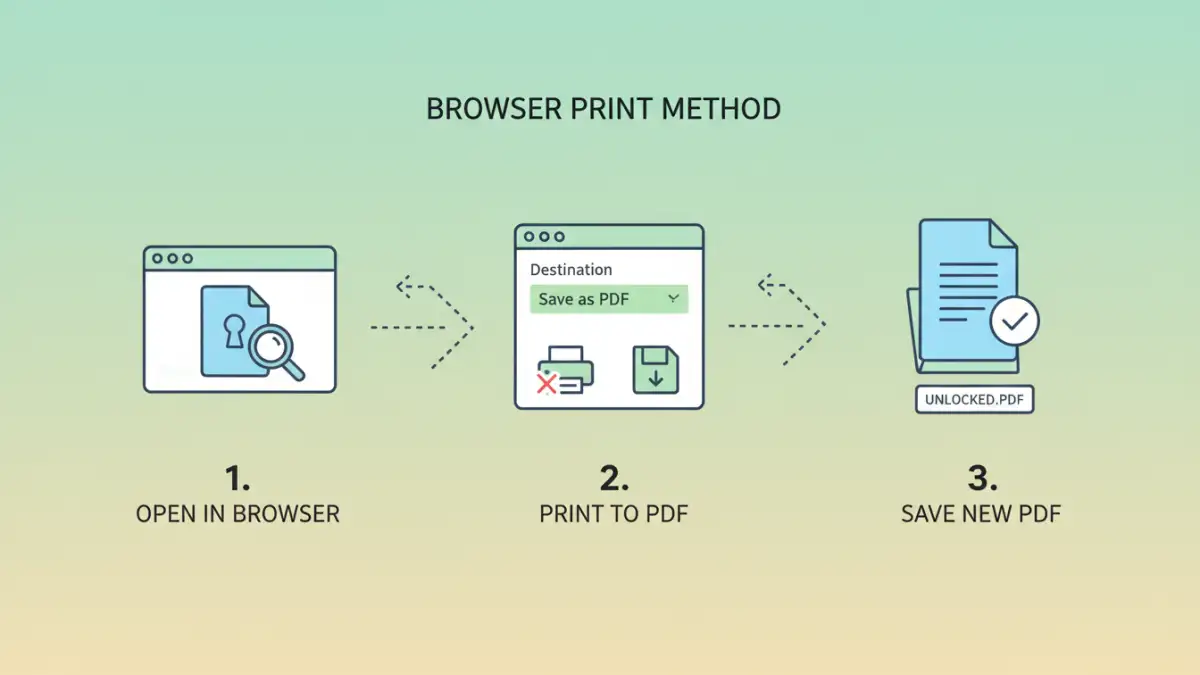
One of the most common and accessible workarounds, especially if you know the password, involves using your web browser's print-to-PDF functionality. This method essentially re-creates the PDF file without the password protection.
Step-by-Step Guide
- Open the PDF in Google Drive: Navigate to your PDF file in Google Drive. If it's protected with an open password, you'll be prompted to enter it first.
- Enter the Password: If prompted, enter the correct password to open the document.
- Access the Print Dialog: Once the PDF is open, click the print icon or go to File > Print.
- Choose 'Save as PDF': In the print dialog box, look for the destination or printer option. Select 'Save as PDF' or a similar option (e.g., 'Microsoft Print to PDF' on Windows, 'Save as PDF' on macOS).
- Save the New File: Click 'Save' and choose a location on your computer to save this newly created PDF. This version will be unprotected.
This technique is a clever way to get an unlocked copy, but it relies on you being able to open the PDF initially. It's a great way to remove restrictions like preventing printing or copying if you have the opening password.
Method 2: Utilizing Online PDF Unlocker Tools
For situations where you've forgotten the password or need a quick solution without installing software, numerous online tools can help you unlock PDFs. These services upload your password-protected file, process it (often requiring the password if it's an open password), and allow you to download an unlocked version.
Popular Online Services
Websites like Smallpdf, iLovePDF, and Adobe Acrobat online offer PDF unlocking features. You typically upload your file, enter the password if required, and the service handles the rest. It's a convenient approach for occasional use.
However, using online tools comes with privacy considerations. You are uploading your potentially sensitive documents to a third-party server. It's crucial to use reputable services and understand their privacy policies, especially if dealing with confidential information. Always ensure the site uses HTTPS for secure uploads.
Method 3: Desktop PDF Software
For more robust control and frequent use, dedicated desktop PDF software offers advanced features for managing password protection.
Using Adobe Acrobat Pro
Adobe Acrobat Pro DC is the industry standard for PDF manipulation. If you have a subscription, you can open a password-protected PDF, enter the password, and then remove the security settings under the 'Protect' tab. This provides a comprehensive way to manage all aspects of PDF security.
Other Software Options
There are also numerous third-party desktop applications designed specifically to remove PDF passwords. These can be very effective, especially for complex password protection or when dealing with large volumes of files. As with online tools, research the software's reputation and security practices before use.
Security Considerations
When you need to remove PDF password Google Drive storage, prioritizing security is paramount. If you're dealing with sensitive or confidential information, be extremely cautious about the methods you employ. Using unknown online tools or software could expose your data to risks.
Best Practices
Always use the original password if known. Forgetting a password and needing to bypass it should be done with reputable tools. If the document is highly sensitive, consider if removing the password is truly necessary or if there's an alternative secure way to share or access the information. Regularly review your Google Drive security settings to ensure your account remains protected.
Comparison Table: PDF Password Removal Methods
| Method | Pros | Cons | Best For |
|---|---|---|---|
| Browser Print Function | Free, no extra software needed, quick for known passwords | Requires the original password, can sometimes alter formatting slightly | Removing restrictions (print, copy) when password is known |
| Online PDF Unlocker Tools | Convenient, accessible from any device, no installation required | Privacy concerns, reliance on third-party servers, potential for limited features or file size restrictions | Quick, occasional unlocking of non-sensitive PDFs |
| Desktop PDF Software (e.g., Adobe Acrobat Pro) | Powerful, versatile, full control over security settings, offline processing | Often requires purchase or subscription, can have a learning curve | Frequent users, sensitive documents, complex PDF security management |