
Accessing your own password-protected files stored in the cloud should be straightforward, but sometimes you might need to remove that protection. Whether you've forgotten a password, need to share a file with someone who doesn't have it, or simply want to streamline access to your own documents, knowing how to do this safely is crucial. Mishandling password removal can lead to data loss or security breaches.
Over the years, I've encountered situations where clients or colleagues needed to regain access to their secured cloud documents. It's not always about bypassing security; often, it's about recovering legitimate access to your own data when the original method of access is no longer available. This article will guide you through understanding the implications and the practical, safe ways to handle removing password protection from your cloud-stored files.
Table of Contents
Understanding Cloud File Protection
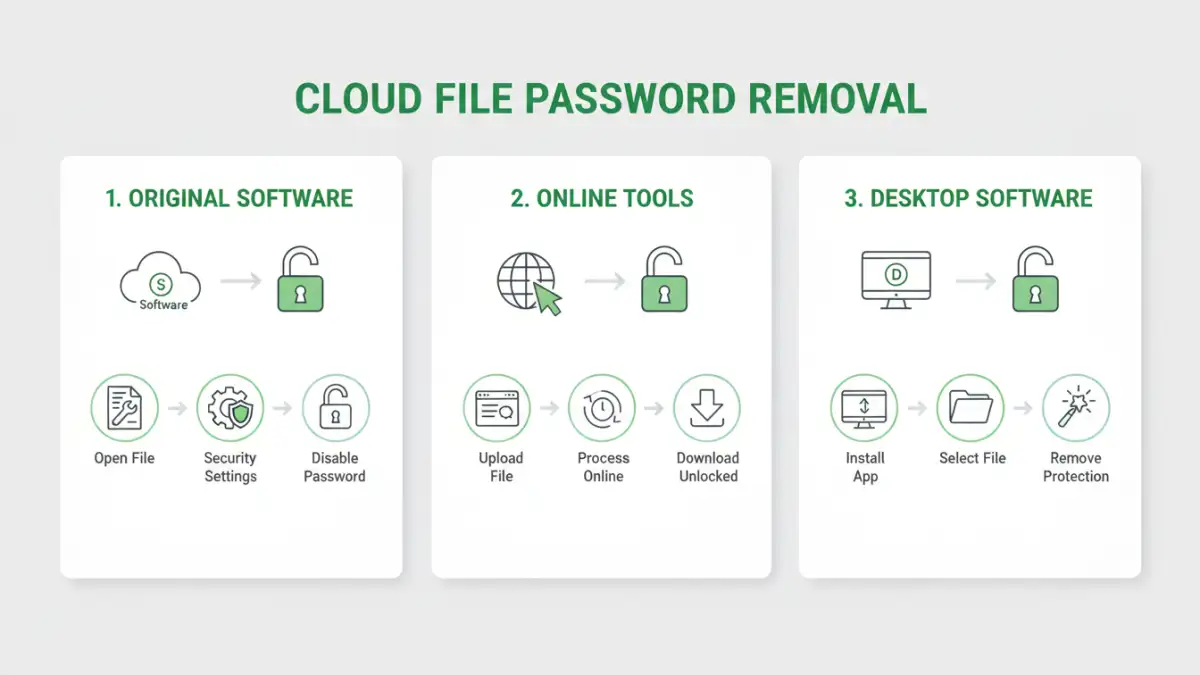
Cloud file protection, often through passwords or encryption, is designed to safeguard your sensitive data from unauthorized access. When you upload a file to a cloud service and add a password, you're essentially creating a digital lock. This lock ensures that only someone with the correct key (the password) can view or modify the file's contents.
Types of Protection
The type of protection varies. Some cloud services offer built-in encryption that is managed by the provider, where you might set a password for access control. Other times, you might encrypt a file *before* uploading it using third-party software. Understanding which method was used is key to knowing how to proceed with password removal.
Methods to Remove Password Protection
Safely removing password protection from cloud files often depends on how the file was protected in the first place. If you are the legitimate owner of the file and have forgotten the password, or if you need to share it, there are several approaches.
Method 1: Using the Original Software or Service
The most straightforward and safest method is to use the original software or cloud service where the file was password-protected. If you password-protected a Microsoft Word document stored on OneDrive, for instance, you would open the document in Word, enter the password, and then save it without the password protection enabled. Many cloud services have built-in tools to manage file permissions and security settings.
Method 2: Online Tools for Common File Types
For common file types like PDFs or certain Office documents, various online tools can help remove password protection. Websites like Smallpdf, iLovePDF, or Adobe Acrobat online offer functionalities to unlock password-protected files. The process typically involves uploading your password-protected file, entering the password if prompted, and then downloading the unlocked version. It's crucial to use reputable online tools and be mindful of their privacy policies, especially for sensitive data.
Method 3: Desktop Software Solutions
Dedicated desktop software offers more robust solutions for password removal, especially for encrypted archives (like ZIP or RAR files) or more complex document encryption. These tools often require you to install software on your computer. Some offer brute-force or dictionary attacks, but these are typically used for recovering forgotten passwords and can be time-consuming and not always successful. For legitimate password removal when you know the password, these tools can directly unlock the file.
Method 4: Browser-Based Workarounds (Limited Scope)
In some very specific scenarios, particularly with older or less secure password protection methods applied to documents that can be previewed or printed, a workaround might involve printing the document to a new PDF. For example, if you can open a password-protected PDF and print it, you might be able to 'print' it to a new PDF file without the password protection. This method is not foolproof and often doesn't work for strong encryption.
Important Safety Considerations
When you need to remove password protection from cloud files, safety and security should be your top priorities. Attempting to remove passwords from files you don't own can have legal consequences and is unethical. Always ensure you have the legal right to access and modify the file.
Furthermore, be wary of tools or services that promise instant password removal without requiring the original password, especially for strongly encrypted files. These might be scams, or they could employ methods that compromise the integrity of your data or your system's security. Stick to known, reputable methods and tools.
Best Practices for Cloud File Security
To avoid the hassle of password removal or the risk of losing access, adopting good security practices from the outset is essential. Use strong, unique passwords for your cloud accounts and for individual files.
Consider using a reputable password manager to keep track of complex passwords. For highly sensitive data, explore end-to-end encryption solutions where only you hold the decryption key. Regularly backing up your important files, both password-protected and unprotected, to multiple locations also provides a safety net.
Comparison Table: Methods for File Password Management
| Method | Pros | Cons | Best For |
|---|---|---|---|
| Original Software/Service | Highest security, direct control, reliable | Requires access to original application/platform | Legitimate access, sharing control |
| Online Tools | Convenient, accessible from anywhere, often free for basic use | Potential privacy concerns, limited features, requires internet | Quick unlocking of common file types (PDF, Office) |
| Desktop Software | Powerful, handles various encryption types, offline use | Requires installation, potential cost, learning curve | Complex archives, forgotten passwords (with caution) |
| Browser Workarounds | No extra tools needed, quick for specific cases | Limited applicability, doesn't work for strong encryption | Simple print-to-PDF scenarios |