Working with password-protected documents can be frustrating, especially when you need to make a quick edit. Whether it's a sensitive report, a confidential contract, or a personal document, needing to modify a file that's locked down presents a unique challenge. Over my years working with various document management systems and security protocols, I've encountered numerous scenarios where users needed to access and edit these protected files. It's crucial to approach this task with security in mind, ensuring you don't compromise the original protection or introduce new vulnerabilities.
The primary goal is to gain access to the content for editing without resorting to risky or illegal methods. This involves understanding the different types of PDF passwords and employing appropriate tools and techniques. The methods range from simple workarounds for owner-level passwords to more robust solutions for user-level encryption. It's about finding the right balance between accessibility and security.
Table of Contents
Understanding PDF Passwords
PDFs can be protected in two main ways: an 'owner' password and a 'user' password. An owner password restricts actions like printing, copying, or editing, but allows you to open the document. A user password, on the other hand, requires a password just to open the file itself. Understanding which type of password you're dealing with is the first step in figuring out how to edit it.
Types of PDF Protection
When you encounter a password-protected PDF, it's usually one of two types. The first is the 'permissions password' (or owner password), which restricts specific actions like editing, copying, or printing. The second is the 'open password' (or user password), which prevents anyone from opening the document without entering the correct password. The method you'll use to edit the file depends heavily on which of these protections is in place.
Methods to Edit Protected PDFs

The approach to editing a password-protected PDF varies based on the type of password and your technical comfort level. For owner passwords that restrict editing, many tools can bypass these limitations relatively easily. However, for user passwords that prevent opening the file, you generally need the correct password to proceed. Attempting to bypass strong user-level encryption without the password can be complex and may not always be successful or advisable.
Using Browser Features
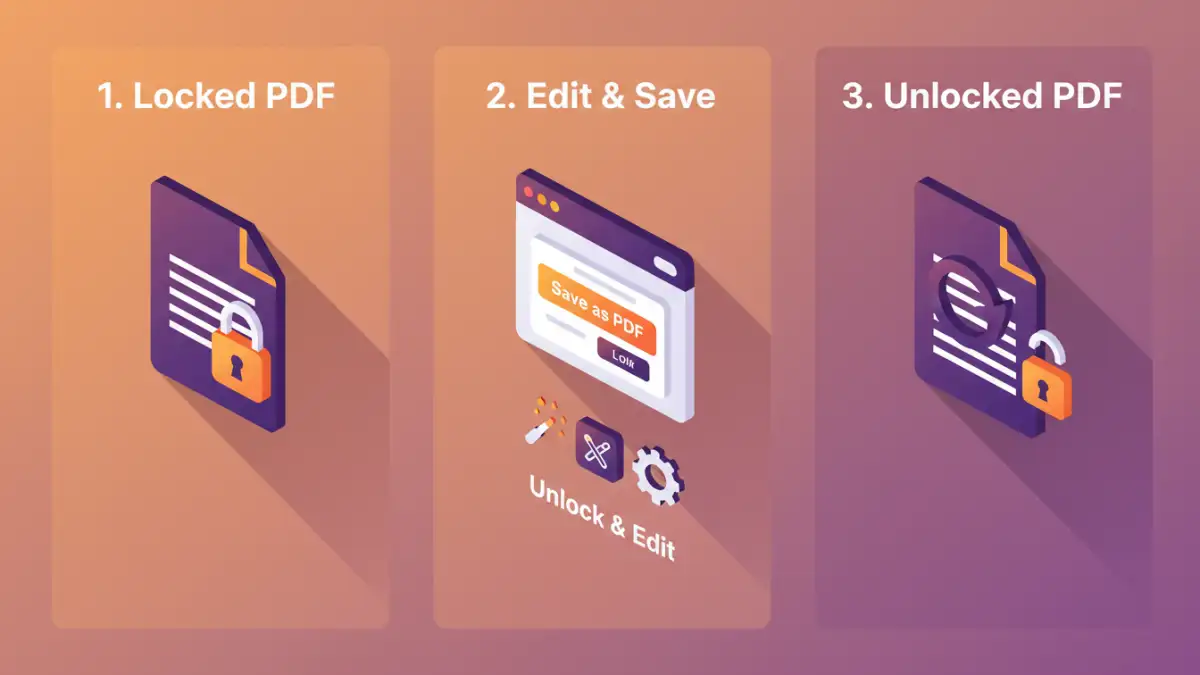
One common and surprisingly effective method for dealing with owner-level restrictions involves using your web browser's print function. If you can open the PDF and print it, you can often 'print' it to a new PDF file, effectively removing the editing restrictions. This works because the act of printing and re-saving often creates a new document that inherits the content but not the original security settings.
To do this, open the password-protected PDF in a browser like Chrome or Edge. Navigate to the print option (usually Ctrl+P or Cmd+P). Instead of selecting a physical printer, choose 'Save as PDF' or 'Microsoft Print to PDF' as your destination. This process creates a new PDF file. You can then open this new file and edit it freely, assuming the original password was only an owner password.
Leveraging Online PDF Editors
Numerous online tools are designed to help with PDF manipulation, including removing password restrictions. Websites like Smallpdf, iLovePDF, or Adobe Acrobat online offer functionalities to unlock PDFs. These platforms are generally user-friendly and require no software installation.
Typically, you upload your password-protected PDF, enter the password if prompted (especially for user passwords), and the tool processes it. For owner passwords, it often directly removes them. For user passwords, you'll need to know the password to unlock it first. Be mindful of privacy when using online tools, especially for highly sensitive documents, as you are uploading your files to a third-party server.
Employing Desktop Software
For more complex needs or if you prefer working offline, desktop software offers robust solutions. Adobe Acrobat Pro is the industry standard and can easily handle most password-related tasks, provided you have the necessary passwords. There are also many third-party PDF editors and password recovery tools available.
These desktop applications often provide more advanced features for secure pdf editing. Some can attempt to recover passwords, though success is not guaranteed and depends heavily on the strength of the encryption. For files secured with owner passwords, they can typically remove these restrictions quickly and efficiently, allowing you to edit and save the PDF. When dealing with user passwords, you will still need the correct password to decrypt and unlock the file before editing.
Best Practices for Security
When you need to edit password protected pdf files, always prioritize security. If you are removing a password, ensure you understand why it was there in the first place and if the content still requires protection. If it does, re-apply appropriate security measures after editing.
Use reputable tools and services. Avoid downloading software from untrusted sources, as this can lead to malware infections. For online tools, always check their privacy policies. If the document is highly confidential, consider using desktop software that keeps your files on your local machine. Remember that if you don't know the password, especially for user-level protection, you may not be able to unlock and edit the PDF legally or ethically.
Comparison Table: PDF Editing Methods
| Method | Pros | Cons | Best For |
|---|---|---|---|
| Browser 'Print to PDF' | Free, no software installation, quick for owner passwords | Only works for owner passwords, may affect formatting | Quick edits on non-critical documents with owner passwords |
| Online PDF Tools | User-friendly, accessible anywhere, fast processing | Privacy concerns, requires internet, may have file size limits or feature restrictions | Simple edits and password removal when privacy is not a major concern |
| Desktop Software (e.g., Adobe Acrobat Pro) | Powerful features, works offline, handles all password types (if known) | Can be expensive, requires installation, learning curve for advanced features | Professional editing, complex document management, offline work |
| Password Recovery Tools | Can potentially recover forgotten passwords | Not always successful, can be slow, ethical/legal considerations, potential malware risk from untrusted sources | Recovering forgotten passwords when all other options fail and ownership is clear |