Working with sensitive documents, whether for personal or professional reasons, requires a robust approach to security. In today's digital landscape, the risk of data breaches and unauthorized access is ever-present. Fortunately, you don't need expensive software to keep your files safe. There are numerous free tools and built-in features available that can help you encrypt your documents effectively.
From financial records and legal contracts to personal journals and confidential business plans, the need to protect information is paramount. This article will guide you through practical, accessible methods to encrypt your sensitive documents using readily available free security software and system functionalities.
Table of Contents
Understanding Document Encryption
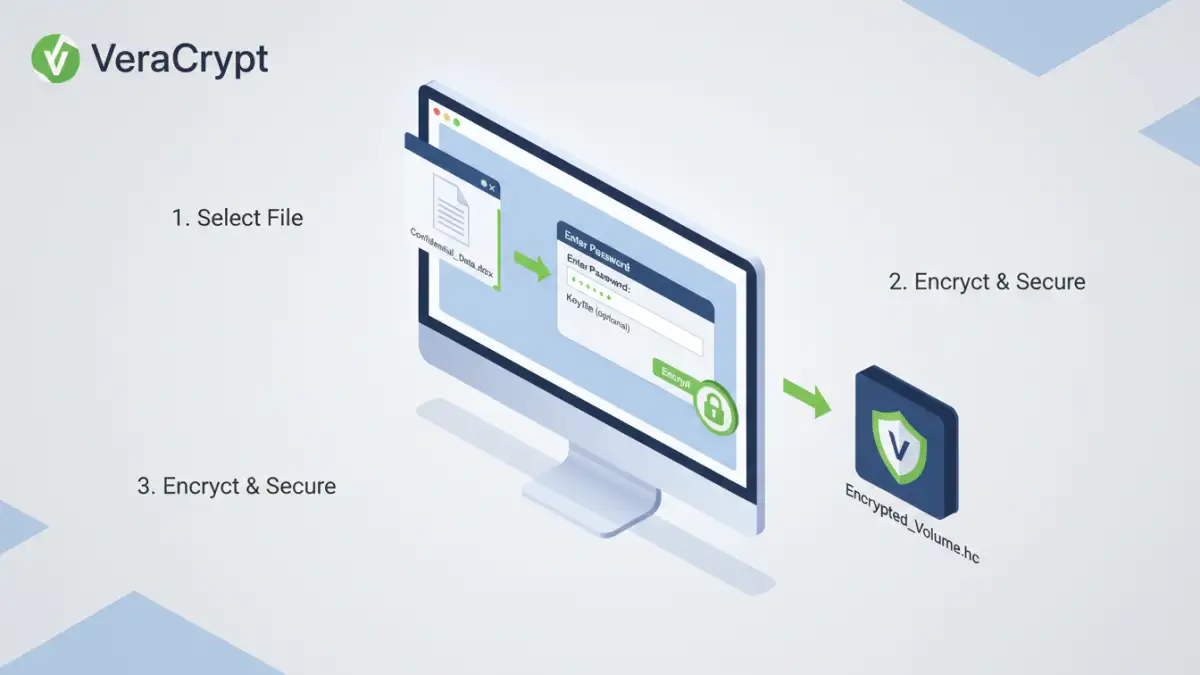
At its core, encryption is the process of converting readable data into a coded format that can only be deciphered with a specific key or password. This ensures that even if unauthorized individuals gain access to your files, they won't be able to understand the content without the correct decryption key. Different encryption algorithms offer varying levels of security, but for most common uses, standard encryption methods are more than sufficient.
Why Encrypt Your Documents?
The primary reason to encrypt documents is to maintain confidentiality and privacy. This is crucial for protecting personal information, trade secrets, client data, or any other sensitive material from falling into the wrong hands. Encryption acts as a vital layer of defense against cyber threats, accidental data leaks, and unauthorized snooping, whether online or offline.
Using Built-In Operating System Features
Both Windows and macOS offer robust, built-in encryption capabilities that many users overlook. These features are often free and integrated directly into the operating system, making them convenient and generally secure options for everyday use.
Windows BitLocker
For Windows Pro, Enterprise, and Education editions, BitLocker is a powerful tool that can encrypt entire drives or specific volumes. While primarily a full-disk encryption solution, you can create encrypted containers (virtual hard disks or VHDX files) that act like encrypted folders. You can store your sensitive documents within these containers, which are then mounted as a drive letter when you need access, requiring a password to unlock.
macOS FileVault and Disk Utility
macOS users benefit from FileVault, which encrypts the entire startup disk. For more granular control, Disk Utility allows you to create encrypted disk images (.dmg files). You can set a strong password, and any files stored within this image will be protected. When you need to access the files, you'll mount the disk image and enter the password.
Leveraging Free File Encryption Software
Beyond operating system features, several free third-party applications offer specialized functionalities for encrypting documents. These tools often provide user-friendly interfaces and support for various file types, making them accessible even for less technical users. Using a dedicated encrypt documents tool can offer flexibility.
VeraCrypt
VeraCrypt is a highly regarded, open-source disk encryption software. It's a fork of the discontinued TrueCrypt and offers robust encryption for partitions, entire drives, or creating encrypted file containers. It supports multiple encryption algorithms and offers advanced features, making it a go-to for users prioritizing strong security without cost.
7-Zip for File Archiving
While primarily known as a file archiver, 7-Zip also provides strong AES-256 encryption for ZIP and 7z archives. This is an excellent method for encrypting individual files or folders. You can create a password-protected archive of your sensitive documents, and anyone wanting to access them will need the password to extract the contents. It's a simple yet effective way to secure files before sharing or storing them.
Online Tools (Use with Caution)
Numerous websites offer free online encryption services. These can be convenient for quick, one-off tasks. However, it's crucial to exercise caution. You are uploading your sensitive data to a third-party server, so ensure you trust the provider and understand their privacy policy. For highly sensitive information, using desktop-based solutions like VeraCrypt or 7-Zip is generally recommended.
Best Practices for Secure Document Sharing
Encrypting your documents is only one part of secure document sharing. The method you choose depends on your recipient and the sensitivity of the information. For secure document sharing, consider the following:
- Strong Passwords: Use complex, unique passwords that combine uppercase and lowercase letters, numbers, and symbols. Avoid easily guessable information.
- Secure Key Exchange: If you're sharing an encrypted file with someone, find a secure way to communicate the password. Avoid sending it via email alongside the encrypted file. A phone call or a separate secure messaging app is often better.
- Choose the Right Tool: Select an encryption method or tool that is appropriate for the sensitivity of the data and the technical capabilities of your recipient.
- Regularly Update Software: Ensure your operating system and any encryption software you use are up-to-date to benefit from the latest security patches.
Final Thoughts on Data Security
Protecting sensitive documents doesn't have to be complicated or expensive. By understanding and utilizing the free file encryption options available, from built-in OS features to reputable open-source software like VeraCrypt and tools like 7-Zip, you can significantly enhance your data security. Always remember that strong passwords and secure communication practices are essential complements to any encryption strategy.
Comparison Table: Encryption Methods
| Method | Ease of Use | Security Level | Platform Compatibility | Cost |
|---|---|---|---|---|
| Windows BitLocker (Container) | Moderate | High (AES) | Windows Pro/Enterprise | Free (with OS) |
| macOS Disk Utility (DMG) | Moderate | High (AES) | macOS | Free (with OS) |
| VeraCrypt | Moderate to High | Very High (AES, Serpent, Twofish) | Windows, macOS, Linux | Free (Open Source) |
| 7-Zip (Archive Encryption) | Easy | High (AES-256) | Windows, macOS, Linux | Free (Open Source) |
| Online Encryption Tools | Easy | Variable (Depends on provider) | Web Browser | Free (often with limitations) |