Dealing with a large volume of sensitive documents can be a significant challenge, especially when it comes to protecting them. I've often found myself needing to secure a folder full of client reports or personal records, and doing it one by one is incredibly time-consuming and prone to errors. Fortunately, there are efficient ways to handle this, primarily through specialized software designed for bulk operations.
The need for robust security measures for digital documents is undeniable. Whether you're a legal professional, a financial advisor, or simply someone who values privacy, ensuring your files are protected from unauthorized access is paramount. When you have many files to secure, manual encryption isn't just tedious; it's impractical.
Table of Contents
Understanding PDF Encryption Basics
At its core, PDF encryption involves scrambling the content of a PDF document using an algorithm and a secret key, typically a password. This process renders the document unreadable to anyone without the correct password. When you attempt to open an encrypted PDF, the software uses the password to decrypt the file, making it accessible again.
Key Concepts in PDF Security
Beyond simple password protection, PDF security can involve different encryption standards, such as AES (Advanced Encryption Standard). AES is widely recognized for its strength and is used in many secure applications. The strength of your encryption directly correlates to the complexity of the password you choose and the encryption standard employed by the software.
The Need for Bulk PDF Encryption
Imagine you've just finished a project and need to send confidential deliverables to a client, but there are dozens of PDF reports. Manually opening each one, navigating to the security settings, entering a password, and saving it again is a tedious process. This is where the efficiency of bulk operations becomes critical.
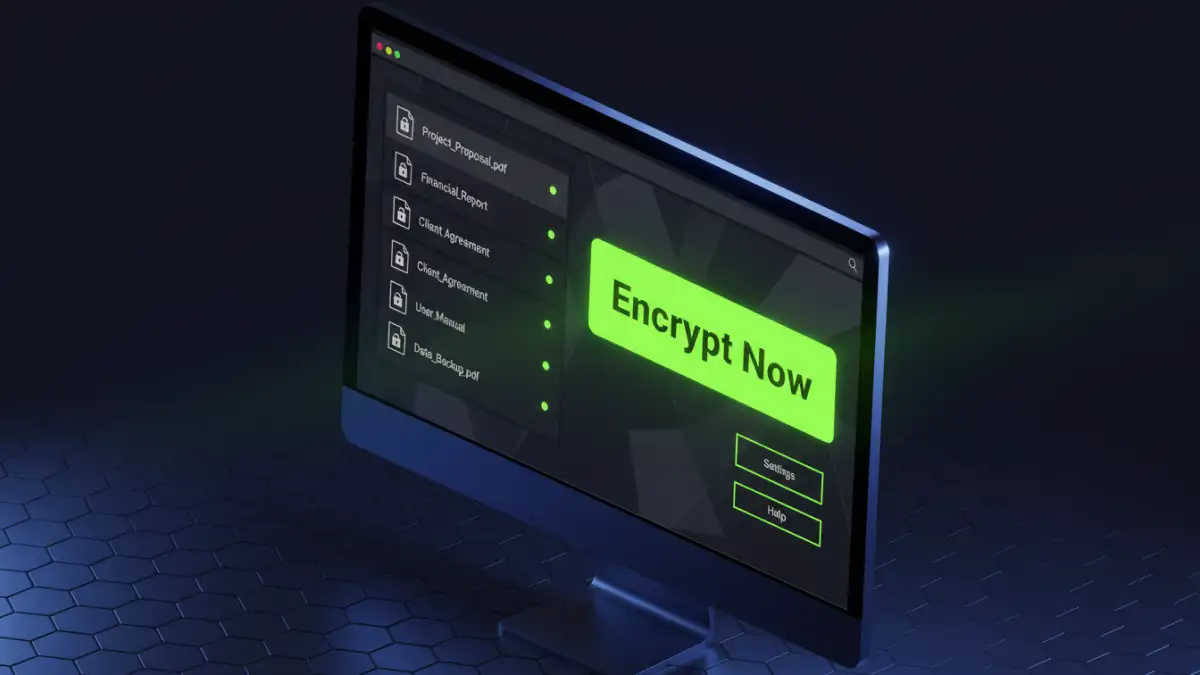
Batch encrypting allows you to apply the same password and encryption settings to an entire folder or a selected list of PDF files simultaneously. This not only saves a considerable amount of time but also ensures consistency in your security measures across all documents. It's a fundamental feature for anyone managing a significant number of sensitive files.
Top Software for Batch PDF Encryption
Over the years, I've tested numerous tools, and a few stand out for their reliability and ease of use when it comes to handling multiple files. The best pdf security software often balances robust features with an intuitive interface, making the process less daunting.
Popular Desktop Applications
For robust desktop solutions, tools like Adobe Acrobat Pro are powerful, offering extensive PDF manipulation features including batch encryption. However, they come with a subscription cost. For more budget-friendly or free options, utilities like Balesio's PDF Protector or various open-source command-line tools can be effective, though they might have a steeper learning curve. These applications typically allow you to select a folder, set a password, and initiate the encryption process for all contained PDFs.
Step-by-Step: Encrypting Multiple Files
The general process for using most batch encryption software is quite similar. First, you'll need to download and install a reputable PDF security software. Once installed, launch the application.
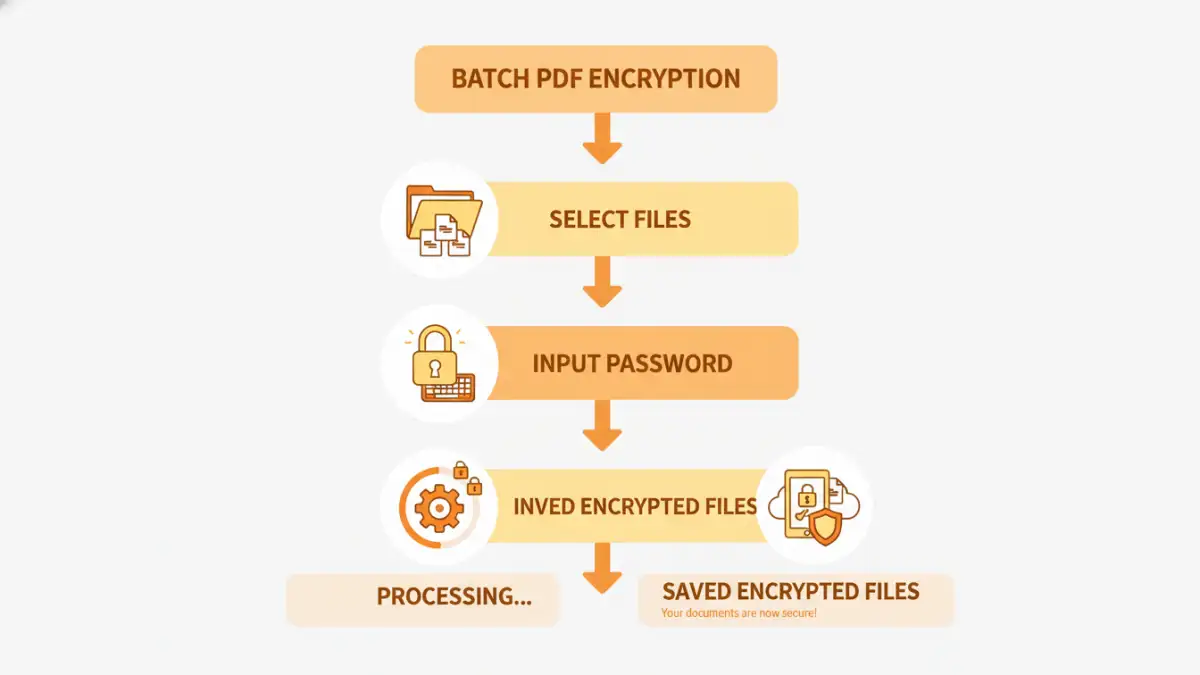
Next, you'll typically find an option for batch processing or a specific 'encrypt' function that supports multiple files. You'll then select the folder or the individual PDF files you wish to encrypt. The software will prompt you to enter a password, and often, to confirm it. Some tools might offer advanced options, such as setting permissions (e.g., preventing printing or copying). After configuring these settings, you initiate the process. The software will then work through each file, applying the encryption and saving the secured versions, often in a designated output folder.
Best Practices for Document Security
Choosing the right software is only part of the equation. Implementing strong security practices is equally important. Always use complex, unique passwords for your encrypted files. A mix of uppercase and lowercase letters, numbers, and symbols significantly increases the difficulty of brute-force attacks.
Consider storing your passwords securely using a reputable password manager. Avoid using easily guessable information, and never share your passwords carelessly. Regularly review your security protocols and update your software to ensure you benefit from the latest security patches and features. For exceptionally sensitive data, consider using encryption methods beyond simple password protection, such as digital certificates or multi-factor authentication where supported.
Comparison Table: PDF Encryption Methods
| Method | Pros | Cons | Use Case |
|---|---|---|---|
| Manual Encryption (Single File) | Free, built-in to some readers | Extremely time-consuming for multiple files, error-prone | Securing one or two critical documents |
| Dedicated Desktop Software | Powerful batch processing, advanced options, offline security | Can be costly, requires installation | Regularly securing large volumes of sensitive documents |
| Online PDF Tools | Convenient, accessible from anywhere, often free for basic use | Privacy concerns (uploading files), limited features, may require internet connection | Quick encryption of a few files when privacy is less critical |
| Command-Line Tools | Highly scriptable, efficient for automation, free | Steep learning curve, requires technical knowledge | Automated workflows, server-side encryption |