
Working with password-protected documents can be frustrating, especially when you need to access or share them quickly. Many of us store important files in cloud services like Dropbox, and sometimes these files are encrypted for added security. However, there are legitimate reasons why you might need to remove a password from a document stored in Dropbox, such as forgetting the password, needing to grant access to a colleague, or simply wanting to streamline access to your own files.
As someone who has navigated the complexities of digital security and file management for over a decade, I've encountered numerous scenarios where users needed to regain access to their encrypted files. It's crucial to approach this process with a clear understanding of the security implications and the available methods. This guide will walk you through the safest and most effective ways to handle password-protected documents within your Dropbox environment.
Table of Contents
Understanding Document Passwords and Dropbox
Dropbox itself does not encrypt individual documents with passwords. When you upload a password-protected file to Dropbox, the password protection is applied by the document's original application (like Microsoft Word, Adobe Acrobat, or a ZIP utility) before it's uploaded. Dropbox then encrypts the file during transit and at rest for its own security, but it doesn't manage or interact with the document's specific password protection.
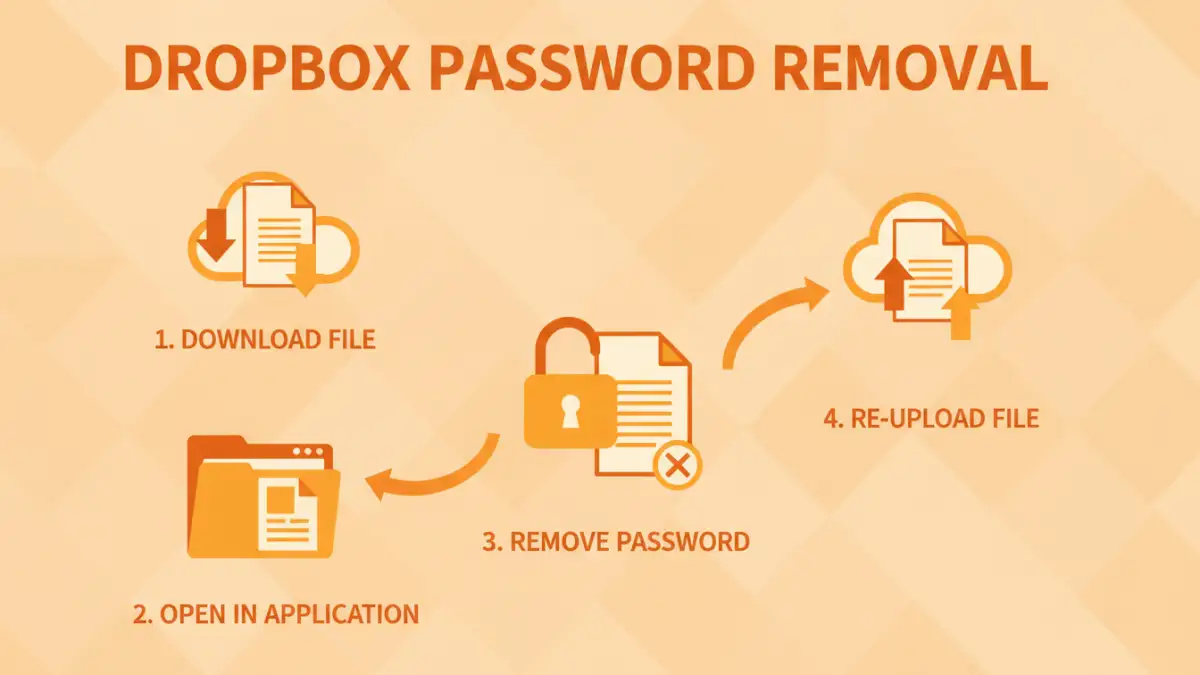
Therefore, to remove a password from a document within Dropbox, you generally need to work with the document itself, outside of Dropbox's direct file management. This means downloading the file, removing the password using appropriate software, and then re-uploading the unlocked version.
The Role of Encryption
It's important to distinguish between Dropbox's own encryption and the password protection applied to individual files. Dropbox uses industry-standard encryption protocols to secure your data while it's being transferred and stored on their servers. This protects your entire account and all files within it from external breaches. However, if you've personally added a password to a specific document, that layer of security is managed by the application that created the document, not by Dropbox.
Methods for Removing Passwords

The method you use to remove a password will depend on the file type and whether you know the original password. If you know the password, the process is usually straightforward. If you've forgotten the password, it becomes significantly more challenging, and in many cases, impossible without specialized tools that may not always be effective or secure.
Method 1: Using the Original Application (If Password is Known)
This is the most common and secure method if you have the password. For example, if you have a password-protected Word document:
- Download the document from Dropbox to your local computer.
- Open the document using Microsoft Word. You will be prompted to enter the password.
- Once the document is open, go to 'File' > 'Info' > 'Protect Document' (or similar, depending on your Word version).
- Select the option to encrypt with password and then choose to remove the password, or uncheck the password protection option.
- Save the document.
- Re-upload the unlocked document to Dropbox.
The process is similar for other file types like PDFs (using Adobe Acrobat Pro or other PDF editors) or compressed files (using WinRAR, 7-Zip, etc.). You need the application that originally applied the password protection.
Method 2: Online Password Removal Tools (Use with Caution)
For certain file types, particularly PDFs, there are online tools designed to remove passwords. These tools often work by exploiting how the password protection is implemented. However, using online tools for sensitive documents carries significant privacy risks. You are uploading your potentially sensitive file to a third-party server.
If you choose this route, ensure you use reputable services and understand their privacy policies. Search for services that specialize in unlocking PDFs or other document types. Be aware that these tools typically require you to know the password to remove it. If you've forgotten the password, these tools are unlikely to help and may even be malicious.
Method 3: Password Recovery Software (For Forgotten Passwords)
If you've forgotten the password to a document stored in Dropbox, your options are limited and often involve specialized software designed for password recovery. These tools attempt to brute-force or use dictionary attacks to guess the password. Success rates vary greatly depending on the password's complexity and the software's capabilities.
Be extremely cautious when using password recovery software. Many are not legitimate and can contain malware. Reputable options exist, but they are often paid services. Furthermore, recovering a strong password can take an exceptionally long time, sometimes weeks or months, and may not be successful. If the document is critical and the password is lost, consider if the data is worth the time, cost, and potential security risks involved in recovery attempts.
Important Considerations and Best Practices
When you need to remove a document password from a file stored in Dropbox, several factors are crucial to consider for maintaining both security and usability. The primary goal is to regain access without compromising your data or privacy.
Always prioritize using the original application if you have the password. This is the safest and most reliable method. Avoid uploading sensitive documents to untrusted online tools, as this can expose your data to potential breaches or misuse. If you frequently need to protect documents, consider using a password manager to securely store your passwords, making it easier to recall them when needed and reducing the likelihood of forgetting.
Secure Document Sharing
If the reason for removing a password is to share a document, explore Dropbox's built-in sharing features. You can create secure shareable links with optional expiration dates and download restrictions. For highly sensitive information, consider combining Dropbox sharing with end-to-end encryption methods that are managed by you, rather than relying solely on document-level passwords that can be lost.
Using strong, unique passwords for your documents and Dropbox account is paramount for overall security. Regularly review your shared files and permissions to ensure no unauthorized access is possible. If a document's password has been compromised or forgotten, and it contains highly sensitive information, the most secure approach might be to recreate the document and apply a new, remembered password.
Troubleshooting Common Issues
Even with known passwords, sometimes issues can arise when trying to unlock documents. One common problem is using the wrong password, especially if you have multiple versions or similar passwords. Double-checking the password and ensuring Caps Lock is off can resolve this.
Another issue might be file corruption. If a document appears to be corrupted after downloading or during the password removal process, it may be an issue with the original file or the download itself. Try re-downloading the file from Dropbox or checking if a backup exists. For password recovery software, if it fails to find a password, it usually indicates that the password is too complex for the software to crack within a reasonable timeframe.
Comparison Table
| Method | Password Required? | Ease of Use | Privacy Risk | Best For |
|---|---|---|---|---|
| Original Application | Yes | High | Low | Known passwords, secure removal |
| Online Tools | Often Yes | High | Moderate to High | Non-sensitive files, quick unlocks (if password known) |
| Password Recovery Software | No (attempts to find) | Low to Moderate | High | Forgotten passwords, critical data recovery (use with extreme caution) |
| Recreating Document | N/A | Moderate | Low | Lost passwords, sensitive data, rebuilding security |