Ensuring the authenticity and integrity of digital documents is crucial in today's fast-paced business environment. Whether you're dealing with contracts, agreements, or important reports, knowing how to properly secure them is paramount. One of the most effective ways to achieve this is by adding digital signatures.
Over my years working with various document management systems and security protocols, I've found that implementing digital signatures isn't just about compliance; it's about building trust and streamlining workflows. It provides a verifiable way to confirm that a document hasn't been tampered with and that it originated from the claimed sender. This article will guide you through the process of adding these essential security features to your PDF files.
Table of Contents
Understanding Digital Signatures
A digital signature is more than just a typed name or a scanned image placed on a document. It's a cryptographic mechanism that uses a pair of keys: a private key for signing and a public key for verification. When you sign a PDF, your private key creates a unique digital fingerprint for that specific document. Anyone can then use your public key to verify that the signature is valid and that the document hasn't been altered since you signed it. This process ensures non-repudiation, meaning you cannot later deny having signed the document.
Key Concepts
The core components involved are a digital certificate, which binds your identity to your public key, and the signing process itself. Digital certificates are typically issued by trusted Certificate Authorities (CAs). These certificates verify your identity, adding another layer of trust. When you add a digital signature to a PDF, you're essentially embedding this encrypted information that can be independently verified.
Methods to Sign PDF Documents
There are several ways to go about signing your PDFs, ranging from built-in features in common software to dedicated online services. The best method for you will depend on your specific needs, budget, and the level of security required. Some methods are quick and easy for occasional use, while others offer more robust features for frequent or high-stakes signing.
Using Adobe Acrobat (Standard/Pro)
For many professionals, Adobe Acrobat is the go-to software for PDF manipulation. If you have Adobe Acrobat Standard or Pro, you have a powerful, built-in tool to add digital signatures. This method is highly recommended for its reliability and integration within the Adobe ecosystem. It allows you to create a digital ID or use an existing one, and then apply your signature directly to the document.
To get started, open your PDF in Adobe Acrobat. Navigate to the 'Tools' menu and select 'Certificates'. Click on 'Digitally Sign' and then draw a box on the document where you want the signature to appear. A 'Sign Document' dialog box will pop up. You can choose to create a new digital ID or use an existing one. Follow the prompts to select your ID, enter your password, and confirm the signature. Once applied, save the document. This is a straightforward process that leverages trusted technology.
Leveraging Online PDF Signature Tools
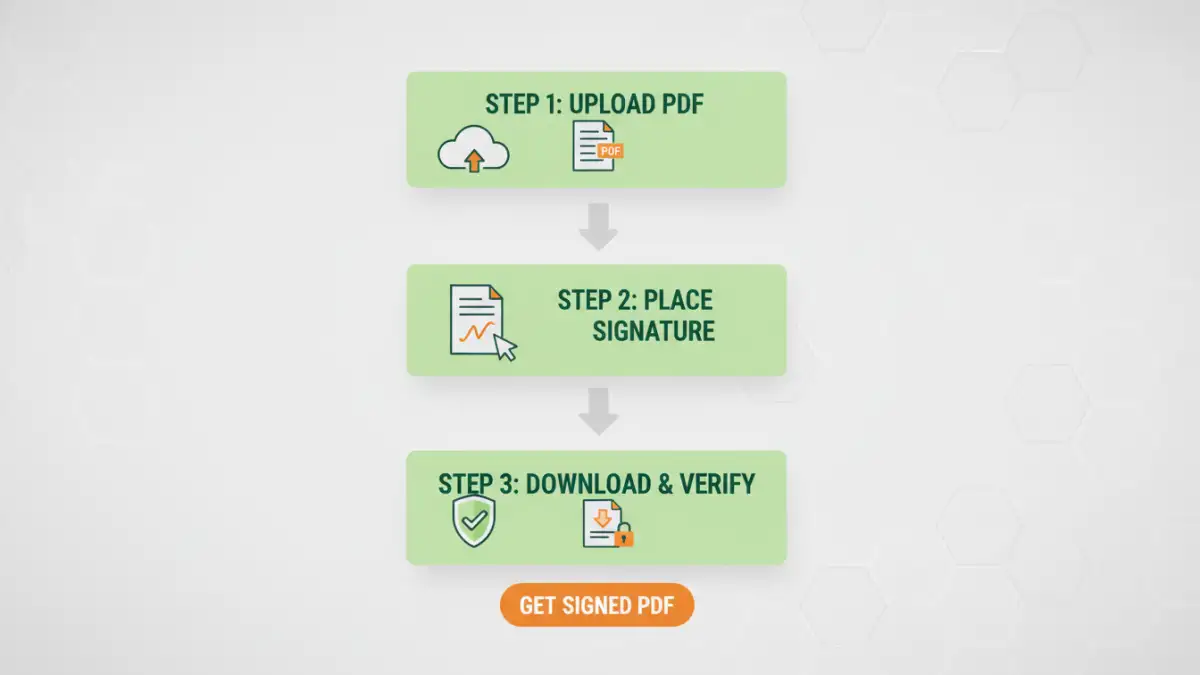
If you don't have Adobe Acrobat Pro or need a quick solution without installing software, numerous online PDF signature tools are available. Services like DocuSign, HelloSign (now Dropbox Sign), or even simpler tools like Smallpdf or iLovePDF offer ways to sign PDFs online. These platforms often provide a user-friendly interface where you can upload your document, place your signature (either by typing, drawing, or uploading an image), and download the signed file.
When using online tools, especially for sensitive documents, it's crucial to choose reputable providers. Look for services that clearly outline their security measures and privacy policies. Some offer free tiers for limited use, while others require a subscription for advanced features or higher volumes. These tools are excellent for their accessibility and speed, making it easy to sign pdf document on the go.
Advanced Considerations
Beyond the basic signing process, there are advanced features and considerations. Some PDF signature tools allow for more complex workflows, such as requesting signatures from multiple parties in a specific order. You can also configure your digital signature to include additional information, like your title, location, or the reason for signing. The validity and appearance of the signature can often be customized, though it's important to ensure these customizations don't compromise the underlying security.
Understanding the difference between a 'visible signature' and an 'invisible signature' is also useful. A visible signature appears as a graphic on the page, while an invisible signature is embedded in the document's metadata. For most practical purposes, a visible signature is preferred as it clearly indicates where the document has been signed. The choice of a PDF signature tool should align with the complexity and criticality of the documents you handle.
Best Practices for Secure Signing
To maximize the security and effectiveness of your digital signatures, follow these best practices. First, protect your private key diligently. Never share it, and use strong passwords to encrypt it. Regularly update your software, whether it's Adobe Acrobat or your chosen online service, to benefit from the latest security patches. Always verify the recipient's identity if possible, especially for high-value transactions, and understand that a digital signature confirms the document's integrity, not necessarily the signer's intent or legal capacity.
Use a trusted Certificate Authority for your digital ID if you're frequently signing official documents. This ensures higher assurance. Finally, be aware of the legal standing of digital signatures in your jurisdiction, as regulations can vary. Implementing secure pdf signing practices consistently builds a strong foundation for your digital document management.
Comparison Table: PDF Signing Methods
| Method | Pros | Cons | Best For |
|---|---|---|---|
| Adobe Acrobat (Standard/Pro) | Highly secure, reliable, integrated verification | Requires paid software license | Professional use, frequent signing, high security needs |
| Online PDF Signature Tools (e.g., DocuSign, Dropbox Sign) | Accessible from any device, user-friendly, often free tiers | Potential privacy concerns, feature limitations on free plans | Occasional signing, simple agreements, remote collaboration |
| Built-in OS/Browser Features (e.g., Preview on Mac) | Free, readily available on specific platforms | Limited functionality, basic signatures only, not true digital signatures | Very basic annotations, personal use, non-critical documents |
| Dedicated Desktop Software (Non-Adobe) | Often more affordable than Acrobat, specific features | Can vary greatly in quality and security, may require installation | Users seeking alternatives to Adobe, specific workflow needs |