
Working with password-protected documents can be frustrating, especially when you can't recall the password or the software used for encryption. Over the years, I've encountered numerous situations where legacy encryption on files became a barrier to accessing vital information. This often happens with older projects, archived data, or files shared by former colleagues. Understanding how to properly manage and remove old file encryption is crucial for maintaining data accessibility and security.
The challenge isn't just about brute-forcing a password; it's about doing so securely and efficiently, especially when dealing with sensitive data stored in the cloud. Many people might be tempted to use less secure methods out of desperation, but this can expose them to greater risks. My goal is to walk you through the legitimate and secure ways to tackle this common problem.
Table of Contents
Understanding File Encryption Basics
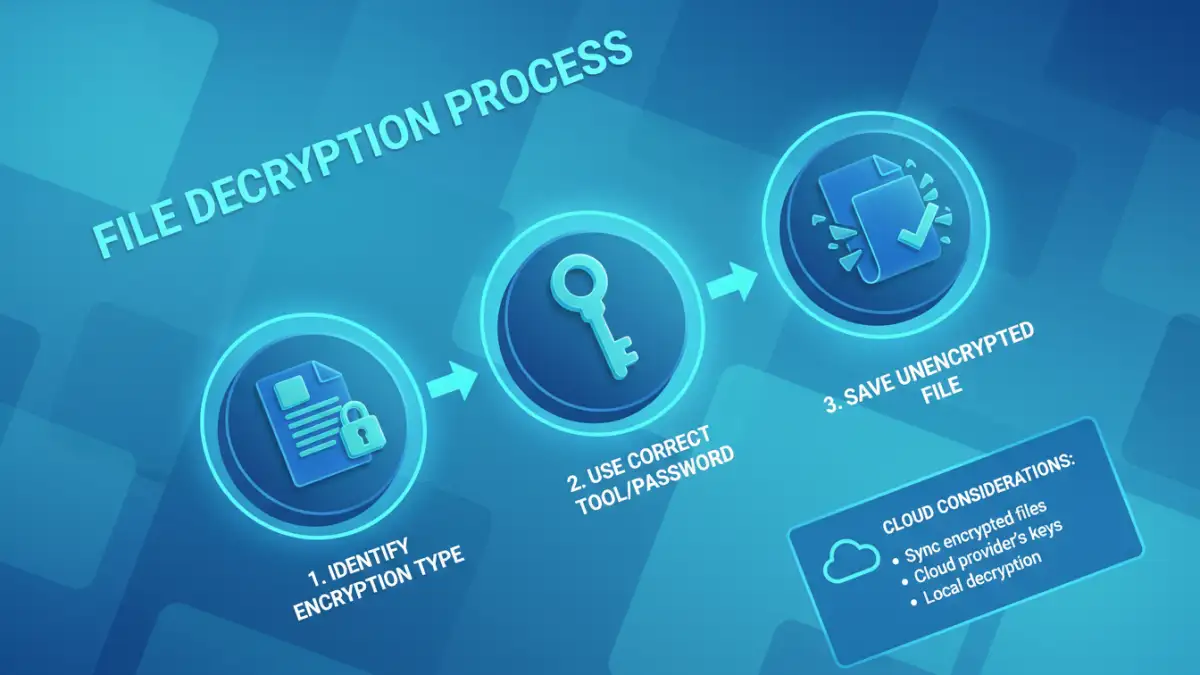
File encryption is the process of encoding information so that only authorized parties can access it. This is typically done using an encryption key or password. When you encrypt a file, its original content is transformed into an unreadable format (ciphertext). To access the original data (plaintext), you need the correct decryption key or password.
Common Encryption Types
There are various methods and levels of encryption. Some are built into operating systems like Windows (BitLocker) and macOS (FileVault), while others rely on third-party software (like VeraCrypt, 7-Zip, or Adobe Acrobat for PDFs). The strength of the encryption depends on the algorithm used and the complexity of the key or password.
Methods to Access Encrypted Files
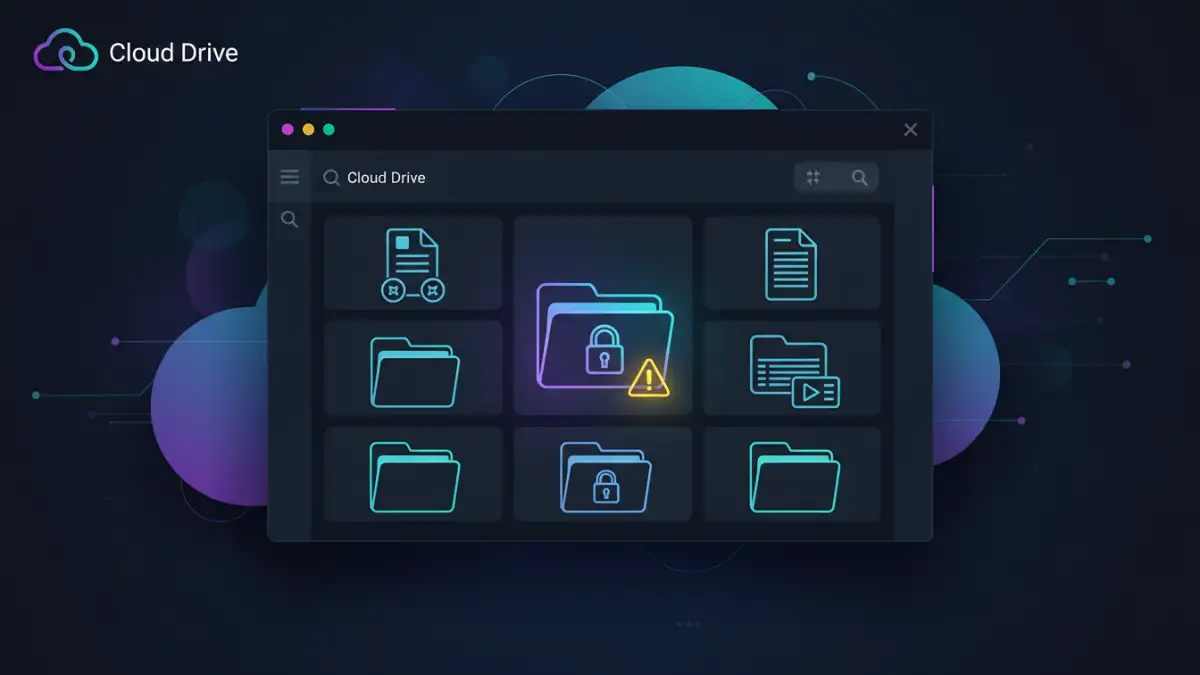
Before you can remove encryption, you often need to access the file first. The most straightforward method is to use the original password or key. If that's not an option, other approaches come into play.
Password Recovery and Guessing
If you know the encryption method but have forgotten the password, your first step should be to try common passwords you use or look for any notes where you might have recorded it. For less sensitive files, and if you have a limited number of guesses, you might consider using password recovery tools. However, these tools can be time-consuming and are not always successful, especially with strong encryption.
Using Original Software/Tools
Always try to use the software that originally encrypted the file. For example, if a PDF was encrypted with Adobe Acrobat, use Acrobat to decrypt it. If a ZIP file was encrypted with 7-Zip, use 7-Zip. Compatibility issues can arise if the file was encrypted with an older version of the software or a less common tool.
Securely Removing Encryption
Once you have successfully accessed an encrypted file, removing the encryption is often a matter of saving it in an unencrypted format or removing the password protection within the application. The process varies significantly based on the file type and the encryption method used.
Decrypting and Re-saving Files
For many applications, like Microsoft Office documents or PDFs, you can open the encrypted file, enter the password, and then save the file again under a new name or overwrite the existing one. This process essentially creates an unencrypted copy. Ensure you are saving it in a standard, unencrypted format if your goal is to remove the protection entirely.
Using Specialized Tools
For more complex encryption or when dealing with system-level encryption like BitLocker, you might need specific tools or administrative privileges. Online services and desktop applications exist that claim to help remove file encryption, but caution is paramount. Many of these tools can be unreliable, may contain malware, or could compromise your data further. Always research and use reputable cloud encryption tools or software.
Cloud-Specific Considerations
When dealing with encrypted files stored in cloud services like Google Drive, Dropbox, or OneDrive, the principles remain similar, but there are added layers to consider. You'll typically download the file, decrypt it using the appropriate method on your local machine, and then re-upload it if needed.
Managing Access in the Cloud
Some cloud platforms offer their own encryption for data at rest, but this doesn't protect files you've encrypted yourself. If you're trying to remove file encryption cloud-based, ensure you understand whether the encryption is applied by you or the service provider. If it's your own encryption, the process involves local decryption. For very old files or forgotten passwords, you might need to consider whether the effort to retrieve them outweighs the risk of using potentially compromised or outdated encryption methods.
Best Practices for Document Security
Preventing the need to remove old encryption starts with good document security best practices. Keep a secure, centralized record of your passwords and encryption methods. Use strong, unique passwords and consider password managers. Regularly review your encrypted files to ensure you still have access and that the encryption methods are still considered secure.
Comparison Table: Encryption Removal Methods
| Method | Pros | Cons | Use Case |
|---|---|---|---|
| Password Entry | Direct, secure, no data loss | Requires knowing the password | Standard file access |
| Software Decryption | Handles specific file types (PDF, ZIP) | Requires original software, compatibility issues | Encrypted documents, archives |
| Online Tools | Convenient, accessible anywhere | Privacy risks, limited features, potential malware | Simple, non-sensitive files (use with extreme caution) |
| System Tools (e.g., BitLocker) | Full disk/volume encryption, integrated | Requires admin rights, complex setup | Operating system and drive protection |