Working with password-protected documents can sometimes feel like navigating a maze. You need to share sensitive information, but you also need to ensure only the intended recipients can access it. This balance between security and accessibility is where the user experience of PDF password software truly shines, or falters.
As someone who’s spent over a decade building and evaluating software, I’ve seen firsthand how a clunky interface or confusing workflow can turn a simple security task into a frustrating ordeal. The goal is straightforward: protect a file. Yet, the journey to achieve that protection can vary wildly from one tool to another. This comparison focuses on how easy it is for the average user to effectively implement password protection on their PDFs.
Table of Contents
Understanding PDF Security Needs
Before diving into specific tools, it's crucial to understand why we need to secure our documents. Whether it's a confidential business proposal, personal financial records, or sensitive client data, unauthorized access can have serious repercussions. The primary need is to prevent casual snooping and accidental sharing, while also deterring malicious intent.
This means the software should offer robust encryption, but also make it simple for legitimate users to set and manage passwords. The complexity of the protection should align with the sensitivity of the document. For instance, a simple password might suffice for internal memos, while highly confidential data might require stronger, more complex password requirements.
The 'Print to PDF' Browser Trick
One of the simplest, albeit limited, methods to handle certain types of password protection involves using your web browser's print functionality. If a PDF has an owner password that prevents printing or copying, but not opening, you can often 'print' it to a new PDF file. This effectively bypasses restrictions on content extraction but doesn't add new protection.
The user experience here is straightforward: open the PDF in a browser that allows printing, go to print, and select 'Save as PDF' as your printer. The new PDF will have the restrictions removed. However, this method is useless for files that require an open password to even view, and it doesn't add any new layer of security to your documents. It’s a workaround, not a security solution.
Evaluating Online PDF Password Tools
The market is flooded with online services promising quick and easy PDF password protection. These often feature drag-and-drop interfaces, minimal steps, and clear instructions. For users who need to secure a document occasionally and prioritize speed, these tools can be very appealing. I've used many of these, and the typical workflow involves uploading your file, entering a password, and downloading the protected version.
However, the user experience can be marred by privacy concerns. Uploading sensitive documents to a third-party server, even for encryption, carries inherent risks. Furthermore, the features can be basic, often only supporting simple password protection and lacking advanced options like permission restrictions. For a user-friendly experience, clarity on data handling policies and straightforward navigation are paramount.
Desktop Software: A Deeper Dive
Dedicated desktop applications for password protected PDF files often offer a more comprehensive and secure experience. These tools install directly onto your computer, meaning your files don't leave your system during the encryption process. This is a significant advantage for security-conscious users and businesses handling sensitive data. I find that robust desktop applications provide a sense of control and reliability that online tools can’t match.
The user experience here can range from very intuitive to quite complex, depending on the software. Top-tier applications strike a good balance, offering simple options for basic password protection alongside advanced settings for encryption strength, user permissions (like preventing printing or copying), and batch processing. A well-designed interface will guide users through these options without overwhelming them.
Advanced Features and Ease of Use
Beyond just setting a password, the best software allows users to set different passwords for opening the document versus applying restrictions. This means you can give one person the password to read your document, but another person the password to print it. The clarity of how to set these different levels of protection is a key part of the user experience.
For example, a user-friendly interface will clearly label fields for 'Open Password' and 'Permission Password' and explain what each one does. Conversely, a poorly designed interface might lump these options together or use jargon that confuses the average user. The ability to preview changes or confirm settings before applying them also contributes to a positive user experience.
Key User Experience Factors
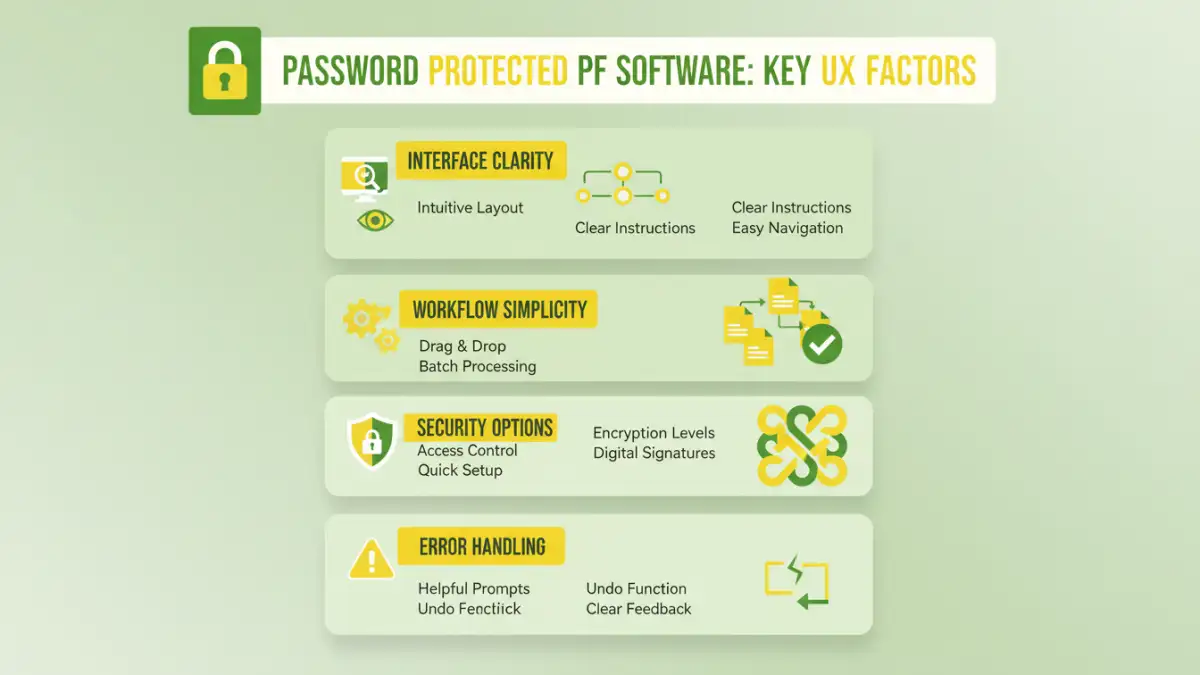
When evaluating password protected PDF software from a user experience standpoint, several factors stand out. Firstly, the installation and setup process should be quick and painless. Secondly, the main interface needs to be clean, intuitive, and free of clutter. Users should be able to find the function they need within seconds.
Thirdly, the process of actually applying the password should be straightforward. Clear labels, helpful tooltips, and logical workflows are essential. Finally, error handling and feedback are crucial. If something goes wrong, the software should provide clear, actionable messages explaining the issue and how to resolve it, rather than cryptic error codes.
Best Practices for Password Protection
Regardless of the software used, best practices for password protection remain consistent. Always use strong, unique passwords that combine uppercase and lowercase letters, numbers, and symbols. Avoid easily guessable information like names, birthdays, or common words. It's also wise to use different passwords for different documents, especially for highly sensitive information.
Furthermore, consider the type of protection needed. Do you just need to prevent unauthorized viewing, or do you also need to restrict copying, printing, or editing? Understanding these needs will help you choose the right software and configure it effectively. Regularly review and update your passwords, and securely store them, perhaps using a reputable password manager.
Comparison Table
| Method/Tool Type | Ease of Use | Security Level | Privacy Concern | Best For |
|---|---|---|---|---|
| Browser 'Print to PDF' | Very High | None (removes existing) | Low | Removing owner passwords |
| Online PDF Password Tools | High | Moderate | High | Occasional, non-sensitive files |
| Desktop Software (Basic) | High | Moderate to High | Low | Regular, general use |
| Desktop Software (Advanced) | Moderate | Very High | Low | Highly sensitive data, complex needs |