Working with password-protected documents can be frustrating, especially when you need to share sensitive information quickly and securely. Many people assume that encrypting files requires technical expertise, but the reality is that numerous tools are designed with ease of use in mind. Finding the right one can make all the difference between a smooth, secure process and a confusing, time-consuming ordeal.
My goal here is to cut through the noise and highlight which pdf encryption tools stand out for their simplicity, making them accessible even for those who aren't tech-savvy. We'll look at what makes an encryption tool truly user friendly and compare some of the top contenders.
Table of Contents
Understanding PDF Encryption Basics
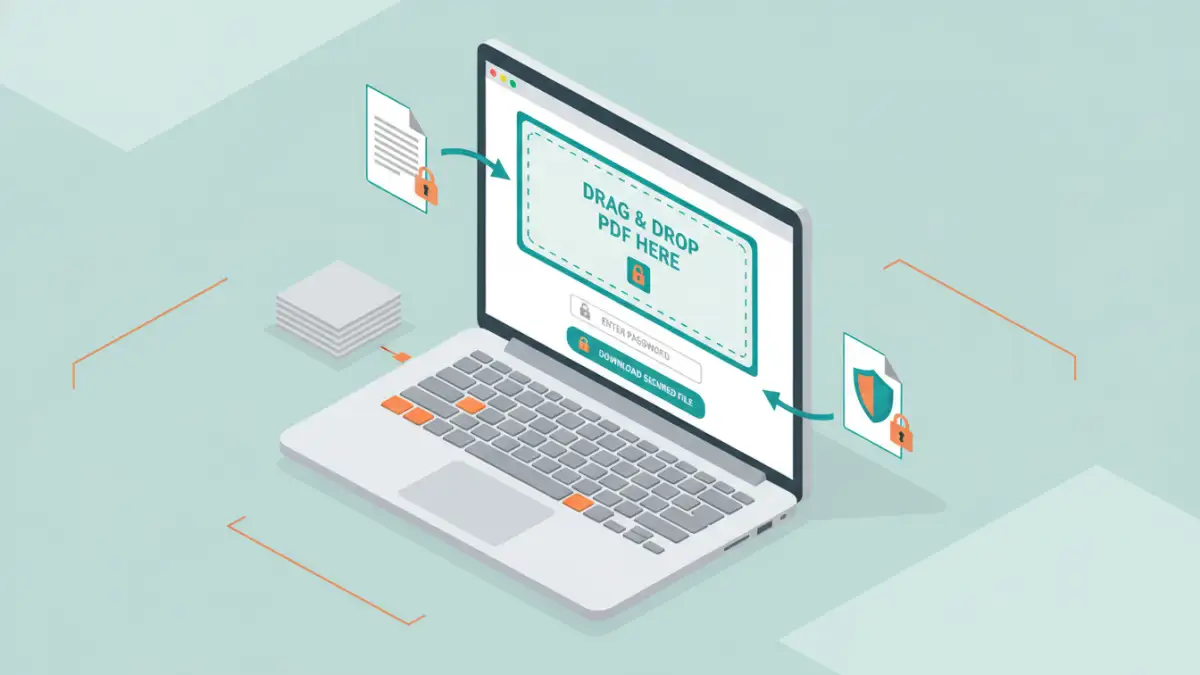
At its core, PDF encryption is about applying a layer of security to your document using a password. When a PDF is encrypted, it cannot be opened or viewed without the correct password. This process scrambles the document's content, making it unreadable to anyone who doesn't possess the key – the password.
Key Concepts
Most modern pdf encryption tools use strong encryption algorithms like AES-256, which is considered industry-standard and highly secure. The key is the password you set. A strong password, combining uppercase and lowercase letters, numbers, and symbols, is crucial for effective protection. Many tools also offer different permission settings, such as preventing printing or copying of text, in addition to password protection.
What Makes an Encryption Tool Easy for Beginners?
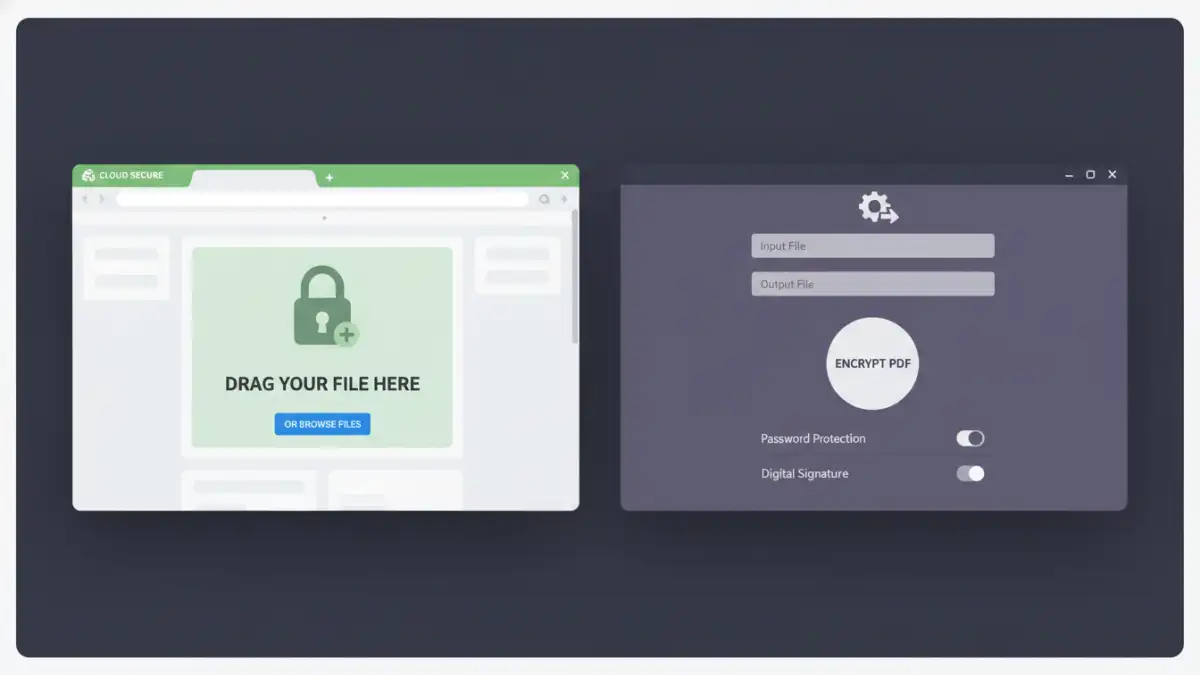
For beginners, the ideal encryption tool should have an intuitive interface. This means clear navigation, straightforward options, and minimal jargon. Drag-and-drop functionality is a huge plus, as is a simple, guided process from uploading your file to setting your password and downloading the secured version. Fast processing times and readily available help or tutorials also contribute significantly to a positive user experience.
I've found that tools that abstract away the complex technical details, presenting users with simple choices like "Set Password" or "Protect Document," are generally the most successful for a beginner audience. The fewer steps and less technical decision-making required, the better.
Online PDF Encryption Tools
Online tools are often the go-to for quick, easy pdf encryption. They require no software installation and can be accessed from any device with an internet connection. For simple password protection, these are incredibly convenient.
Popular Online Options
Platforms like Smallpdf, iLovePDF, and Adobe Acrobat online offer free or freemium tiers for encrypting PDFs. Their interfaces are typically very clean. You usually upload your PDF, enter and confirm a password, and then download the encrypted file. The primary concern with online tools is privacy; while reputable services have strong security measures, you are uploading your sensitive data to a third-party server.
Desktop PDF Encryption Software
For more robust features, offline security, or frequent use, desktop software can be a better choice. These applications install directly onto your computer, meaning your files don't leave your system during the encryption process, which can be a significant advantage for highly sensitive documents.
Software Advantages
Desktop applications often provide more advanced options, such as batch encryption (securing multiple files at once), detailed permission controls, and support for various encryption standards. While they might have a slightly steeper learning curve than the simplest online tools, many still offer very user-friendly interfaces. Examples include Adobe Acrobat Pro (paid) or various third-party applications that focus solely on PDF security.
Choosing the Right Tool for You
The best tool depends on your specific needs. If you only need to encrypt a document occasionally and it's not top-secret, an online tool is likely sufficient and the easiest to use. For regular use, highly sensitive data, or if you prefer to keep files entirely offline, a desktop application would be more appropriate. Always prioritize tools that offer strong encryption algorithms, like AES-256.
Comparison Table: PDF Encryption Approaches
| Method | Ease of Use (Beginner) | Security Level | Privacy | Cost |
|---|---|---|---|---|
| Online Tools (e.g., Smallpdf, iLovePDF) | Very High | Good (AES-256) | Moderate (depends on provider) | Free/Freemium |
| Desktop Software (e.g., Adobe Acrobat Pro, PDFelement) | Moderate to High | Very High (AES-256) | Excellent (offline processing) | Paid (some free options with fewer features) |
| Built-in OS Features (e.g., Preview on Mac) | High | Good (AES-256) | Excellent (local processing) | Free |
Extra tips before you try to pdf encryption tools
First, confirm what kind of protection you are dealing with. Some PDFs require a password to open (user password), while others only restrict printing/copying/editing (owner password). The safest approach depends on which one you have.
For sensitive documents, prefer offline tools and avoid uploading confidential files to unknown websites. If you must use an online tool, read the privacy policy and delete uploaded files immediately after processing.
- Try a different PDF viewer (some apps cache old permissions)
- Re-download the file (corruption can cause false password errors)
- Check caps lock / keyboard layout for password entry
- Differentiate “permission password” vs “open password” prompts
- If it is not your file, request access from the owner