When evaluating document security platforms, the user interface (UI) design is often as critical as the underlying encryption and security protocols. A clunky or confusing interface can lead to user errors, reduced adoption, and ultimately, compromised security, regardless of how robust the system is. My experience has shown that the best solutions seamlessly blend powerful security features with intuitive design.
We've all encountered software that felt like navigating a maze. In the context of sharing sensitive documents, such an experience isn't just frustrating; it can be a significant security risk. Users might skip crucial steps, misconfigure settings, or abandon the platform altogether if it's too difficult to use. This is why understanding the nuances of file sharing UI is so important.
Table of Contents
Understanding the Importance of UI in Secure File Sharing
The primary goal of any secure file sharing solution is to protect data while enabling efficient collaboration. The UI acts as the bridge between these two objectives. A well-designed interface guides users through complex security processes, making them accessible and manageable for individuals with varying technical expertise.
Think about it: if a user has to consult a lengthy manual just to figure out how to share a document securely, they're less likely to do so consistently. This often leads to workarounds that bypass security measures. Therefore, a platform's ability to simplify security through its user experience sharing capabilities is paramount.
Impact of UI on Security and Adoption
A user-friendly interface reduces the learning curve, encouraging wider adoption across teams and organizations. When users can easily understand how to set permissions, track access, and revoke sharing rights, they are more confident in the platform's security. Conversely, a poor UI can lead to misconfigurations, accidental data exposure, and a general distrust of the system.
Key Design Elements to Compare
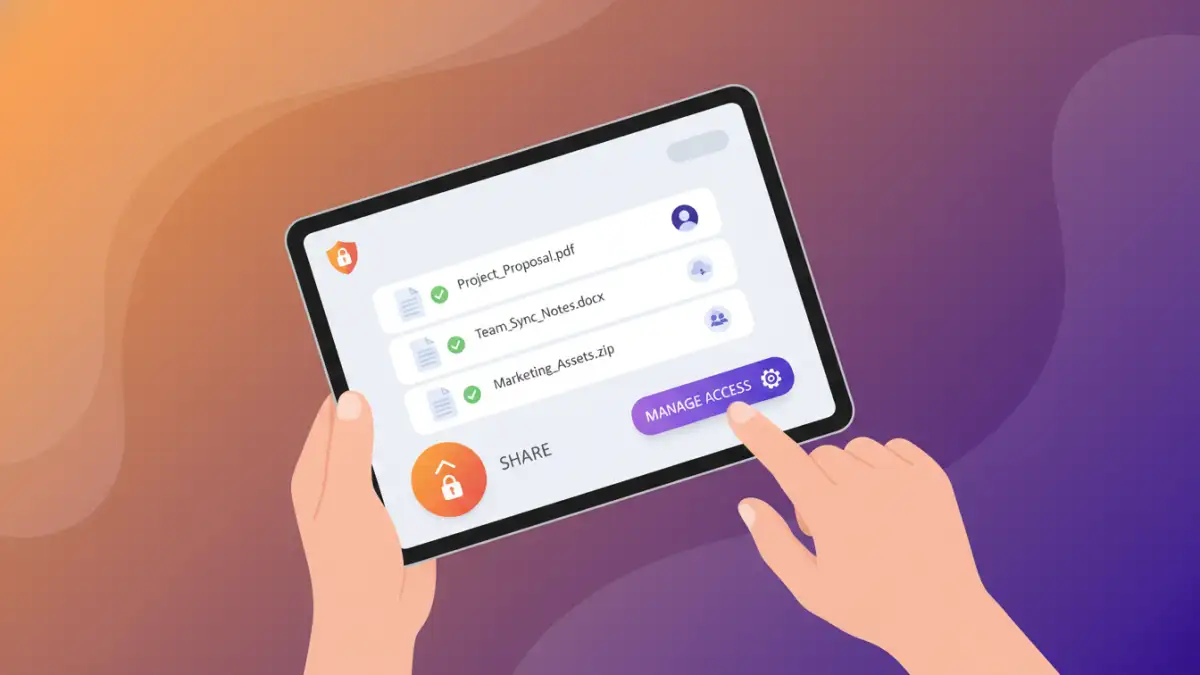
When evaluating different secure file sharing platforms, several UI design aspects warrant close attention. These elements directly influence usability, efficiency, and the overall user experience.
Navigation and Workflow
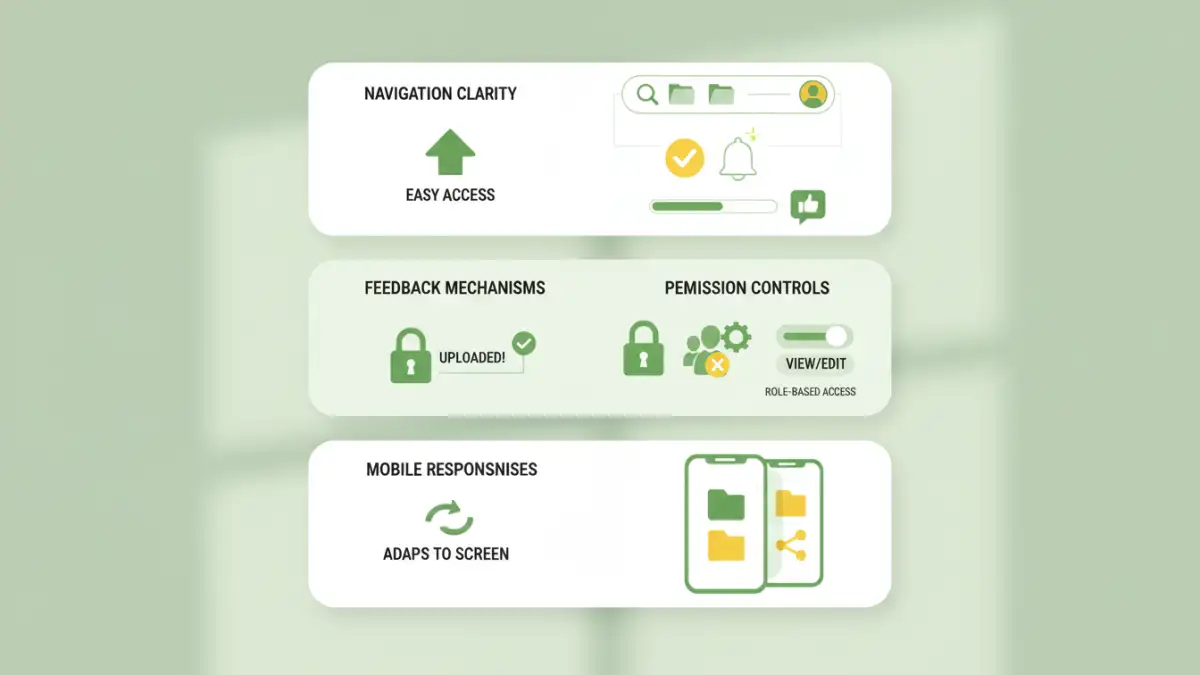
How easy is it to find the features you need? Is the process for uploading, sharing, and managing files logical and streamlined? A clear navigation structure and intuitive workflow are essential for quick and error-free operations. I've seen platforms where finding the 'share' button felt like a treasure hunt, which is never ideal.
Visual Clarity and Feedback
Does the interface provide clear visual cues about the security status of files? For example, are icons used effectively to indicate encryption, shared status, or access levels? Immediate and understandable feedback on user actions and system status is crucial for building user confidence and preventing mistakes.
Customization and Accessibility
Can users customize certain aspects of the interface to suit their preferences or workflows? Is the design accessible to users with disabilities, adhering to WCAG guidelines? While not always a primary security feature, these aspects contribute significantly to the overall user experience and can indirectly impact security by improving user engagement.
Platform A: Simplicity First
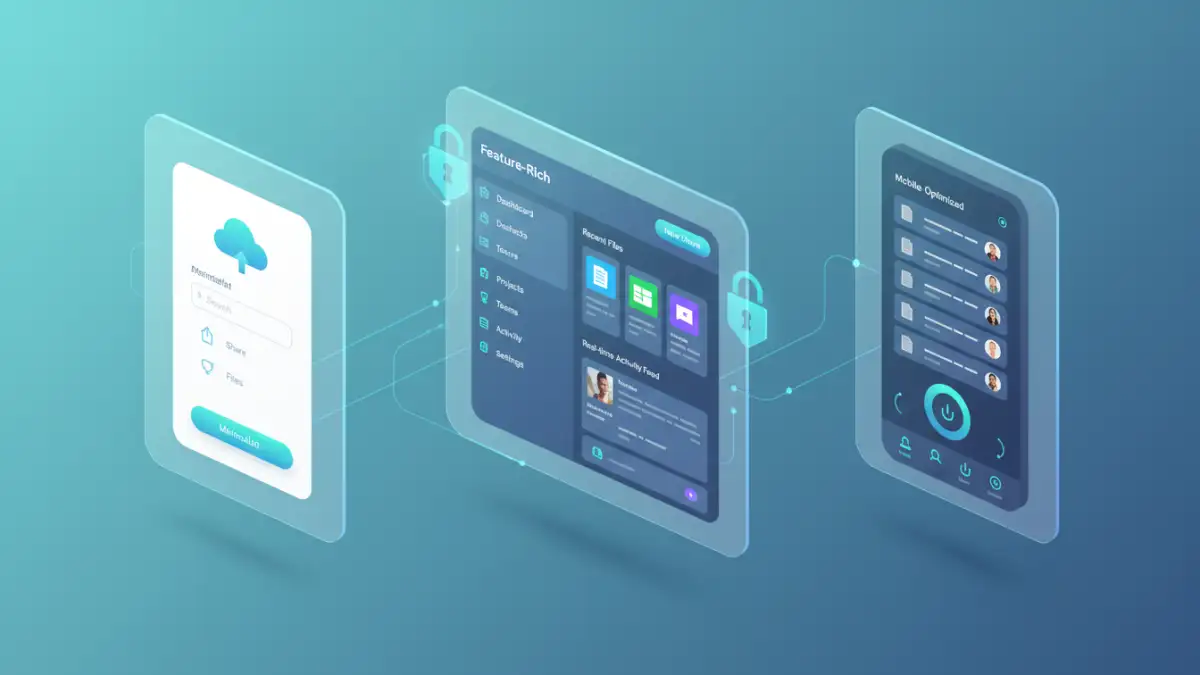
Platform A typically prioritizes a minimalist design, focusing on core functionalities. The interface is clean, with straightforward navigation and a limited number of options presented at once. This approach is excellent for users who need to perform basic secure file sharing tasks quickly without being overwhelmed by advanced settings.
The strength of Platform A lies in its ease of use. Uploading a file and setting basic sharing permissions (like read-only or edit access) is typically a one or two-click process. However, this simplicity can sometimes come at the cost of advanced customization options, which might be a drawback for power users or complex enterprise needs.
Pros and Cons of Platform A
Pros include rapid onboarding, reduced user error for basic tasks, and a clean aesthetic. Cons might involve a lack of granular control over permissions, fewer integration options, and potentially less robust audit trails compared to more complex systems.
Platform B: Feature-Rich Interface
In contrast, Platform B often presents a more comprehensive interface packed with features. Users will find a wider array of options for managing permissions, setting expiration dates, tracking download history, and integrating with other business tools. This design caters to organizations with complex security requirements and a need for detailed oversight.
While powerful, the extensive feature set can make Platform B appear more intimidating to new users. The workflow might involve more steps, and understanding the full scope of each setting requires a greater investment in learning. However, for seasoned users or IT administrators, this depth of control is invaluable for maintaining stringent security policies.
Pros and Cons of Platform B
The advantages include extensive control, detailed audit logs, and integration capabilities. The disadvantages are a steeper learning curve, potential for user confusion if not properly trained, and a more cluttered visual appearance.
Platform C: Mobile-Centric Design
Platform C is designed with the mobile user in mind. Its UI is optimized for smaller screens, featuring touch-friendly controls and simplified menus. Sharing files on the go becomes much more manageable, with features like secure document viewing and quick permission adjustments accessible from a smartphone or tablet.
This focus on mobile accessibility is crucial in today's work environment. However, users often find that performing complex administrative tasks or managing large numbers of files can be less efficient on mobile compared to a desktop interface. The trade-off is convenience for detailed management.
Pros and Cons of Platform C
Key benefits are excellent mobile usability and quick sharing from anywhere. The drawbacks might include limitations in advanced features on mobile, potential for accidental touches leading to errors, and a less comprehensive experience for desktop users.
UI Design Comparison Table
Here's a quick comparison of how different UI approaches stack up:
| Platform Type | Primary Focus | Navigation Style | Complexity for New Users | Ideal Use Case |
|---|---|---|---|---|
| Platform A (Simplicity First) | Ease of use, core functions | Minimalist, guided | Low | Individuals, small teams, basic sharing |
| Platform B (Feature-Rich) | Granular control, auditability | Comprehensive, multi-layered | High | Enterprises, IT admins, complex workflows |
| Platform C (Mobile-Centric) | On-the-go access, touch optimization | Simplified, adaptive | Medium | Mobile workforce, field teams |