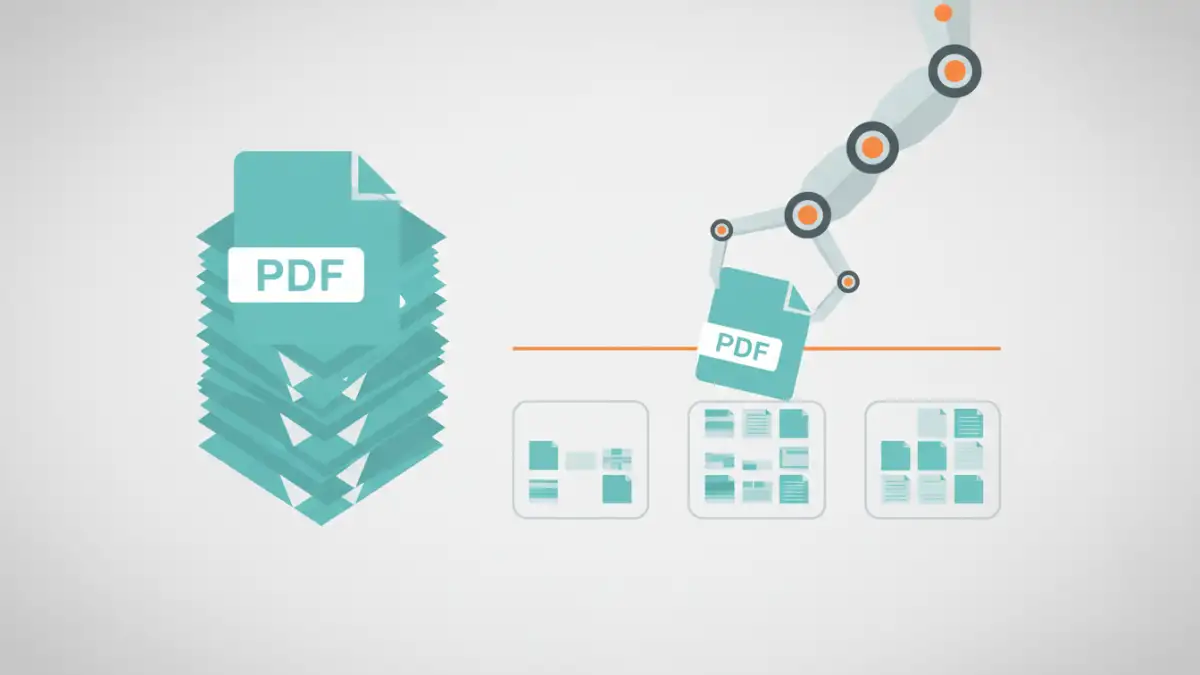
Managing a large number of documents can quickly become overwhelming, especially when they are all contained within a few large PDF files. Trying to extract specific pages or sections from these monolithic documents often involves tedious manual work, which consumes valuable time and increases the risk of errors. Whether you're a student organizing research papers, a legal professional handling case files, or a business owner managing invoices, the ability to efficiently break down large PDFs into smaller, manageable parts is crucial for productivity.
This need for efficient document handling is where the power of batch processing comes into play. Instead of working on one file at a time, batch operations allow you to apply the same action to multiple files simultaneously, or to a large file with multiple desired outputs. This capability is a game-changer for anyone dealing with extensive document archives. Let's explore how you can leverage this functionality to organize your digital life.
Table of Contents
Understanding the Basics of PDF Splitting
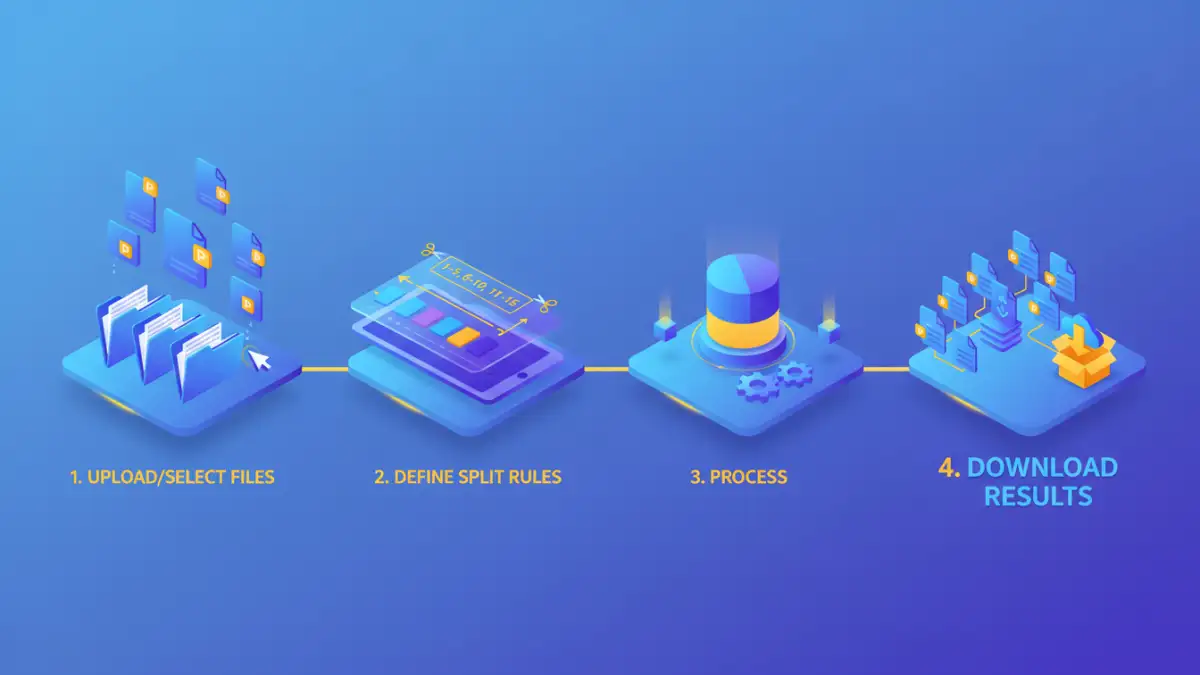
At its core, splitting a PDF means dividing a single PDF document into two or more smaller PDF files. This can be done based on various criteria: separating each page into its own file, splitting after a certain page number, or dividing based on specific markers within the document. The complexity and flexibility of this process depend heavily on the tools you use.
Key Concepts
When we talk about splitting, we're often referring to page ranges or individual pages. For instance, you might want to extract pages 5-10 from a report into a new document. In a batch scenario, this concept is applied to multiple files or to one large file where you define multiple split points. This is fundamental to effective pdf management tools.
Manual vs. Batch Splitting
The traditional approach involves opening a PDF, selecting pages, saving them as a new file, and repeating this process for every section or file. This is incredibly time-consuming and prone to human error, especially with hundreds of pages or multiple documents. Imagine having to do this for 50 different reports; it would take days.
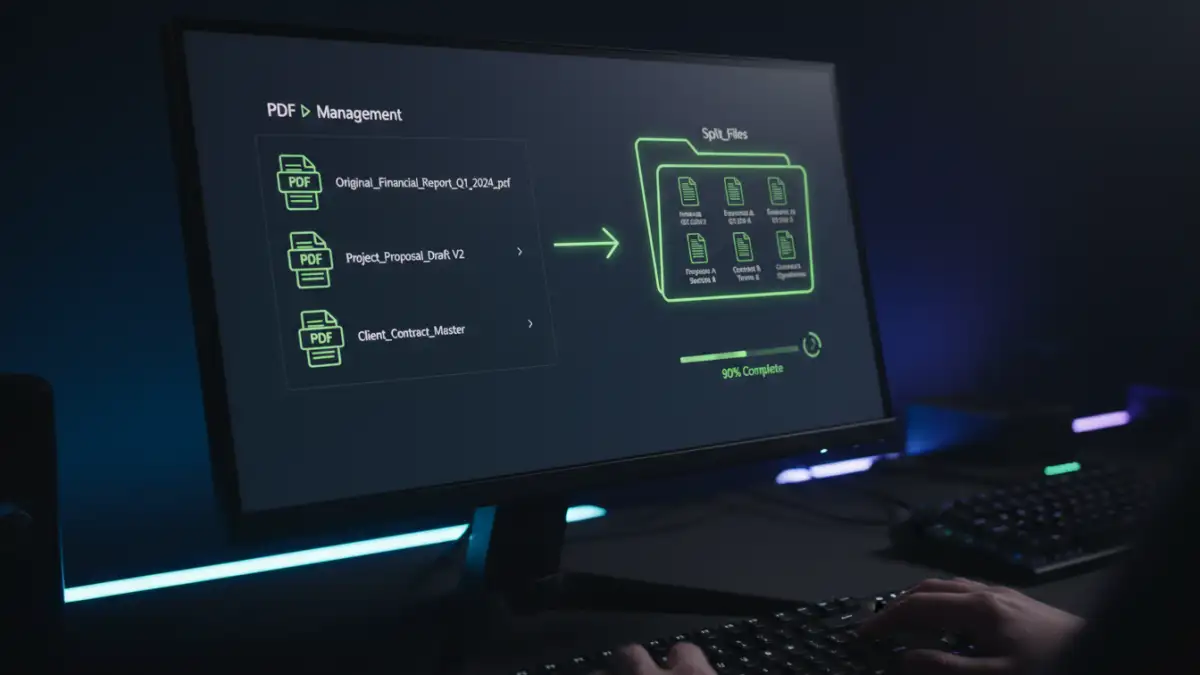
Batch splitting, on the other hand, automates this entire workflow. You define the splitting rules once, and the software or tool applies them to all selected files or to a single large file according to your specifications. This is where the real time savings and efficiency gains are found. Organizing documents becomes a task that can be completed in minutes, not days.
Step-by-Step Methods for Batch Splitting
There are several ways to achieve batch splitting, ranging from built-in operating system features to dedicated software and online services. The best method for you will depend on your technical comfort level, the volume of documents, and your budget.
Using Desktop Software
Dedicated PDF editing software, such as Adobe Acrobat Pro, Foxit PhantomPDF, or Nitro PDF Pro, offers robust batch processing capabilities. Typically, you would navigate to a 'Batch Process' or 'Organize Files' section, select your PDF files, choose the 'Split' action, and define your splitting criteria. This might include splitting by page count (e.g., every 10 pages), by file size, or by bookmarks. Once configured, you initiate the process, and the software handles the rest, saving the new files in a designated output folder.
Leveraging Online Tools
Numerous online PDF tools offer batch splitting functionalities. Websites like Smallpdf, iLovePDF, or PDF2Go allow you to upload multiple PDF files, select a splitting option (like splitting each page into a separate file or splitting into custom ranges), and then download the resulting smaller files. While convenient for occasional use and requiring no software installation, be mindful of file size limits and privacy concerns when uploading sensitive documents to third-party servers. These tools are excellent for quick tasks when you need to split pdf files bulk.
Choosing the Right PDF Management Tools
The effectiveness of your batch splitting efforts hinges on the tools you employ. For consistent, high-volume work, investing in professional desktop software is often the most reliable and secure option. These tools provide advanced features, better control, and enhanced security. For less frequent or simpler tasks, online tools can be a cost-effective and accessible solution.
When selecting a tool, consider its user interface, the variety of splitting options available, integration capabilities (e.g., cloud storage), security protocols, and pricing. Some tools might offer specific features for organizing documents that go beyond simple splitting, such as merging, reordering, or converting files, providing a more comprehensive document management solution.
Best Practices for Document Organization
Beyond just splitting files, adopting good organizational habits ensures long-term efficiency. Always use clear and consistent naming conventions for your new files. For example, instead of `Report_Page_5.pdf`, use `ProjectX_Report_2023_Pages_5-10.pdf`. This makes it easier to locate specific documents later.
Furthermore, establish a logical folder structure for your documents. Grouping files by project, date, or type will complement your batch splitting efforts. Regularly review and archive old or unnecessary documents to keep your digital workspace clean and manageable. Implementing these practices alongside efficient batch splitting will dramatically improve your overall document workflow.
Comparison Table
| Method | Pros | Cons | Best For |
|---|---|---|---|
| Desktop Software (e.g., Adobe Acrobat Pro) | Powerful features, high security, batch processing, advanced options | Can be expensive, requires installation | High volume, frequent use, sensitive documents |
| Online PDF Tools (e.g., iLovePDF, Smallpdf) | Convenient, no installation, often free for basic use, quick processing | Privacy concerns, file size limits, fewer advanced options | Occasional use, non-sensitive documents, quick tasks |
| Built-in OS Features (e.g., Preview on macOS) | Free, readily available on some systems | Limited functionality, not true batch processing for splitting into multiple files | Simple page extraction on single files |