Working with password-protected documents can be frustrating, especially when you need to access or modify multiple files. Remembering individual passwords or having to unlock each PDF one by one consumes valuable time and effort. Fortunately, there are effective ways to manage this, particularly when dealing with a large number of encrypted files.
My experience has shown that while securing documents is crucial, the process of managing those security measures later on can become a bottleneck. This is where tools and techniques for batch PDF password removal become indispensable for individuals and businesses alike.
Table of Contents
Understanding PDF Password Protection
PDFs can be protected in two primary ways: an owner password that restricts editing, printing, or copying, and a user password that prevents opening the document altogether. Understanding which type of protection you're dealing with is key to selecting the right removal method. For instance, if you know the owner password, removing restrictions is often simpler than if you need to bypass the user password.
Types of PDF Passwords
The user password, often called the 'open' password, is the one that prevents anyone from viewing the document without entering it first. The owner password, or 'permissions' password, allows viewing but blocks actions like printing or copying text. Many tools can handle owner password removal easily if you know it, but bypassing user passwords is significantly more complex and often involves brute-force methods or specialized software.
The Browser 'Print to PDF' Trick
One of the simplest and often overlooked methods for removing owner passwords involves using your web browser's print functionality. This technique works by essentially re-creating the PDF, stripping away any restrictions that were applied. It’s a clever workaround that requires no special software, just a PDF reader and a web browser.
How to Use the Browser Method
Open the password-protected PDF in a browser that supports PDF viewing (like Chrome or Edge). If it's protected by an owner password, you should be able to open it. Then, go to the print option (usually Ctrl+P or Cmd+P), and select 'Save as PDF' or 'Microsoft Print to PDF' as your printer. This will create a new PDF file without the restrictions. This method is excellent for single files or small batches where you know the owner password.
Leveraging Online PDF Tools
The internet offers a plethora of online services designed to simplify PDF management tasks, including password removal. These platforms are generally user-friendly and accessible from any device with an internet connection. They are particularly useful for quick, one-off tasks or for users who prefer not to install additional software.
Popular Online Options
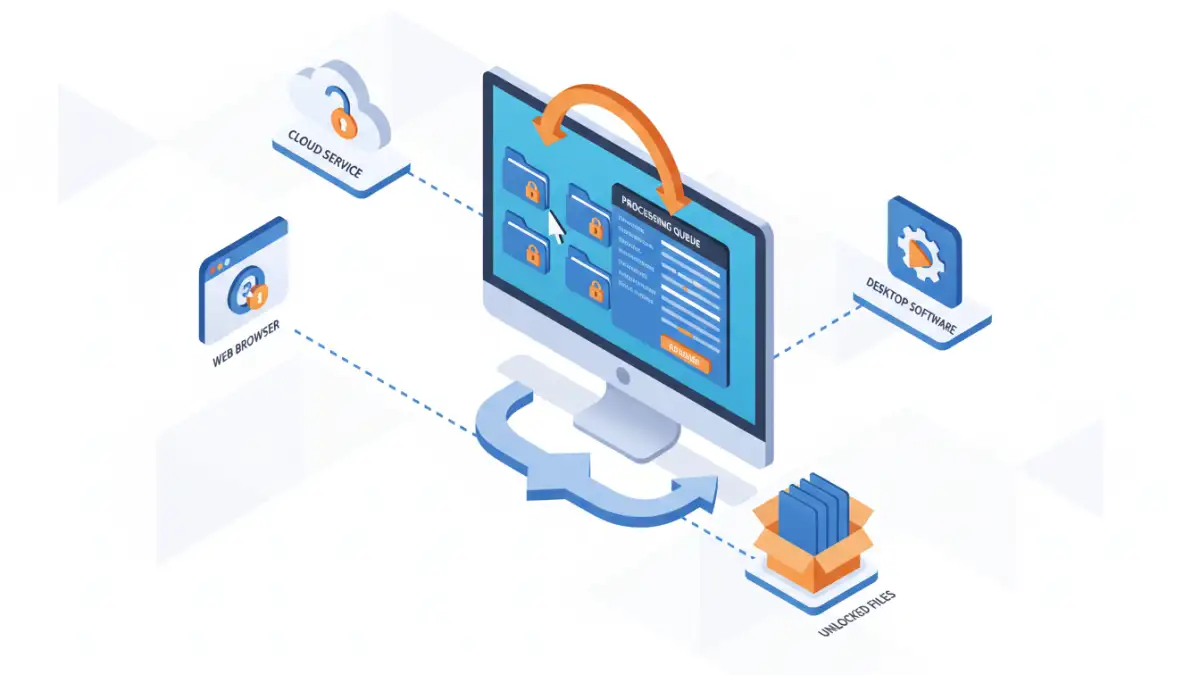
Services like Smallpdf, iLovePDF, and PDF2Go offer functions to remove PDF passwords. You typically upload your secured file, provide the existing password (if it's an owner password), and the service processes it. The tool then allows you to download the unlocked version. However, it's crucial to consider privacy implications when uploading sensitive documents to third-party online services. For batch PDF password removal, some of these platforms offer paid tiers with higher limits or more advanced features.
Dedicated Desktop Software
For more robust needs, especially concerning bulk operations or complex password scenarios, dedicated desktop software often provides the most powerful and secure solution. These applications are installed on your computer and can process files locally, offering better privacy and often more advanced features than online tools.
Software for Bulk Operations
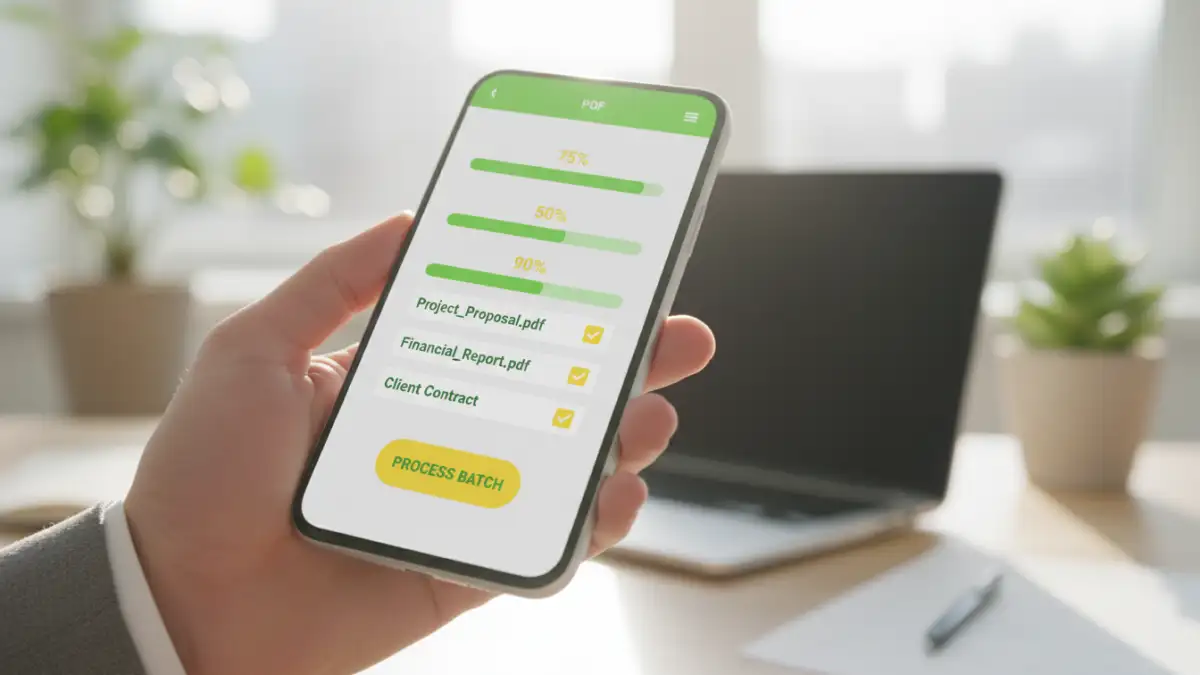
Several software solutions are specifically designed for batch PDF password removal. These tools allow you to select multiple PDF files and apply the password removal process simultaneously. Some popular options include PDFelement, PassFab for PDF, and Enolsoft PDF Password Remover. These programs often support both owner and user password removal, though user password removal might require a brute-force attack which can be time-consuming.
When selecting desktop software, look for features like support for various password types, batch processing capabilities, user-friendly interfaces, and compatibility with your operating system. Many offer free trials, allowing you to test their effectiveness before committing to a purchase. This is where effective batch PDF password removal truly shines, saving hours of manual work.
Best Practices for Management
Regardless of the method you choose, implementing good practices is essential. Keep a record of which documents are password-protected and why. If you're removing passwords from a large set of files, consider creating a backup of the original secured documents before proceeding. This ensures you can revert to the original state if needed or if an error occurs during the process.
Security and Privacy Considerations
Always prioritize security, especially when dealing with sensitive information. Online tools, while convenient, may pose privacy risks. Desktop software installed from reputable sources generally offers better security. If you're dealing with highly confidential data, local processing methods are always preferable. Understanding the limitations and capabilities of each tool is crucial for efficient and secure file management.
Comparison Table: PDF Password Removal Methods
| Method | Ease of Use | Security/Privacy | Batch Processing | Password Type Supported | Cost |
|---|---|---|---|---|---|
| Browser 'Print to PDF' | Very High | High (local) | Low (manual per file) | Owner Password Only | Free |
| Online Tools | High | Variable (depends on service) | Medium (paid tiers) | Owner Password (primary), User Password (limited) | Free/Paid Subscription |
| Desktop Software | Medium to High | Very High (local) | Very High | Owner & User Passwords | One-time Purchase/Subscription |