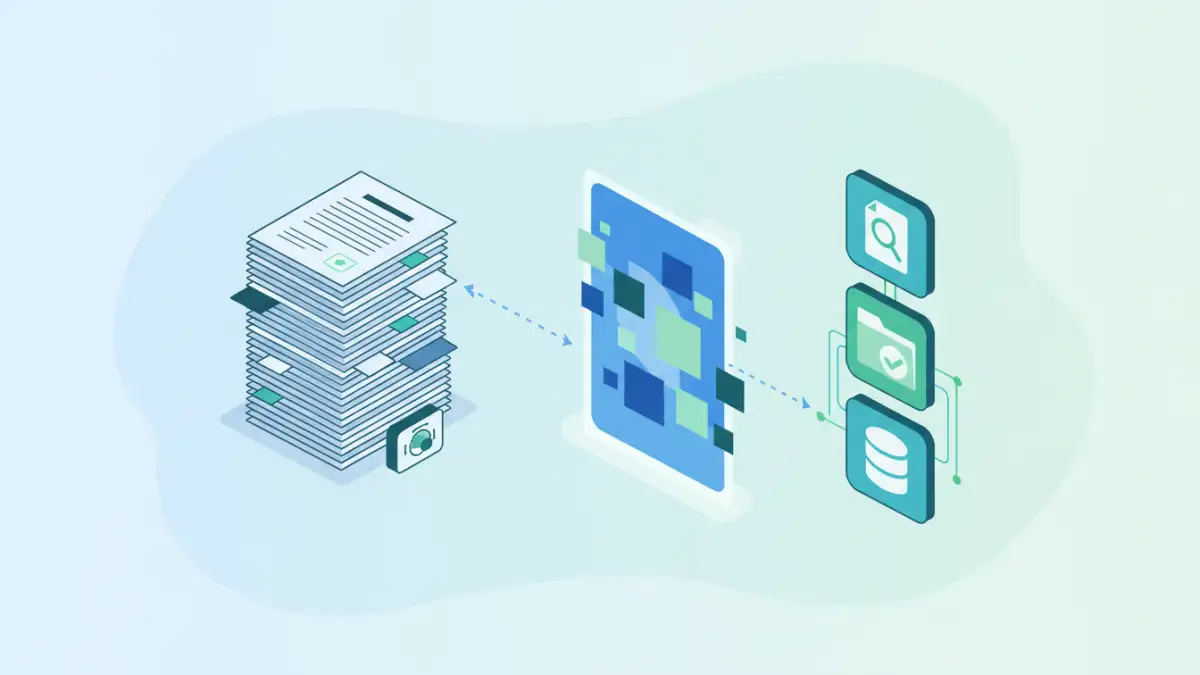
Dealing with stacks of scanned documents, especially when you need to find specific information quickly, can feel like searching for a needle in a haystack. For years, I’ve encountered this challenge in various projects, from managing historical archives to organizing large corporate document repositories. The frustration of clicking through image-based PDFs, unable to search or copy text, is a common pain point for many. Fortunately, technology has advanced, offering efficient solutions like batch OCR to tackle this very problem.
Table of Contents
Understanding the Basics of OCR
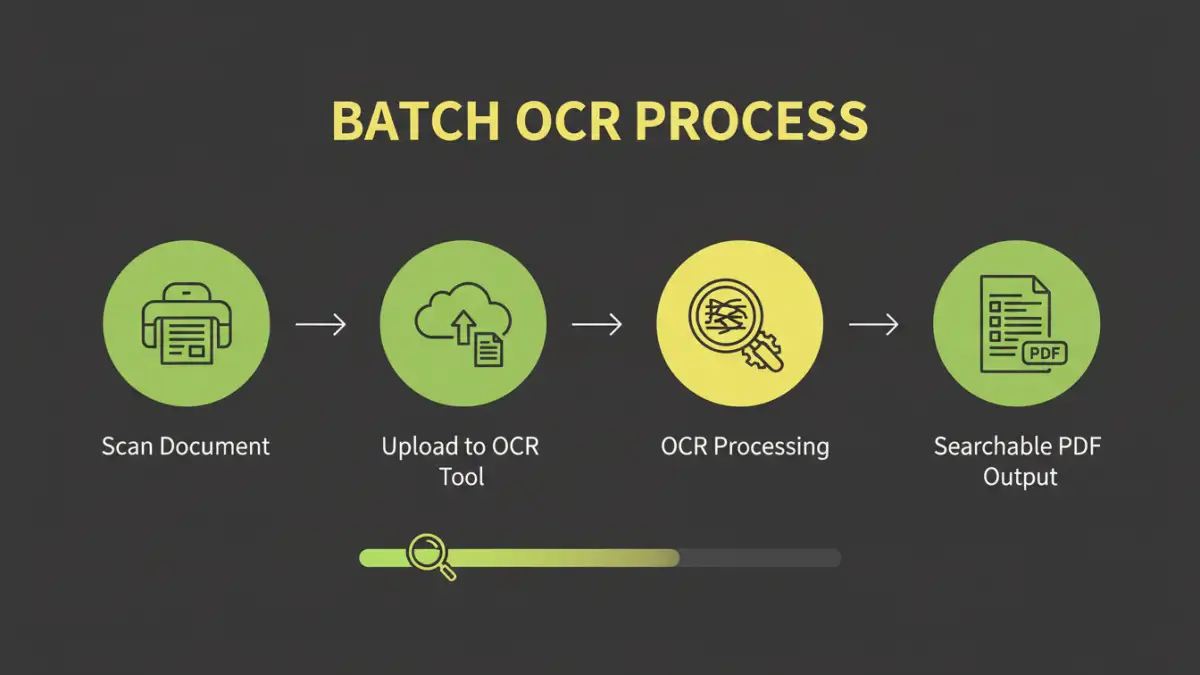
OCR, or Optical Character Recognition, is a technology that converts different types of documents, such as scanned paper documents, PDF files, or images captured by a digital camera, into editable and searchable data. Essentially, it allows computers to 'read' text from images. Without OCR, a scanned PDF is just a picture of text; with it, the text becomes selectable, searchable, and extractable.
How OCR Works
The process typically involves several stages. First, the software analyzes the document image to identify text blocks, lines, and characters. It then compares these recognized characters against a vast library of fonts and known letterforms. Finally, it reconstructs the text in a digital format, often overlaying it invisibly on the original image to maintain the document's appearance while making the text accessible.
Why Batch Processing is Key
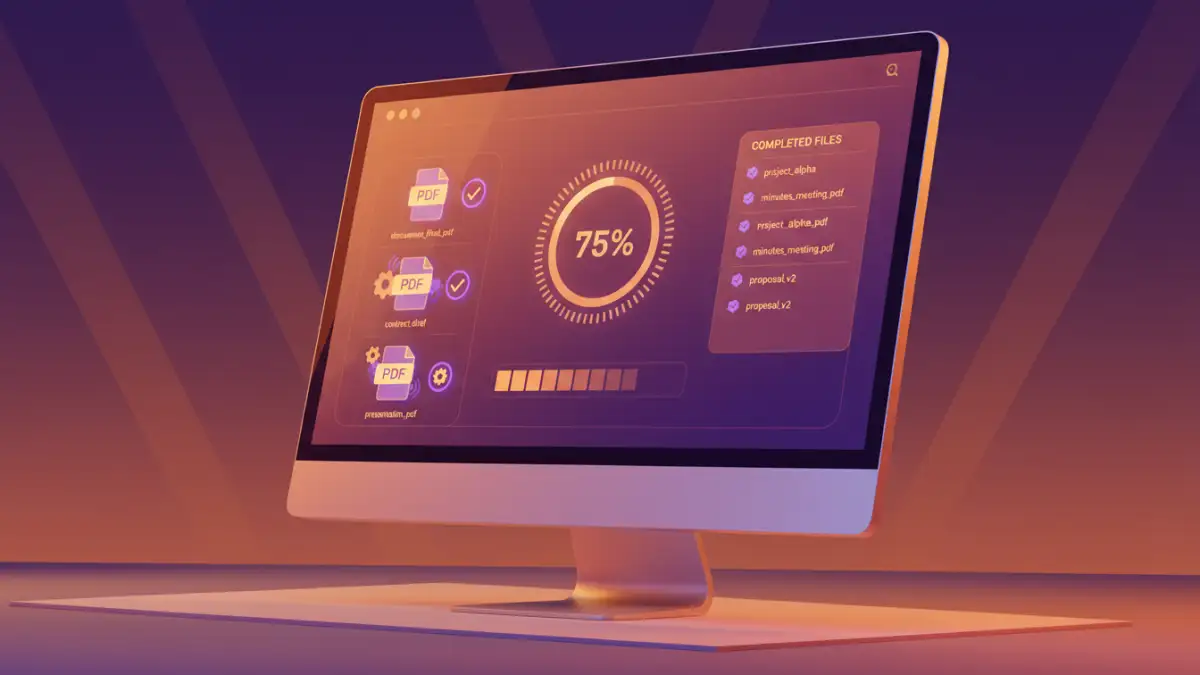
When dealing with a single document, manual OCR might suffice. However, imagine having hundreds or thousands of scanned files that need the same treatment. This is where batch processing becomes indispensable. Batch OCR allows you to apply the OCR function to multiple documents simultaneously, significantly reducing the manual effort and time required.
This capability is crucial for organizations that regularly deal with large volumes of paperwork, such as legal firms, libraries, government agencies, and accounting departments. Automating the process of making these documents searchable streamlines workflows and improves overall efficiency. My own experience processing large archives has shown that a robust batch OCR solution can save countless hours of manual data entry and tedious searching.
Step-by-Step Methods for Batch OCR
Implementing batch OCR can be achieved through various software solutions. The exact steps might differ slightly depending on the tool you choose, but the general workflow remains consistent.
Method One: Using Dedicated Desktop Software
Many professional OCR software packages are designed for handling large volumes of documents. These applications often offer advanced features for image correction, layout analysis, and batch conversion profiles. You typically import your scanned PDFs or image files into the software, configure the OCR settings (like language and output format), and then initiate the batch process.
Method Two: Leveraging Cloud-Based OCR Services
Several online platforms offer batch OCR capabilities. These services are convenient as they don't require software installation and can often be accessed from any device with an internet connection. You upload your documents to the service, select the OCR option, and the platform processes them on its servers. Once complete, you can download the searchable PDFs.
Method Three: Scripting and Automation with Advanced Tools
For highly technical users or large-scale enterprise needs, scripting can be employed. Tools like Adobe Acrobat Pro or specialized command-line OCR engines (e.g., Tesseract OCR with scripting) allow for automated batch processing through custom scripts. This method offers the most flexibility and control over the entire workflow.
Choosing the Right Document Scanning Tools
Selecting the appropriate document scanning tools is vital for effective batch OCR. The choice depends on your budget, volume of documents, and technical expertise. Some popular options include:
- Adobe Acrobat Pro DC: A comprehensive PDF editor with robust OCR capabilities, including batch processing actions.
- ABBYY FineReader PDF: Renowned for its high accuracy and advanced features, it excels in batch conversion.
- Readiris: Another powerful OCR software that supports a wide range of input and output formats for batch operations.
- Online OCR Services (e.g., OnlineOCR.net, NewOCR.com): Good for occasional use or smaller batches, offering convenience without installation.
When evaluating document scanning tools for batch OCR, consider factors like accuracy rates, supported file types, language support, output options (searchable PDF, Word, etc.), and cost.
Best Practices for Searchable PDFs
To ensure the best results when performing batch OCR, follow these best practices:
- Optimize Scan Quality: Ensure your scanned documents are clear, well-lit, and have a high resolution (at least 300 DPI) for optimal OCR accuracy. Remove any unnecessary background noise or artifacts.
- Select the Correct Language: Most OCR software allows you to specify the language of the document. Choosing the correct language significantly improves recognition accuracy.
- Verify Output: After the batch process, spot-check a few converted documents to ensure the OCR was successful and the text is accurate. Correct any errors as needed.
- Organize Files: Maintain a clear folder structure for your original scanned documents and the resulting searchable PDFs to easily manage and retrieve them.
By implementing batch OCR effectively, you can transform static, image-based documents into dynamic, searchable assets, unlocking a wealth of information and improving your document management processes.
Comparison Table: Batch OCR Methods
| Method | Ease of Use | Cost | Scalability | Accuracy | Best For |
|---|---|---|---|---|---|
| Desktop Software (e.g., Acrobat Pro, ABBYY) | Moderate to High | Paid (One-time or Subscription) | High | Very High | Large volumes, high accuracy needs, complex documents |
| Cloud-Based Services | High | Free (limited) to Paid (Subscription/Per-use) | Moderate | High | Convenience, moderate volumes, no software installation |
| Scripting/Automation | Low (Requires technical expertise) | Free (open-source tools) to Paid (enterprise solutions) | Very High | High | Enterprise-level automation, custom workflows |