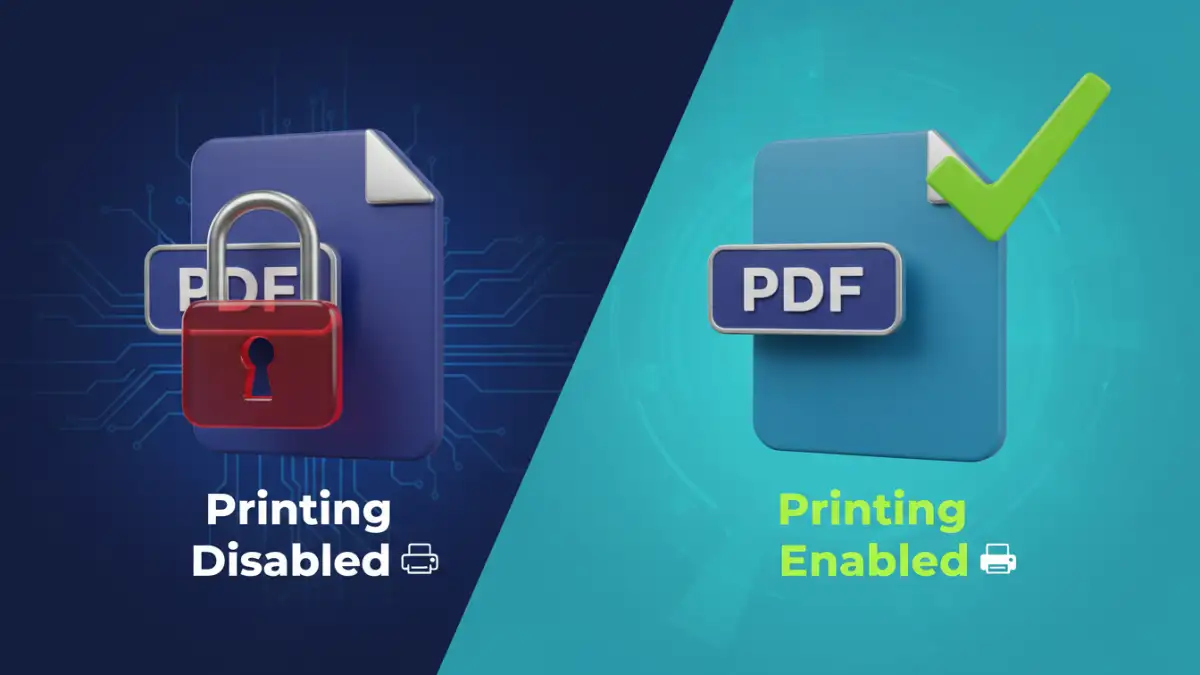
We've all been there: you receive a PDF report or a manual, and when you try to print a section or copy a quote, you're met with a grayed-out menu item. The document has restrictions, preventing you from printing, copying, or editing. While these document security settings are often in place for good reason, they can sometimes be a hurdle when you legitimately need to interact with the content.
Fortunately, there's a surprisingly simple workaround that uses a tool you already have—your web browser. It's not a hack, but rather a clever use of a standard feature that can help you create a new version of the document with the permissions you need. This method is particularly useful for bypassing the 'owner' password that controls permissions, not the 'user' password that prevents opening the file altogether.
Table of Contents
Understanding PDF Security: Two Types of Passwords
Before we jump into the method, it's crucial to understand the two main types of passwords a PDF can have. This distinction is the key to why this trick works. I've seen colleagues get stuck trying to 'crack' a file when all they needed to do was understand which lock they were trying to open.
User Password (Open Password)
This is the password you're probably most familiar with. It's required to open and view the PDF file. If a document has a user password, you cannot access its contents at all without it. The browser trick I'm about to show you will not work on these files. You must know the password to open it first.
Owner Password (Permissions Password)
This is the one we're targeting. An owner password doesn't stop you from opening the file; it restricts what you can do once it's open. This includes actions like printing, editing, copying text, or adding comments. When you set PDF restrictions using software like Adobe Acrobat, you're applying an owner password. Because you can open and view the file, you can also 'print' it, which is the loophole we'll use.
The Browser 'Print to PDF' Trick Explained

The logic behind this method is straightforward. Most modern web browsers (like Chrome, Firefox, and Edge) have a built-in function to 'print' any webpage or viewable document directly to a new PDF file. When you do this, the browser essentially acts as a virtual printer. It takes a snapshot of the rendered content—what you see on the screen—and saves it as a brand new, clean PDF.
This new file is created from scratch by the browser's PDF engine. It doesn't inherit the original file's metadata or, more importantly, its permission settings. The result is a fresh PDF containing all the visual information of the original but without any of the restrictions that disable PDF printing or editing. You're not breaking any encryption; you're simply re-creating the document from its viewable form.
Step-by-Step Guide to Setting New PDF Restrictions
Ready to try it? The process is nearly identical across major browsers. You just need the PDF file and a browser.
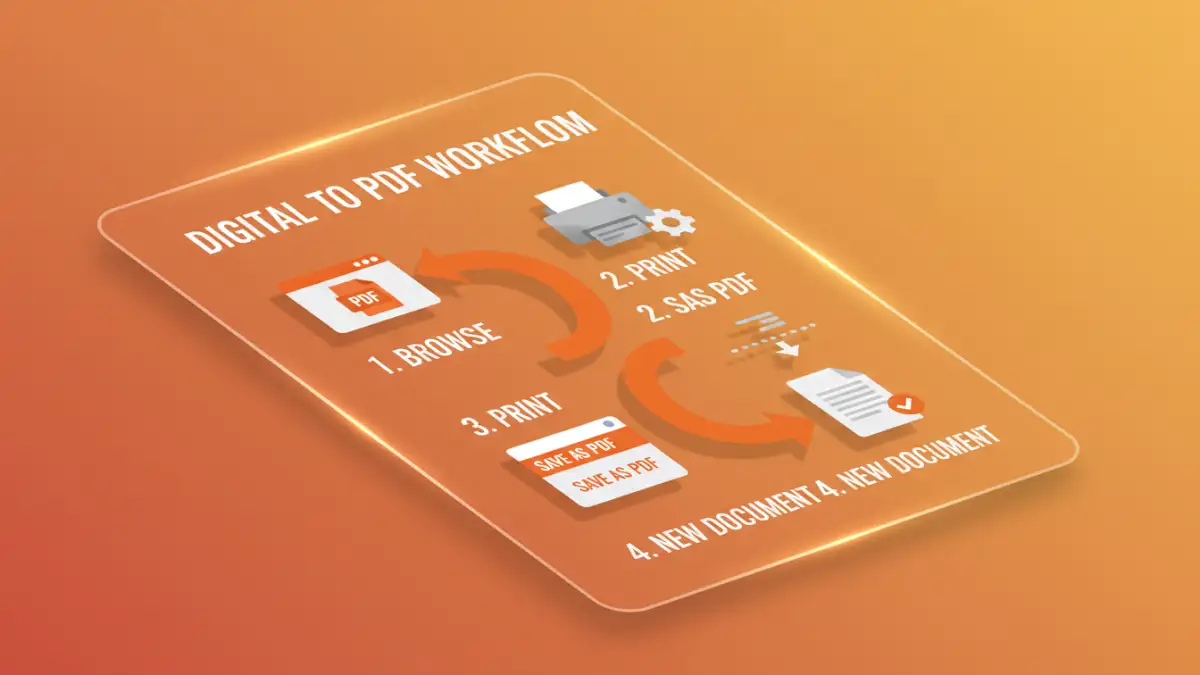
- Open the PDF in Your Browser: Instead of opening the PDF in a dedicated reader like Adobe Acrobat, right-click the file, select 'Open with,' and choose your preferred web browser (Google Chrome, Microsoft Edge, or Firefox). Alternatively, you can drag and drop the file directly into an open browser window.
- Access the Print Dialog: Once the document is displayed, open the print menu. You can do this by pressing
Ctrl+Pon Windows/Linux orCmd+Pon macOS. You can also find it in the browser's main menu (usually under the three dots or lines in the top-right corner). - Change the Destination to 'Save as PDF': In the print dialog box, look for the 'Destination' or 'Printer' field. It will likely default to your physical printer. Click on it and select 'Save as PDF' from the list of options. This is the most critical step.
- Save the New File: Click the 'Save' button. You'll be prompted to choose a name and location for your new, unrestricted PDF. Give it a different name to avoid overwriting the original file.
That's it. The new file you just saved can be opened, printed, and its content can be selected and copied without the original limitations. You have effectively used a simple workflow to set new, open permissions on the document.
Limitations and Alternative Solutions
While this browser trick is incredibly handy, it's not a silver bullet. It's important to know its limitations.
When This Trick Fails
As mentioned, this method is completely ineffective against a User Password that prevents the file from being opened. If you can't see the content, you can't print it. Additionally, some highly secured PDFs may have scripts that disable the print function even within a browser, though this is rare. Finally, the quality of the output depends on the browser's rendering engine. In most cases, it's perfect, but for highly complex graphical documents, you might see minor discrepancies.
Another point to consider is that the resulting PDF might lose some interactive elements like form fields or embedded comments. The 'Print to PDF' function captures the visual layer, so the text becomes selectable, but the underlying structure might be flattened.
Best Practices for Document Security
Using this trick highlights the nuances of document security settings. If you're the one creating PDFs, understanding these concepts helps you protect your work more effectively. When you need to set PDF restrictions, use a strong, unique owner password. If the information is highly sensitive, consider applying a user password as well to prevent unauthorized viewing entirely.
Always be mindful of copyright and licensing agreements. Just because you can technically remove a restriction doesn't always mean you should. This technique is best used for legitimate purposes, like printing a user manual for personal use or accessing a report for work when the sender forgot to provide an unrestricted version.
PDF Restriction Method Comparison
| Method | Pros | Cons | Best For |
|---|---|---|---|
| Browser 'Print to PDF' Trick | Free, no extra software needed, fast. | Only bypasses owner/permissions passwords. May flatten interactive elements. | Quickly removing print/copy restrictions on accessible documents. |
| Online PDF Unlocker Tools | Convenient, web-based, no installation. | Major privacy and security risks (uploading sensitive files). Often have file size limits. | Non-sensitive documents where convenience is the top priority. |
| Dedicated Desktop Software (e.g., Adobe Acrobat Pro) | Powerful, reliable, offers full control over security settings. | Expensive, requires installation and has a learning curve. | Professionals who regularly create, edit, and secure PDFs. |
| Open-Source Command-Line Tools | Free, powerful, scriptable for batch processing. | Requires technical knowledge (command line), no graphical interface. | Developers and technical users needing to automate PDF tasks. |