
Working with password-protected documents can be frustrating, especially when you genuinely need access but have forgotten the password or inherited a file from someone else. OpenDocument files, commonly used by LibreOffice and OpenOffice, can also be secured with passwords to protect sensitive information. Fortunately, there are legitimate and safe ways to regain access without resorting to risky or illegal methods.
My experience has shown that while encryption is crucial for data protection, it's equally important to have a plan for situations where you might lose access. This article will guide you through several reliable methods to remove an OpenDocument file password when you have legitimate reasons to do so, focusing on security and practicality.
Table of Contents
Understanding OpenDocument Passwords
OpenDocument files (.odt, .ods, .odp) can be encrypted using a password, which is typically handled by the application that created them, like LibreOffice Writer or Calc. This password acts as a key to decrypt the content when you attempt to open the file. The strength of the encryption depends on the software version and the algorithm used.
Types of OpenDocument Encryption
Older versions might use simpler encryption methods, while newer versions often implement stronger algorithms like AES. Understanding this can sometimes hint at the difficulty of password recovery or removal. It's important to note that if the password uses very strong, modern encryption, removal without the password can be technically challenging and often impractical for average users.
Method 1: Using Browser-Based Tricks

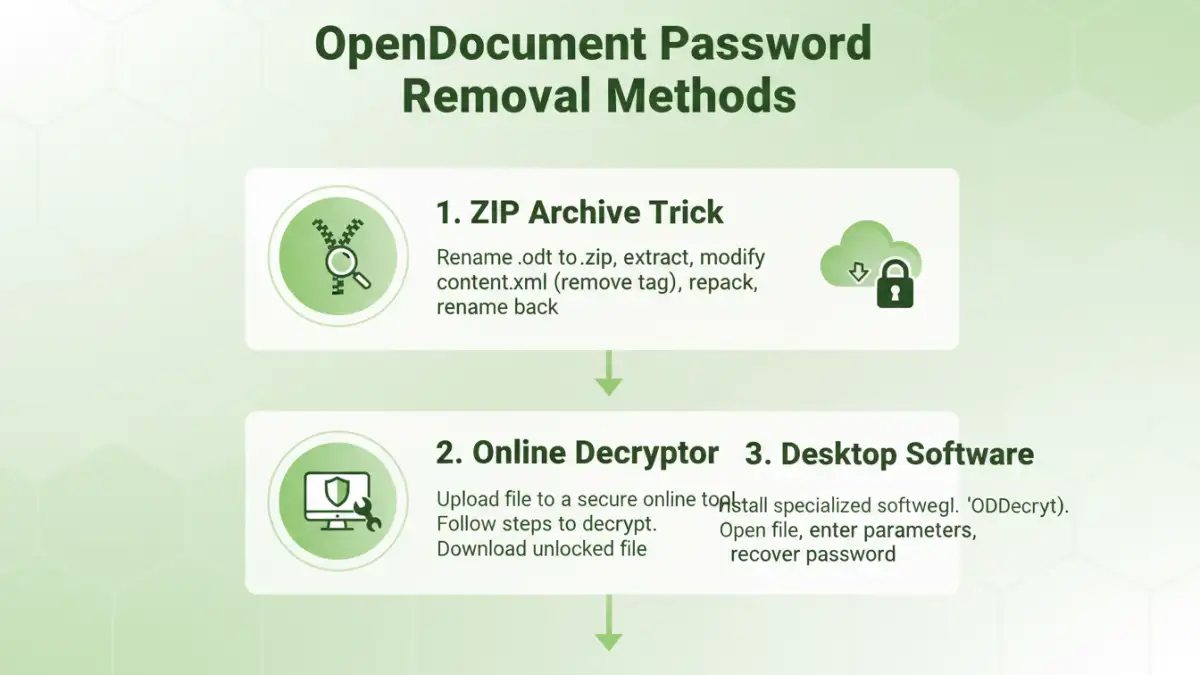
For certain types of password protection, particularly those that are not deeply embedded or are older implementations, a clever workaround sometimes involves treating the OpenDocument file as a ZIP archive. Many modern OpenDocument files are essentially collections of XML files and other resources compressed into a single .odt, .ods, or .odp file. If the password is only applied to the document's content and not the archive itself, you might be able to extract the contents.
To try this, rename the .odt file extension to .zip. Then, use a standard ZIP extraction tool (like 7-Zip, WinRAR, or the built-in Windows/macOS utility) to open the archive. If successful, you can then access the individual XML files within. However, this method is often ineffective for files with strong, integrated password protection applied by the application itself.
Method 2: Leveraging Online Tools
Numerous online services claim to help remove passwords from various document types, including OpenDocument files. These tools typically work by attempting to brute-force the password or exploit known vulnerabilities in older encryption methods. While convenient, using online tools comes with significant risks.
The primary concern is data privacy. You are uploading your potentially sensitive document to a third-party server. It's crucial to use reputable services and understand their privacy policies. Some tools are more effective than others, and success is not guaranteed, especially with strong passwords. Always research a tool's reputation before uploading any file.
Method 3: Employing Desktop Software
For more robust solutions, dedicated desktop software designed for password recovery or removal can be more effective. These applications often have more processing power and advanced algorithms compared to online tools. They can sometimes perform brute-force attacks, dictionary attacks, or even GPU-accelerated cracking, which can be faster and more successful.
When searching for desktop software, look for programs that specifically mention support for OpenDocument formats. Be cautious of software that seems too good to be true or promises instant password removal for any file. As with online tools, research the software's legitimacy and user reviews to avoid malware or data breaches. Some commercial software offers free trials, which can be a good way to test their effectiveness before purchasing.
Best Practices for Document Security
Preventing the need to remove a password in the first place is always the best strategy. Implementing strong file security tips from the outset can save you a lot of trouble. Always use strong, unique passwords for your sensitive documents. Consider using a password manager to generate and store complex passwords securely.
Regularly back up your important files, including password-protected ones. This ensures you have a copy in case of data loss or corruption. If you're sharing password-protected documents, ensure the recipient has a secure way to receive the password separately (e.g., via a phone call or secure messaging app) to maintain data protection.
Comparison Table
| Method | Pros | Cons | Best For |
|---|---|---|---|
| ZIP Archive Trick | Free, No extra software needed | Often ineffective for strong encryption, limited to specific cases | Very simple password protection or older file formats |
| Online Tools | Convenient, accessible from anywhere | Major privacy/security risks, success not guaranteed, potential malware | Non-sensitive documents where privacy is less of a concern |
| Desktop Software | More powerful algorithms, higher success rates | Can be costly, requires installation, potential malware if not reputable | Complex password protection, sensitive documents (use reputable software) |
| Password Managers | Secure password generation and storage | Not for removing existing passwords, but for preventing loss | Managing all your passwords to prevent future lockouts |