Working with password-protected documents can be frustrating, especially when you’ve forgotten the password or inherited a file without one. OpenDocument files, commonly known as ODT documents, are no exception. These files, widely used by open-source office suites like LibreOffice and OpenOffice, can be secured with a password to protect sensitive information. However, losing access to these crucial documents can halt productivity and cause significant inconvenience.
As someone who’s navigated the complexities of file recovery and security for over a decade, I understand the urgency and stress associated with locked files. Fortunately, there are established methods and strategies that can help you regain access to your ODT files. This guide will walk you through various approaches, from simple checks to more advanced techniques, ensuring you can explore the best options for your situation.
Table of Contents
Understanding OpenDocument Security
OpenDocument files can be encrypted using various algorithms, with AES being a common and robust choice for modern applications. The encryption is applied directly to the file's content, making it unreadable without the correct password. When you save an ODT file with a password, the software uses your password to generate an encryption key.
Encryption Basics
The strength of the password directly impacts the security of your document. Weak passwords are susceptible to brute-force attacks, where software systematically tries numerous combinations. Strong passwords, on the other hand, combine uppercase and lowercase letters, numbers, and symbols, making them significantly harder to crack. Understanding this is the first step in both securing your files and planning for potential recovery.
Common Recovery Methods
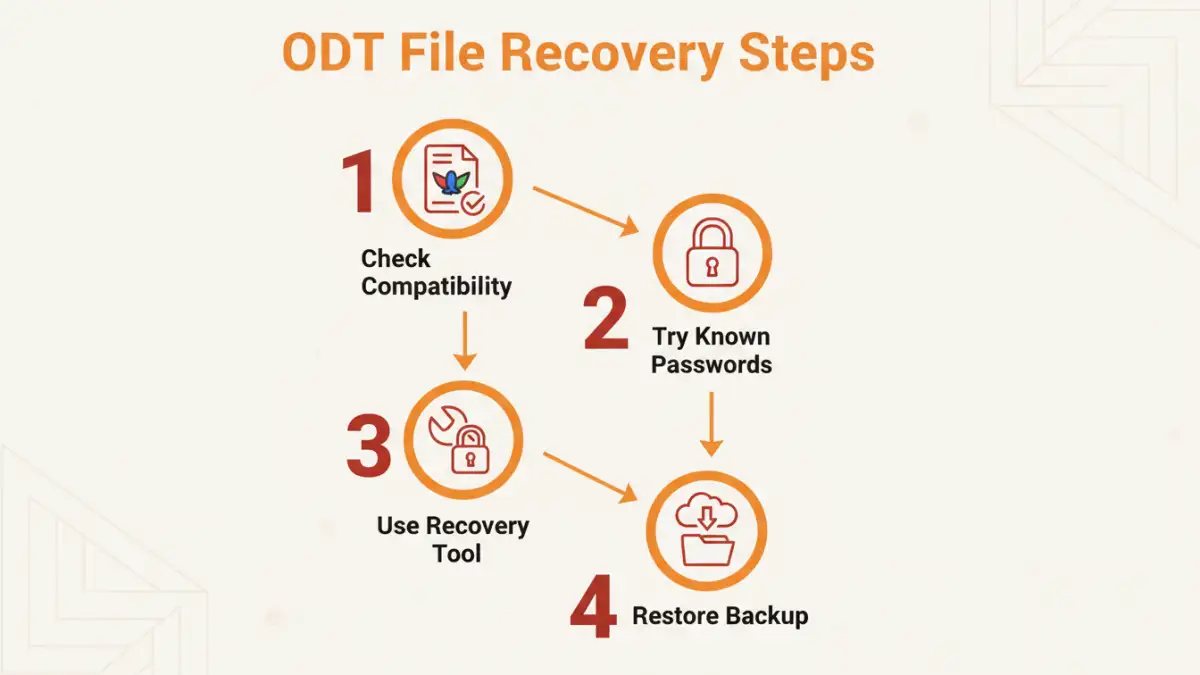
When you find yourself unable to open a password-protected ODT file, several avenues can be explored. The most straightforward approach depends on how the password was set and whether you have any prior knowledge or backups.
Method One: The "Save As" Trick (Limited Use)
In some older versions or specific configurations, if the document was only protected with a simple password and not strong encryption, sometimes opening the document in a compatible application and immediately using the "Save As" function might strip the password. However, this is rare for modern ODT files secured with strong encryption like AES. It's worth a quick try if you suspect a very basic protection layer, but don't rely on it.
Method Two: Using Compatible Software
LibreOffice and Apache OpenOffice are the primary applications for ODT files. If you're trying to open a password-protected ODT file, ensure you are using a recent version of one of these suites. Sometimes, compatibility issues or bugs in older versions can prevent proper password entry or file access. If you can open the file, you can then remove the password via the document's security settings (usually found in File > Properties > Security).
Advanced Techniques for ODT Password Unlock
For situations where the simple methods fail, or if the password is unknown, more advanced techniques come into play. These often involve specialized software designed for password recovery.
Brute-Force and Dictionary Attacks
Several third-party tools specialize in OpenDocument password removal. These programs employ brute-force attacks (trying all possible character combinations) or dictionary attacks (trying words from a predefined list). The effectiveness and speed of these methods depend heavily on the password's complexity and length, as well as the processing power of your computer. I've seen these tools work successfully on moderately complex passwords, but they can take days or even weeks for very strong ones.
Online Recovery Services
There are online services that claim to help recover lost passwords for various file types, including ODT. While convenient, extreme caution is advised. Uploading sensitive documents to unknown third-party servers carries significant privacy risks. Thoroughly research any service before entrusting them with your data, and consider the potential consequences of a data breach.
Best Practices for Document Security
Preventing the loss of access in the first place is always the best strategy. Implementing strong security practices ensures your documents remain accessible to you while protected from unauthorized eyes.
Secure Password Management
Use strong, unique passwords for your important documents. A password manager can be invaluable for generating and storing complex passwords securely. This way, you don't have to remember dozens of unique, strong passwords yourself.
Regular Backups
Maintain regular backups of your important ODT files. Store backups in multiple secure locations, such as external hard drives, cloud storage, or network-attached storage (NAS). If one copy is lost or corrupted, you have others to fall back on. This is crucial for any form of secure document recovery.
Comparison Table: ODT Password Recovery Approaches
| Method | Pros | Cons | Best For |
|---|---|---|---|
| "Save As" Trick | Free, Quick check | Rarely effective on modern encryption | Very basic or outdated protection |
| Compatible Software | Free (if using LibreOffice/OpenOffice), Direct access if password known | Requires password to remove | Known password, simple removal |
| Password Recovery Tools | Can recover forgotten passwords | Time-consuming, may require payment, privacy concerns with online tools | Forgotten complex passwords |
| Regular Backups | Guaranteed access to previous versions | Requires proactive setup and storage | Disaster recovery, version control |