
Have you ever needed to secure sensitive documents but weren't sure how? In today's digital landscape, protecting your personal or business information is more critical than ever. Fortunately, applications like Apache OpenOffice offer built-in features to help you safeguard your files. Implementing password protection is a straightforward yet effective way to ensure only authorized individuals can access your data.
As someone who has worked with various office suites for over a decade, I've seen firsthand how crucial robust security measures are. It's not just about preventing accidental sharing; it's about active defense against potential breaches. This guide will walk you through the process of securing your OpenOffice documents, ensuring your data remains private and secure.
Table of Contents
Understanding OpenOffice Security Features
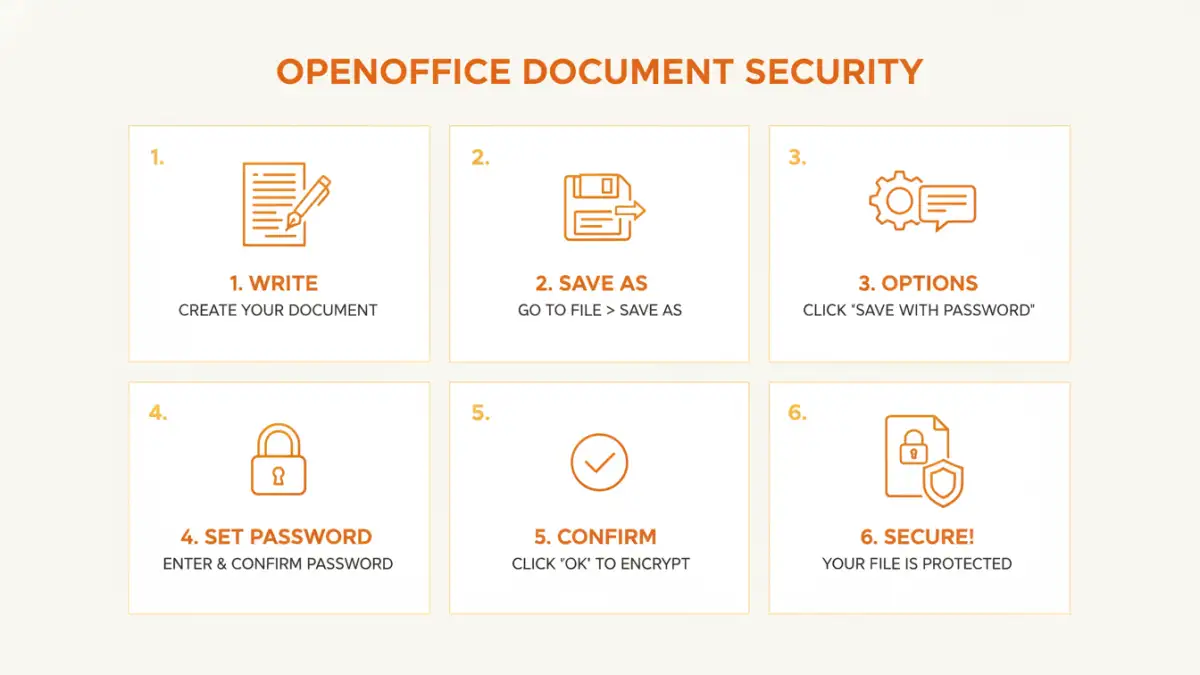
Apache OpenOffice, like many modern office suites, utilizes encryption to protect documents. When you set a password, the application encrypts the file's content. This means that without the correct password, the data within the document is scrambled and unreadable. The strength of this protection depends heavily on the complexity of the password you choose.
Encryption Standards
OpenOffice typically uses standard encryption algorithms to secure your files. While the exact algorithm might vary slightly between versions, the principle remains the same: transforming your readable data into an unreadable format. This process is reversible only with the correct decryption key, which is your password.
Setting Up Password Protection

Securing your documents in OpenOffice Writer, Calc, or Impress is a simple process. The option is readily available within the save or save as dialog boxes, making it accessible even for less technical users. This feature is essential for anyone dealing with confidential information, from personal letters to financial reports.
Password Protection in OpenOffice Writer
To set a password for a document in OpenOffice Writer, you need to go through the 'Save As' dialog. After writing your document, click 'File' > 'Save As'. In the save dialog window, look for a 'Save with password' option, often found near the bottom or within a 'Security' tab/button. Clicking this will prompt you to enter and confirm your desired password. Remember, choosing a strong, unique password is vital for effective openoffice document security.
Password Protection in OpenOffice Calc and Impress
The process for OpenOffice Calc (spreadsheets) and OpenOffice Impress (presentations) is virtually identical to Writer. Navigate to 'File' > 'Save As'. You will find the 'Save with password' option within the save dialog. Enter and confirm your password to encrypt the file. This ensures that your spreadsheets and presentations are just as secure as your documents.
Advanced Security Options
While basic password protection is effective, there are other considerations for comprehensive file security. For extremely sensitive data, you might consider additional layers of protection or alternative methods. Understanding these can help you tailor your security approach to your specific needs.
File Permissions and Encryption
Beyond just password protection within the application, operating system-level file permissions can add another layer of security. Ensure that only necessary users have read/write access to the folder where your sensitive documents are stored. For very high-security needs, consider using dedicated encryption software that offers more advanced features like full-disk encryption or more robust encryption algorithms, although this goes beyond the standard openoffice password protection.
Best Practices for Document Security
Simply applying a password isn't always enough. To truly secure your files, you need to adopt good security habits. These practices complement the technical measures provided by OpenOffice and help mitigate risks associated with password management and data handling.
Choosing Strong Passwords
A weak password is like a locked door with a glass pane – it offers minimal real security. Aim for passwords that are long (at least 12 characters), complex (a mix of uppercase and lowercase letters, numbers, and symbols), and unique to each document or file type. Avoid using easily guessable information like birthdays, names, or common words. Consider using a passphrase, which is a sequence of words that is easier to remember but harder to crack.
Password Management
Forgetting a password can render your document inaccessible, even to you. Conversely, writing passwords down carelessly can defeat the purpose of encryption. Use a reputable password manager to store your complex passwords securely. This tool can generate strong passwords for you and remember them, so you don't have to.
Regular Backups
While not directly a security feature against unauthorized access, regular backups are crucial for data recovery. Ensure you have a backup strategy in place, but be mindful of how you store these backups. Encrypting your backup files is also a wise precaution, especially if they contain sensitive information.
Comparison Table: OpenOffice Security Features
| Feature | Description | Effectiveness | Ease of Use |
|---|---|---|---|
| Password Protection (Save As) | Encrypts the entire document content with a user-defined password. | Good for preventing casual access. Strength depends on password complexity. | Very Easy |
| Operating System File Permissions | Restricts access to the file based on user accounts and permissions set by the OS. | Effective against unauthorized users on the same machine or network share. | Moderate |
| Third-Party Encryption Software | Utilizes advanced encryption algorithms and features, often with stronger key management. | Potentially High, depending on software and algorithm used. | Moderate to Difficult |