Working with sensitive information requires robust security measures, and your documents are no exception. Whether you're handling confidential business proposals, personal financial records, or academic research, ensuring that your files are protected from unauthorized access is paramount. LibreOffice, a powerful and free office suite, offers built-in capabilities to encrypt your documents, providing a crucial layer of security.
Understanding how to properly implement this security feature can prevent data breaches and maintain the privacy of your sensitive information. This guide will walk you through the process, from basic concepts to practical application, ensuring you can secure your files effectively.
Table of Contents
Understanding Document Encryption
Encryption is the process of converting readable data into a coded format that can only be deciphered with a specific key or password. When applied to documents, it ensures that even if someone gains unauthorized access to the file, they cannot read its contents without the correct password. This is a fundamental aspect of open document security, protecting the integrity and confidentiality of your data.
Why Encrypt Your Files?
The reasons for encrypting your files are numerous. Beyond general security, it's essential for compliance with data protection regulations, safeguarding intellectual property, and maintaining personal privacy. For instance, if you're sharing a document that contains sensitive client data, encryption ensures that only the intended recipient with the password can access it, preventing accidental leaks or malicious interception.
Encrypting Your LibreOffice Documents

LibreOffice makes it straightforward to apply password protection to your documents. This feature is available across all its applications, including Writer, Calc, and Impress. The process primarily involves saving your document with a password. This is the core of odf file encryption, ensuring your files are protected at rest.
Step-by-Step Encryption Process
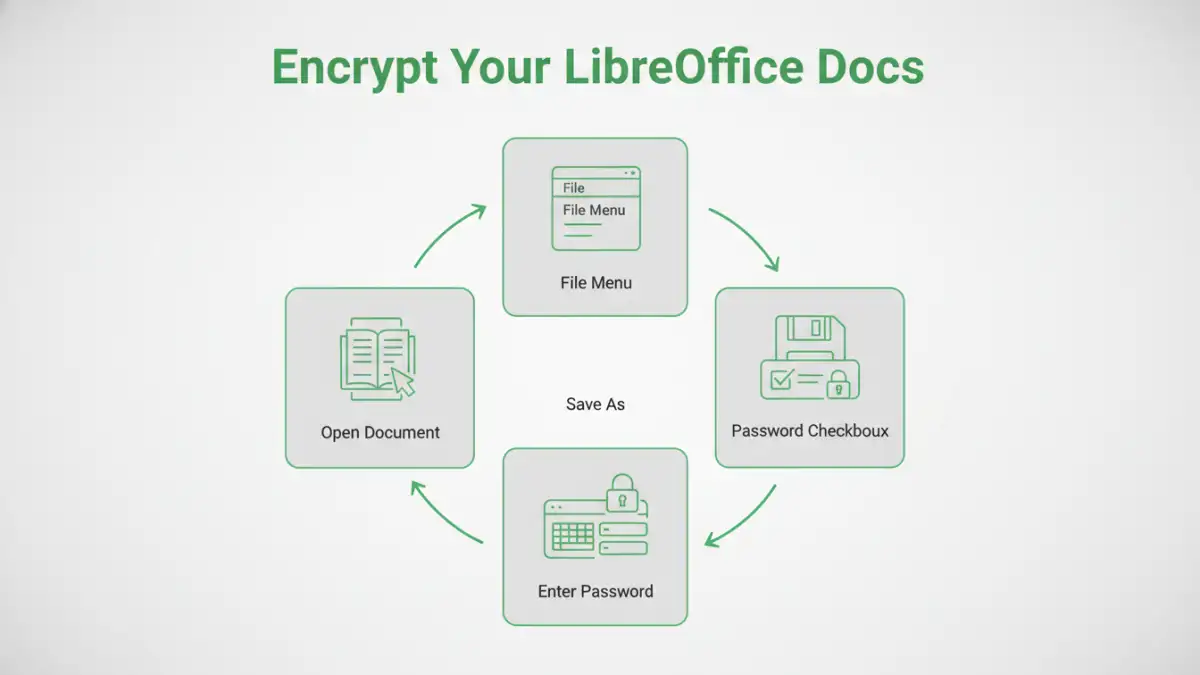
To encrypt a document:
- Open your document in LibreOffice Writer, Calc, or Impress.
- Go to the 'File' menu.
- Select 'Save As...' or 'Save a Copy...'.
- In the save dialog box, look for the 'Save with Password' option. This is often represented by a checkbox or a dedicated button.
- Click on the 'Save with Password' option.
- A dialog box will appear prompting you to enter and confirm your password. Choose a strong password that is difficult to guess but memorable for you.
- Click 'OK' to save the encrypted file.
From this point forward, every time you or someone else tries to open this document, LibreOffice will prompt for the password. Without the correct password, the file contents will remain inaccessible.
Password Best Practices
The strength of your document's security hinges on the password you choose. A weak password can render encryption useless. It's crucial to follow best practices when creating and managing your passwords for encrypted LibreOffice documents.
Creating Strong Passwords
A strong password typically includes a mix of uppercase and lowercase letters, numbers, and symbols. Avoid using easily guessable information like your name, birthday, or common words. For added security, consider using a passphrase – a sequence of words that is easier to remember but harder to crack. For example, 'MySecureDoc@2024!' is much stronger than 'password123'.
Managing Your Passwords
Losing your password means losing access to your encrypted file. Therefore, it's vital to manage your passwords securely. Using a reputable password manager can help you generate and store complex passwords safely. If you choose to remember them, store them in a secure location, separate from your computer. Never share your passwords with anyone you don't explicitly trust.
Advanced Security Considerations
While password protection is effective, there are additional layers of security you might consider for highly sensitive data. This involves thinking beyond just the file itself and considering the environment in which it's stored and accessed.
File Permissions and Access Control
Operating systems provide features to control file permissions, determining who can read, write, or execute a file. Combining file-level permissions with LibreOffice document encryption offers a more comprehensive security posture. Ensure that only authorized users have access to the directory where the encrypted file is stored.
Secure Sharing Practices
When sharing encrypted documents, use secure channels. Avoid sending passwords via the same method as the document. Instead, use a separate, secure communication channel like an encrypted email service or a secure messaging app to share the password. This adds an extra barrier against interception.
Troubleshooting Common Issues
Occasionally, users might encounter problems with encrypted LibreOffice documents. The most common issue is forgetting the password, which, by design, is irreversible. LibreOffice does not have a backdoor or recovery mechanism for forgotten passwords to maintain the integrity of its encryption.
Lost Passwords
If you've forgotten the password to an encrypted LibreOffice document, unfortunately, there is no way to recover the data. The encryption is designed to be one-way without a key. This underscores the importance of strong password management and secure storage of your credentials. Always back up your important documents, and ensure you have a reliable method for remembering your encryption passwords.
Compatibility Issues
LibreOffice uses standard encryption methods for its password-protected files. However, if you encounter issues opening an encrypted ODF file on a different system or with a different application, ensure that the application supports the encryption standard used by LibreOffice. Generally, re-saving the document within LibreOffice after confirming the password can sometimes resolve minor compatibility glitches.
Comparison Table: Encryption Methods
| Method | Pros | Cons | Best For |
|---|---|---|---|
| LibreOffice Built-in Encryption | Free, integrated, easy to use for ODF files | Password recovery impossible if lost, limited to LibreOffice for opening | Securing individual LibreOffice documents |
| Third-Party File Encryption Software | Stronger encryption algorithms, cross-platform compatibility, folder encryption | May require purchase, additional software installation | Encrypting multiple files or folders, sensitive data protection |
| Archive Compression with Password (e.g., 7-Zip, WinRAR) | Bundles multiple files, widely supported formats | Requires separate software, not native to LibreOffice documents | Packaging and securing collections of files |