
Working with sensitive documents means ensuring they are protected. Whether you're handling confidential business data, personal financial records, or private correspondence, securing your files is paramount. OpenOffice, a powerful and free office suite, offers built-in features to encrypt your documents, safeguarding them with passwords. However, simply knowing how to apply a password isn't enough; understanding the best practices for openoffice file encryption ensures your data remains truly secure.
From choosing strong passwords to understanding the limitations of different encryption methods, there's a lot to consider. This guide will walk you through the essential steps and best practices to effectively encrypt your OpenOffice files, giving you peace of mind that your sensitive information is protected from prying eyes.
Table of Contents
Understanding OpenOffice Encryption
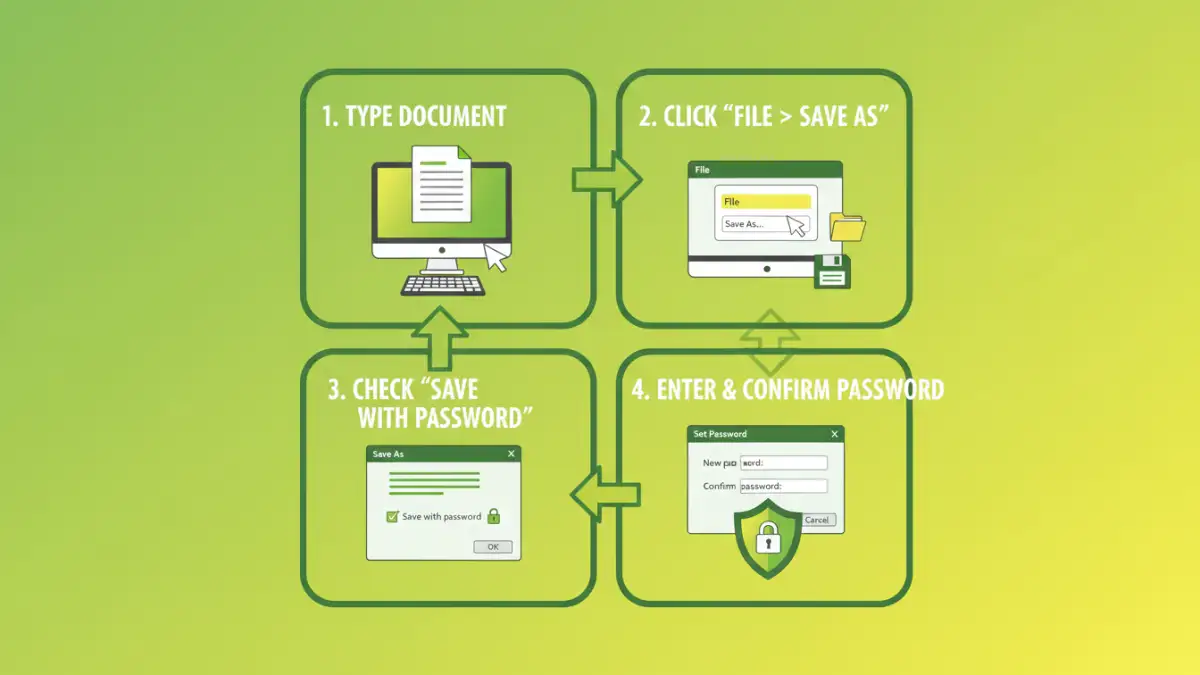
OpenOffice utilizes password protection to encrypt files, primarily focusing on the OpenDocument Format (ODF). When you save a document with a password, OpenOffice applies an encryption algorithm to the file's content. This means that without the correct password, the contents of the file are scrambled and unreadable. It's a crucial first line of defense against unauthorized access.
The effectiveness of this encryption hinges on the strength of the password you choose and the algorithm used by OpenOffice. While it provides a good layer of security for many users, it's important to be aware of its capabilities and potential weaknesses.
Key Concepts in ODF Encryption
The primary method for odf file encryption involves symmetric-key cryptography. This means the same key (derived from your password) is used for both encrypting and decrypting the file. OpenOffice typically uses algorithms like AES (Advanced Encryption Standard) for modern versions, which is considered very secure. However, older versions might use weaker algorithms, making it essential to keep your software updated.
How to Encrypt OpenOffice Files

Encrypting your documents in OpenOffice is a straightforward process, integrated directly into the save functionality. This makes it accessible even for users who aren't deeply technical.
Saving with a Password
When you are ready to save your document in Writer, Calc, Impress, or Draw, you'll find the password option during the save process. Navigate to File > Save As. In the save dialog box, look for a section or checkbox typically labeled 'Save with password' or 'Password protect'. Checking this box will prompt you to enter and confirm your chosen password. Once confirmed, the file will be saved in an encrypted state.
Remember to choose a password that is both strong and memorable for you. If you lose the password, there is generally no way to recover the document's content. This highlights the importance of a reliable password management strategy.
Choosing Strong Passwords
The security of your encrypted files is directly tied to the strength of your password. A weak password, even with strong encryption, can be easily guessed or brute-forced, rendering the encryption useless. Therefore, dedicating time to creating a robust password is a critical step in secure document encryption.
A strong password should be long, complex, and unique. Aim for a combination of uppercase and lowercase letters, numbers, and symbols. Avoid using easily guessable information like names, birthdays, or common words. Consider using a passphrase – a sequence of words that is easy for you to remember but difficult for others to guess.
Best Practices for Secure Encryption
Beyond just applying a password, several best practices will significantly enhance the security of your encrypted OpenOffice documents. These practices cover password management, software updates, and understanding your specific needs.
- Use a Password Manager: For complex passwords that are hard to remember, a reputable password manager can generate and store them securely for you. This eliminates the temptation to use weak, easily guessable passwords.
- Regularly Update OpenOffice: Software updates often include security patches and improvements to encryption algorithms. Keeping your OpenOffice suite up-to-date ensures you benefit from the latest security measures.
- Be Mindful of Sharing: If you need to share an encrypted file, ensure you communicate the password through a separate, secure channel. Sending the password in the same email as the file is a common security mistake.
- Understand the Scope: OpenOffice encryption protects the file content from unauthorized viewing when opened. It does not necessarily protect against file deletion or modification if someone gains access to the file itself without the password.
- Backup Wisely: When backing up encrypted files, ensure your backups are also stored securely. If you lose the original file and your backup, the password will be the only way to access your data.
Limitations and Considerations
While OpenOffice file encryption is a valuable tool, it's essential to understand its limitations. It's not a foolproof solution for all security scenarios, and awareness of these limitations can help you implement more comprehensive security strategies.
One significant limitation is that if the document is opened by an authorized user, it remains unprotected while in use. Anyone with access to the computer while the document is open could potentially view or copy its contents. Furthermore, if a password is weak, the encryption can be bypassed. For extremely sensitive data requiring the highest level of protection, consider additional layers of security, such as full-disk encryption or specialized document security software.
Comparison Table: Encryption Methods for Documents
| Method | Pros | Cons | Best For |
|---|---|---|---|
| OpenOffice Built-in Password Protection | Free, easy to use, integrated | Weak passwords can be compromised, no protection while open | Securing everyday documents, basic privacy |
| Third-Party Encryption Software | Stronger algorithms, advanced features, batch processing | Requires installation, may have costs, learning curve | High-security needs, batch encryption tasks |
| File Archiving (e.g., ZIP with password) | Bundles multiple files, widely compatible | Less secure for individual documents than dedicated encryption, prone to brute-force for weak passwords | Bundling and protecting multiple files |
| Full-Disk Encryption (e.g., BitLocker, FileVault) | Protects all data on a drive, transparent to user | Requires setup, performance impact, doesn't protect against user error on open files | Overall system security, protecting entire devices |