
Have you ever needed to secure sensitive documents but weren't sure how? Protecting your work from prying eyes is crucial, whether it's a personal letter, a confidential report, or proprietary business data. OpenOffice Writer, a robust free office suite, offers built-in features to help you safeguard your files. By encrypting your documents with a password, you ensure that only those with the correct key can access the content.
This guide will walk you through the process of adding password protection to your OpenOffice Writer documents. We'll cover the straightforward steps involved, explain why it's important, and touch upon best practices to keep your information secure. Even with a decade of experience in software engineering, I find that simple, effective security measures are often the most overlooked, yet most vital.
Table of Contents
Understanding Document Security
In today's digital landscape, securing your files is paramount. Unauthorized access can lead to data breaches, privacy violations, and significant professional or personal repercussions. OpenDocument Format (ODF) files, like those created in OpenOffice Writer, can be encrypted to prevent this. Encryption essentially scrambles your document's content, making it unreadable without the correct decryption key – which in this case, is your chosen password.
Why Encrypt Your Documents?
Encrypting your documents provides a critical layer of defense. It's especially important when sharing files via email, storing them on cloud services, or leaving them on a shared computer. A password-protected document ensures that even if the file falls into the wrong hands, the sensitive information within remains inaccessible. This practice is fundamental for maintaining confidentiality and integrity of your data.
How to Password Protect OpenOffice Writer

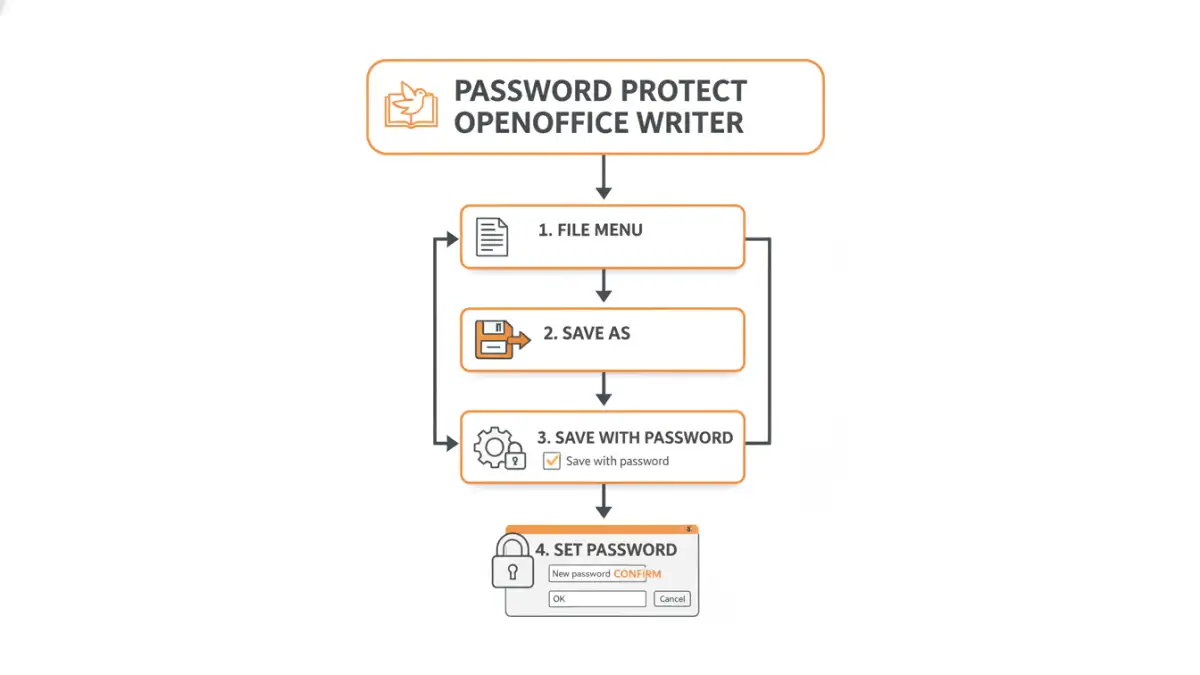
The process to password protect an OpenOffice Writer document is quite straightforward. OpenOffice uses a strong encryption method to secure your files. Follow these steps to add a password to your ODF document:
Step-by-Step Guide
- Open Your Document: Launch OpenOffice Writer and open the document you wish to protect.
- Access Save As Options: Go to the 'File' menu. From the dropdown, select 'Save As...'.
- Locate Password Setting: In the 'Save As' dialog box, look for a checkbox labeled 'Use Password Protection' or similar wording. It's usually located near the bottom of the dialog window.
- Enable Protection: Check the box to enable password protection.
- Enter Your Password: A dialog box will appear prompting you to enter a password. Choose a strong, memorable password.
- Confirm Password: You will be asked to re-enter the password to confirm it.
- Save the Document: Click 'OK' or 'Save' to finalize the process. Your document is now password protected.
When you or anyone else tries to open this document again, OpenOffice Writer will prompt for the password before displaying the content. Without the correct password, the document remains inaccessible, effectively securing your writer file.
Choosing a Strong Password
The effectiveness of your document's protection hinges entirely on the strength of your password. A weak password, like '12345' or 'password', can be easily guessed or cracked. For robust security, aim for a password that is at least 12 characters long and includes a mix of uppercase and lowercase letters, numbers, and symbols.
Tips for Strong Passwords
- Avoid using personal information like names, birthdays, or addresses.
- Combine words that don't necessarily make sense together (e.g., 'BlueElephant#7').
- Use a password manager to generate and store complex passwords securely. This eliminates the need to memorize multiple difficult passwords.
- Change your passwords periodically, especially for highly sensitive documents.
Alternatives and Further Considerations
While OpenOffice Writer's native password protection is excellent for ODF documents, there are other scenarios and tools to consider. If you need to protect a document that will be opened on a system without OpenOffice, or if you're dealing with other file formats, external tools might be necessary. For instance, converting your document to a PDF and then password-protecting the PDF using specialized software or online services is a common alternative.
When to Use Other Methods
If you're collaborating with individuals who primarily use Microsoft Office, you might consider saving your Writer document in a compatible format (like .docx) and then applying password protection using Microsoft Word's features. However, for maintaining the integrity of your OpenOffice documents, using the built-in 'Save As' password protection is generally the most reliable and secure method to protect your ODF document.
Best Practices for Document Security
Adding a password is a vital step, but it's part of a broader security strategy. Always remember where you save your password and ensure it is stored securely, perhaps in a password manager. Avoid writing it down on easily accessible notes or in plain text files. Regularly review your security practices to adapt to evolving threats.
Maintaining Security
- Keep your OpenOffice software updated to benefit from the latest security patches.
- Be cautious about where you save password-protected files; avoid public computers or unsecured cloud storage.
- If you need to share a document but don't want to reveal the password in the same communication, consider sending the password separately via a different channel (e.g., a phone call or text message).
Comparison Table: Document Protection Methods
| Method | Pros | Cons | Best For |
|---|---|---|---|
| OpenOffice Writer Native Password Protection | Built-in, free, strong encryption for ODF files | Only works for ODF files, requires users to have OpenOffice | Securing original OpenOffice documents |
| PDF Password Protection (External Tools) | Widely compatible, many free/paid tools available | Requires conversion to PDF, potential privacy concerns with online tools | Sharing documents universally |
| Microsoft Word Password Protection | Integrated with MS Office ecosystem, familiar interface | Requires Microsoft Office, compatibility issues with ODF | Collaborating with MS Office users |
| Password Managers | Secure generation and storage of complex passwords | Requires setup, potential single point of failure if compromised | Managing multiple strong passwords for various files and services |