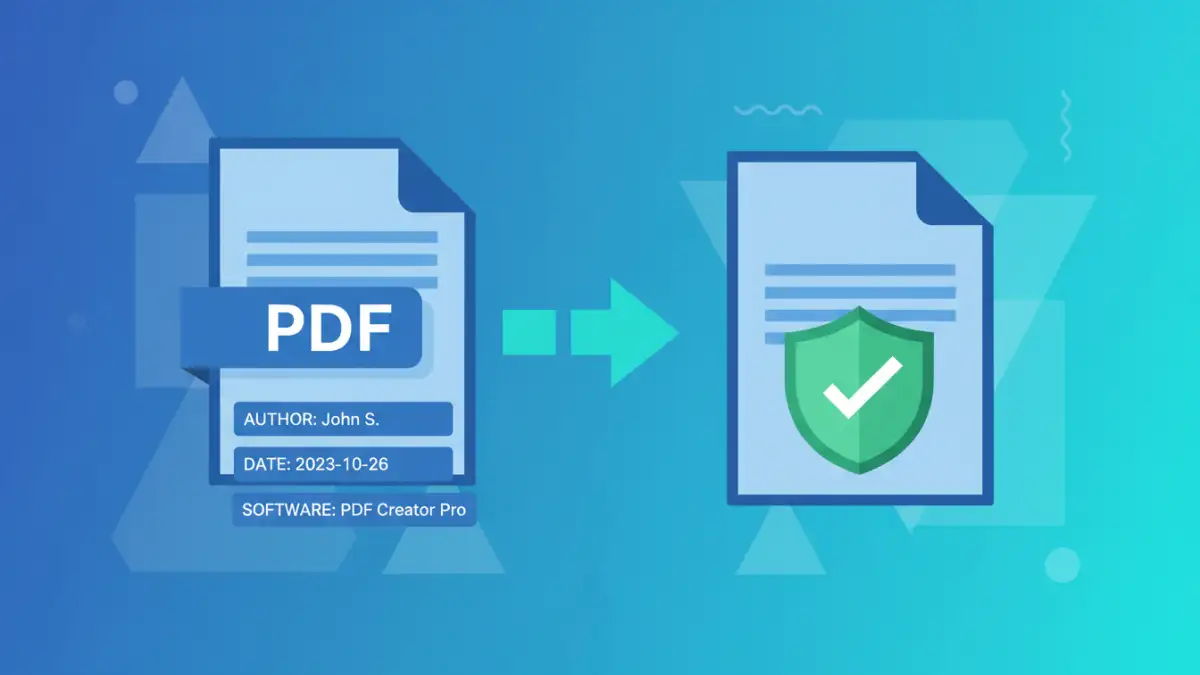
A few months ago, a legal team I was consulting for shared a set of documents for review. Out of habit, I inspected the properties of one of the PDFs. It contained the author's name, the exact version of the software used to create it, and a complete modification history. This wasn't a critical breach, but it was a stark reminder of how much invisible information we share every day without a second thought.
These seemingly harmless bits of data can expose details about your organization, its people, and its internal processes. Ensuring secure document sharing means paying attention not just to the visible content, but to the hidden data embedded within the files themselves.
Table of Contents
What Is Hidden Data in a PDF?
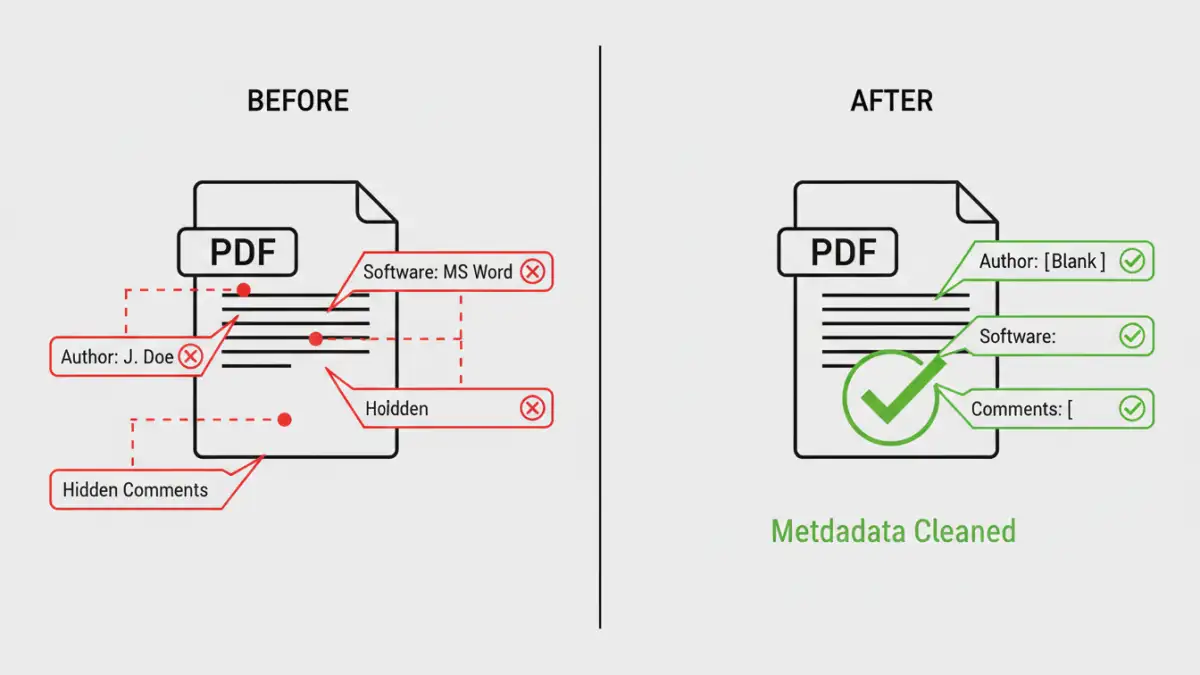
When you create a PDF, the software you use automatically embeds information that goes far beyond the text and images you see on the page. This hidden information, often called metadata, provides context about the file's origin and history.
Understanding Metadata
Metadata is essentially 'data about data.' In a PDF, this typically includes the author's name, document title, subject, and keywords. It can also contain more technical details like the application used for creation (e.g., Adobe InDesign 2023, Microsoft Word), the creation date, and the last modification date. While useful for internal file management, this information can become a liability when shared externally.
Beyond Metadata: Other Hidden Information
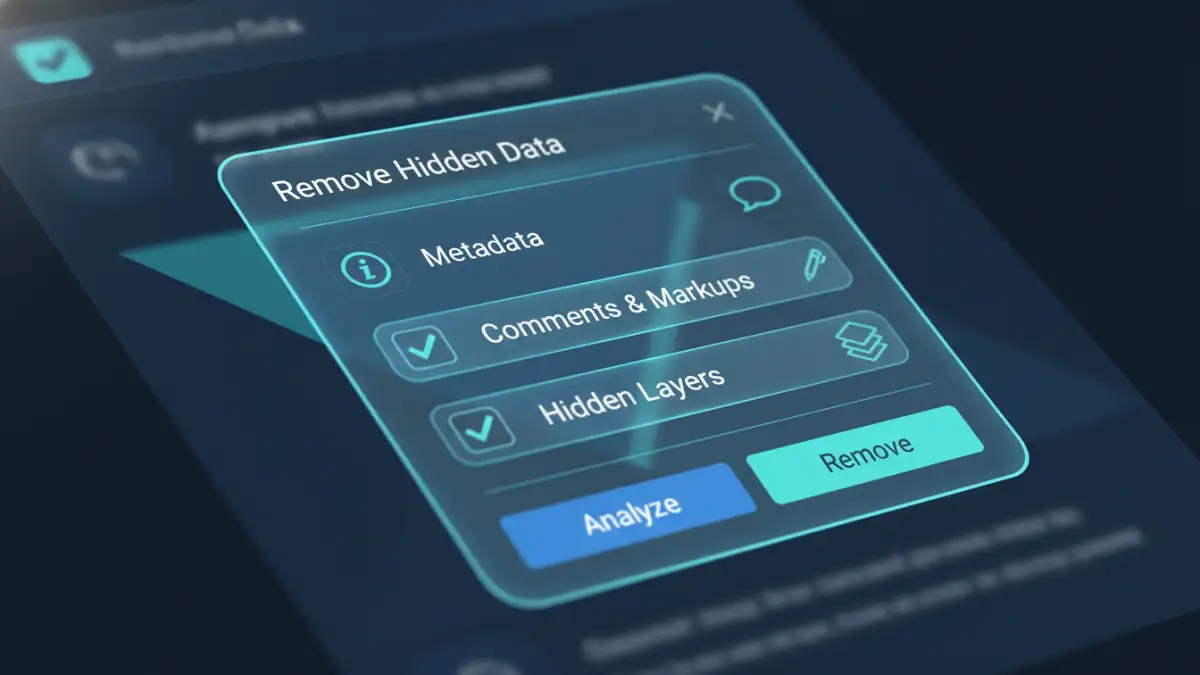
It doesn't stop at basic metadata. PDFs can also contain more intrusive hidden elements. These might include comments and annotations from previous review cycles, deleted text or images that are still recoverable, hidden layers, and form fields with previously entered data. This information paints a detailed picture of the document's lifecycle, which you may not want to share publicly.
Why This Data Is a Security Risk
Leaving this hidden data intact poses several risks to your document privacy. For one, it can inadvertently leak sensitive internal information. Imagine a proposal document that contains the names of all the collaborators in its metadata, or a legal contract that has tracked changes from previous negotiation rounds still embedded within it.
This data can also be exploited by malicious actors. Knowing the exact software and version used to create a document can help an attacker identify potential vulnerabilities to target. It provides a piece of your organization's technical puzzle, which is always best kept private. A commitment to clean pdf metadata is a fundamental step in a robust security posture.
Manual Methods for PDF Metadata Removal
For those who have the right tools, removing metadata can be a straightforward process. Most professional-grade PDF editors include features to inspect and scrub this hidden data. This approach gives you granular control over what you remove.
Using Adobe Acrobat Pro
If you have a subscription to Adobe Acrobat Pro, this is one of the most reliable ways to manage hidden data. The process is quite simple:
- Open your PDF in Adobe Acrobat Pro.
- Navigate to 'File' > 'Properties'. Here you can manually edit or delete fields like Title, Author, and Subject.
- For a more thorough cleaning, go to the 'Tools' panel and search for 'Redact'. Under the Redact toolset, you will find an option called 'Remove Hidden Information'.
- Acrobat will scan the document for all types of hidden data, including metadata, attachments, comments, and hidden text. You can then select which elements you want to remove permanently.
This method is effective but requires access to paid software. It's my go-to for sensitive documents because it works locally on my machine, ensuring the file never leaves my control.
Automated Tools and Solutions
When you need to process many files or don't have access to professional software, automated tools are a great alternative. These tools are specifically designed for pdf metadata removal and often have a simple drag-and-drop interface.
There are numerous free online tools that can strip metadata from your PDFs. You simply upload the file, the service processes it, and you download a clean version. However, a word of caution is necessary here. I never use these for sensitive or confidential documents. Uploading a file to a third-party server introduces a new privacy risk, as you can't be certain how your data is handled or stored.
For more secure, batch processing, dedicated desktop applications are available. These tools run locally on your computer and can be scripted to clean entire folders of documents at once. Investing in such a tool can be a wise decision for organizations that prioritize secure document sharing and handle a high volume of PDFs.
Best Practices for Document Privacy
Making metadata removal a part of your workflow is a great habit. Before sending any PDF outside your organization, take a moment to inspect its properties. It's a small step that can prevent significant information leakage. For a comprehensive strategy, you should also remove pdf security data that might be left over from previous encryption or permission settings.
Establish a clear policy within your team or organization. Define a standard procedure for cleaning documents before they are shared with clients, partners, or the public. This ensures consistency and reduces the risk of human error. Ultimately, treating your document's metadata with the same care as its visible content is key to maintaining digital hygiene and security.
Comparison of Metadata Removal Methods
| Method | Pros | Cons | Best For |
|---|---|---|---|
| Adobe Acrobat Pro | Comprehensive control, secure (offline), removes all hidden data types. | Requires a paid subscription, has a learning curve. | Professionals and organizations handling sensitive documents. |
| Online Tools | Free, quick, and easy to use for single files. | Major privacy and security concerns (uploading to third-party servers). | Non-sensitive, personal documents where privacy is not the top concern. |
| Dedicated Desktop Software | Secure (offline), excellent for batch processing, often scriptable. | Can have an upfront cost, may be overkill for casual users. | IT departments and users who need to clean many files efficiently. |
| Operating System Properties | Built-in, no extra software needed (Windows/macOS). | Only removes basic metadata, may not catch all hidden information. | A quick, basic clean for simple documents. |