Working with password-protected documents can sometimes be a hurdle, especially when you've forgotten the password or need to share a file quickly. I've encountered this situation numerous times, both for my own files and when assisting colleagues. The good news is that there are effective ways to handle this, and often, a simple tool can save you a lot of time and frustration.
This guide will walk you through the process of removing password protection from your PDF files, focusing on a straightforward and accessible approach. Whether it's for personal access or to streamline workflow, understanding how to unlock these documents is a valuable skill.
Table of Contents
Understanding PDF Password Protection
PDFs can be secured with passwords in two primary ways: owner passwords and user passwords. An owner password restricts actions like printing, copying, or editing, while a user password prevents the file from being opened at all. Knowing the type of protection is key to choosing the right removal method.
Types of PDF Passwords
The 'owner' password limits what you can do with a PDF, even if you can open it. The 'user' password acts as a gatekeeper, requiring you to enter it just to view the document. If you know the user password, many methods become significantly easier, as you can essentially grant yourself permission to perform restricted actions.
Overview of Removal Methods

There are several common approaches to removing password protection from PDFs. These range from simple browser-based tricks to dedicated online services and desktop applications. Each method has its own set of advantages and disadvantages, depending on the type of password, your technical comfort level, and your privacy concerns.
My experience suggests that the best method often depends on the specific PDF and the reason for needing to remove the password. For instance, if you're the legitimate owner of the PDF and just need to bypass a printing restriction, a quick browser trick might suffice. If you're dealing with a forgotten user password, a more robust tool might be necessary.
The Browser Print Trick
One of the most accessible methods, especially for PDFs protected by an owner password (restricting printing, copying, etc.), involves using your web browser's print function. This technique essentially 're-saves' the PDF as a new, unprotected file.
Steps for the Browser Trick
- Open the password-protected PDF in your web browser (like Chrome, Firefox, or Edge) by dragging and dropping it into an open browser tab.
- If prompted, enter the user password to open the document.
- Once the PDF is visible, go to the 'Print' option (usually Ctrl+P or Cmd+P).
- In the printer dialog, select 'Save as PDF' or 'Microsoft Print to PDF' as your destination printer.
- Click 'Save' and choose a location for the new PDF file. This new file will be an unprotected copy.
This method is brilliant for its simplicity and the fact that it requires no additional software. However, it typically only works if you know the password that allows you to open and view the PDF in the first place. It won't bypass a user password required to open the file.
Using Online PDF Password Removers
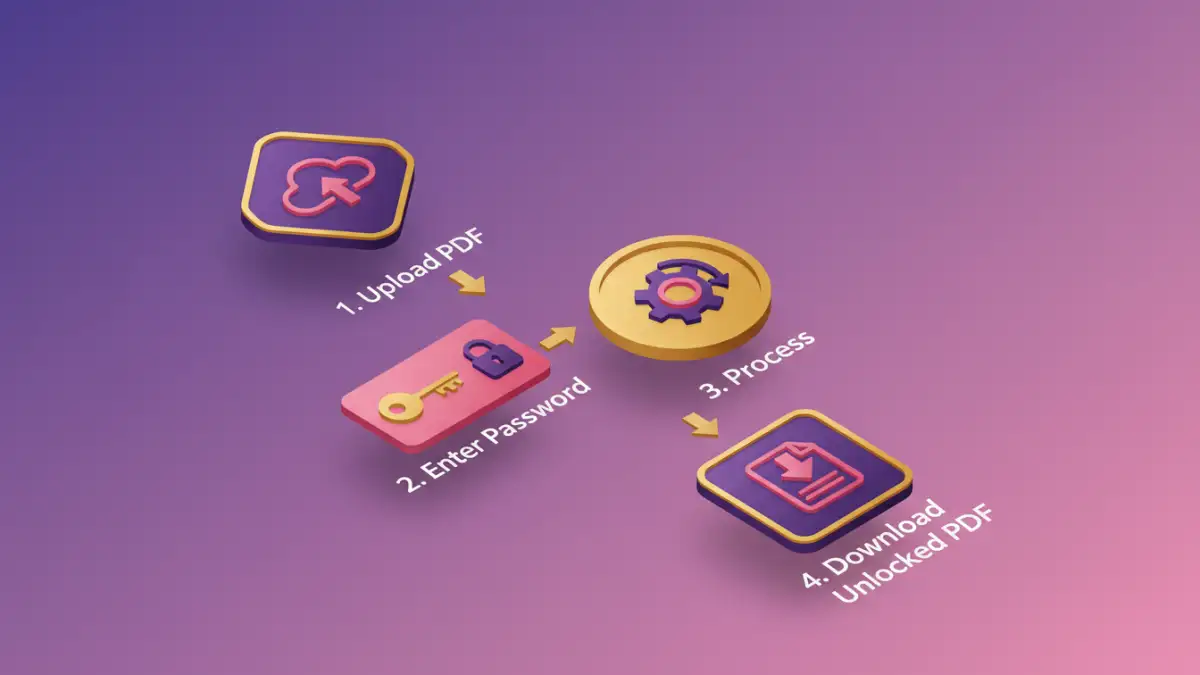
Numerous online services specialize in removing password protection from PDFs. These tools are convenient because they are accessible from any device with an internet connection and usually require no software installation. You simply upload your PDF, enter the password (if known), and the service provides a decrypted version.
Choosing a Reputable Online Tool
When selecting an online PDF password remover, prioritizing privacy and security is crucial. Look for services that clearly state their data handling policies and mention that they delete uploaded files after a short period. Some popular options include Smallpdf, iLovePDF, and PDF2Go. These platforms often offer a free tier for basic operations, making them a good first choice for many users.
I've used several of these online tools, and they are remarkably effective for standard password protection. The key is to ensure you are using a legitimate service and understand the potential risks associated with uploading sensitive documents to third-party websites.
Desktop Software Solutions
For users who deal with PDF security frequently or handle highly sensitive documents, dedicated desktop software offers a more powerful and secure solution. These applications often provide advanced features and can handle more complex encryption scenarios than online tools.
Benefits of Desktop Software
Desktop applications for removing PDF passwords typically offer better performance, enhanced security (as files aren't uploaded to external servers), and may support batch processing. Some software can even attempt to recover forgotten passwords, though this process can be time-consuming and is not always successful. When searching for such software, look for reputable vendors and check reviews to ensure reliability.
Best Practices and Considerations
Regardless of the method you choose to remove PDF password protection, always consider the security implications. Ensure you have the legal right to access and modify the document. If you are the rightful owner and simply forgot the password, these methods are perfectly fine. However, never use these techniques to access documents you do not have permission to view or alter.
Security and Legality
Always use these tools responsibly. If a PDF is encrypted with a password you don't know, and you are not the owner, attempting to remove the protection could have legal consequences. For personal files, using a reliable remove pdf password tool is a practical way to regain access, but ethical considerations should always come first.
Comparison Table
| Method | Pros | Cons | Best For |
|---|---|---|---|
| Browser Print Trick | Free, no software required, quick for owner passwords | Does not bypass user passwords, limited functionality | Removing print/edit restrictions when you know the user password |
| Online Tools | Accessible from anywhere, easy to use, fast processing | Potential privacy/security risks, requires internet connection, often limited free usage | Quickly unlocking PDFs for general use when privacy is not a major concern |
| Desktop Software | Enhanced security, powerful features, offline processing, batch capabilities | Requires installation, often paid, learning curve | Handling sensitive documents, frequent password removal, complex encryption |
| Password Recovery Tools | Can potentially recover forgotten user passwords | Time-consuming, not always successful, can be complex | When the user password is lost and cannot be obtained |