
Working with sensitive financial data, client lists, or proprietary information in spreadsheets demands a strong approach to security. Many users assume that the built-in features of office suites are sufficient, but understanding how to properly implement them is crucial. My experience has shown that even simple spreadsheets can contain information valuable enough to warrant robust protection against unauthorized access or accidental exposure.
This guide will walk you through the essential methods and best practices for ensuring your OpenOffice spreadsheets are as secure as possible, giving you peace of mind.
Table of Contents
Understanding Spreadsheet Security
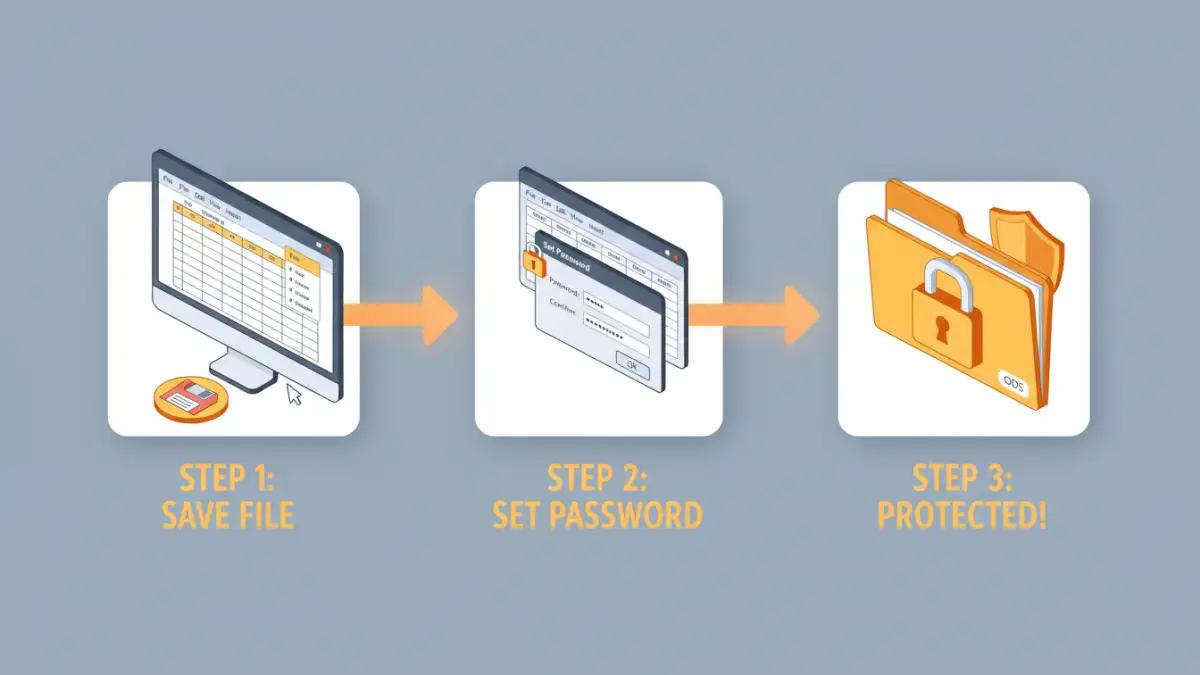
The primary goal of securing a spreadsheet is to prevent unauthorized viewing, modification, or deletion of its contents. This involves several layers of protection, from simple password barriers to more complex encryption methods. It's important to recognize that security is not a one-time setup but an ongoing process that requires vigilance and appropriate measures based on the sensitivity of the data.
Why Secure Your Spreadsheets?
Sensitive information within spreadsheets can range from personal identifiable information (PII) and financial records to trade secrets and strategic business plans. A breach could lead to identity theft, financial loss, reputational damage, or competitive disadvantage. Implementing strong security measures is not just good practice; it's often a compliance requirement.
Methods for Protecting Calc Files

OpenOffice Calc offers several built-in features to help you protect your workbooks. These methods vary in their strength and complexity, allowing you to choose the best option for your needs.
Password Protection for Files
The most common and straightforward method is to password-protect the entire spreadsheet file. When you save your Calc document, you have the option to set a password. This password is required to open the file, acting as the first line of defense. While convenient, it's important to note that this protection relies on the strength of the password and the encryption algorithm used by OpenOffice.
Protecting Specific Sheets and Cells
Beyond file-level protection, Calc allows you to protect individual sheets or specific cell ranges. This is useful when you want to allow others to view or interact with certain parts of the spreadsheet while preventing modifications to critical formulas or data. You can set passwords for sheet protection, ensuring that only those with the correct password can make changes.
Advanced Security Techniques
While basic password protection is effective, more advanced scenarios might require additional considerations. For instance, managing passwords across multiple users or ensuring compliance with stringent data protection regulations can be complex.
Encryption Strength
OpenOffice uses the OpenPGP standard for encrypting documents, which is a robust encryption protocol. When you set a password to open a file, Calc employs this encryption. The strength of this protection depends heavily on the complexity of your chosen password. Using a combination of uppercase and lowercase letters, numbers, and symbols, along with a minimum length of 12 characters, is highly recommended.
Working with Sensitive Data in ODT Format
OpenOffice documents, including spreadsheets, are typically saved in the OpenDocument Format (ODF), with `.ods` being the extension for spreadsheets. This format is an open standard, and when secured with a strong password, it provides reliable protection. For users concerned about interoperability or seeking specific advanced security features, exploring third-party encryption tools that can work with ODF files might be an option, though often unnecessary if the built-in features are used correctly.
Best Practices for Ongoing Security
Implementing security features is only part of the solution. Maintaining the security of your spreadsheets requires consistent effort and adherence to best practices. Regularly reviewing who has access to your files and ensuring your passwords remain strong are vital steps.
Always use strong, unique passwords for your spreadsheets. Avoid using easily guessable information like birthdays or common words. Consider using a password manager to generate and store complex passwords securely. Educate anyone who needs access to the spreadsheets about the importance of password security and how to handle sensitive information responsibly.
Comparison Table: Spreadsheet Protection Methods
| Method | Pros | Cons | Best For |
|---|---|---|---|
| File Password Protection (OpenOffice) | Easy to implement, protects entire file | Relies on password strength; can be bypassed with brute-force attacks on weak passwords | Securing individual files for personal or small team use |
| Sheet/Cell Protection (OpenOffice) | Allows selective editing, prevents accidental changes to critical data | Does not prevent opening the file; password can be reset in some cases | Collaborative environments where some data needs to remain static |
| Strong Password Management | Enhances security of any password-protected file | Requires discipline and a reliable password manager tool | All users handling sensitive spreadsheet data |
| Third-Party Encryption Tools | May offer advanced features or compatibility | Can add complexity; relies on the tool's security and your correct usage | Specific compliance needs or integration with other systems |