
Have you ever needed to share a presentation but wanted to ensure only specific individuals could access its content? In professional settings, protecting sensitive data within presentations is crucial. Whether it's financial reports, confidential business strategies, or personal projects, a simple password can be the first line of defense against unauthorized viewing. This is where understanding openoffice presentation security becomes invaluable.
OpenOffice Impress, a powerful part of the OpenOffice suite, allows users to create dynamic presentations. Like any document, these can contain information that requires protection. Fortunately, securing your Impress files is straightforward, offering peace of mind and enhanced data integrity.
Table of Contents
Understanding Presentation Security
When we talk about securing documents, especially presentations, we're primarily referring to preventing unauthorized access. This can range from simple password protection to more complex encryption methods. For OpenOffice Impress, the most common and accessible method is password protection, which encrypts the file and requires a password to open it.
The Role of Encryption
At its core, password protection for your OpenOffice files relies on encryption. When you set a password, the software scrambles the data within your presentation file. This scrambled data is unreadable without the correct decryption key, which is derived from your password. It’s a fundamental security feature that ensures your content remains confidential.
Adding Password Protection in Impress
Securing your OpenOffice Impress presentations is a built-in feature, making it accessible to all users. The process is designed to be intuitive, ensuring that even those less familiar with technical security measures can implement it effectively. This allows for robust protection of your sensitive files.
Step-by-Step Guide to Password Protecting
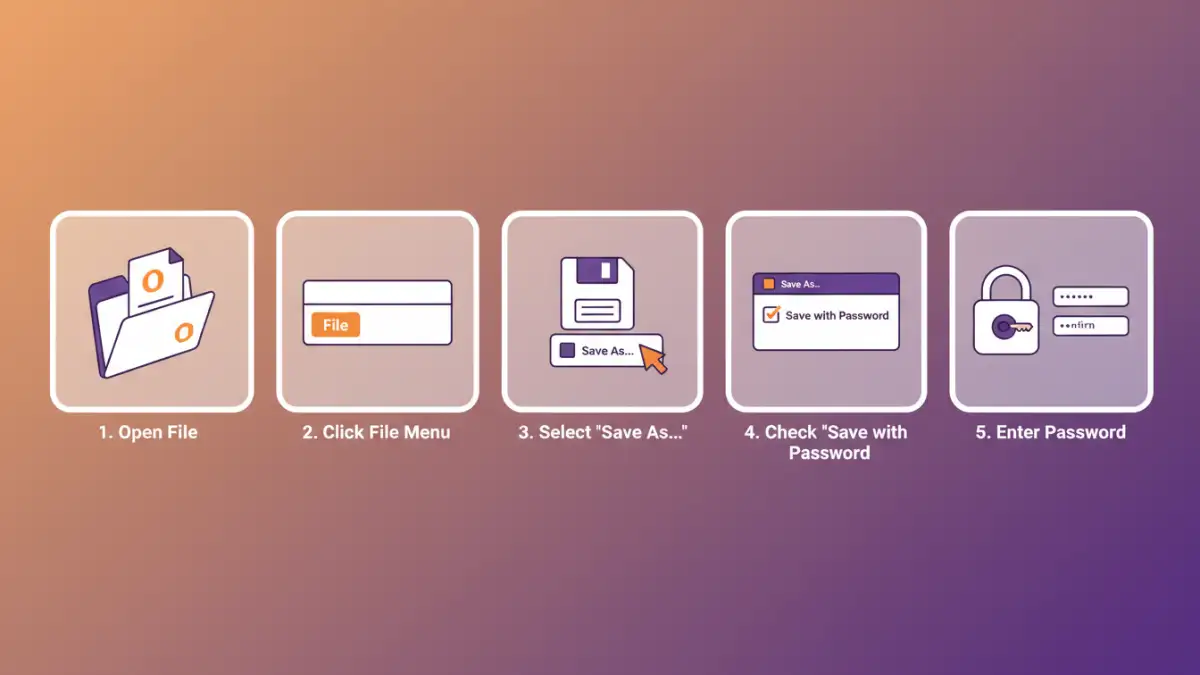
Here’s how you can password protect your OpenOffice Impress presentations:
- Open your presentation in OpenOffice Impress.
- Go to the File menu.
- Select Save As.... A dialog box will appear.
- In the 'Save As' dialog box, look for the Save with Password option or a similar checkbox. This might be directly visible or under an 'Options' or 'Security' button depending on your version of OpenOffice.
- Check the box for 'Save with Password'.
- Click Save.
- You will be prompted to enter a password. Choose a strong, memorable password.
- Confirm the password by entering it again.
- Click OK.
Once saved with a password, any attempt to open this presentation will require the correct password. This is a critical step for anyone needing to share potentially sensitive information and maintain control over its viewership. This method ensures that your openoffice presentation security is enhanced.
Why Secure Your Presentations?
The benefits of securing your OpenOffice presentations extend beyond just preventing casual snooping. In a professional context, it demonstrates a commitment to data privacy and security protocols. For individuals, it safeguards personal or proprietary information from falling into the wrong hands.
Protecting your work also helps maintain intellectual property rights and prevents the misuse of your content. Whether you are sharing with external clients or internal teams, a password-protected file ensures that only authorized personnel can access and utilize the information within. This is especially important for presentations containing financial data, strategic plans, or proprietary research.
Best Practices for Presentation Security
Implementing password protection is a great first step, but combining it with other security practices amplifies its effectiveness. My experience in software engineering has taught me that a layered approach is always best when it comes to security.
When creating passwords, always opt for strong, complex combinations that include uppercase and lowercase letters, numbers, and symbols. Avoid using easily guessable information like birthdays, names, or common words. Regularly update your passwords, especially for highly sensitive presentations. Furthermore, consider who truly needs access to the presentation and share the password through a separate, secure channel, not within the same email or message as the file itself. This ensures that even if the file transfer is intercepted, the password remains private.
Comparison Table: Password Protection Methods
| Method | Ease of Use | Security Level | Use Case | Notes |
|---|---|---|---|---|
| Built-in OpenOffice Impress Password | Very Easy | Good (AES encryption available in newer versions) | Securing individual presentations | Requires user to remember password; no advanced features |
| Third-Party Encryption Software | Moderate | High (often stronger algorithms) | Encrypting multiple files or highly sensitive data | May require installation; can add complexity |
| File Archiving with Password (e.g., ZIP) | Easy to Moderate | Moderate to Good (depends on archive tool and method) | Bundling and protecting multiple files | Requires archive software; less integrated than native protection |