Working with password-protected documents can be frustrating, especially when you’ve forgotten the password or inherited a file without one. This is particularly true for the OpenDocument format, which is widely used by free office suites like LibreOffice and OpenOffice. When access is blocked, understanding the OpenDocument password removal process becomes crucial.
As someone who has navigated the complexities of document security and data recovery for over a decade, I've encountered numerous situations where lost passwords were a significant hurdle. It’s important to approach this topic with a clear understanding of both the technical possibilities and the ethical boundaries involved.
Table of Contents
Understanding OpenDocument Security
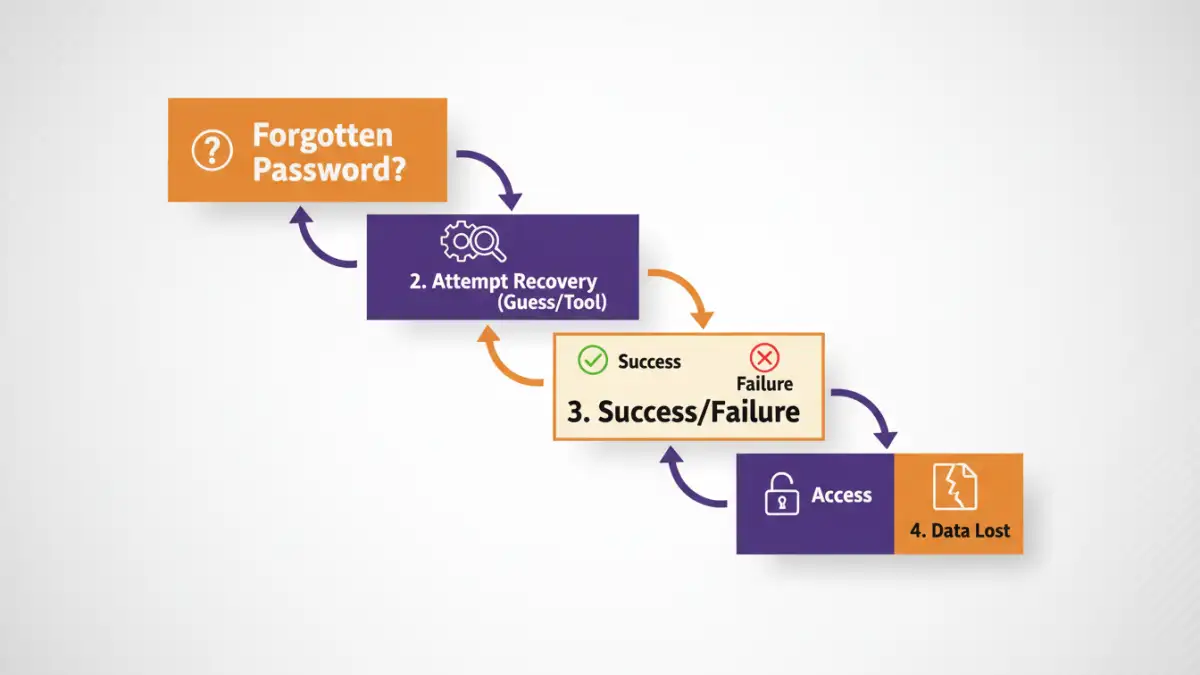
OpenDocument files, such as .odt (text documents), .ods (spreadsheets), and .odp (presentations), can be protected with passwords. This encryption is designed to prevent unauthorized access to the document's content. The strength of this protection can vary depending on the software version and the specific encryption method used.
When a document is password-protected, the data within it is scrambled using an encryption algorithm. Only by providing the correct password can the document be decrypted and its contents made visible and editable. This process is fundamental to maintaining the privacy and integrity of your files.
Encryption Basics
The encryption used in OpenDocument formats typically involves a symmetric encryption algorithm. This means the same key (derived from the password) is used for both encrypting and decrypting the file. If the password is weak, or if the encryption algorithm itself has vulnerabilities, it might be theoretically possible to bypass the protection.
How ODT Password Removal Works
The core principle behind attempting to remove a password from an OpenDocument file relies on either guessing the password or exploiting potential weaknesses in the encryption. This is often referred to as password recovery or brute-force attack, though for modern encryption, brute-force is highly impractical.
For older versions or weaker encryption implementations, it might be possible to use specialized software. These tools attempt to systematically try combinations of characters or use dictionary attacks to find the correct password. However, for strong encryption, this approach is computationally infeasible.
The Challenge of Modern Encryption
Modern OpenDocument implementations use robust encryption standards. This means that if you forget a password for a file encrypted with a strong, modern algorithm, there is often no easy or quick way to recover it. The security is designed to be formidable against unauthorized access.
Methods for Password Recovery
When faced with a forgotten password, several approaches can be considered, each with its own success rate and complexity.
Method 1: Remembering or Guessing
The most straightforward, though often overlooked, method is to try and recall the password. Think about common passwords you use, variations, or hints related to the document's content or creation date. Sometimes, a simple password reset is all that's needed.
Method 2: Using Online Tools
There are various online services that claim to help with password recovery for different file types, including OpenDocument files. These tools often work by attempting brute-force or dictionary attacks. However, using online tools comes with significant privacy risks, as you are uploading your sensitive document to a third-party server. Proceed with extreme caution and only use reputable services if absolutely necessary.
Method 3: Desktop Software Solutions
Dedicated desktop software exists for password recovery. These applications can sometimes offer more advanced features and potentially higher success rates than online tools, as they run locally on your machine. They often require you to install software and can take a considerable amount of time to process, especially for complex passwords.
Method 4: Password Managers
If you regularly use password managers, checking your manager is the easiest and most secure method. If you stored the password for the OpenDocument file there, you can simply retrieve it. This highlights the importance of using password managers for all your sensitive data.
Limitations and Ethical Concerns
It's crucial to acknowledge that the OpenDocument password removal process is not always successful, especially with strong encryption. The effectiveness of recovery methods depends heavily on the complexity of the password and the encryption strength used by the creating software.
Furthermore, attempting to bypass security on a document you do not own or have explicit permission to access is unethical and potentially illegal. These methods should only be used on your own files when you have genuinely forgotten the password and need to regain access to your legitimate data.
When Recovery is Unlikely
If the document was encrypted using a strong password and modern encryption algorithms, brute-force attacks or dictionary methods are unlikely to yield results within a reasonable timeframe. The computational power required would be astronomical. In such cases, if the password is truly lost, the data may be permanently inaccessible.
Best Practices for Document Security
To avoid the predicament of forgotten passwords and the complexities of password removal, implementing good security practices from the outset is essential. This includes choosing strong, unique passwords and storing them securely.
Consider using a reputable password manager to generate and store strong passwords for all your important documents. Regularly back up your important files, and if possible, maintain a version history. This can act as a fallback if a password is lost and recovery is impossible.
Comparison Table: Methods for Document Password Access
| Method | Pros | Cons | Best For |
|---|---|---|---|
| Recalling/Guessing | Free, immediate if successful | Low success rate for complex passwords | Simple, common, or memorable passwords |
| Online Tools | Accessible, no installation required | Privacy risks, variable success rates, may have fees | Quick attempts on non-sensitive files (use with caution) |
| Desktop Software | Potentially more powerful, runs locally | Requires installation, can be slow, often paid | Complex password recovery, when privacy is a concern with online tools |
| Password Managers | Secure storage, auto-generation, easy retrieval | Requires initial setup, subscription costs for advanced features | Long-term, secure management of all passwords |