
We often assume that clicking 'password-protect' on a file makes it instantly secure. But a recent survey I reviewed paints a very different, and frankly, worrying picture about our collective file security habits. The data shows a significant gap between the intention to protect documents and the actual effectiveness of the methods used.
It turns out that many of the most common practices are fundamentally flawed, leaving sensitive personal and business information vulnerable. As an engineer who frequently deals with data security protocols, these findings were not entirely surprising, but they highlight just how crucial education on this topic is.
Table of Contents
The Alarming Gaps in Our Digital Defenses
The survey, which polled over a thousand professionals across various industries, revealed some startling statistics about file security habits. Nearly 70% of respondents admitted to reusing the same password or a simple variation of it across multiple documents and online services. This single habit creates a massive vulnerability; if one document's password is breached, the attacker gains a potential key to many others.
Furthermore, the survey found that less than 30% of users consistently use strong, randomly generated passwords for their files. Most rely on memorable but predictable patterns, such as family names, important dates, or simple keyboard sequences. This behavior essentially leaves the digital door unlocked for anyone willing to try a few common combinations.
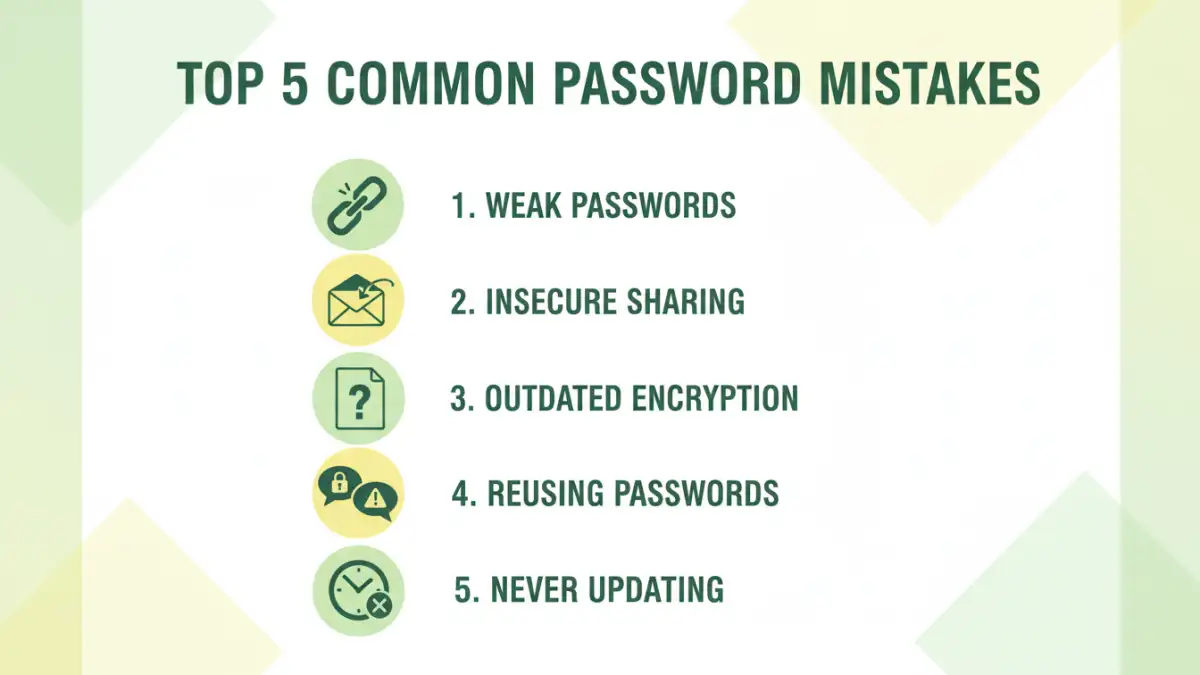
Top 5 Common Password Mistakes Uncovered

Beyond password reuse, the research pinpointed several recurring errors. These common password mistakes create vulnerabilities that can be easily exploited, undermining the very purpose of adding a password in the first place.
1. Weak and Predictable Passwords
This is the most frequent offender. Passwords like "123456," "password," or "companyname2024" are shockingly common. They offer virtually no resistance to brute-force attacks, where software rapidly cycles through common passwords. A strong password should be long (12+ characters), complex (upper/lower case, numbers, symbols), and not contain any personally identifiable information.
2. Sharing Passwords Insecurely
Another major issue highlighted was how passwords are shared. Over half of the participants confessed to sending document passwords through unencrypted channels like email, text messages, or instant messaging platforms. This practice is incredibly risky. If that communication is intercepted, both the protected document and its password are compromised.
3. Forgetting to Encrypt Attachments
Many people password-protect a primary document, like a report, but then forget to apply the same level of security to its attachments. A sensitive spreadsheet or PDF sent alongside an encrypted email is completely exposed if it isn't individually protected. Each sensitive file needs its own layer of security.
4. Using Outdated Encryption Standards
Not all encryption is created equal. Some older software uses outdated and weak encryption algorithms (like 40-bit RC4) that can be cracked in minutes with modern hardware. When protecting documents, it's vital to use applications that support strong, modern standards like AES-256. Most current versions of Microsoft Office and Adobe Acrobat do, but you have to ensure you're using those settings.
5. Neglecting Metadata Security
Even when a document's content is encrypted, its metadata often is not. This can include the author's name, creation date, revision history, and even hidden comments. In some legal or corporate scenarios, this metadata can be just as sensitive as the document's content. Proper document password protection should include scrubbing or securing this information as well.
Why These Mistakes Matter: The Real-World Risks
These seemingly small mistakes have significant consequences. For businesses, a breach can lead to financial loss, reputational damage, and severe regulatory fines under laws like GDPR or HIPAA. I once worked with a small financial advisory firm that suffered a breach because a sensitive client list in a spreadsheet was 'protected' with the password "clients2023". The fallout was costly and eroded client trust.
On a personal level, compromised documents can lead to identity theft, financial fraud, or the exposure of private information. Imagine a password-protected document containing tax records or medical information falling into the wrong hands. The risks are far too great to ignore these fundamental security practices.
Building a Better Defense for Your Documents
Improving your file security habits doesn't have to be complicated. The first and most impactful step is to use a password manager. These tools generate and securely store long, unique, and complex passwords for every document and service, eliminating the need to remember them or reuse weak ones.
Second, always verify the security settings in your software. When saving a protected PDF or Word document, look for options specifying the encryption level and choose the strongest available (e.g., AES-256). Finally, establish a secure method for sharing passwords when necessary. Use a secure sharing feature within your password manager or a dedicated encrypted messaging service instead of plain email or chat.
Weak vs. Strong Document Security Habits
| Habit | Weak Practice (High Risk) | Strong Practice (Low Risk) |
|---|---|---|
| Password Creation | Using 'Password123' or personal dates. | Using a password manager to generate 16+ character unique passwords. |
| Password Reuse | Using the same password for multiple documents. | Creating a unique password for every single protected file. |
| Password Sharing | Sending the password via email or chat. | Using a secure sharing tool or providing it over a separate, secure channel. |
| Encryption Type | Using default or unknown encryption settings. | Verifying the software uses modern standards like AES-256. |
| File Handling | Emailing sensitive files as regular attachments. | Using secure, encrypted cloud storage with access controls. |
| Updating Software | Using old versions of Office or Acrobat. | Keeping all document-handling software updated to the latest version. |