
Working with sensitive documents often means ensuring they're protected, and for many organizations, that means password-protecting PDFs. Manually applying passwords to every document can be a tedious, error-prone, and time-consuming task, especially when dealing with large volumes. This is a common pain point I've seen across various industries.
The good news is that we can move beyond manual processes. Setting up an automated password protected PDF workflow not only saves countless hours but also significantly boosts security consistency and compliance. Let's explore how to implement these smart solutions.
Table of Contents
Understanding the Need for Automation
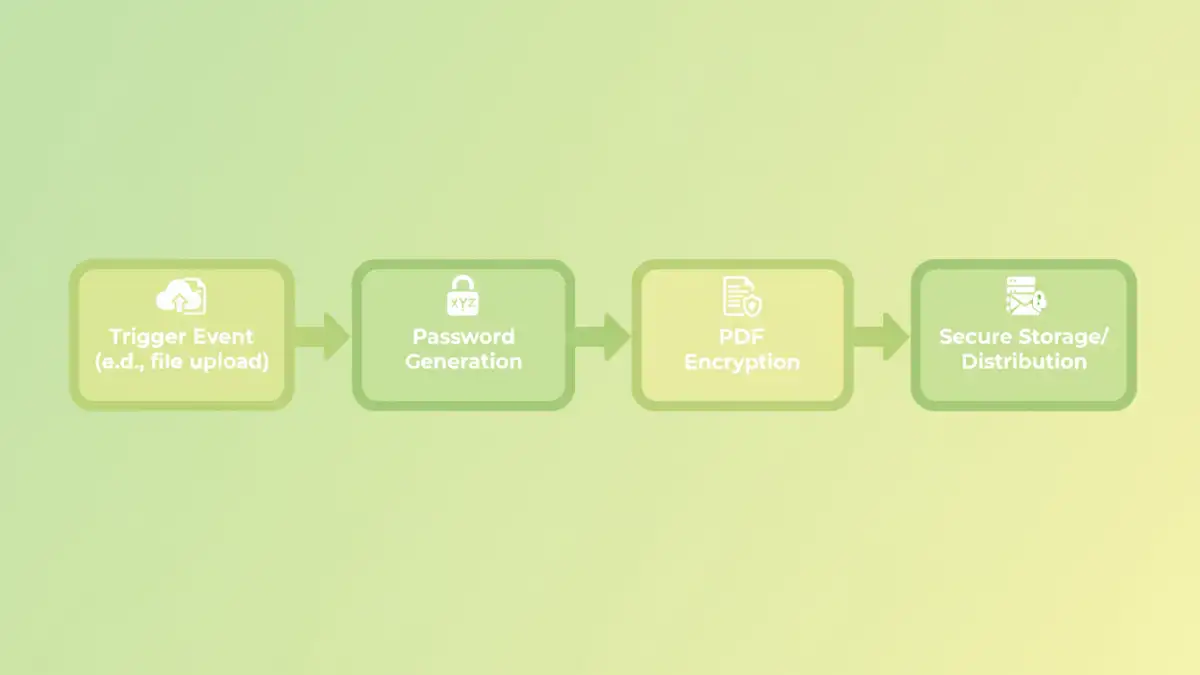
In my experience, almost every company deals with confidential data that needs securing. Whether it's client contracts, financial reports, or employee records, ensuring these documents are encrypted and accessible only to authorized personnel is paramount. This is where the concept of an automated password protected PDF workflow becomes incredibly valuable.
The Challenge of Manual Protection
Imagine a finance department sending out hundreds of individual invoices daily, each requiring a unique password. Or a legal team preparing dozens of contracts. Doing this by hand is not only tedious but also introduces human error, such as forgetting a password, using a weak one, or applying the wrong password to the wrong document. These errors can lead to security breaches or compliance issues, which are costly to fix.
Benefits of Automation
Automating this process brings several key advantages. It ensures consistent application of strong security policies, reduces the risk of human error, and frees up valuable employee time for more strategic tasks. Furthermore, it helps maintain compliance with regulations like GDPR or HIPAA by consistently enforcing document security standards. This shift from reactive to proactive security is a game-changer.
Key Tools and Technologies
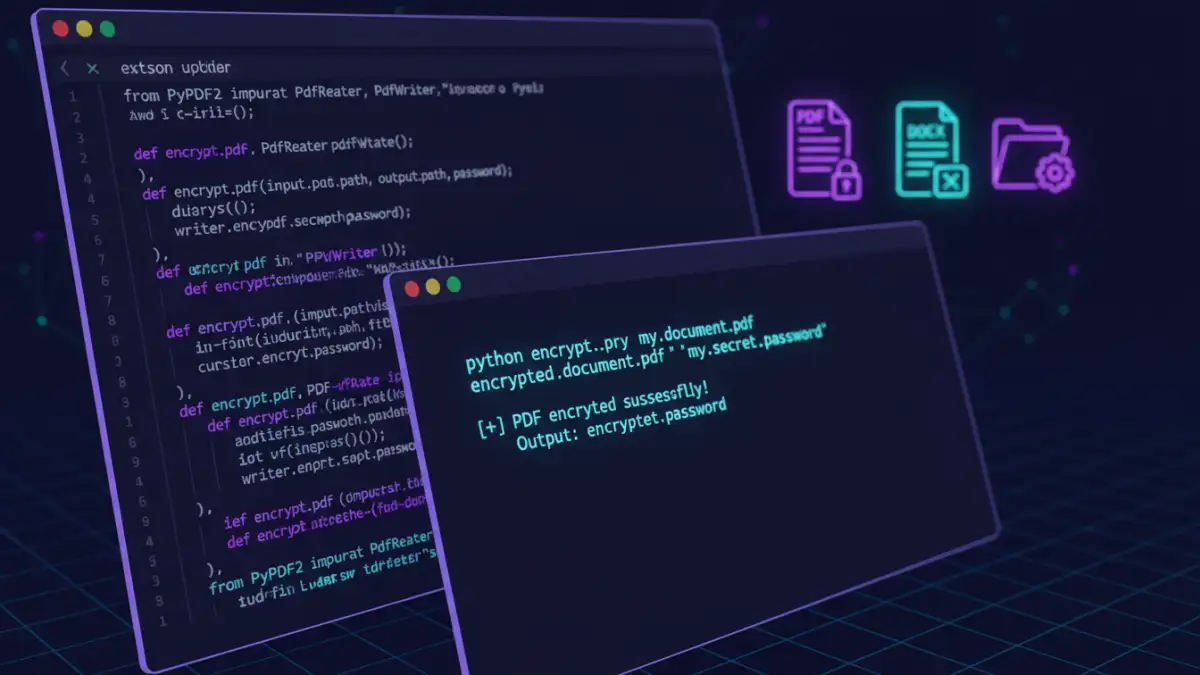
To implement secure document automation, you have a range of tools at your disposal, from simple scripts to sophisticated enterprise-level platforms. The choice often depends on your specific needs, existing infrastructure, and budget.
Scripting with Python and PowerShell
For those comfortable with code, scripting languages like Python (with libraries like PyPDF2 or ReportLab) and PowerShell offer powerful, flexible options. Python is cross-platform and excellent for parsing PDF content, applying encryption, and even integrating with web services. PowerShell is particularly strong in Windows environments for automating file system operations and interacting with Microsoft Office applications.
I've personally used Python to build custom scripts that monitor a specific folder, automatically encrypting any new PDF files with a password derived from metadata before moving them to a secure archive. This provides granular control and can be tailored to very specific requirements.
Dedicated PDF Automation Software
Several commercial software solutions specialize in PDF manipulation and security. Tools like Adobe Acrobat Pro, Foxit PhantomPDF, or Nitro Pro offer advanced features for batch processing, applying security settings, and integrating with document management systems. These often come with graphical user interfaces, making them accessible to users without coding knowledge, and can handle complex scenarios like certificate-based encryption.
Cloud-Based Workflow Platforms
For organizations leveraging cloud infrastructure, platforms like Zapier, Microsoft Power Automate, or Google Apps Script can orchestrate complex workflows. These services can connect various applications, trigger actions based on events (e.g., a file upload), and then use integrated PDF services (like Adobe Document Cloud APIs or third-party connectors) to apply password protection. This approach is highly scalable and excellent for distributed teams.
Building Your Automated Workflow
Let's look at a couple of practical scenarios to illustrate how you might set up an automated password protected PDF workflow. The core idea is to define a trigger, a process, and an output.
Scenario 1: Protecting Outgoing Invoices
Consider a system where invoices are generated as PDFs and need to be sent to clients securely. You could set up a Python script that monitors a 'ready-to-send' folder. When a new invoice PDF appears, the script reads the client ID, generates a unique, strong password (perhaps based on the client ID and a secret key), applies this password to the PDF, and then moves the encrypted file to an 'encrypted-invoices' folder, ready for dispatch. The password can then be communicated to the client via a separate, secure channel.
Scenario 2: Securing Internal Reports
For internal weekly reports, a Microsoft Power Automate flow could be configured. When a new report is uploaded to a specific SharePoint folder, the flow is triggered. It then uses a connector to a PDF processing service to apply a predefined password, or even a password unique to the department. The protected PDF is then saved to a different, more restricted SharePoint library, and a notification is sent to the relevant team members. This ensures that sensitive internal data is always secured upon creation.
Best Practices for Secure Workflows
Implementing automation is only half the battle; maintaining a secure and efficient system requires adherence to best practices.
Password Policy and Management
Always enforce strong password policies. This means using complex passwords with a mix of characters, sufficient length, and avoiding easily guessable patterns. For automated systems, consider using a secure password manager or a secrets management system to store and retrieve encryption keys or master passwords. Never hardcode sensitive information directly into your scripts or configurations.
Monitoring and Auditing
Regularly monitor your automated workflows to ensure they are functioning correctly and that no errors are occurring. Implement logging to track when documents are encrypted, by whom (if applicable), and with what settings. Periodic audits of these logs can help identify potential vulnerabilities or unauthorized access attempts, bolstering your secure document automation.
Integration with Existing Systems
For maximum efficiency and security, integrate your PDF password automation workflows with your existing document management systems (DMS), enterprise resource planning (ERP), or customer relationship management (CRM) software. This creates a seamless flow of information and ensures that documents are protected from the moment they are generated or ingested into your system, reducing manual intervention points.
Comparison Table
| Method | Pros | Cons | Best For |
|---|---|---|---|
| Scripting (Python/PowerShell) | High flexibility, low cost (open source), custom solutions | Requires coding skills, maintenance overhead | Highly specific, niche automation tasks |
| Dedicated PDF Software | User-friendly UI, comprehensive features, robust | Can be expensive, vendor lock-in, less customizable | Organizations needing advanced features without coding |
| Cloud-Based Platforms | Scalable, easy integration, no infrastructure management | Subscription costs, potential data privacy concerns, vendor lock-in | Distributed teams, integrating various cloud services |