
That sinking feeling when you realize a crucial document is gone – it's a scenario many of us have faced. Whether it was a moment of haste, a system glitch, or a misunderstanding, the result is the same: panic. In my years working with data and systems, I've seen how devastating accidental data loss can be, especially for businesses relying on those files. Fortunately, recovering deleted files is often possible with the right approach and tools.
This guide will walk you through understanding why data recovery is feasible, the common methods you can employ, and best practices to prevent future data loss. We'll cover everything from simple built-in recovery options to more advanced software solutions, ensuring you have the knowledge to tackle a data emergency.
Table of Contents
Understanding Accidental Deletion
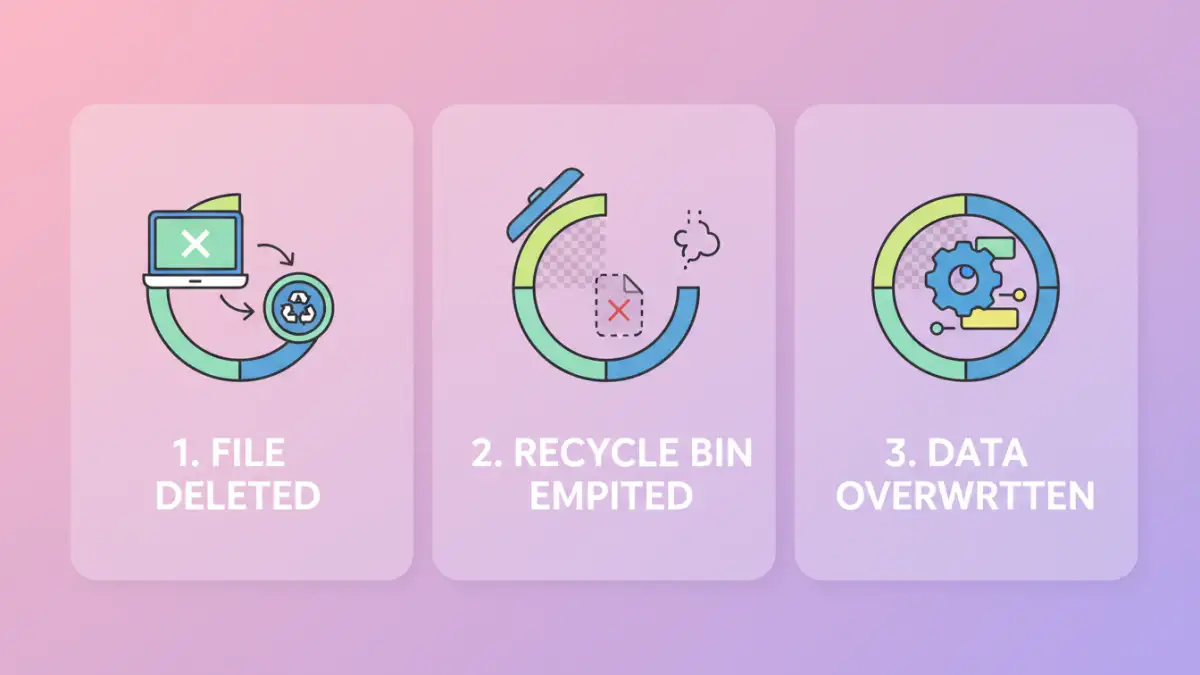
When you delete a file, it's not immediately wiped from your hard drive. Instead, the operating system marks the space it occupied as available for new data. The actual data remains until it's overwritten by new files. This temporary state is what makes deleted file restoration possible.
How Deletion Works
Understanding this process is key. Think of it like removing a book from a library shelf and placing a 'return' sticker on its spot. The book is no longer listed in the catalog (or your file explorer), but the book itself is still in the library. Only when a new book is placed in that exact spot is the old one truly gone forever. This is why acting quickly after an accidental document deletion is crucial.
Basic Recovery Methods
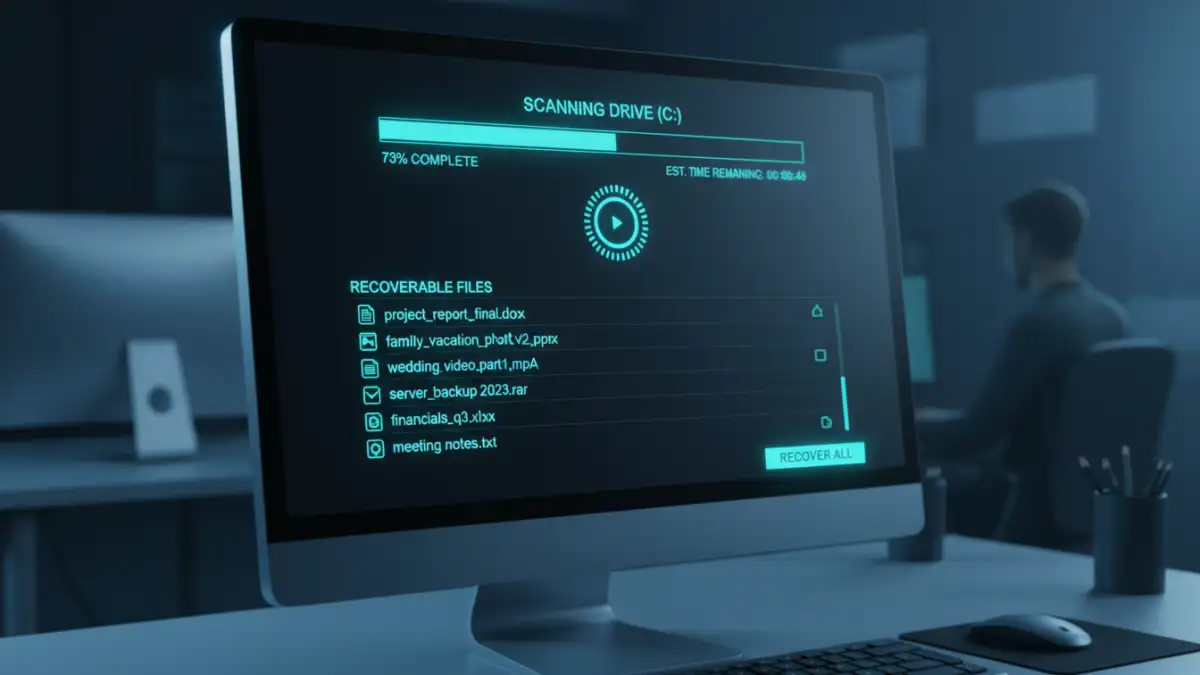
Before diving into complex solutions, always check the simplest places. Most operating systems have built-in safety nets designed to catch common mistakes. These are your first line of defense and often sufficient for recent deletions.
The Recycle Bin or Trash Folder
This is the most common and easiest recovery method. When you delete a file normally (not using Shift+Delete on Windows or emptying the Trash on macOS), it's moved to the Recycle Bin (Windows) or Trash (macOS). Simply open the folder, locate your file, right-click, and select 'Restore' or 'Put Back'.
File History and Previous Versions
Windows File History and macOS Time Machine are powerful backup tools. If enabled, they periodically save versions of your files. You can browse these backups to find and restore older versions of documents, even if they've been deleted from your current system.
Advanced Recovery Techniques
If the Recycle Bin or Trash is empty, or the file was deleted permanently, more robust methods are needed. These typically involve specialized software designed to scan your drive for remnants of deleted files.
Data Recovery Software
Numerous data recovery software programs are available, both free and paid. These tools perform a deep scan of your storage device, looking for data that hasn't been overwritten. Popular options include Recuva, EaseUS Data Recovery Wizard, and Disk Drill. When using these, it's vital to install the software on a *different* drive than the one you're recovering from to avoid overwriting the very files you need.
Professional Data Recovery Services
For critical business document rescue or when software solutions fail, professional data recovery services are an option. These services have specialized hardware and cleanroom environments to recover data from severely damaged drives or complex deletion scenarios. While effective, they can be expensive and time-consuming.
Data Loss Prevention Strategies
The best way to handle accidental deletion is to prevent it from happening in the first place. Implementing a robust data backup strategy is paramount for both individuals and businesses.
Regular Backups
Automate your backups! Use cloud services like Google Drive, OneDrive, Dropbox, or dedicated backup solutions. Ensure you have a 3-2-1 backup strategy: at least three copies of your data, on two different types of media, with one copy offsite.
Cloud Syncing
Services that continuously sync your files to the cloud offer an extra layer of protection. Even if a file is deleted locally, a recent version often remains in the cloud or in the service's version history.
Recovery Method Comparison
Choosing the right method depends on the situation and urgency.
Comparison Table: Document Recovery Methods
| Method | Ease of Use | Success Rate | Cost | When to Use |
|---|---|---|---|---|
| Recycle Bin/Trash | Very Easy | High (if not emptied) | Free | Recent, non-permanent deletions |
| File History/Time Machine | Easy | High (if enabled and recent) | Free (built-in) | Previous versions of files needed |
| Data Recovery Software | Moderate | Moderate to High (depends on overwrite) | Free to Paid | Permanent deletion, bin empty |
| Professional Services | N/A (they do the work) | High (can be very high) | Expensive | Critical data, drive failure, complex cases |