Working with password-protected documents, especially those stored in cloud services, can be a genuine hurdle. You might have a crucial file saved on Google Drive, Dropbox, or OneDrive, only to realize you've forgotten the password, or perhaps you received a document from a colleague that you now need to edit. My own experience often involves helping team members who encounter these exact situations. Fortunately, there are often straightforward ways to bypass these restrictions, allowing you to regain access to your important information.
Understanding the nuances of how these protections are applied and the available methods for their removal is key. This guide will walk you through various techniques, from simple browser tricks to more robust software solutions, ensuring you can effectively manage your secure files.
Table of Contents
Understanding PDF Password Protection
PDFs can be protected in two primary ways: an 'owner' password and a 'user' or 'open' password. The owner password restricts actions like printing, copying, or editing, while the user password prevents opening the document altogether. For the purposes of cloud pdf password removal, we're often dealing with owner passwords that prevent modification, though some methods can address user passwords if you know them.
Types of PDF Passwords
Knowing the difference is crucial for selecting the right approach. An 'open' password requires you to enter it every time you wish to view the document. An 'owner' password, on the other hand, allows viewing but blocks certain functionalities. My work often involves distinguishing between these to advise on the most efficient solution.
Methods for Online PDF Unlock
When you need to unlock a PDF stored in your cloud, the methods vary in complexity and effectiveness. The best approach often depends on the type of password applied and your comfort level with different tools. We'll explore several common techniques.
The Browser Print Trick
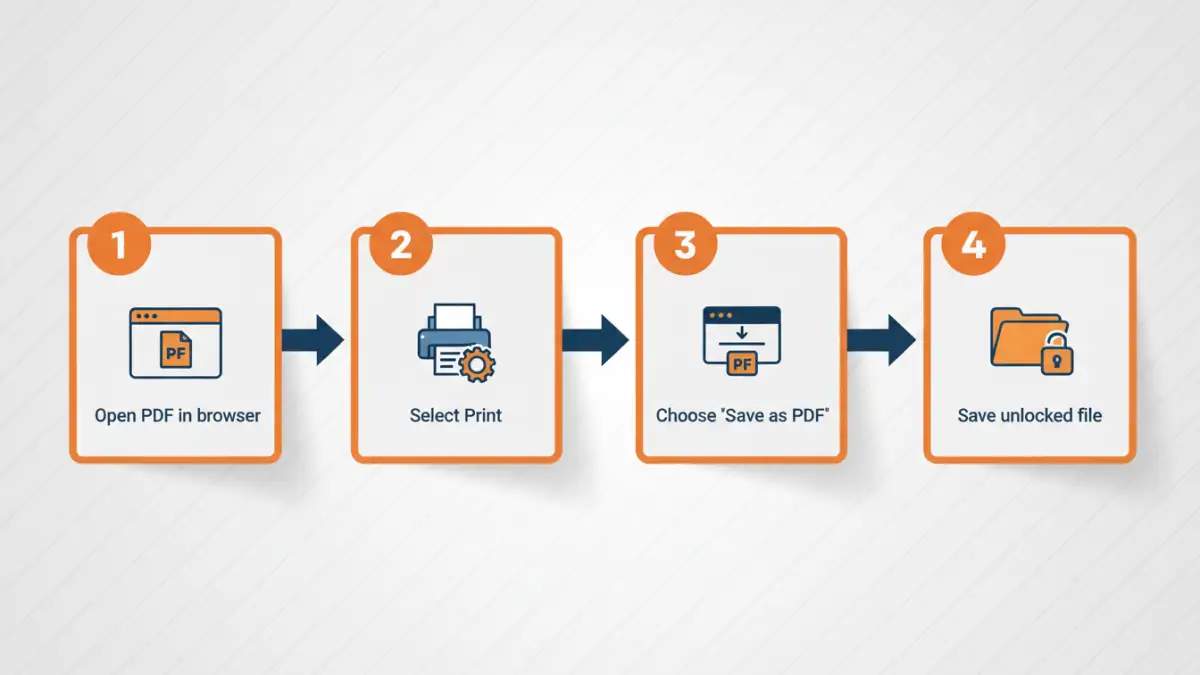
One of the most accessible methods involves using your web browser's print-to-PDF functionality. If the PDF has an 'owner' password that prevents editing or printing, but not opening, this trick can work. You essentially 're-print' the document as a new PDF, which usually strips the restrictions.
To do this, open the password-protected PDF in your browser (drag and drop it into a Chrome or Edge window, for example). If it opens, you can then use the print function. Select 'Save as PDF' as your printer destination. This creates a new PDF file without the original restrictions. It’s a simple yet effective way to achieve online pdf unlock for many common scenarios.
Using Online PDF Password Removers
Numerous websites offer online pdf unlock services. These tools are convenient because they don't require any software installation. You typically upload your encrypted PDF, the service processes it to remove the password, and then you download the unlocked version.
While quick, it's vital to be cautious. Uploading sensitive documents to third-party websites carries inherent privacy risks. Always use reputable services and ensure they have clear privacy policies. Some popular options include Smallpdf, iLovePDF, and PDF2Go, which often handle cloud pdf password removal efficiently.
Desktop Software Solutions
For more robust or frequent needs, dedicated desktop software offers greater control and security. Applications like Adobe Acrobat Pro (paid) or various free PDF password remover tools (use with caution and from trusted sources) can handle more complex password protection scenarios, including user passwords if you know the correct one.
These programs often provide advanced options and can be more reliable for large files or documents with multiple layers of protection. Installing software means you have more control over your data, as it doesn't need to be uploaded to an external server, enhancing secure file access.
Security and Privacy Considerations
Whenever you deal with sensitive documents, especially when using online tools for cloud pdf password removal, security and privacy are paramount. Free online services might log your data or have less stringent security measures. It's always best to use the browser print trick or desktop software for highly confidential files.
Consider the source of the PDF and the sensitivity of its content. If the document contains personal, financial, or proprietary information, prioritize methods that keep your data local. My personal preference leans towards desktop software or the browser method for sensitive materials.
Best Practices for Secure File Access
To avoid needing to unlock pdf online in the future, it's wise to implement good document management habits. Use strong, unique passwords for your PDFs and store them securely. Consider using a password manager to keep track of these credentials. If you frequently share password-protected documents, ensure the recipient knows how to handle them securely.
Regularly review your cloud storage security settings and update passwords periodically. This proactive approach ensures your files remain protected and accessible only to authorized individuals, minimizing the need for emergency password removal.
Comparison Table: PDF Password Removal Methods
| Method | Pros | Cons | Best For |
|---|---|---|---|
| Browser Print Trick | Free, no software needed, preserves formatting | Only works for owner passwords (not open passwords), requires file to be openable | Quickly removing print/edit restrictions on accessible PDFs |
| Online PDF Unlock Tools | Convenient, fast, no installation required | Potential privacy/security risks, limited features, requires file upload | Non-sensitive documents, quick password removal |
| Desktop Software (e.g., Adobe Acrobat Pro) | Powerful, handles all password types, secure (data stays local) | Can be expensive (paid software), may have a learning curve | Frequent users, sensitive documents, complex password removal needs |
| Password Managers | Secure storage of passwords, auto-fill capabilities | Doesn't directly remove passwords from PDFs, requires setup | Managing and remembering passwords for secured files |