
You've just downloaded an important report, you double-click it, and Microsoft Edge pops up with a frustratingly vague 'Can't open this file' message. It's a common scenario that can bring productivity to a halt, especially when dealing with contracts, financial statements, or other secure documents.
As a software engineer, I've seen this issue trip up colleagues countless times. The problem often isn't with the file itself but with how Edge's built-in PDF reader handles certain types of content, particularly those with security features. Let's walk through why this happens and how to get your files open.
Table of Contents
Why Does Edge Fail to Open Some Files?
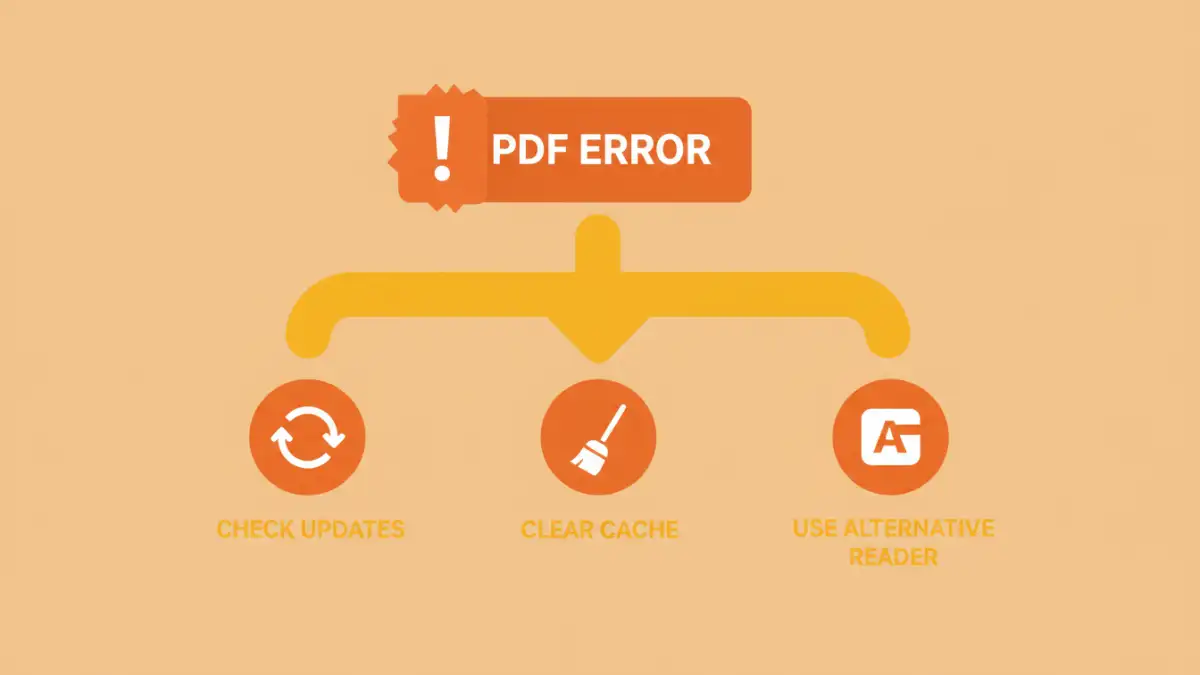
Microsoft Edge includes a convenient, built-in PDF reader that's designed for speed and basic functionality. For most simple PDFs, it works perfectly. However, its lightweight nature is also its primary weakness. The 'Can't open this file' error typically surfaces when the reader encounters something it doesn't fully support.
The most common culprits are advanced security features. This includes certain types of password encryption, digital signatures, or dynamic forms created with software like Adobe Acrobat Pro. When a secure document won't open, it's usually because Edge's reader lacks the sophisticated components to decrypt or render these complex elements correctly. This is a classic example of an edge file security issue stemming from compatibility limitations.
Common Types of Problematic Files
While any file can theoretically trigger the error, it's most prevalent with:
- Password-Protected PDFs: Especially those using newer or more complex encryption algorithms.
- Digitally Signed Documents: Files that require signature validation can confuse the basic reader.
- PDFs with Dynamic Content: Interactive forms with scripts or embedded media often fail to load.
- Portfolio PDFs: Files that act as containers for other documents are frequently incompatible.
Immediate Fixes to Try First
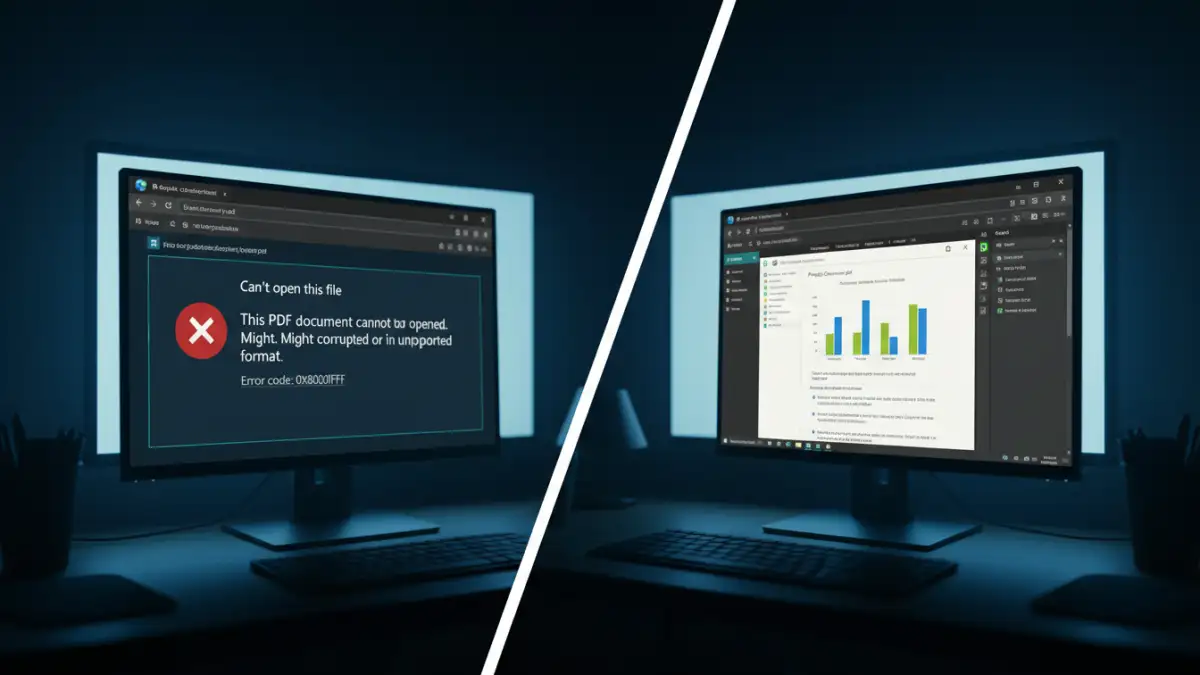
Before diving into more complex solutions, let's cover the basics. Sometimes, a simple refresh or update is all that's needed to resolve the problem. These steps are quick and often surprisingly effective.
Check for Browser Updates
Microsoft frequently pushes updates to Edge that include bug fixes and improvements to its core components, including the PDF reader. An outdated browser might be the source of your problem.
- Click the three-dot menu (...) in the top-right corner of Edge.
- Go to Help and feedback > About Microsoft Edge.
- Edge will automatically check for and install any available updates. Relaunch the browser and try opening the file again.
Clear Your Browser Cache
A corrupted cache can sometimes interfere with how files are processed and rendered. Clearing it can resolve unexpected behavior.
- Click the three-dot menu (...) and go to Settings.
- Navigate to Privacy, search, and services.
- Under the 'Clear browsing data' section, click Choose what to clear.
- Select 'All time' for the time range, check 'Cached images and files', and click Clear now.
Advanced Solutions for Encrypted PDFs
If the basic fixes didn't work, the issue is likely more specific, such as a full-blown edge encrypted file error. This happens when the PDF's encryption is too robust for the default reader. In these cases, we need a more powerful tool.
The most reliable solution is to bypass the Microsoft Edge PDF reader entirely and use a dedicated application designed for handling complex documents. These applications have comprehensive support for various encryption standards and security features.
Use a Dedicated PDF Reader
Software like Adobe Acrobat Reader (the free version) or Foxit PDF Reader are industry standards for a reason. They are built to handle virtually any type of PDF you throw at them.
- Download and install a trusted PDF reader like Adobe Acrobat Reader.
- Locate your problematic PDF file in Windows Explorer.
- Right-click the file, select Open with, and choose your newly installed PDF reader.
- If it opens successfully, you can set this application as your default for all PDF files to avoid this issue in the future.
This method is my go-to recommendation for colleagues because it's a permanent fix, not just a workaround. It ensures that you can always access secure documents without relying on a browser's limited capabilities.
Configuring Edge for Better PDF Handling
If you prefer to keep using Edge for most PDFs but need a way to handle troublesome ones, you can change a key setting. Edge has an option that forces it to download PDFs instead of opening them automatically in the browser.
This is a great middle-ground solution. It lets you continue using Edge for simple documents while seamlessly passing complex ones to your more capable desktop PDF application.
- In Edge, go to Settings > Cookies and site permissions.
- Scroll down and click on PDF documents.
- Toggle on the setting for Always download PDF files.
With this enabled, clicking a PDF link will download the file to your computer. You can then open it with your dedicated PDF reader, effectively bypassing the browser's limitations when you need to troubleshoot edge pdf issues.
Preventing Future File Opening Issues
The best way to solve a problem is to prevent it from happening. By adopting a couple of simple habits, you can significantly reduce the chances of encountering file access errors in the future.
First, make it a standard practice to use a dedicated desktop PDF application for any important or secure document. Rely on browser-based viewers for quick previews of simple files, but use a robust tool for anything critical. Second, when sharing secure documents, be mindful of the recipient's potential limitations. If possible, use standard password protection that has broad compatibility.
PDF Reader Comparison
| Reader | Encryption Support | Performance | Best For |
|---|---|---|---|
| Microsoft Edge Reader | Basic (can fail with advanced types) | Fast for simple files | Quick previews of non-secure documents |
| Adobe Acrobat Reader | Excellent (supports all standard types) | Moderate, feature-rich | Handling secure, signed, and complex PDFs |
| Foxit PDF Reader | Excellent (comparable to Adobe) | Fast and lightweight | A balance of performance and advanced features |
| Web-based Tools | Varies (potential privacy risk) | Depends on connection speed | One-off conversions or simple edits |