It’s a scenario I’ve seen countless times: you’re trying to download an important, often encrypted, file from a trusted source, but Microsoft Edge slams on the brakes. A large, ominous warning appears, telling you the file is dangerous. When you know the source is legitimate, this can be incredibly frustrating and stop your workflow in its tracks.
The browser isn't being malicious; it's trying to protect you. But its protective instincts can sometimes be overzealous, especially with files it can't fully inspect, like password-protected archives or documents. Understanding why this happens is the first step to resolving it safely.
Table of Contents
Why Does Edge Block Seemingly Safe Files?
The primary technology behind these warnings is Microsoft Defender SmartScreen. It's a cloud-based reputation service integrated directly into Windows and Microsoft Edge. Its job is to protect you from phishing sites, malware distribution, and potentially unwanted applications. When you download a file, SmartScreen checks it against a dynamic list of known threats and analyzes its characteristics.
Encrypted or password-protected files (like ZIPs, PDFs, or Office documents) present a unique challenge. Since SmartScreen cannot scan the contents of an encrypted file, it can't verify that it's safe. It relies on other signals, such as the reputation of the website it's from and whether the file is commonly downloaded. If a file is new, from a less-known source, or lacks a valid digital signature, SmartScreen will often err on the side of caution and flag it.
Understanding the Edge SmartScreen Error
You might encounter several different warnings. The most common is a message stating "[File Name] was blocked because it could harm your device." Another frequent one is a generic "this file is unsafe to download." These messages are triggered because the file failed one or more of SmartScreen's heuristic checks. It doesn't definitively mean the file contains malware, but it means Edge can't confidently declare it safe.
Immediate Solutions to Unblock a Document Download
When you're certain a file is safe, you don't have to be permanently blocked. Edge provides an override mechanism, but it requires you to consciously accept the potential risk. Before proceeding, always ask yourself: Do I trust the sender? Was I expecting this file? Is the source website legitimate?
Using the 'Keep Anyway' Option
If you've performed your mental checklist and trust the file, you can manually override the block. Here’s how I walk people through it:
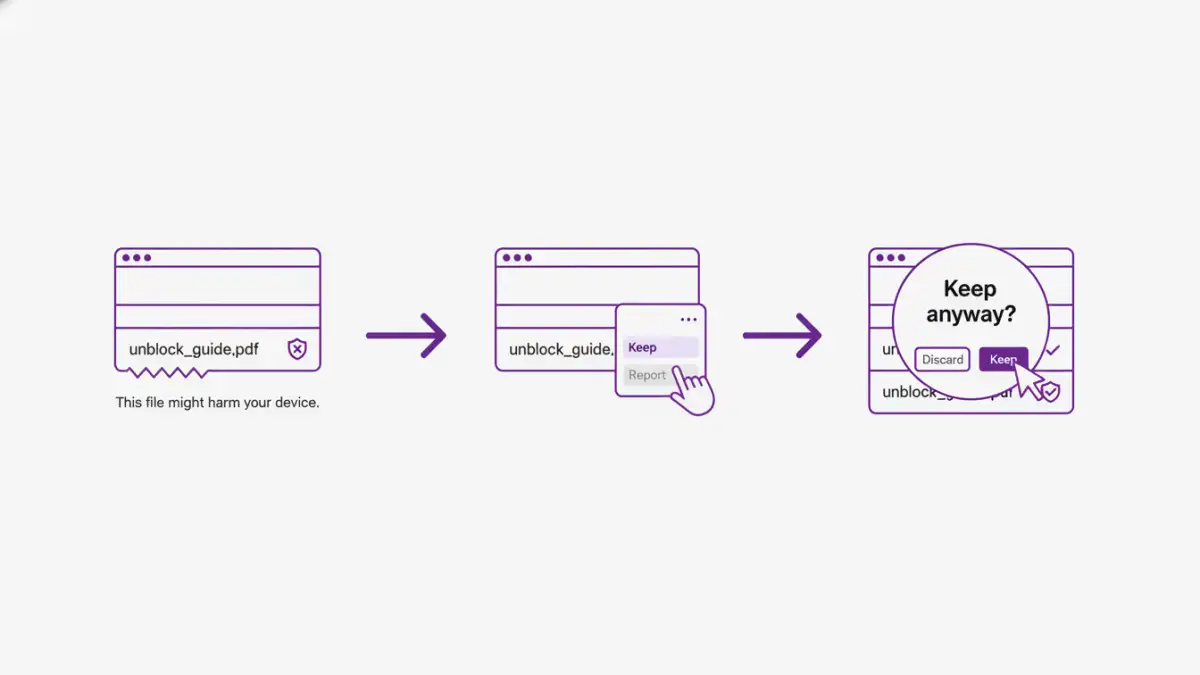
- In the download bar at the bottom or the Downloads menu (Ctrl+J) at the top-right, locate the blocked file.
- Hover over the warning message and click the three-dot menu (...) that appears.
- From the dropdown menu, select Keep.
- Edge will show another, more stern warning. Here, click Show more, and then select Keep anyway.
This action tells Edge that you are taking responsibility for the file's safety. The file will then finish downloading, and you can access it from your Downloads folder. I always recommend running a manual antivirus scan on the file immediately after, just as an extra layer of security.
Adjusting Browser Security Settings (With Caution)
If you frequently download specialized, un-signed files from a trusted internal source, constantly overriding SmartScreen can become tedious. In these specific cases, you might consider temporarily adjusting your browser security settings. I must stress that this should not be a permanent change, as it lowers your overall security posture.
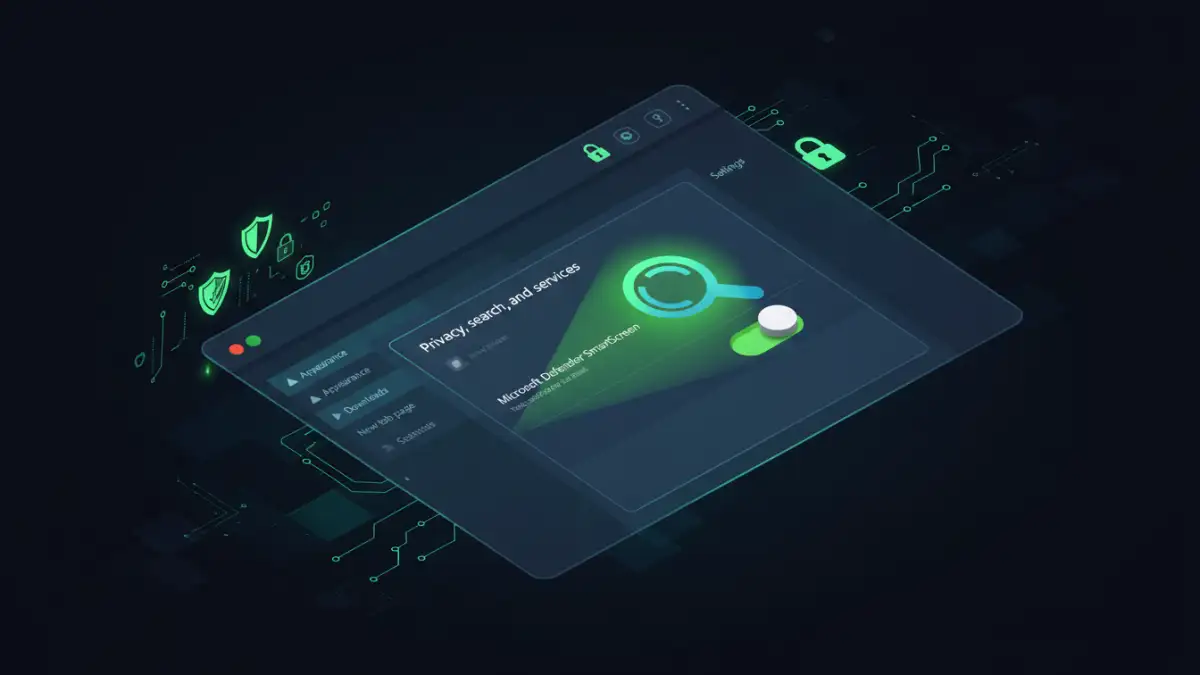
To access these settings, navigate to edge://settings/privacy in your address bar. Under the "Security" section, you'll find the toggle for Microsoft Defender SmartScreen. Disabling this will stop Edge from checking downloaded files. You should only ever do this to download a specific file you trust and then immediately re-enable it. A better option in this menu is to disable "Block potentially unwanted apps," which is a less aggressive setting that might be the cause of your issue if the file is a niche tool or script.
Long-Term Prevention and Best Practices
Dealing with an occasional instance where your Edge is blocking a secure file is one thing, but making sure your general practices are sound is more important. The goal is to minimize risk without hindering your work.
First, always maintain an up-to-date, reputable antivirus solution. This is your safety net if a malicious file ever gets past the browser's defenses. Second, communicate with the senders of secure files. If they can use a well-known, secure file-sharing service (like OneDrive, Google Drive, or Dropbox) instead of direct email attachments, the download is often seen as more reputable by SmartScreen.
Finally, consider the source. If you are downloading software, always try to get it from the original developer's website. If you're receiving documents, confirm with the sender via a separate communication channel (like a phone call or text) that they did, in fact, send you the file. This simple step can prevent you from falling victim to a phishing attack where an attacker is impersonating a trusted contact.
Solution Risk Assessment
| Method | Risk Level | Best For | Description |
|---|---|---|---|
| Override with 'Keep Anyway' | Low to Medium | One-off downloads from 100% trusted sources. | Manually bypasses SmartScreen for a single file after user confirmation. |
| Temporarily Disable SmartScreen | High | Troubleshooting or downloading from a trusted internal network. | Turns off a critical security feature. Must be re-enabled immediately. |
| Disable 'Block Potentially Unwanted Apps' | Low | Downloading niche developer tools or scripts that aren't malware. | A less drastic measure than disabling SmartScreen entirely. |
| Use an Alternative Browser | Low | Quickly checking if the issue is specific to Edge's security rules. | Other browsers have their own security but may not flag the same file. |
| Contact the Sender | Very Low | Any situation where the file's legitimacy is not 100% certain. | The safest option. Ask for the file via a different, trusted method. |