Sharing sensitive information is a daily reality for many professionals, but doing so without proper security can lead to significant risks. Whether you're sending confidential reports, financial data, or proprietary designs, ensuring that only the intended recipients can access these files is paramount. Over my years working with various software solutions, I've seen firsthand how a lack of secure file sharing practices can lead to data breaches and loss of trust.
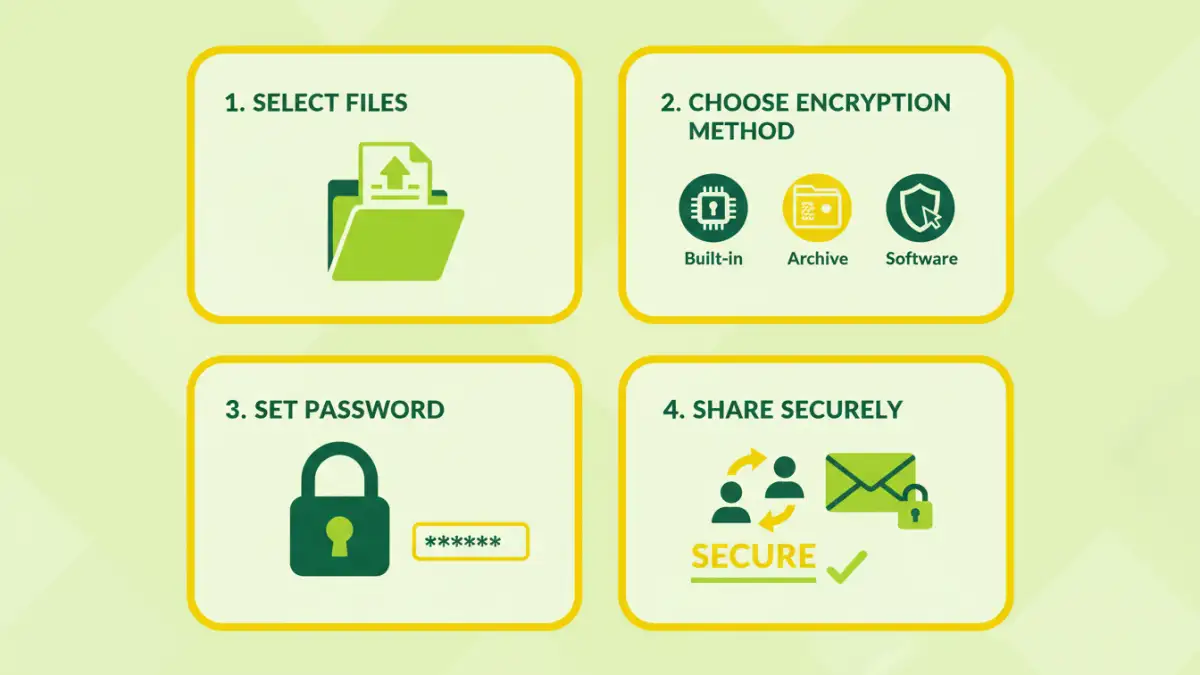
The challenge often lies in managing multiple documents simultaneously and ensuring each one is protected. Fortunately, there are robust methods available, ranging from built-in features in your office suite to specialized third-party tools. This guide will walk you through how to securely share multiple office files, ensuring your data remains confidential throughout the transfer process.
Table of Contents
Understanding Office File Encryption
Encryption is the process of converting readable data into a coded format, known as ciphertext, which can only be deciphered with a specific key or password. For office files, this means that even if someone intercepts the file, they won't be able to read its contents without the correct decryption key. This is a fundamental layer of security for protecting sensitive information.
Why Encrypt Office Files?
The primary reason to encrypt office files before sharing is to prevent unauthorized access. This is crucial for compliance with data protection regulations like GDPR or HIPAA, safeguarding intellectual property, and maintaining client confidentiality. A simple password can deter casual snooping, while stronger encryption methods can protect against more sophisticated attacks.
Using Built-in Office Encryption

Most modern office suites, including Microsoft Office and Google Workspace, offer built-in encryption capabilities. These tools are often overlooked but provide a convenient way to protect individual files or entire folders without needing extra software. I've found these methods to be quite effective for day-to-day secure document transfer needs.
Microsoft Office Password Protection
Microsoft Word, Excel, and PowerPoint allow you to set a password to open or modify documents. When saving a file, you can go to 'File' > 'Info' > 'Protect Document' (or similar options depending on the version) and choose to encrypt with a password. This is a straightforward way to add a layer of security to individual files before sharing them.
Google Workspace Encryption
For users of Google Workspace, while Google Drive encrypts data in transit and at rest, individual file-level encryption for documents not stored in Google's native formats might require additional steps. However, you can control sharing permissions meticulously and use features like expiration dates for shared links to limit access.
Leveraging Third-Party Tools
While built-in features are useful, sometimes you need more advanced capabilities, especially when dealing with batch file sharing or requiring higher levels of encryption. Several third-party tools can help you encrypt multiple files at once, manage encryption keys, and even integrate with cloud storage services for enhanced security.
File Archiving with Encryption
Tools like 7-Zip or WinRAR allow you to create password-protected archives (like .zip or .rar files) containing multiple documents. When you create a new archive, you can specify a strong password that encrypts the entire collection of files. This is an excellent method for batch file sharing, as you can bundle all your documents into a single, secure container.
Dedicated Encryption Software
There are also dedicated encryption software solutions available, such as VeraCrypt or AxCrypt. These tools offer more robust encryption algorithms and features like on-the-fly encryption and secure deletion. For highly sensitive data, investing in such software can provide peace of mind and a higher standard of security for your office file encryption needs.
Best Practices for Secure Sharing
Regardless of the method you choose, adopting certain best practices is crucial for effective secure document transfer. This involves not just encrypting your files but also managing your passwords wisely and considering how and where you share them.
Strong Password Management
The strength of your encryption is only as good as the password protecting it. Always use strong, unique passwords that combine uppercase and lowercase letters, numbers, and symbols. Avoid using easily guessable information like names, birthdays, or common words. Consider using a password manager to generate and store complex passwords securely.
Secure Sharing Channels
Even with encrypted files, the method of sharing matters. Avoid sending sensitive information via unencrypted email or public Wi-Fi. Use secure file transfer services, encrypted messaging apps, or upload encrypted files to a secure cloud storage service and share the link carefully with the password communicated through a separate, secure channel.
Comparison Table
| Method | Pros | Cons | Use Case |
|---|---|---|---|
| Microsoft Office Password Protection | Built-in, easy to use for individual files | Limited to Office file types, password strength depends on user | Securing single Word, Excel, or PowerPoint documents |
| File Archiving (e.g., 7-Zip, WinRAR) | Bundles multiple files, strong encryption options available | Requires archiving software, recipient needs to extract | Batch file sharing, securing collections of documents |
| Dedicated Encryption Software (e.g., VeraCrypt, AxCrypt) | High-level encryption, advanced features, cross-platform compatibility | May require installation, learning curve for some tools | Maximum security for highly sensitive data, regular large transfers |