Working with sensitive information often means needing to protect your documents. Whether it's a contract, financial report, or personal data, ensuring only the intended recipients can access it is paramount. Fortunately, robust security doesn't always require a hefty price tag. Many excellent free tools are available that can help you encrypt your PDFs, adding a crucial layer of protection.
As someone who's dealt with data security in various projects over the years, I’ve seen firsthand how a simple password can prevent significant issues. It’s about making smart choices with the tools at hand. This guide will walk you through some of the best free PDF encryption options, explaining how they work and when to use them.
Table of Contents
Understanding PDF Encryption
PDF encryption is the process of scrambling the content of a PDF document so that it can only be read by individuals who possess the correct decryption key, typically a password. This technology ensures confidentiality and integrity, preventing unauthorized viewing, modification, or printing.
Why Encrypt PDFs?
The primary reason for encrypting PDFs is to protect sensitive data. This could include personal identifiable information (PII), financial records, confidential business strategies, or private correspondence. Encryption acts as a digital lock, securing your information when it's stored or transmitted.
Online PDF Encryption Tools

Online tools offer a convenient way to encrypt PDFs directly from your web browser. They are accessible from any device with an internet connection and usually require no installation. However, it's crucial to consider the privacy policies of these services, as you are uploading your documents to a third-party server.
Smallpdf
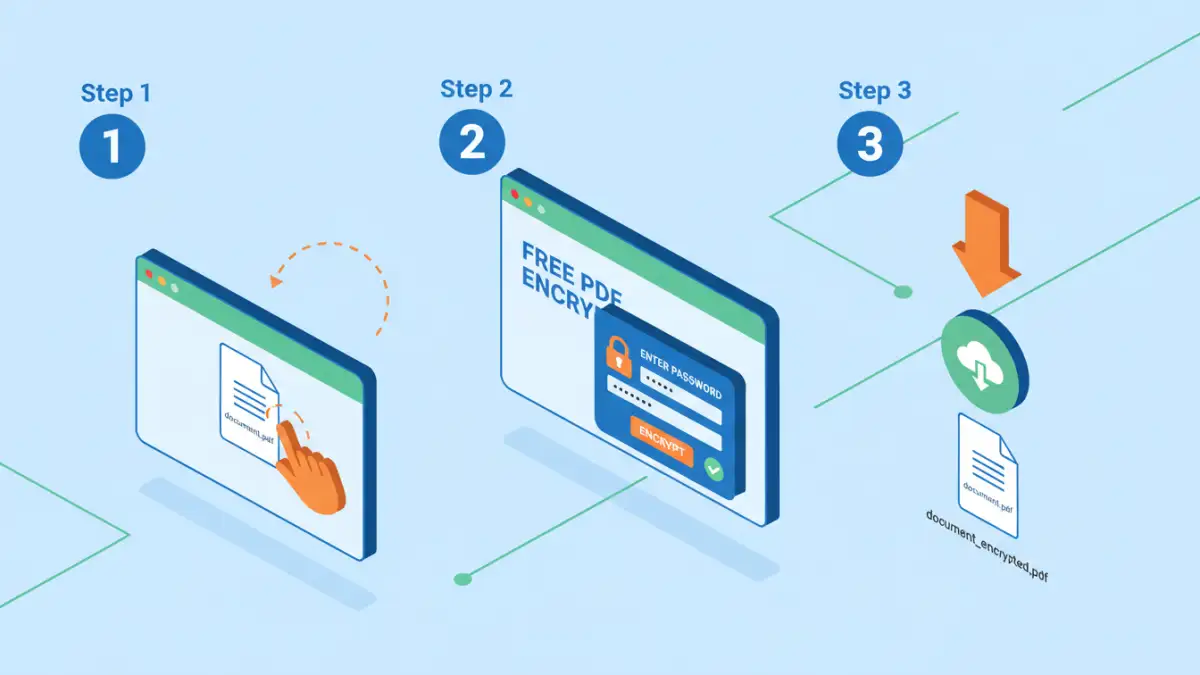
Smallpdf is a popular web-based suite of PDF tools that includes a straightforward encryption feature. You can upload your PDF, set a password, and then download the encrypted version. The interface is intuitive, making it easy for anyone to use.
iLovePDF
Similar to Smallpdf, iLovePDF provides a range of PDF manipulation tools, including a secure PDF option. You can encrypt a PDF by uploading it, entering a password, and then downloading the protected file. They emphasize security and often use robust encryption standards.
Desktop PDF Encryption Software
For users who prefer to keep their documents offline during the encryption process or require more advanced features, desktop software is an excellent choice. These applications often offer more control and can handle bulk encryption tasks more efficiently.
VLC Media Player (for specific cases)
While primarily a media player, VLC has a hidden feature that can be used to password-protect PDFs. This is a bit of a workaround and not its intended function, but it can be useful if you have VLC installed and need a quick, albeit less user-friendly, solution for basic password protection. It involves converting the PDF to another format and then back, embedding the password during the process.
Adobe Acrobat Reader/Pro
Adobe Acrobat Reader (the free version) has limited encryption capabilities, but Adobe Acrobat Pro (the paid version) offers comprehensive PDF security features. You can set passwords to restrict opening the document, as well as permissions for printing, copying text, or modifying content. While not a free tool, its robust features make it a benchmark for PDF security.
Built-in Operating System Features
Sometimes, the simplest solutions are already on your computer. Both Windows and macOS offer ways to password-protect PDFs, often through the print dialog or specific applications.
macOS Preview
If you're using a Mac, the built-in Preview app makes it incredibly easy to add password protection to your PDFs. Simply open the PDF in Preview, go to File > Export as PDF, and then check the 'Encrypt' box. You can then set your password. It’s a quick and effective method that requires no extra software.
Windows 'Microsoft Print to PDF' Workaround
Windows doesn't have a direct 'encrypt PDF' button in its default tools. However, you can achieve a similar result by using a third-party PDF printer driver or by using specific software that integrates with the print function. Some applications, when you choose to 'Print' to a PDF, allow you to set a password for the output file.
Best Practices for PDF Security
Using free pdf encryption tools is just one part of a comprehensive security strategy. Here are some best practices to keep your documents safe:
- Use Strong, Unique Passwords: Avoid simple or easily guessable passwords. Combine uppercase and lowercase letters, numbers, and symbols.
- Consider Password Complexity: For highly sensitive documents, use passwords that are long and complex.
- Don't Share Passwords Insecurely: If you need to share a password, do so through a separate, secure channel, not in the same email as the PDF.
- Regularly Update Software: Keep your operating system and any PDF software updated to patch security vulnerabilities.
- Be Wary of Online Tools: Always review the privacy policy of any online service before uploading sensitive documents.
Comparison of PDF Security Methods
| Method | Ease of Use | Security Level | Privacy Concern | Typical Use Case |
|---|---|---|---|---|
| Online Tools (e.g., Smallpdf, iLovePDF) | Very High | Moderate to High (depends on service) | High (uploading to third-party) | Quick, occasional encryption of non-critical documents |
| Desktop Software (e.g., Adobe Acrobat Pro) | High | Very High | Low (process is local) | Frequent encryption, sensitive business documents, bulk operations |
| Built-in OS Features (e.g., macOS Preview) | High | Moderate to High | Very Low (process is local) | Everyday encryption needs on Mac, simple protection |
| VLC Workaround | Low | Moderate | Very Low (process is local) | Emergency encryption when no other tools are available |