You click a link to an important, secure document—a contract, a financial report—and instead of the file, you get a blank page or an error in Firefox. It's a frustratingly common problem that I've seen trip up colleagues and clients alike. The link works perfectly in Chrome or Edge, but Firefox stubbornly refuses to cooperate.
This isn't a bug; it's a feature working a little too well. Firefox's robust privacy settings, specifically its Enhanced Tracking Protection, can sometimes misinterpret the scripts used by secure document services as trackers, preventing the file from ever reaching you. Fortunately, the fix is usually quick and straightforward.
Table of Contents
Why Firefox Blocks Secure Document Links
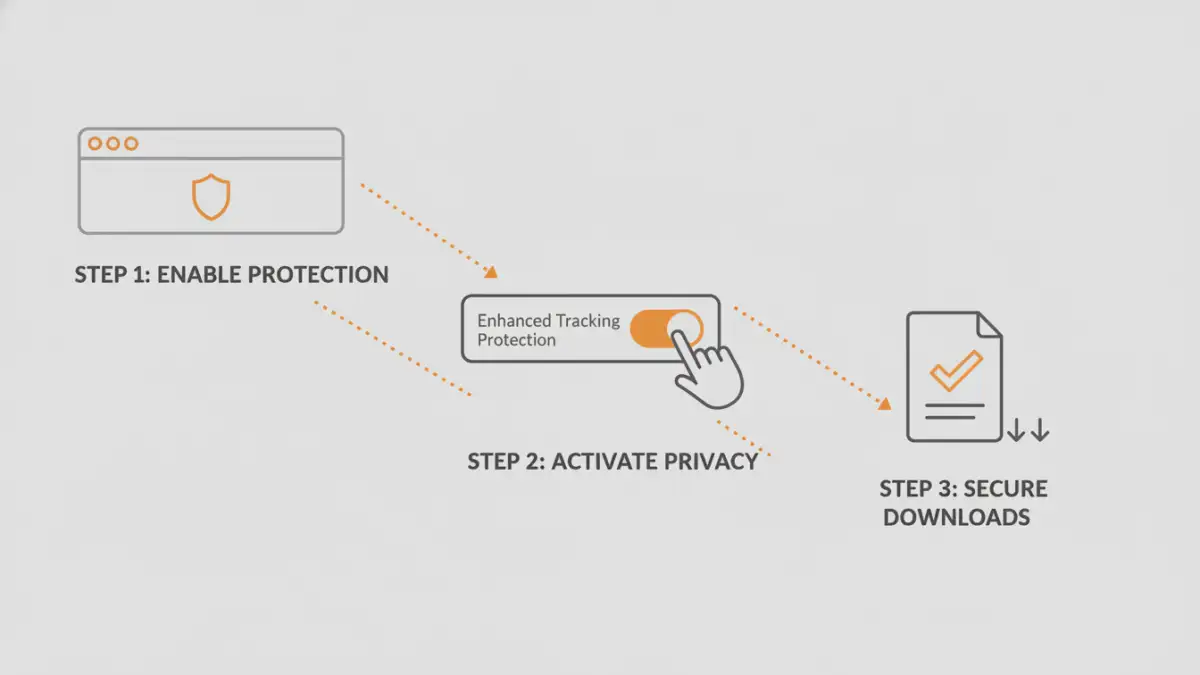
The primary culprit behind a non-functional secure document link in Firefox is almost always its Enhanced Tracking Protection (ETP). This powerful privacy feature is designed to block a wide range of third-party trackers, cookies, and scripts that monitor your activity across the web. It's a fantastic tool for privacy, but its aggressive nature can sometimes lead to unintended consequences.
Many secure document platforms (like DocuSign, Dropbox, or custom enterprise solutions) use redirects or JavaScript to verify your session and initiate the download. To Firefox's ETP, these scripts can look suspiciously like cross-site trackers, especially if they originate from a different domain than the one you're currently on. When ETP blocks these essential components, the download process breaks, resulting in an encrypted file link error or the browser simply doing nothing.
Common Culprits Blocked by ETP
The issue often stems from ETP's 'Strict' mode or even its default 'Standard' protection blocking specific categories of content. These can include:
- Cross-site tracking cookies: Used by services to authenticate you across their different subdomains.
- Social media trackers: Sometimes embedded for analytics or sharing functionality.
- Fingerprinters: Scripts that gather browser details for security, which can be flagged.
- Cryptominers: Though not related to documents, the scripts can sometimes be misidentified.
When any of these are blocked, the secure handshake required to download the encrypted file fails, and you're left with a broken link.
Quick Fixes: Adjusting Firefox Settings

The most direct way to solve this secure sharing link issue is to tell Firefox that you trust the specific website you're trying to download from. You don't need to disable your protection everywhere—just for the site that hosts the document.
Method 1: Disabling ETP for a Specific Site
This is the recommended approach as it resolves the problem without compromising your overall browser security. It's a simple, reversible change.
- Navigate to the page where the secure document link is located.
- Look for the shield icon to the left of the address bar. If it's purple, it means Firefox is actively blocking content.
- Click the shield icon. A small panel will appear showing what ETP is blocking.
- At the top of this panel, you'll see a toggle switch for 'Enhanced Tracking Protection'. Click this switch to turn it off for the current site.
- The page will automatically reload. Once it does, try clicking the secure document link again. It should now work as expected.
By doing this, you've created an exception for that specific domain, allowing its necessary scripts to run while keeping your protection active on all other websites.
Alternative Download and Sharing Methods
If you're hesitant to change browser settings or if the above fix doesn't work, there are other ways to access your file. These methods can help diagnose if the problem is truly with Firefox or something else.
A simple yet effective test is to open a Private Browsing window in Firefox (Ctrl+Shift+P or Cmd+Shift+P) and paste the link there. Private windows often have slightly different settings and don't use existing cookies, which can sometimes bypass the issue. Another option is to temporarily use a different browser like Chrome or Edge just to download that one file. This helps confirm that the issue is specific to your Firefox configuration.
If all else fails, the most reliable solution is to contact the sender. They may be able to provide the document as a direct email attachment or use a different sharing service that is more compatible with high-security browser settings. This also provides valuable feedback to the sender about the accessibility of their chosen platform.
Best Practices for Senders and Receivers
While fixing the problem is good, preventing it is even better. As someone who builds and uses these systems, I've learned that a little foresight goes a long way.
For those sharing documents, consider using services that provide direct, static download links after authentication. Services that rely heavily on cross-domain redirects are more likely to trigger a firefox blocking download event. If possible, test your links in major browsers with default security settings to ensure a smooth experience for recipients.
For receivers, understanding that your browser is working to protect you is key. When a secure document link firefox issue occurs, your first thought should be ETP. Creating exceptions for trusted, known senders (like your bank, lawyer, or employer) is a safe and effective long-term strategy. Avoid globally disabling your privacy protections, as that leaves you vulnerable on untrusted websites.
Firefox Troubleshooting Method Comparison
| Method | How It Works | Pros | Cons |
|---|---|---|---|
| Disable ETP for Site | Creates a site-specific exception for tracking protection. | Targeted, secure, and permanent for that site. | Requires manual action for each problematic site. |
| Use Private Window | Opens a temporary session without existing cookies or cache. | Quick to test, doesn't change main settings. | Often a temporary fix; may not always work. |
| Use Another Browser | Leverages a different browser's rendering and security engine. | Almost always works, confirms the issue is Firefox-specific. | Inconvenient, doesn't solve the root problem in Firefox. |
| Contact Sender | Asks for an alternative delivery method (e.g., email attachment). | Guaranteed access to the file. | Can cause delays; depends on the sender's availability. |