You click the link for an important, encrypted PDF report, and... nothing happens. The page hangs, the download never starts, and you're left wondering what went wrong. It's a frustratingly common scenario, and one I've helped colleagues troubleshoot many times. Before you blame the website or your network connection, the real culprit might be hiding in plain sight: one of your trusted browser extensions.
Table of Contents
Why Extensions Interfere with Downloads
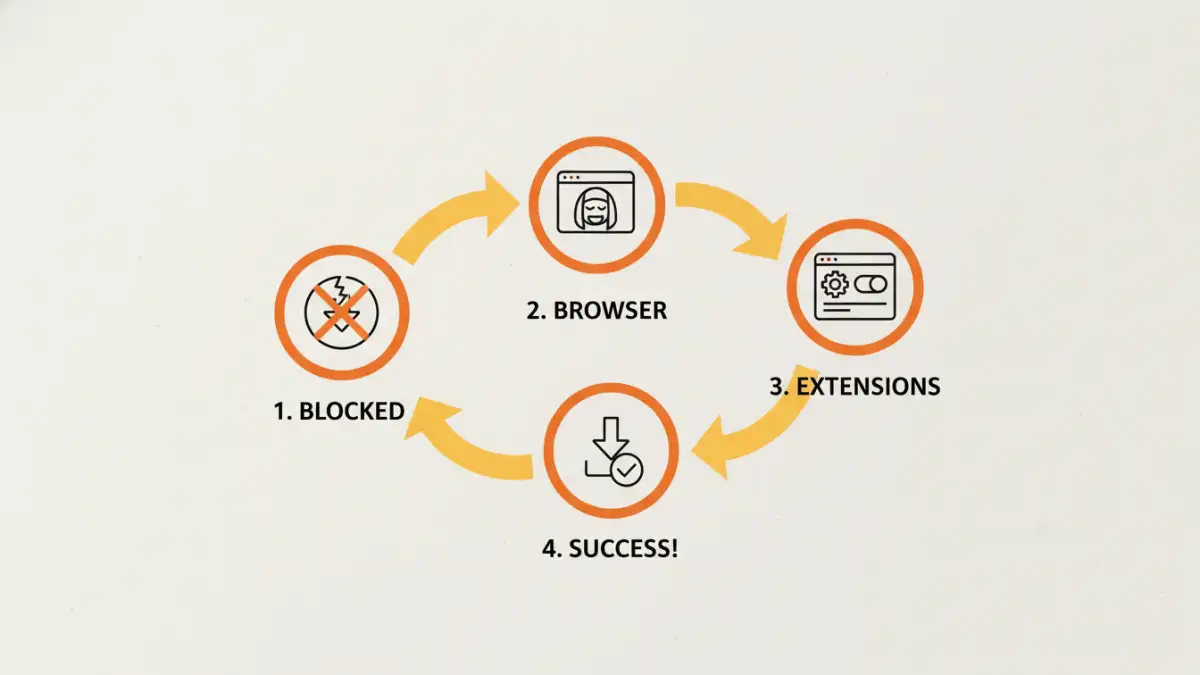
Browser extensions are powerful tools that enhance our browsing experience, but their power comes from their ability to intercept and modify web traffic. They sit between your browser and the websites you visit, analyzing content, blocking scripts, and redirecting requests. This is great for blocking ads or enhancing privacy, but it can lead to a browser extension conflict.
When you initiate a secure document download, the process often involves more than a simple link. There might be authentication scripts, temporary URL generation, or security headers that your extension misinterprets as malicious or as a tracking attempt. It sees a complex request and, in an abundance of caution, blocks it, leaving your download in limbo.
Identifying the Problematic Extension
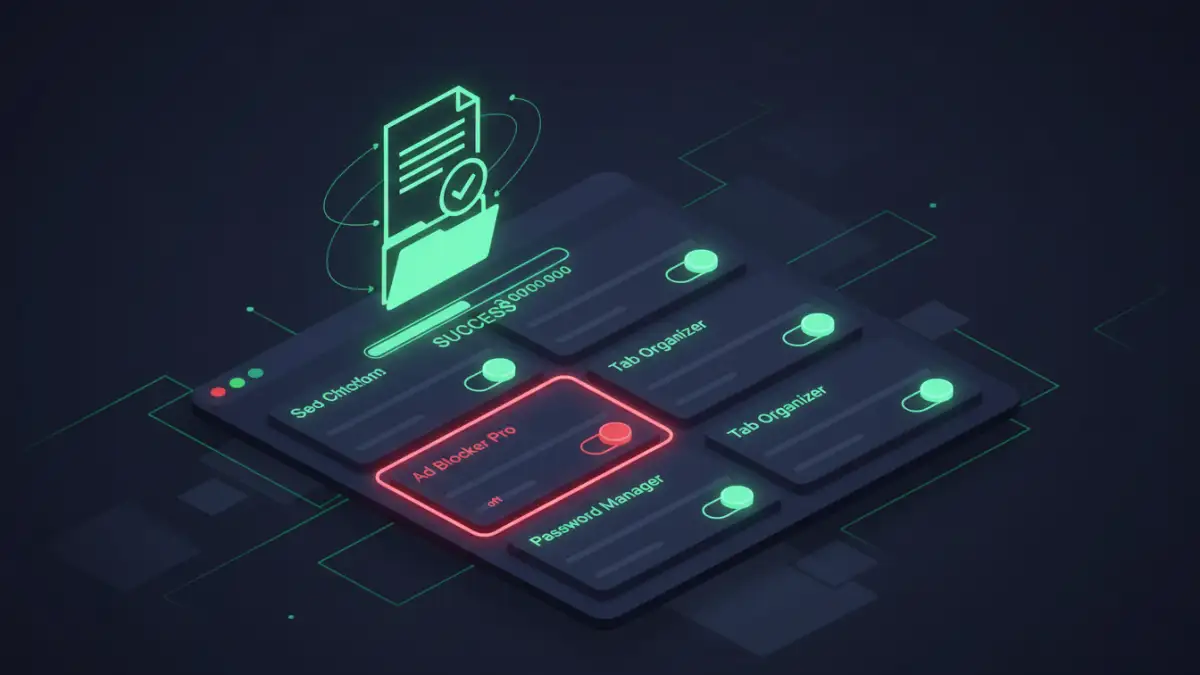
Figuring out which extension is causing the trouble is a process of elimination. You don't need to be a developer to do it; just a bit of patience. The goal is to isolate the variable, and in this case, the variables are your extensions.
The Incognito/Private Mode Test
The quickest first step is to try the download in an Incognito (Chrome) or Private (Firefox/Safari) window. By default, most extensions are disabled in this mode. Copy the download link, open a new private window, and paste it in. If the download works here, you have 100% confirmation that an extension is the problem.
Disabling Extensions One by One
If the private mode test confirms the issue, it's time to pinpoint the offender. Go to your browser's extension management page (e.g., `chrome://extensions` or `about:addons`). Instead of removing them, simply disable all of them using the toggle switches. Then, try the download again in a normal window. It should work.
Now, enable one extension and re-test the download. Continue this process, enabling one extension at a time and testing the download after each one. The moment the download fails, you've found the extension causing the block.
Common Types of Blocking Extensions
Over the years, I've noticed that the issue usually stems from a few specific categories of extensions. Their core function involves actively interfering with web page content, which can easily lead to a secure document download blocked scenario.
Ad Blockers and Privacy Tools
This is the most common category. Tools like uBlock Origin, AdBlock Plus, or Ghostery are designed to block tracking scripts and ad-serving domains. Sometimes, the script that generates your secure download link is hosted on a domain or uses a pattern that the ad blocker mistakes for an advertisement or tracker. An ad blocker blocking PDF downloads is a classic example of this overzealous filtering.
Antivirus and Security Extensions
Extensions from security suites like McAfee, Norton, or Avast add a layer of protection directly in your browser. They scan links and file downloads for threats. When you try to download an encrypted file, the extension can't scan its contents. Unable to verify its safety, the extension may preemptively block the download to protect you from potential malware hidden inside the encrypted package.
Solutions and Best Practices for Safe Downloading
Once you've identified the problematic extension, you don't necessarily have to uninstall it. You have several less drastic options that allow you to keep your tool while getting the file you need.
The best solution is to 'whitelist' or 'allow' the specific website you're downloading from within the extension's settings. Most ad blockers and security tools have an exceptions list. Adding the trusted domain to this list tells the extension, "Don't interfere with anything on this site." This is far more secure than disabling the extension entirely.
Another approach is to have a secondary, 'clean' browser installed with minimal extensions. I often use a separate browser profile or a different browser altogether (like Firefox if my main is Chrome) for specific work tasks that require high compatibility. This keeps my main browser secure with all my favorite tools while providing a fallback for when I can't download an encrypted file.
Extension Conflict Troubleshooting Summary
| Extension Type | Reason for Blocking Downloads | Recommended Solution |
|---|---|---|
| Ad Blockers | Mistakes download scripts for trackers or ads. | Whitelist the specific website in the ad blocker's settings. |
| Antivirus/Security Suites | Blocks unscannable encrypted files as a precaution. | Temporarily disable the 'web shield' or add a rule for the site. |
| Privacy Badger/Trackers | Blocks third-party cookies or scripts needed for authentication. | Adjust the settings for the specific domain to allow necessary trackers. |
| Script Blockers (e.g., NoScript) | Blocks the JavaScript required to generate the download link. | Temporarily allow scripts from the trusted source domain. |
| VPN Extensions | Can be blocked by sites that restrict access from certain IPs. | Temporarily disable the VPN or switch to a server in a different region. |