
Working with password-protected documents can be frustrating, especially when you need to collaborate or add notes. The very encryption that safeguards your sensitive information can also make simple tasks like adding comments seem impossible. However, it doesn't have to be an all-or-nothing scenario. With the right approach, you can maintain robust security while still allowing for necessary annotations.
As a software engineer who has spent years dealing with data security and document management, I've encountered this challenge many times. The key is to understand the limitations imposed by password protection and to leverage tools and techniques that work within those boundaries. This article will guide you through various methods for adding comments to your protected PDFs, ensuring both security and usability.
Table of Contents
Understanding PDF Password Protection
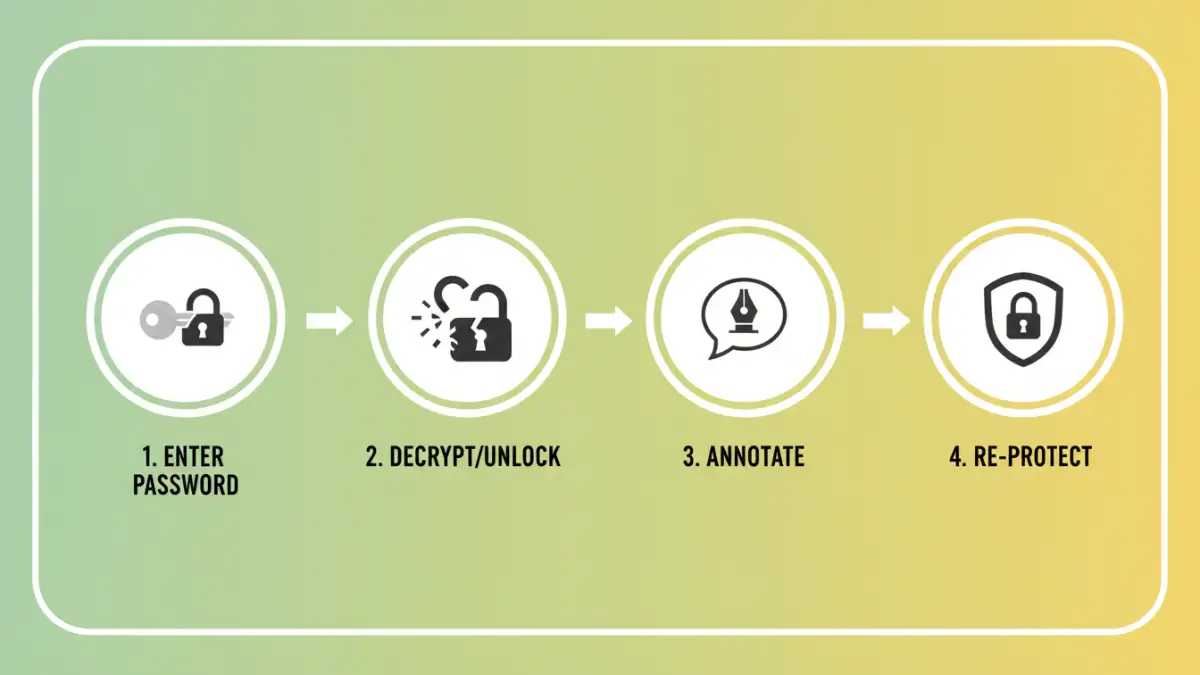
PDF password protection primarily serves two functions: restricting access (opening the document) and restricting permissions (printing, editing, copying text). When a PDF is protected with an open password, you need that password just to view it. If it has a permissions password, you can open it but cannot perform certain actions without entering that password.
Adding comments typically falls under the 'permissions' category. If the PDF owner has restricted editing and annotation, you won't be able to add comments directly using standard PDF viewers unless you have the permissions password or the document is decrypted. This is where understanding the type of protection is crucial before attempting to add comments.
Types of PDF Passwords
There are two main types of passwords for PDFs: the User Password (or Open Password) and the Owner Password (or Permissions Password). The User Password prevents anyone from opening the document without it. The Owner Password controls specific actions like printing, copying, or modifying the document, which includes adding comments.
Methods for Adding Comments
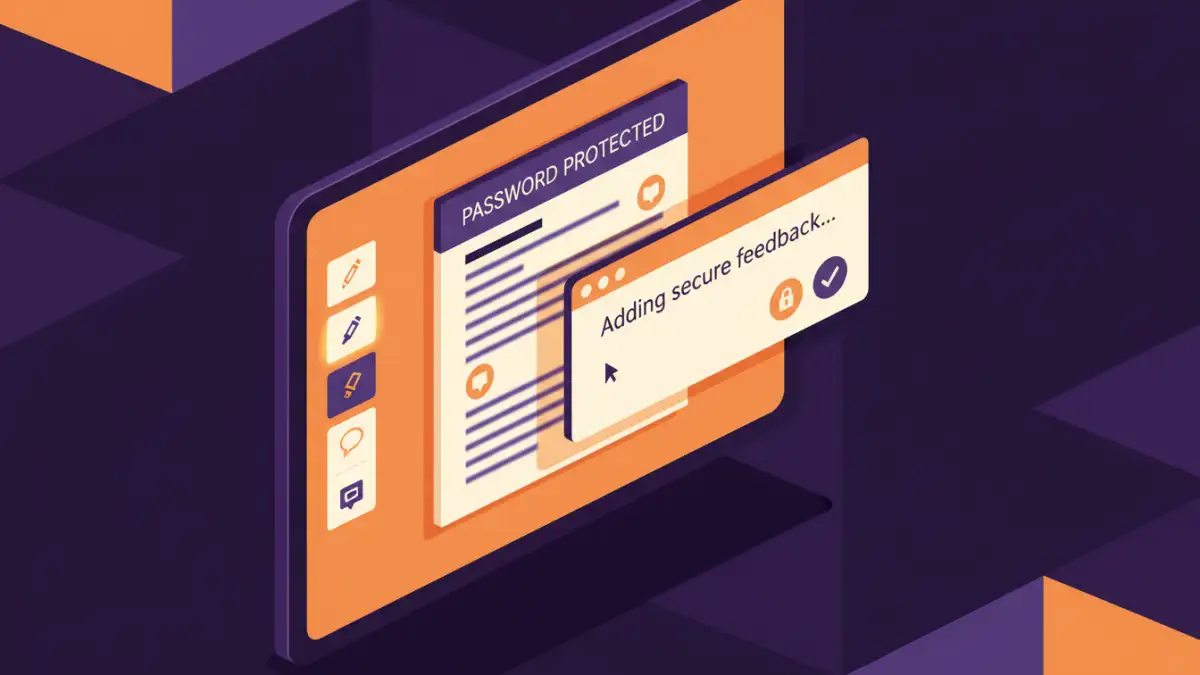
The most straightforward way to add comments to a password-protected PDF is to first remove the password protection. However, this is only possible if you have the correct password. Attempting to bypass passwords without authorization is illegal and unethical. Assuming you have legitimate access, there are several ways to proceed.
The methods generally involve either using a PDF viewer that supports editing/annotating after decryption, utilizing dedicated PDF editing software, or employing online tools. Each has its pros and cons, particularly concerning security and ease of use.
Decryption is Key
Before you can effectively add comments, the document must be accessible. If you have the User Password, you can open the PDF in a viewer like Adobe Acrobat Reader. If the restriction is on permissions (Owner Password), you'll need that specific password to unlock those features. Without the relevant password, you cannot legitimately add comments.
Browser-Based Approach
One of the simplest methods, provided you have the necessary password to open the document, is to use a web browser's print-to-PDF functionality. This effectively creates a new, unprotected copy of the PDF, which you can then annotate.
Open the password-protected PDF in a compatible browser (like Chrome or Firefox) and enter the password when prompted. Once the document is open, go to the print function (usually Ctrl+P or Cmd+P) and select 'Save as PDF' or 'Microsoft Print to PDF' as the destination. This process essentially flattens the document, removing the original security restrictions and allowing you to save it as a new, unprotected PDF. You can then open this new file in any PDF viewer and add your comments.
Limitations of Browser Printing
While this method is quick and requires no special software, it's not foolproof. It works best for simple PDFs. Complex layouts, interactive forms, or secured content might not be replicated perfectly in the new PDF. Furthermore, if the original PDF had an Owner Password restricting printing, this method may fail.
Desktop Software Solutions
For more robust control and a wider range of features, dedicated desktop PDF editing software is often the best choice. Programs like Adobe Acrobat Pro, Foxit PhantomPDF, or Nitro PDF Pro offer comprehensive tools for managing PDF security and annotations.
If you have the necessary password to remove restrictions, you can open the PDF in these applications. Most of these programs provide an option to remove the password or change permissions. Once the document is unprotected, you can use their built-in annotation tools (text boxes, sticky notes, highlights, etc.) to add your comments. Saving the annotated, now unprotected, PDF completes the process. For adding secure comments password pdf documents, this offers a high degree of control.
Advanced Annotation Features
Desktop software often provides a richer set of annotation tools compared to browser-based methods. You can choose from various comment types, adjust their appearance, and organize them effectively. Some advanced tools even allow you to digitally sign your comments or track changes made by others, further enhancing the security and collaborative aspects of your protected document comments.
Online Tools Considerations
Numerous online tools claim to remove PDF passwords or allow annotation of protected files. While convenient, using these services requires careful consideration of privacy and security. Uploading sensitive documents to third-party websites carries inherent risks.
If you choose to use an online tool, opt for reputable services that have clear privacy policies and security measures. Some tools might allow you to upload a password-protected PDF, enter the password, and then provide annotation tools. The output might be a new, unprotected PDF with your comments. Always be aware of the potential for data breaches or misuse of your sensitive information when using online services for protected document comments.
Security Risks of Online Tools
The primary concern with online tools is data security. Unless the service uses end-to-end encryption and has a strong reputation, your document could be exposed. It's advisable to use these tools only for non-sensitive documents or if you fully trust the provider. For critical documents, desktop software is generally a safer bet for secure pdf markup.
Best Practices for Secure Comments
When adding comments to password-protected PDFs, prioritize security at every step. Always ensure you have the legal right and the necessary password to access and modify the document. Avoid using online tools for highly confidential information.
If you need to share the annotated PDF, consider re-applying a password or using encryption methods to protect the final document. This ensures that your comments are visible to intended recipients while still safeguarding the core content. Understanding how to securely annotate protected documents is crucial for maintaining data integrity.
Finally, keep your passwords strong and unique. If you're managing multiple password-protected files, a reliable password manager can help you keep track of them securely. This holistic approach to document security ensures that your annotations don't inadvertently weaken your overall protection strategy.
Comparison Table
| Method | Ease of Use | Security Risk | Features | Best For |
|---|---|---|---|---|
| Browser Print to PDF | High | Low (if original password known) | Basic annotation after re-saving | Non-sensitive documents, quick annotation |
| Desktop PDF Software | Medium | Low (if software is reputable) | Advanced annotation, password removal, editing | Sensitive documents, complex edits, professional use |
| Online PDF Tools | High | High (depends on provider) | Varies widely, often annotation and password removal | Non-sensitive documents, quick edits, convenience |
| Password Managers | N/A (for comment addition) | Low (for password storage) | Secure password storage and generation | Managing multiple PDF passwords securely |