Working with password-protected documents can be frustrating, especially when those secure PDFs become too large to email or upload easily. I've encountered this challenge numerous times, whether it's a client sending large encrypted reports or preparing a sensitive proposal for a tight deadline. The immediate thought is: how can I reduce the size without compromising the very security that makes the file important?
The good news is that it's entirely possible to shrink secure PDFs effectively. It's not about removing security features, but rather about applying intelligent compression techniques that work alongside encryption. This allows for smaller file sizes, faster transfer times, and more efficient storage, all while keeping your sensitive information safe and sound. Let's explore how we can achieve this.
Table of Contents
Understanding Secure PDF Compression
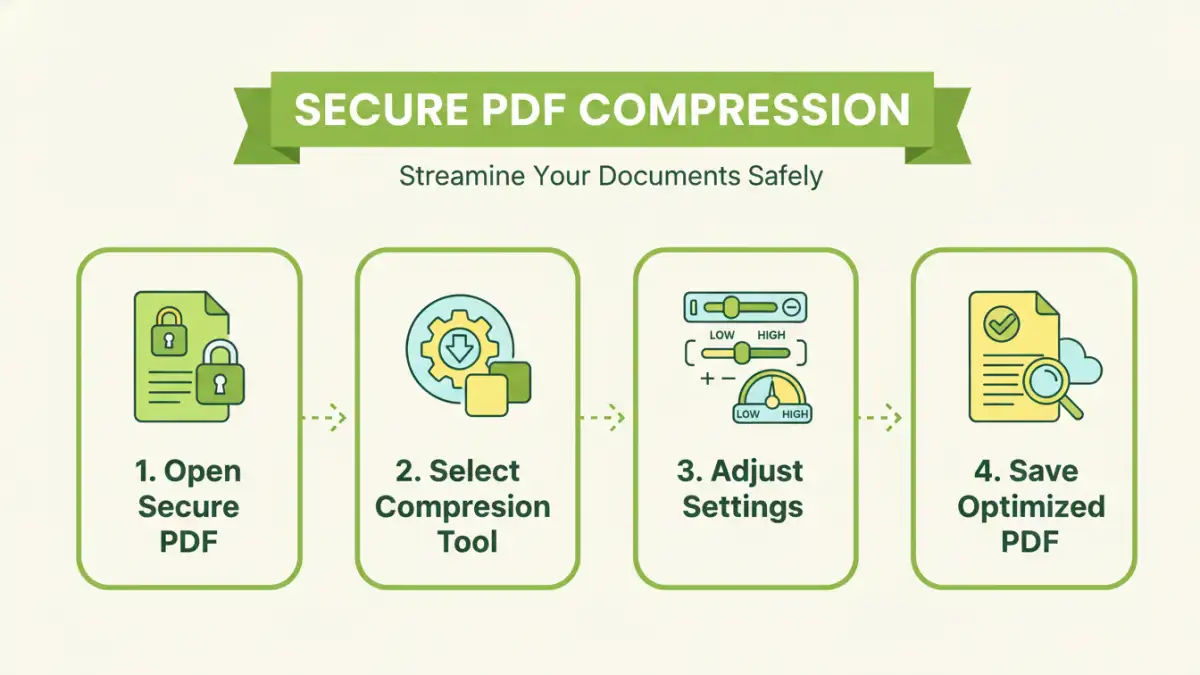
When we talk about reducing the size of a PDF, we're essentially looking to minimize the amount of data it contains. This can involve optimizing images, removing redundant information, and selecting efficient encoding methods. The key is that these processes can often be applied to encrypted files without decrypting them first, or by re-encrypting them immediately after compression.
The Role of Encryption
Encryption itself adds a small overhead to a file, but it's the content within the PDF that usually contributes most to its size. Large, uncompressed images or embedded fonts are common culprits. The goal is to intelligently reduce these elements without affecting the visual quality or the integrity of the encryption. My experience shows that most modern tools handle this seamlessly, preserving the password protection throughout the process.
Browser-Based Techniques
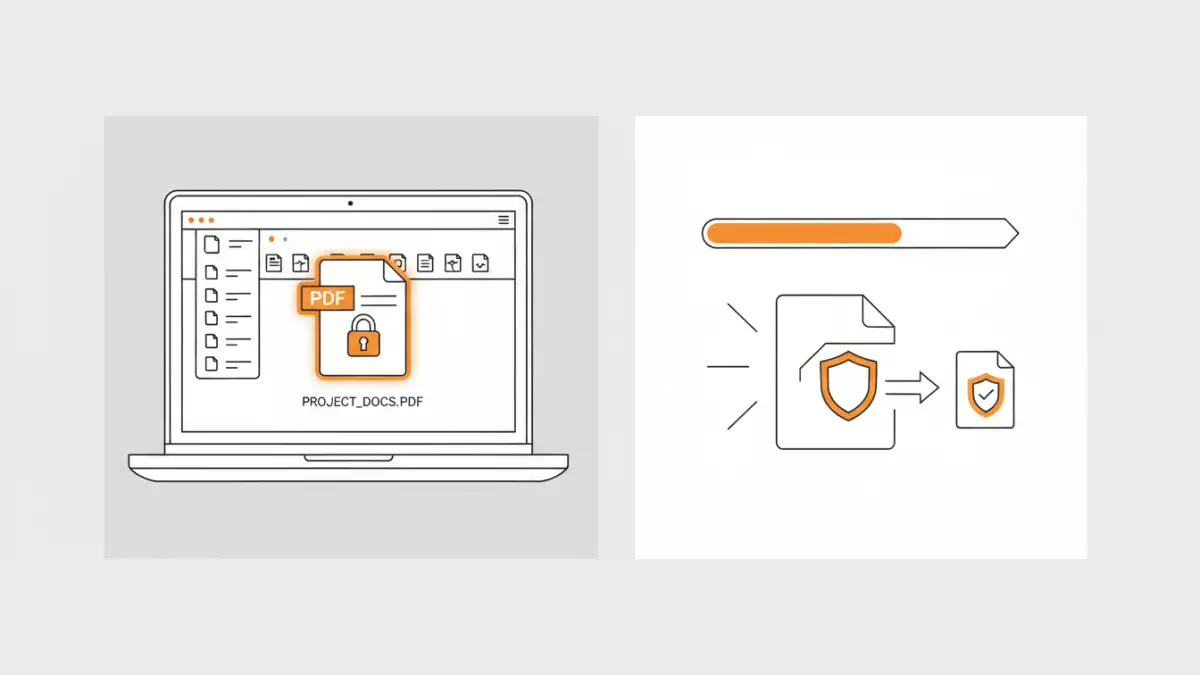
Sometimes, the simplest solutions are the most accessible. For PDFs that are password-protected but you have the password to open them, you can often use your web browser's 'Print to PDF' function as a form of optimization. When you open the secure PDF in a browser like Chrome or Edge, and then select 'Print', you'll see an option to 'Save as PDF'.
This process essentially re-creates the PDF. It can help to flatten certain elements and remove some unnecessary data, thereby reducing the file size. It's a quick way to create a new, potentially smaller version of your document. I've found this method particularly useful for documents that have a lot of embedded interactive elements or complex formatting that might be inflating the original file size.
Leveraging Online PDF Tools
Numerous online platforms specialize in PDF manipulation, and many offer robust compression features that work with password-protected files. Websites like Smallpdf, iLovePDF, and Adobe Acrobat online provide user-friendly interfaces where you can upload your secure PDF, enter the password, and then choose a compression level. They often offer different strengths of compression, allowing you to balance file size reduction against potential quality loss.
When using these tools, it's crucial to consider their security protocols. Reputable services use strong encryption for file transfers and delete uploaded files after a short period. Always check their privacy policies. I prefer using these for non-highly sensitive documents, or when I need a quick, accessible solution without installing software. It’s a great way to reduce document size efficiently.
Using Desktop Applications
For more control, better security, and handling of very large or complex files, desktop PDF software is often the best route. Adobe Acrobat Pro is the industry standard, offering extensive options for optimizing PDFs, including image compression settings, font embedding control, and object cleanup. When you open a password-protected PDF in Acrobat Pro, it will prompt you for the password, after which you can access all optimization tools.
Other powerful desktop alternatives include Foxit PhantomPDF and Nitro PDF Pro. These applications allow you to fine-tune compression settings for images (like JPEG or ZIP compression, and downsampling resolution), flatten form fields, and remove embedded metadata. This granular control is what allows you to truly optimize PDF file size while ensuring the document remains secure and accessible with its original password. I rely on desktop software for critical client deliverables where absolute control is necessary.
Best Practices for Secure Optimization
Regardless of the method chosen, some best practices ensure you successfully compress secure PDFs without issues. Always work on a copy of your original document. This way, if anything goes wrong during the compression process, you still have the original secure file intact. Test the compressed file thoroughly to ensure it opens correctly with its password and that all content is displayed as intended.
Consider the sensitivity of the document. For highly confidential information, using trusted desktop software or reputable online tools with strong privacy assurances is paramount. Understand the compression settings: higher compression might lead to noticeable quality degradation, especially in images. It's a trade-off to manage, and finding the right balance is key to an efficient PDF.
Comparison Table: PDF Compression Methods
| Method | Pros | Cons | Best For |
|---|---|---|---|
| Browser 'Print to PDF' | Free, readily available, no software install | Limited control, can alter complex formatting, only works if you can open the PDF | Quick, minor reductions for already opened documents |
| Online PDF Tools | Easy to use, fast, accessible anywhere, often free for basic use | Potential privacy concerns, limited advanced options, requires internet connection | Convenient compression for non-sensitive documents |
| Desktop Software (e.g., Acrobat Pro) | Maximum control over settings, high security, offline processing, handles complex files | Often paid, requires software installation, can have a learning curve | Professional use, sensitive documents, complex optimization needs |