
Working with password-protected documents can be frustrating, especially if you've forgotten the password or need to access a file shared with you without the key. OpenDocument files, commonly used by LibreOffice and Apache OpenOffice, can be secured with passwords to protect sensitive information. This raises the question: can this protection actually be removed?
As someone who has spent over a decade navigating the complexities of software and file security, I've encountered many scenarios involving protected documents. While the intention behind password protection is to enhance security, the reality of its removal is nuanced and depends heavily on the type of protection applied and the methods used.
Table of Contents
Understanding OpenDocument Protection
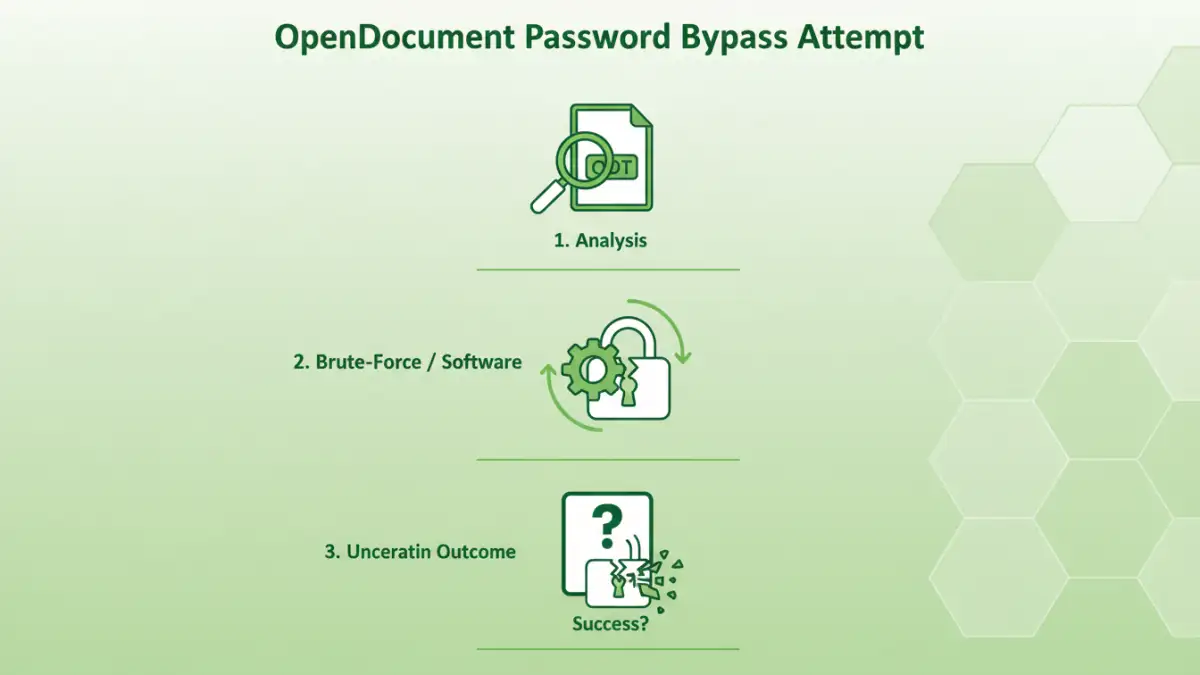
OpenDocument Format (ODF) files, such as .odt (text documents), .ods (spreadsheets), and .odp (presentations), can be protected using passwords. This protection is typically implemented at the application level when you save the file. The strength of this protection can vary.
Types of Protection
There are generally two main types of password protection applied to ODF files: a password to open the document, and a password to modify it. The former is more robust, encrypting the entire file content. The latter is often a weaker check, sometimes allowing file access with limited editing capabilities or even bypassing it more easily.
Methods of Removal
The ability to remove open document password protection is not straightforward and often depends on the encryption strength used by the specific application and the password complexity. For weaker protections or older versions of software, certain techniques might be effective.
The 'Browser Trick' for Specific Cases
In some older versions or specific implementations, particularly for .odt files, there's a workaround that involves treating the ODT file as a ZIP archive. If the password was only for modification and not full encryption, you might be able to extract the content, edit an XML file within it (like `content.xml`), and re-archive it. However, this method is largely ineffective for strong encryption used to prevent file access.
Using Online Tools and Software
Numerous online services and downloadable software claim to bypass or remove passwords from ODF files. These often employ brute-force attacks or exploit known security vulnerabilities in older encryption algorithms. While some might succeed for weaker passwords, they can be unreliable, pose privacy risks (especially online tools), and may not work against strong, modern encryption.
Security Vulnerabilities and Risks
While password protection aims to secure your files, it's not infallible. The effectiveness of removing protection hinges on the strength of the password and the underlying encryption. Complex, long passwords with a mix of characters are significantly harder to crack than simple ones.
Password Bypass Limitations
Modern ODF implementations often use robust encryption standards, making brute-force attacks or exploiting security vulnerabilities extremely time-consuming, if not practically impossible, for strong passwords. Attempting to bypass protection, especially through untrusted online tools, can expose your system to malware or compromise the data you are trying to access.
File Access Concerns
If you've forgotten your own password, recovery might be possible through legitimate means if the software offers a recovery option. However, attempting to gain unauthorized file access to someone else's protected document through bypass methods raises ethical and legal concerns.
Best Practices for Document Security
Instead of relying solely on password protection that might be circumvented, consider a layered approach to document security. This ensures your sensitive information remains protected.
Strong Password Management
Always use strong, unique passwords for your documents. A password manager can help you generate and securely store complex passwords. This is the first and most crucial line of defense against unauthorized access.
Alternative Encryption Methods
For highly sensitive data, consider encrypting the entire file or folder using dedicated encryption software or operating system features before password-protecting the document itself. This adds an extra layer of security that is much harder to bypass.
Comparison Table: Methods for Handling Protected Documents
| Method | Pros | Cons | Best For |
|---|---|---|---|
| 'ZIP Archive' Trick (ODT) | Free, no extra software needed for specific cases. | Only works for weak modification passwords, not strong encryption. Ineffective for file access prevention. | Recovering editable content from older, less securely protected ODT files. |
| Online Password Recovery Tools | Convenient, quick for simple passwords. | Significant privacy/security risks, unreliable for strong encryption, may not support ODF. | Quick attempts on very simple passwords if privacy is not a major concern. |
| Desktop Password Recovery Software | More powerful than online tools, can handle various encryption types. | Often paid, can be slow for strong passwords, requires installation. | Attempting recovery for forgotten passwords on ODF files when other methods fail. |
| Strong Password Management | Proactive security, prevents loss of access. | Requires consistent use and good habits. | Preventing password loss and ensuring secure document access. |