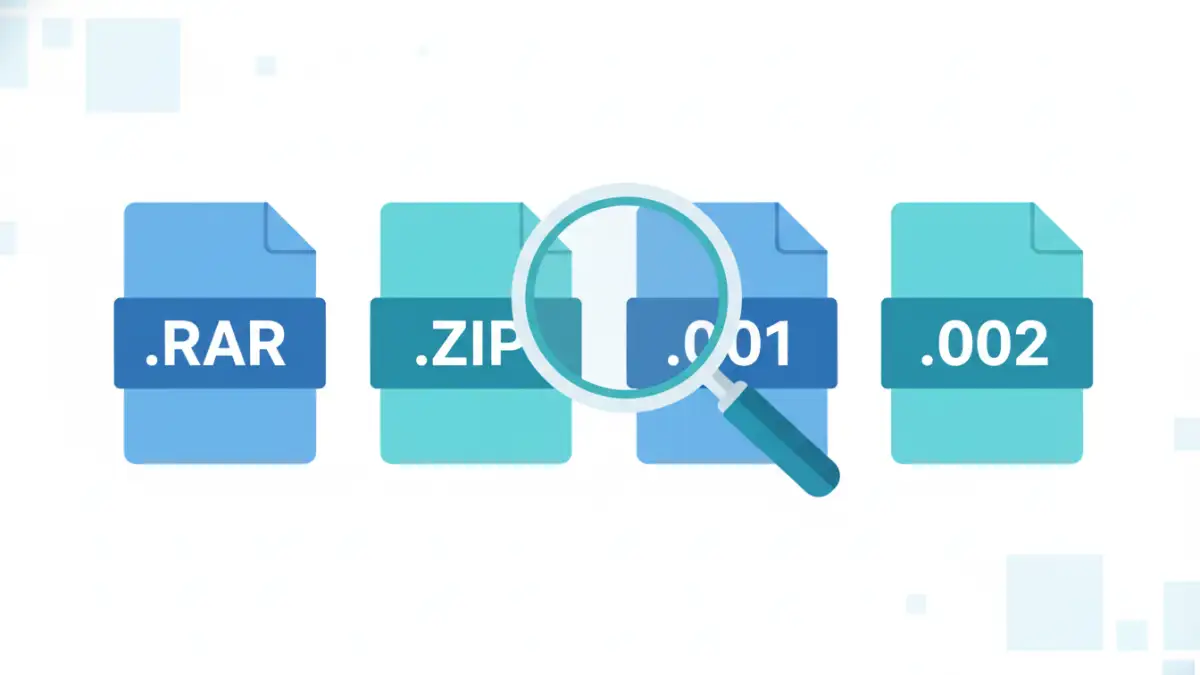
Dealing with large files often means they've been split into multiple parts, creating archive sets. These multi-part archives are convenient for transferring or storing large amounts of data, but they can also be a source of frustration when things don't work as expected. When you're trying to extract a file and run into errors, it can halt your workflow.
I've spent countless hours wrestling with corrupted downloads, missing pieces, and incompatible software when handling these segmented archives. The good news is that most common issues are resolvable with a systematic approach. This guide will walk you through understanding these problems and how to fix them.
Table of Contents
Understanding Multi-Part Archives
Multi-part archives, often seen with extensions like .part1.rar, .part2.rar, or .001, .002, are essentially a single large archive that has been broken down into smaller, manageable pieces. This is typically done to overcome file size limits on email attachments, cloud storage, or USB drives. The software used to create these archives (like WinRAR, 7-Zip, or WinZip) creates a set of files that must all be present and in the correct order for the archive to be successfully extracted.
Key Concepts
The critical element here is that all parts must be downloaded or copied correctly and kept in the same directory. The first part usually contains the header information, dictating the order and names of subsequent parts. If even one part is missing or corrupted, the entire archive set becomes unusable. Understanding this dependency is the first step in troubleshooting.
Common Errors and Their Causes
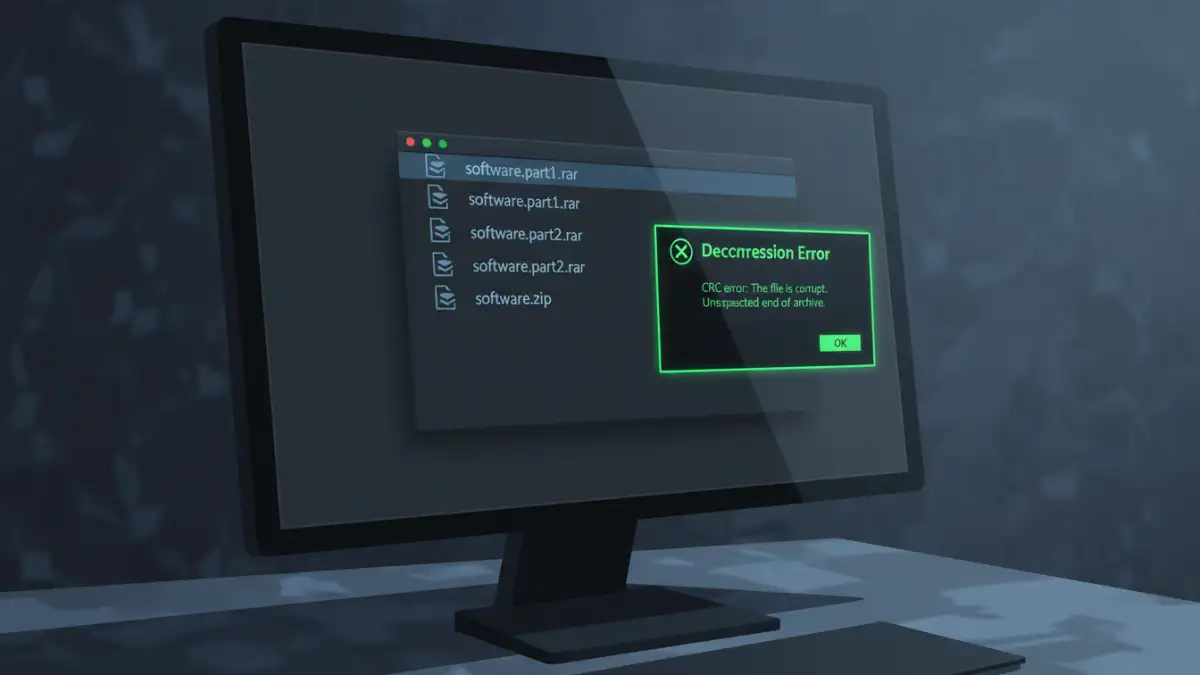
When working with multi-part archive files, several recurring problems can arise. These often stem from incomplete downloads, file corruption during transfer, or issues with the archiving software itself. Recognizing the error message can often point you in the right direction.
Incomplete Downloads or Missing Parts
This is perhaps the most frequent issue. You might have downloaded most of the parts, but one or more are missing. This can happen if the download was interrupted, a link expired, or the source only uploaded a partial set. The archive software will typically report an error like "Unexpected end of archive" or indicate that a specific part is missing.
Corrupted Files
Files can become corrupted during download, transfer (especially via unstable networks or older storage media), or even due to hard drive errors. A corrupted part means the data within that file is damaged, making it impossible for the extraction software to read it correctly. Errors might include "CRC failed" or "Data error" messages.
Incorrect File Placement
All parts of the archive must reside in the same folder for the extraction software to recognize them as a set. If you've accidentally moved one part to a different directory, or if the software is looking for files in the wrong location, it won't be able to assemble the archive.
Software Incompatibility or Version Issues
Sometimes, an archive might have been created with a newer version of archiving software than what you are using. While most modern tools are backward compatible, very old versions might struggle with newer compression methods or multi-part formats. Similarly, using the wrong software (e.g., trying to open a .RAR file with a tool that only supports .ZIP) will obviously fail.
Step-by-Step Troubleshooting Methods
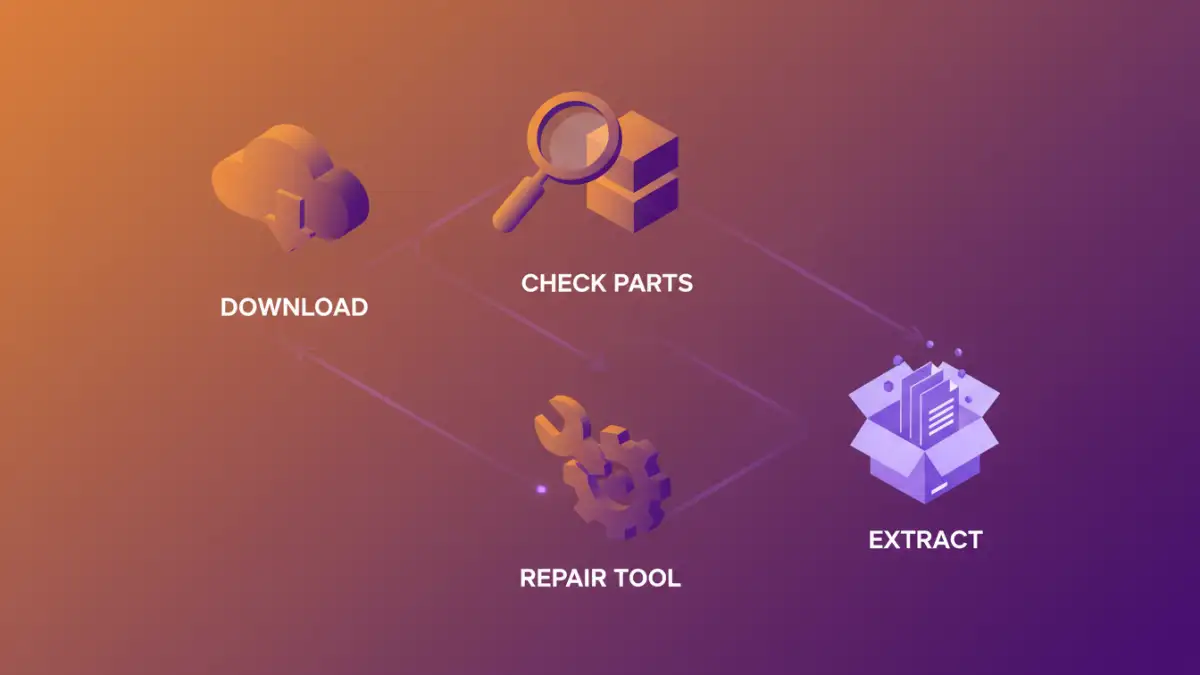
When faced with an error, don't panic. Follow these systematic steps to diagnose and resolve the problem. My experience has shown that patience and methodical checking are key.
1. Verify All Parts Are Present and Correctly Named
First, ensure you have all the numbered parts (.part1, .part2, etc., or .001, .002, etc.) in the same folder. Check the filenames carefully; they should follow a sequential order. Make sure there are no extra characters or typos in the filenames. If you're downloading, check the file sizes; they should be roughly consistent (except for the first part, which might be slightly larger).
2. Re-download Missing or Corrupted Parts
If you identify missing files or suspect corruption (e.g., due to CRC errors), the most reliable solution is to re-download them. If possible, obtain the files from the original source. If the original source is unavailable, you might need to find an alternative upload or contact the person who sent them.
3. Use the Repair Function of Archiving Software
Many archiving tools, like WinRAR and 7-Zip, have a built-in repair function. Select the first part of the archive (or the corrupted part) and look for a "Repair" option in the software's menu. This function attempts to reconstruct the archive by fixing minor corruptions. It creates a new, repaired archive (often named `rebuilt.filename.ext`). This doesn't always work, especially with severe corruption, but it's worth trying.
4. Ensure Correct Software and Version
Make sure you are using a reputable archiving tool that supports the format of your archive (e.g., WinRAR for .RAR files, 7-Zip for .7z and .ZIP files). If you suspect a version issue, try updating your archiving software to the latest version. Most updates include improved compatibility and bug fixes.
5. Check for Password Protection Issues
If the archive is password-protected, ensure you are entering the correct password. Passwords are case-sensitive. If you're unsure, double-check with the source. Sometimes, password-protected archives can also experience corruption issues, making them harder to repair.
Advanced Solutions and Prevention
For persistent file archive problems, consider these advanced techniques and proactive measures.
Using Specialized Recovery Tools
If standard repair functions fail, there are specialized third-party tools designed for archive recovery. These tools often employ more advanced algorithms to reconstruct damaged archives. However, their success rate varies, and some can be costly. Always download such software from reputable sources to avoid malware.
Verifying Data Integrity with Checksums
When downloading archives, especially from less trusted sources, look for accompanying checksum files (like .MD5 or .SHA) if provided. You can use checksum utility software to verify that your downloaded files match the original ones. This helps detect corruption before you even attempt to extract.
Creating Archives with Recovery Records
When creating your own multi-part archives, consider adding a recovery record. Tools like WinRAR allow you to include a small amount of redundant data within the archive. This data can be used to help repair the archive if some parts become corrupted later. It adds a bit to the file size but can be a lifesaver.
Best Practices for Handling Archives
To minimize the chances of encountering multi-part archive issues in the future, adopting good habits is crucial. This proactive approach saves a lot of time and potential data loss.
- Always download all parts of an archive completely before attempting extraction.
- Keep all parts of an archive in the same directory.
- Use up-to-date and reputable archiving software.
- When creating archives for others, consider adding a recovery record.
- If possible, verify downloaded archives using checksums.
- Store archives on reliable storage media and back them up.
Comparison Table: Archiving Software Features
| Software | Primary Formats Supported | Multi-Part Support | Repair Function | Recovery Record Option |
|---|---|---|---|---|
| WinRAR | RAR, ZIP, 7Z, ISO, TAR, GZ, etc. | Yes (.part1.rar, etc.) | Yes | Yes |
| 7-Zip | 7Z, ZIP, TAR, GZ, RAR (read-only extraction) | Yes (.001, .002, etc.) | Limited (via command line) | No |
| WinZip | ZIP, ZIPX, RAR, 7Z, ISO, etc. | Yes (.zipx, .part1.zip) | Yes (for ZIPX) | No |
| PeaZip | 7Z, PEA, TAR, ZIP, RAR (read-only extraction) | Yes (.001, .002, etc.) | No | No |