I've often encountered situations where colleagues or clients needed to share sensitive information, but struggled with ensuring their PDF documents remained secure. The challenge isn't just about applying a password; it's about understanding the right tools and methods to truly protect data from unauthorized eyes or tampering. Fortunately, there are many robust options available that won't cost you a penny.
As someone who has spent over a decade navigating the complexities of software and data integrity, I've seen firsthand the critical importance of document security. This article dives into some of the best free PDF security software and techniques I've found to be effective, helping you keep your digital assets safe without breaking the bank.
Table of Contents
Why PDF Security Matters So Much
In today's interconnected professional landscape, sharing documents digitally is standard practice. However, this convenience comes with inherent risks. A misplaced email, an unsecure cloud share, or a compromised device can quickly expose confidential information, leading to severe consequences for individuals and businesses alike.
Common Threats to PDF Documents
PDFs, despite their widespread use, are not inherently secure. They can be vulnerable to various threats, including unauthorized viewing, content alteration, and data extraction. Without proper safeguards, sensitive data like financial records, personal identification, or intellectual property can be easily accessed or modified, leading to compliance issues, financial loss, or reputational damage.
Understanding Free PDF Security Software
When we talk about free PDF security software, we're not just referring to tools that slap a password on a file. Modern solutions offer a range of functionalities designed to provide comprehensive protection. These tools can be surprisingly powerful, often leveraging similar encryption standards found in their paid counterparts.
Key Features to Look For
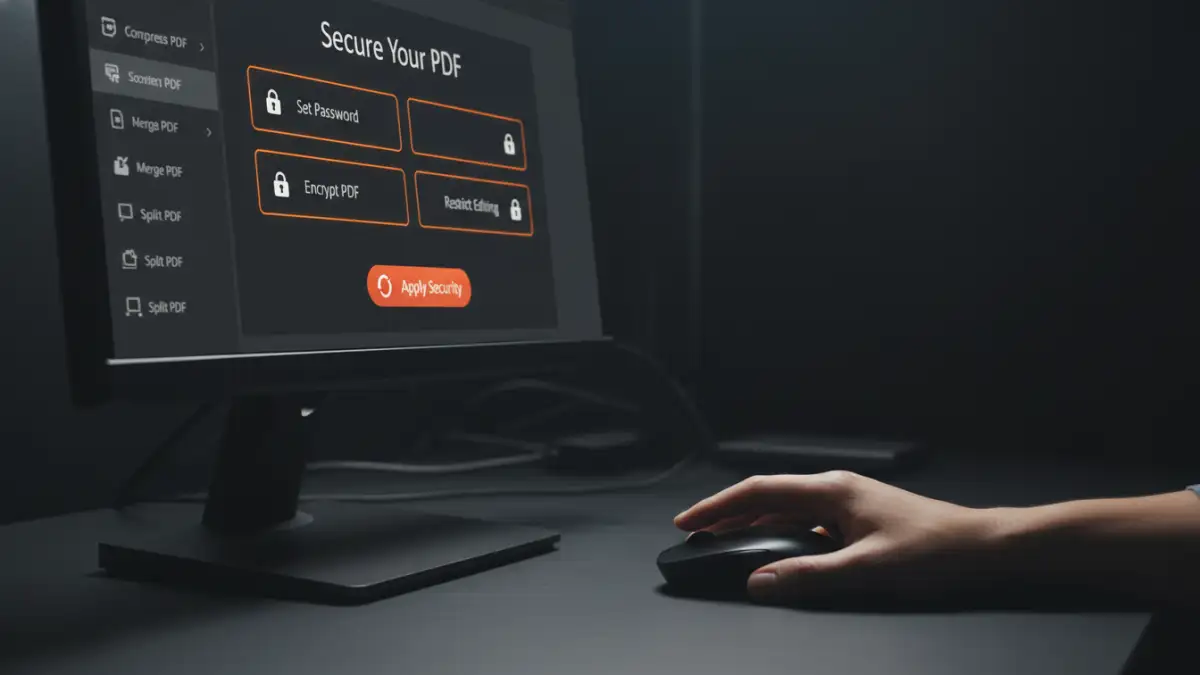
Effective document security apps should offer several core features. Password protection is fundamental, preventing unauthorized opening. Encryption, often using AES 256-bit, scrambles the document's content, making it unreadable without the correct key. Look for options that also allow you to restrict printing, copying, and editing, giving you granular control over who can do what with your document.
Some advanced free tools might even offer digital signature capabilities, which verify the document's authenticity and ensure it hasn't been tampered with since signing. Watermarking is another useful feature for marking documents as confidential or for internal use, adding an extra visual layer of security.
Our Top Picks for Free PDF Security Tools
Having worked with various document management systems and security protocols, I've identified several excellent free options that can help secure your PDFs. These tools vary in their approach, offering either online convenience or robust desktop functionality.
Online Services for Quick Protection
Online PDF protection tools are incredibly convenient for quick tasks. Websites like Smallpdf and iLovePDF offer features to password-protect PDFs, remove existing passwords (if you know them), and even add watermarks. They are generally user-friendly and require no software installation, making them ideal for occasional use or when you're on the go.
However, a critical consideration with online services is data privacy. While most reputable services claim to delete your files after a short period, uploading highly sensitive documents to third-party servers always carries a degree of risk. For extremely confidential information, desktop applications are often a safer bet.
Desktop Applications for Robust Security
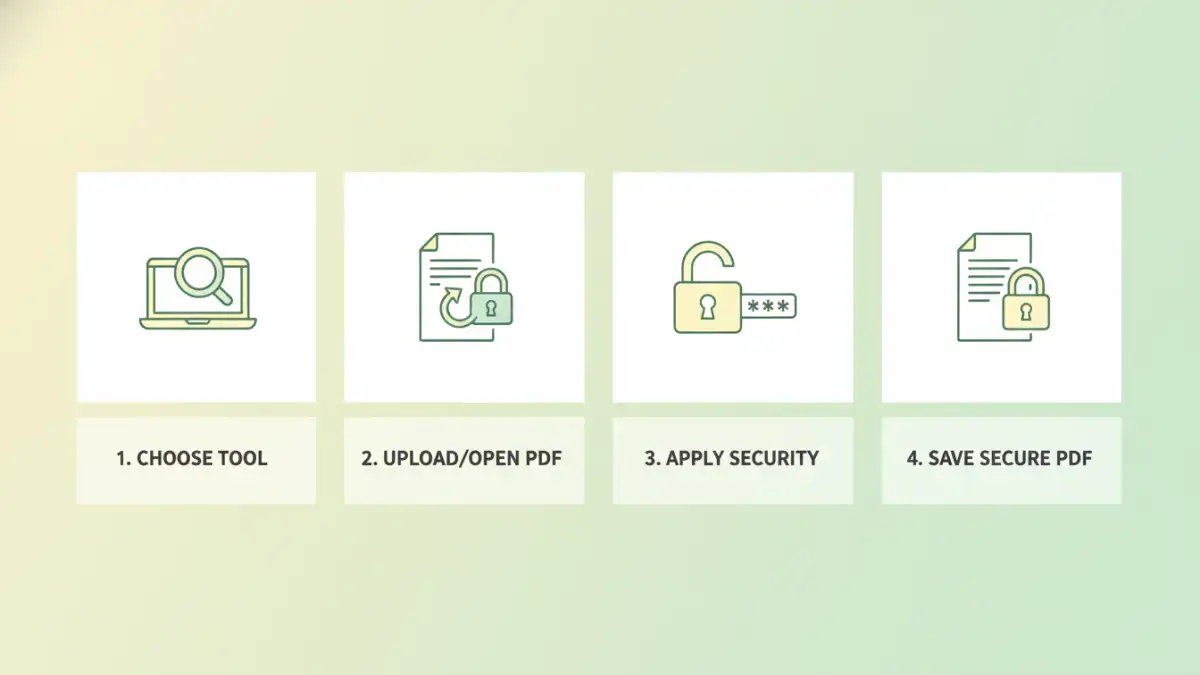
For more control and enhanced security, desktop-based free PDF security software is the way to go. Tools like PDF24 Creator offer a comprehensive suite of features. Beyond basic password protection and encryption, PDF24 Creator allows you to merge, split, compress, and sign PDFs, all from your local machine, ensuring your data never leaves your computer.
Another powerful, though perhaps less intuitive, option is LibreOffice Draw. While primarily a vector graphics editor, it can open PDFs and then export them with robust password protection and encryption settings. This is a testament to how versatile some open-source document security apps can be, even if they aren't dedicated PDF tools.
Beyond Tools: Best Practices for PDF Protection
While the right free PDF security software is essential, it's just one part of a larger security strategy. Even the most secure document can be compromised if basic security hygiene is neglected.
Always use strong, unique passwords for your secured PDFs, ideally generated by a reputable password manager. Avoid common words or easily guessable sequences. When sharing protected documents, transmit the password through a separate, secure channel (e.g., text message if the PDF was emailed). Regularly review who has access to your sensitive documents and revoke permissions when no longer needed. Finally, always keep your operating system and software updated to patch any known vulnerabilities that could be exploited.
Comparison Table: Free PDF Security Approaches
| Method | Pros | Cons | Best For |
|---|---|---|---|
| Online Services (e.g., Smallpdf) | Convenient, no installation, quick tasks | Potential privacy concerns, internet required | Non-highly sensitive documents, quick fixes |
| Desktop Software (e.g., PDF24 Creator) | High control, data stays local, rich features | Requires installation, can be more complex | Highly sensitive documents, regular use |
| Built-in OS Features (e.g., Print to PDF) | No extra software, simple password protection | Limited encryption options, basic features | Basic protection, casual use |
| LibreOffice Draw (Export) | Robust encryption, part of free suite | Not a dedicated PDF editor, learning curve | Users already familiar with LibreOffice, strong security needs |