
It’s a scenario I've seen countless times: a colleague sends an important, encrypted contract, but when you open it in Safari, all you see is a frustrating white screen. No error message, no prompt for a password—just a blank page. This issue with secure PDFs in Safari is more common than you'd think and can bring productivity to a halt, especially when dealing with time-sensitive documents.
The problem usually isn't with the file itself but with how Safari's built-in PDF rendering engine handles specific types of encryption or embedded content. Fortunately, there are several reliable ways to resolve this, ranging from quick browser fixes to using more robust viewing tools.
Table of Contents
Understanding Why Secure PDFs Go Blank in Safari
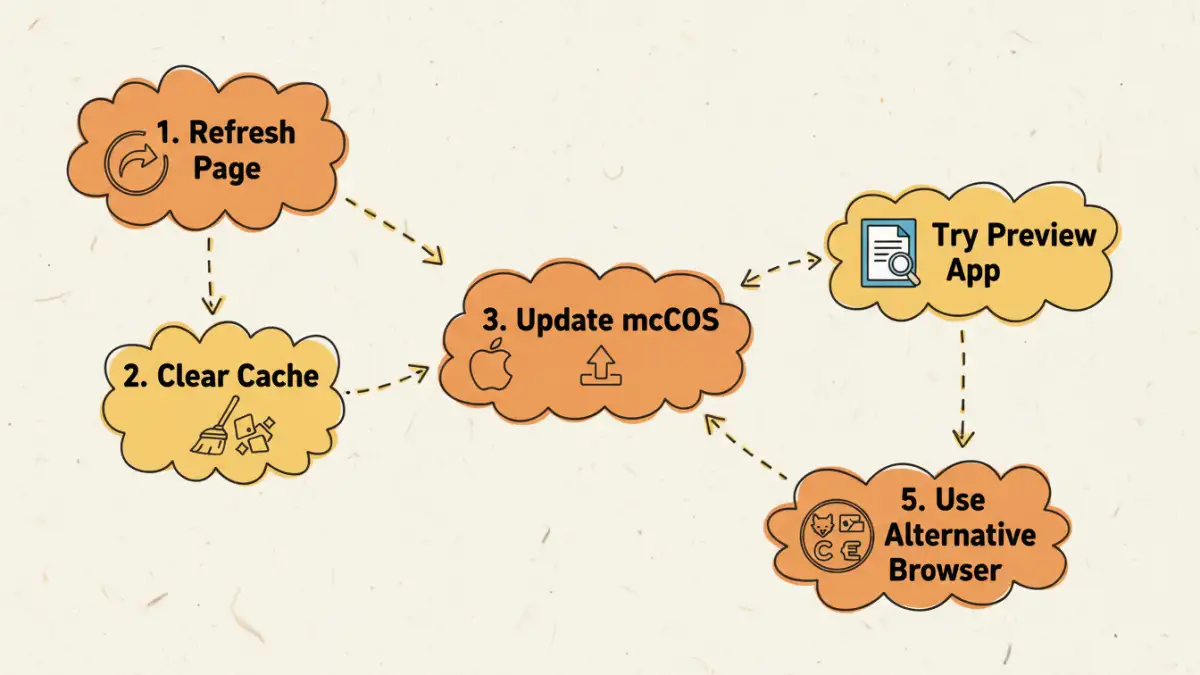
When you open a standard PDF in Safari, its WebKit rendering engine processes and displays the content seamlessly. However, password-protected or encrypted PDFs add layers of complexity. The blank page issue typically stems from one of a few core problems.
First, Safari's native PDF viewer can be less forgiving than dedicated applications like Adobe Acrobat. It might struggle with certain encryption algorithms or complex forms embedded within the secure document. If the PDF was created with a newer, proprietary security feature, Safari's viewer might fail to interpret it, resulting in a blank display instead of a password prompt.
Common Technical Causes
Another frequent culprit is a corrupted browser cache. Safari might be loading a broken or incomplete version of the file from its temporary storage. In other cases, conflicts with browser extensions, particularly ad-blockers or security plugins, can interfere with the scripts required to handle the password prompt. Finally, an outdated version of macOS or iOS can lead to this `macos pdf viewer problem`, as Apple regularly pushes updates that improve compatibility and fix rendering bugs.
Immediate Troubleshooting Steps

Before diving into more complex solutions, a few simple actions can often resolve the blank PDF issue. These steps are quick, non-invasive, and should always be your first line of defense.
Refresh and Re-download the File
The simplest fix is often the most effective. First, try a hard refresh of the Safari page (Command + R on Mac). If that doesn't work, the file might have been corrupted during the initial download. Delete the PDF from your Downloads folder and download it again from the source. A fresh copy ensures you're not working with a damaged file.
Clear Safari's Cache and Website Data
A cluttered or corrupted cache can prevent Safari from loading content correctly. Clearing it forces the browser to fetch a fresh version of the PDF instead of relying on a potentially broken stored version. To do this on a Mac, go to Safari > Settings > Privacy > Manage Website Data, then search for and remove data related to the site you downloaded the PDF from. For a more thorough clean, you can go to the Develop menu and select 'Empty Caches'.
System-Level Solutions for macOS and iOS
If the quick fixes don't work, the problem may lie deeper within your system's configuration or software version. These solutions address underlying compatibility issues on your Mac or iPhone.
Ensure Your Operating System is Updated
Running an outdated version of macOS or iOS is a common source of compatibility issues. Apple frequently releases security patches and bug fixes that address how Safari handles different file types. Go to System Settings > General > Software Update on your Mac (or Settings > General > Software Update on iOS) to check for and install any available updates. This can resolve underlying rendering engine bugs causing the `ios secure file error`.
Use Preview as the Default PDF Viewer on Mac
While Safari is convenient, the dedicated Preview application on macOS is a more powerful and reliable PDF handler. You can open the file directly in Preview, or better yet, set Preview as your default PDF viewer. To do this, find any PDF file in Finder, press Command + I to open the 'Get Info' window, go to the 'Open with:' section, select 'Preview.app', and click 'Change All...'. From then on, all PDFs will open in Preview, bypassing Safari's viewer entirely.
Alternative Methods for Reliable Viewing
Sometimes, Safari's built-in tools just aren't up to the task, especially with heavily encrypted or complex documents. In these cases, turning to third-party software is the most reliable path forward.
Try a Different Web Browser
Browsers like Google Chrome and Mozilla Firefox use different PDF rendering engines that are often more robust than Safari's. Simply download the secure PDF to your computer, then drag and drop the file into an open Chrome or Firefox window. These browsers are typically excellent at handling password-protected files and will usually present the password prompt correctly.
Install a Dedicated PDF Reader
For guaranteed compatibility, nothing beats a dedicated PDF application. Adobe Acrobat Reader is the industry standard and is available for free. It is designed to handle all types of PDF encryption and features. Installing it provides a foolproof method for opening any `password protected pdf not opening safari`. Once installed, you can right-click any PDF and choose 'Open with Adobe Acrobat Reader' to view it without issue.
Solution Comparison for Blank PDF Issues
| Solution | Ease of Use | Effectiveness | When to Use It |
|---|---|---|---|
| Refresh & Re-download | Very Easy | Low to Moderate | As the very first troubleshooting step. |
| Clear Safari Cache | Easy | Moderate | When you suspect a stored data issue. |
| Update macOS/iOS | Easy | High | When you haven't updated your device in a while. |
| Use Preview App (Mac) | Easy | High | For a more robust native viewing experience on Mac. |
| Try Another Browser | Easy | Very High | When you need a quick alternative to Safari. |
| Adobe Acrobat Reader | Moderate (Requires Install) | Highest | For complex or highly secure documents that fail everywhere else. |