You click a link to an important report or an invoice, and instead of the document, you're met with a cryptic error message. It's a common frustration that can halt your workflow, but the underlying cause is often simpler than you might think. Most of the time, this isn't a problem with the PDF itself but rather a communication breakdown between your browser and the file.
Understanding where to start troubleshooting can save you a lot of time. The issue could stem from a minor browser glitch, a conflicting extension, or even a network hiccup. I've walked through this with colleagues many times, and we can usually resolve it by systematically checking a few key areas.
Table of Contents
Understanding Common Causes for PDF Loading Errors
When a PDF fails to render in your browser, the error message itself doesn't give you much to work with. The problem usually falls into one of a few categories: browser-related issues, file corruption, or server-side problems. Pinpointing the general area helps you choose the right solution faster.
Client-Side vs. Server-Side Problems
Most of the time, the issue is on your end (client-side). This includes your browser's cache, settings, or extensions. It's the easiest category to troubleshoot. Less frequently, the problem is with the website hosting the file (server-side). If a site's server is configured incorrectly or is down, there's little you can do but wait or contact the site administrator. Our focus here will be on the client-side fixes you can control.
Quick Fixes to Try First
Before diving into complex settings, always start with the simplest solutions. I've found that these quick steps resolve the browser pdf error more than half the time, saving you from unnecessary troubleshooting.
The Classic Refresh and Cache Clear
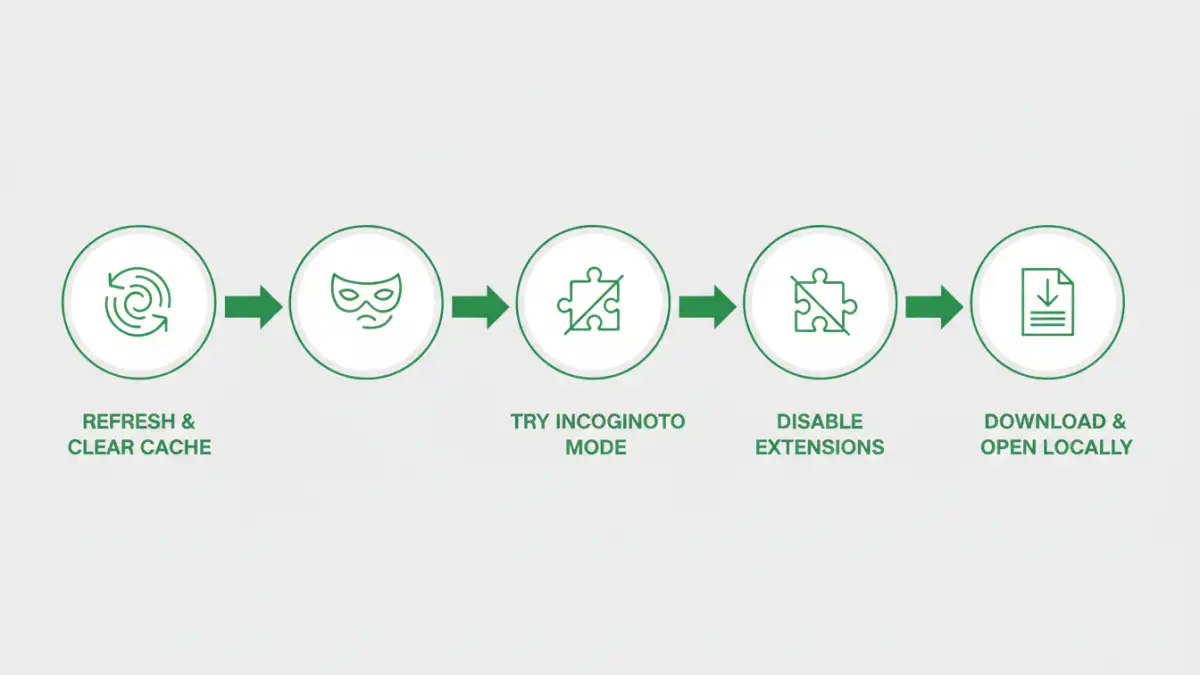
First, try a hard refresh (Ctrl + F5 on Windows, Cmd + Shift + R on Mac). This forces the browser to re-download the file, bypassing any cached (and potentially corrupted) versions. If that doesn't work, clear your browser's cache and cookies. Old data can sometimes interfere with how new content is loaded, and clearing it gives the browser a fresh start.
The Incognito Mode Test
One of my go-to diagnostic tools is opening the link in an Incognito or Private window. This mode typically runs without active extensions. If the PDF loads correctly in Incognito mode, you've successfully narrowed down the problem: a browser extension is the likely culprit. This is a very common cause for a Chrome PDF issue.
Advanced Browser Troubleshooting Steps
If the quick fixes didn't work, it's time to look a bit deeper into your browser's configuration. These steps involve changing settings, so it's good to note what you've changed in case you need to revert back.
Start by ensuring your browser is up to date. Developers constantly release patches that fix bugs, including rendering issues with file types like PDFs. A simple update can often resolve persistent problems. Next, methodically disable your extensions one by one. Even extensions that seem unrelated, like ad blockers or grammar checkers, can sometimes interfere with the browser's built-in PDF viewer. Disable one, reload the page, and see if it works. Repeat until you find the conflicting add-on.
If you're still facing the error, you might consider resetting your browser settings to their default. This is a more drastic step, as it will clear your startup pages, search engines, and pinned tabs, but it's a powerful way to eliminate any misconfiguration that might be causing the issue.
Handling Problematic PDF Files
Sometimes, the browser is working perfectly, but the file itself is the source of the problem. If you've tried everything else and still see the 'failed to load pdf document' message, it's time to investigate the PDF directly.
The best way to test this is to download the PDF to your computer. Right-click the link and select "Save link as..." or a similar option. Once downloaded, try opening it with a dedicated desktop application like Adobe Acrobat Reader or Foxit Reader. If it still won't open, the file is likely corrupted or incomplete. In this case, your only option is to contact the source of the file and request a new copy.
Another possibility is that you're dealing with an encrypted PDF not loading correctly. Some browsers have trouble with certain types of password protection or encryption. Opening it in a dedicated desktop reader, which has more robust capabilities, will typically bypass this browser-specific limitation.
Troubleshooting Method Comparison
| Method | Complexity | Potential Fix Rate | Best For |
|---|---|---|---|
| Hard Refresh (Ctrl+F5) | Very Low | Low | Minor caching glitches. |
| Clear Cache & Cookies | Low | Medium | Resolving issues caused by old, stored data. |
| Use Incognito Mode | Low | High (for diagnosis) | Quickly identifying if an extension is the culprit. |
| Disable Extensions | Medium | High | Fixing conflicts with ad blockers or other tools. |
| Update Browser | Low | Medium | Solving known bugs fixed in newer versions. |
| Download & Open Locally | Low | High (for diagnosis) | Determining if the PDF file itself is corrupted. |
| Reset Browser Settings | High | Very High | A last resort for persistent, hard-to-diagnose issues. |