
Working with sensitive documents on your iPhone or iPad means you need robust security. Whether it's financial records, personal notes, or confidential work files, keeping them private is paramount. Fortunately, iOS offers a robust ecosystem of apps designed to encrypt your documents, providing peace of mind.
As someone who's spent years navigating the complexities of software development and data security, I understand the critical need for reliable tools. Choosing the right app can make all the difference in protecting your information from prying eyes and potential breaches. Let's explore some of the best options available for iOS users.
Table of Contents
Understanding Document Encryption on iOS
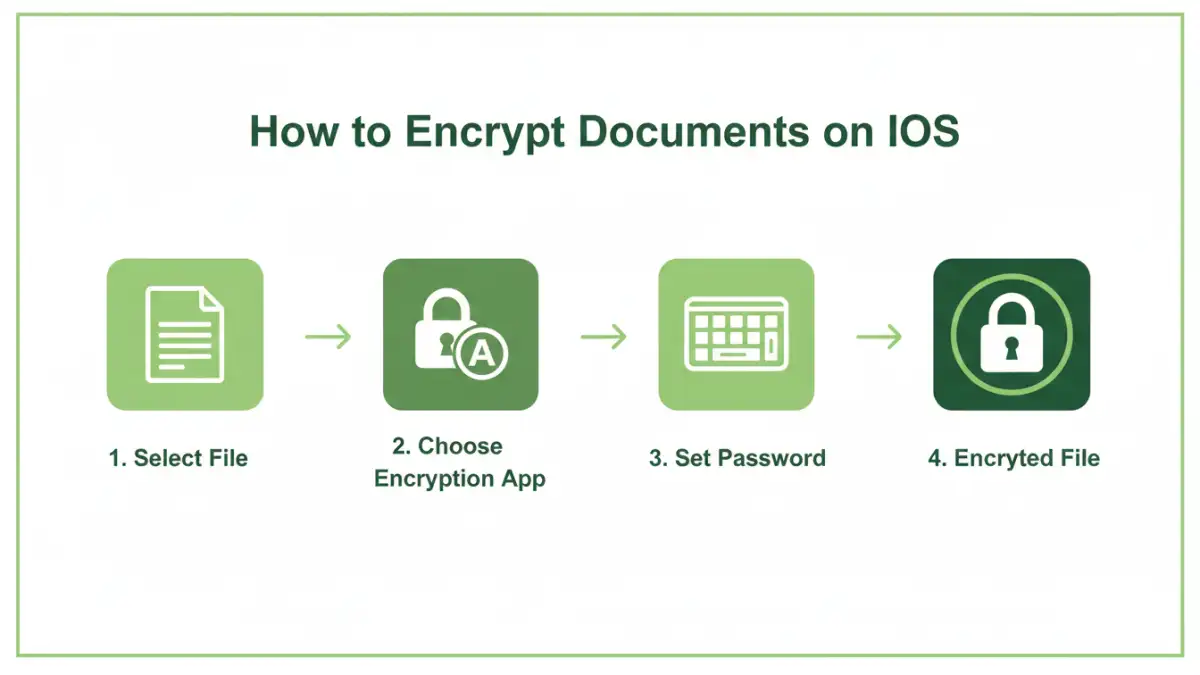
Encrypting documents involves converting your readable files into an unreadable format using an algorithm and a secret key or password. Only someone with the correct key or password can decrypt the file and access its original content. This process is crucial for data at rest, meaning data stored on your device.
Why Encrypt?
The primary reason is to protect your privacy and sensitive information. If your device is lost, stolen, or accessed by unauthorized individuals, encrypted files remain inaccessible. It's a fundamental layer of security for anyone handling important digital assets.
Top Apps for Encrypting Documents
Navigating the App Store can be overwhelming, but several applications consistently stand out for their security features and ease of use when you need to encrypt documents on iOS.
1. Documents by Readdle
Documents by Readdle is more than just a file manager; it's a comprehensive productivity suite. It allows you to password-protect individual files and entire folders within the app. The encryption is robust, ensuring your data is safe even if your device is compromised. It's an excellent all-around tool for managing and securing your files.
2. PDF Expert by Readdle
If your primary concern is PDF security, PDF Expert is a top-tier choice. It offers robust password protection for PDF documents, allowing you to set viewing and editing permissions. This is invaluable for sharing confidential reports or contracts where you need to control access. It's one of the best pdf encryption tools available.
3. Cryptomator
For users who need end-to-end encryption, especially when syncing files with cloud storage services like Dropbox or Google Drive, Cryptomator is a fantastic option. It creates encrypted "vaults" on your device or cloud storage. Files placed inside these vaults are encrypted locally before being uploaded, ensuring your cloud provider cannot access your data. This is a prime example of excellent ios document encryption apps.
4. Standard Notes
While primarily a note-taking app, Standard Notes excels at encrypting text-based information. It offers end-to-end encryption for all your notes, making it perfect for journaling, secure credential storage, or any sensitive text snippets. The app is minimalist but highly secure, with various paid extensions for added features.
5. SecureSafe
SecureSafe focuses entirely on secure storage and sharing of digital assets. It offers encrypted storage for files, photos, and videos. You can create secure notes and securely share files with others using time-limited links or passwords. Its focus on security makes it a reliable choice for sensitive data.
Key Features to Look For
When selecting an app to encrypt documents on your iOS device, several features are essential for optimal security and usability.
Encryption Strength
Look for apps that use strong encryption standards like AES-256. This is the industry benchmark for secure data encryption and is used by governments and financial institutions worldwide. Ensure the app clearly states the encryption protocol it uses.
Ease of Use
While security is paramount, the app should also be intuitive. You should be able to encrypt and decrypt files without a steep learning curve. Features like drag-and-drop support, simple password management, and clear instructions are highly beneficial.
File Type Support
Consider the types of documents you need to encrypt. Some apps are specialized (like PDF Expert for PDFs), while others offer broader support for various file formats including images, videos, and office documents. Ensure the app handles the file types you work with most often.
Cloud Integration
If you use cloud storage, check if the app integrates seamlessly. Apps like Cryptomator are designed to work with cloud services, encrypting files before they sync. This adds an extra layer of security to your cloud-stored data.
Password Management
The app should offer secure ways to manage your encryption passwords or keys. Features like password strength indicators, the ability to use passphrases, and secure storage of these credentials are vital.
Best Practices for Document Security
Using encryption apps is a significant step, but a few best practices can further enhance your document security on iOS.
Use Strong, Unique Passwords
Your encryption is only as strong as your password. Avoid simple, easily guessable passwords. Use a combination of upper and lowercase letters, numbers, and symbols. Consider using passphrases, which are longer and more complex but easier to remember.
Enable Biometric Authentication
Most modern secure file apps on iOS support Touch ID and Face ID. Enabling biometric authentication provides a quick and secure way to access your encrypted files without needing to type your password every time.
Regularly Back Up Encrypted Files
While encryption protects against unauthorized access, it doesn't protect against data loss. Regularly back up your encrypted files to a secure location, whether it's another device, an external drive, or a trusted cloud service. Remember to store your encryption keys or passwords securely alongside your backups.
Keep Your Apps Updated
Software developers frequently release updates to patch security vulnerabilities and improve performance. Ensure your encryption apps and your iOS operating system are always up-to-date to benefit from the latest security enhancements.
Comparison Table: iOS Document Encryption Methods
| Method | Pros | Cons | Best For |
|---|---|---|---|
| Built-in iOS Features (e.g., Notes, Files App Passwords) | Free, readily available | Limited file types, basic protection | Quick, simple notes or documents |
| Dedicated Encryption Apps (e.g., Documents by Readdle, PDF Expert) | Robust encryption (AES-256), user-friendly interfaces | May require purchase or subscription | Comprehensive file management and specific file types (PDFs) |
| Cloud-Integrated Encryptors (e.g., Cryptomator) | End-to-end encryption for cloud sync, excellent privacy | Requires cloud storage, setup can be more complex | Users syncing sensitive data across multiple devices via cloud |
| Secure Messaging Apps (for sharing) | End-to-end encrypted communication | Not for storing documents long-term, limited file size | Securely sharing one-off documents |