Have you ever needed to share a sensitive document but wanted to ensure only the intended recipient could access it? In today's digital world, protecting your information is paramount. Fortunately, securing your PDF files on your iPhone is more straightforward than you might think. Whether it's a financial report, a confidential contract, or personal notes, adding a password layer provides essential security.
While iPhones offer robust built-in security features for your device, securing individual files often requires specific steps. I've found that many users are unaware of the simple methods available directly on their device or through readily accessible apps. This guide will walk you through various ways to password protect your PDFs on your iPhone, ensuring your data stays private.
Table of Contents
Understanding PDF Security on iOS
When we talk about securing documents on a mobile device like an iPhone, it's important to distinguish between device security and file-level security. Your iPhone itself is protected by passcodes, Face ID, or Touch ID. However, these measures protect your entire device, not individual files stored within apps. To truly secure a specific PDF, you need to encrypt it with a password.
This encryption process scrambles the content of the PDF, making it unreadable without the correct password. When someone tries to open the password-protected file, they will be prompted to enter the password you set. This is crucial for sharing sensitive information via email or other messaging platforms, as it adds a vital layer of protection against unauthorized viewing.
Why Secure Your PDFs?
The reasons for securing your PDF documents are numerous. You might be sharing sensitive personal information, like medical records or financial statements. Businesses often need to protect proprietary data, client contracts, or internal reports. For educators and students, it could be lecture notes or research papers containing unpublished work. Essentially, any document that contains information you don't want falling into the wrong hands benefits from password protection.
Using the Files App (Built-in Trick)
One of the most accessible ways to add a password to a PDF on your iPhone doesn't require any extra apps. It involves a clever workaround using the built-in Files app and the print function. While it doesn't directly encrypt the original PDF, it creates a new, password-protected copy. This method is particularly useful for documents you've received or created that aren't already encrypted.
The process leverages the 'Share' sheet and the 'Print' option, which can then 'save' a modified version of the document. It's a bit of a workaround, but it's effective for creating a locked version of your PDF. This is a great way to add password protect PDF iPhone functionality without downloading anything new.
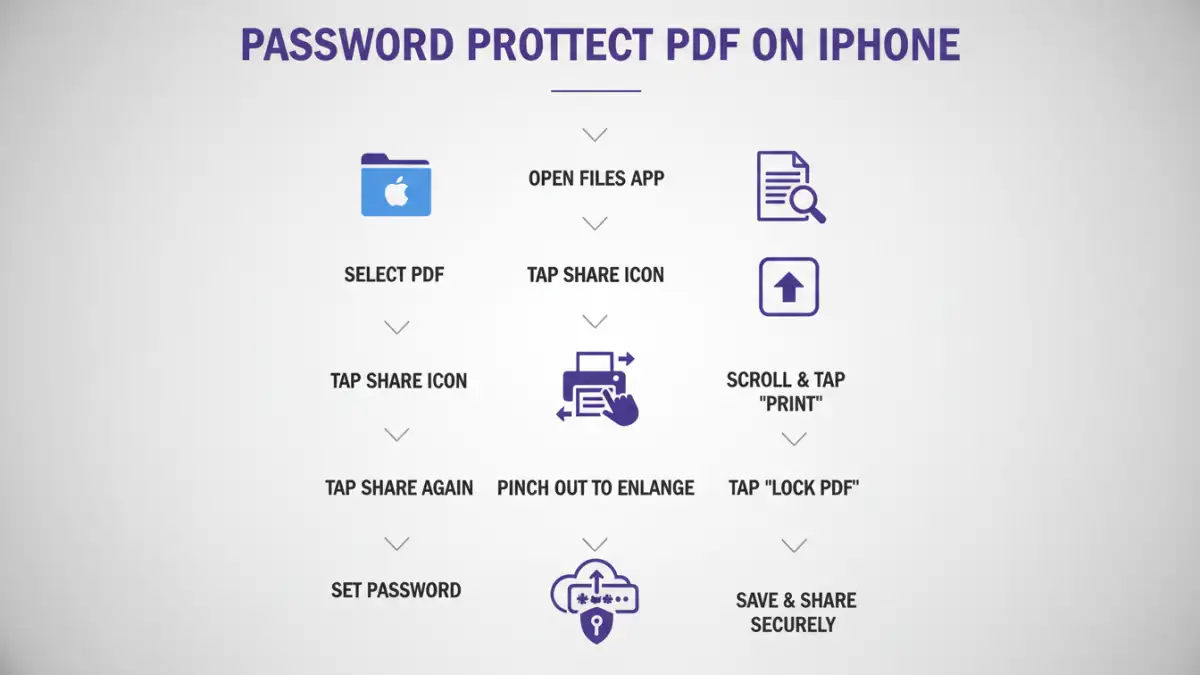
Step-by-Step: The Print & Save Method
- Open the PDF file you wish to protect in the Files app or any app that allows you to open PDFs and access the Share sheet.
- Tap the Share icon (usually a square with an upward arrow).
- Scroll down and select 'Print'.
- On the print preview screen, use a two-finger pinch-to-zoom gesture on the PDF preview. This action will 'open' the PDF as a new preview window.
- Tap the Share icon again from this new preview window.
- Choose 'Save to Files'.
- Navigate to where you want to save the new file and give it a distinct name (e.g., 'MyDocument_Protected.pdf').
- Tap 'Save'.
Now, you have a copy of the PDF. To add the password, you'll need to use a third-party tool or app, as this built-in method doesn't directly prompt for a password during saving. However, this creates a clean, shareable version ready for the next step. For actual password protection, you'll need to use a dedicated tool.
Leveraging Third-Party Apps
For more direct and robust PDF password protection on your iPhone, third-party apps are often the most straightforward solution. The App Store offers a variety of applications designed specifically for PDF management and security. These apps typically provide a dedicated function to encrypt your PDFs with a password during the saving or export process.
When choosing an app, consider its features, user reviews, and privacy policy. Some apps are free with basic functionality, while others offer advanced features through in-app purchases or subscriptions. Look for apps that clearly state they can add password protection to existing PDFs or secure them upon creation.
Popular App Options
- PDF Expert: A powerful and versatile PDF editor for iOS that includes robust security features, allowing you to set passwords for your documents.
- Adobe Acrobat Reader: While primarily a reader, the premium version of Adobe Acrobat for iOS offers tools to protect PDFs with passwords.
- iLovePDF: This popular service has an app that provides various PDF tools, including password protection, often with a user-friendly interface.
- Smallpdf: Similar to iLovePDF, Smallpdf offers a suite of online and mobile tools for PDF manipulation, including encryption.
Using these apps is generally intuitive. You'll typically open your PDF within the app, find an option like 'Protect,' 'Encrypt,' or 'Set Password,' enter your desired password (and confirm it), and then save or export the secured file. This direct approach to iphone pdf security is highly recommended for most users.
Online PDF Security Tools
If you prefer not to install additional applications on your iPhone, online PDF security tools offer a convenient alternative. Numerous websites allow you to upload your PDF, add a password, and then download the protected version directly to your device. These tools are accessible through your iPhone's web browser.
While convenient, it's crucial to be mindful of privacy and security when using online tools. Ensure you are using reputable websites that have clear privacy policies and security measures in place. Avoid uploading highly sensitive documents to untrusted online services, as you are essentially entrusting your data to a third party.
How to Use Online Tools
- Open your web browser on your iPhone (e.g., Safari, Chrome).
- Search for reputable online PDF password protection tools (e.g., Smallpdf, iLovePDF, Adobe Acrobat online).
- Navigate to the chosen tool's website and find the 'Protect PDF' or 'Encrypt PDF' option.
- Upload your PDF file from your iPhone's storage (usually via the Files app).
- Enter your desired password in the provided fields and confirm it.
- Start the encryption process.
- Once complete, download the password-protected PDF file back to your iPhone. You can then save it to your Files app.
This method is excellent for quick, occasional use when you don't need a dedicated app. It effectively helps you add password to pdf ios without any installation.
Best Practices for iPhone PDF Security
Regardless of the method you choose to password protect your PDFs on your iPhone, following best practices will significantly enhance your security. A strong password is the first line of defense. Avoid using easily guessable information like birthdays, names, or simple sequences.
Consider using a combination of uppercase and lowercase letters, numbers, and symbols. For important documents, a password manager can help you generate and store complex passwords securely. Also, remember that if you forget the password, there's usually no way to recover the document, so store your passwords safely and accessibly.
Password Management Tips
- Use Strong, Unique Passwords: Aim for a mix of characters and a good length (at least 12 characters).
- Don't Reuse Passwords: Use a different password for each sensitive document.
- Store Passwords Securely: Use a reputable password manager or a secure note-taking app, not just a plain text file.
- Be Cautious with Sharing: When sharing a password-protected PDF, send the password through a different channel than the document itself (e.g., send the PDF via email and the password via text message).
- Regularly Review Security: For ongoing sensitive documents, consider updating passwords periodically.
By implementing these practices, you can ensure that your efforts to secure iPhone documents are as effective as possible, providing peace of mind when sharing or storing your important files.
Comparison Table
| Method | Ease of Use | Features | Privacy Concern | Best For |
|---|---|---|---|---|
| Files App Workaround (Print & Save) | Moderate (requires multiple steps) | Creates a portable copy, but requires a separate tool for actual password setting. | Low (uses built-in iOS functions) | Creating a clean file copy before encryption. |
| Third-Party Apps (e.g., PDF Expert, Acrobat) | High (dedicated interface) | Direct password encryption, often includes editing and other PDF tools. | Moderate (depends on app's privacy policy) | Regular use, comprehensive PDF security needs. |
| Online PDF Tools (e.g., iLovePDF, Smallpdf) | Very High (web-based, no install) | Quick encryption, accessible from any browser. | High (data uploaded to third-party servers) | Occasional use, quick protection of non-highly sensitive files. |