
That sinking feeling when you try to access a critical file on a company portal, only to be blocked by a glaring 'Your connection is not private' error, is all too familiar. These security warnings aren't just annoyances; they are your browser's way of protecting you from potentially insecure connections where your data could be at risk. But when you know the destination is legitimate, these interruptions can bring productivity to a halt.
These issues often stem from problems with the site's SSL/TLS certificate, which is responsible for encrypting the data between your browser and the server. Fortunately, whether you're a user trying to gain access or an administrator responsible for the portal, most of these problems are straightforward to diagnose and fix.
Table of Contents
Understanding What Certificate Errors Mean
At its core, a security certificate (or SSL/TLS certificate) is a digital passport for a website or portal. It verifies the portal's identity to your browser and enables an encrypted connection. When your browser displays an error, it's because it couldn't validate this passport for some reason. This validation process, known as the 'SSL handshake,' is critical for establishing a secure line of communication.
Think of it like a bouncer at a club checking your ID. If the ID is expired, fake, or doesn't match the name on the list, you're not getting in. Similarly, if a website's certificate is expired, issued by an untrusted authority, or doesn't match the domain you're trying to visit, your browser will block the connection to protect you. This is essential when accessing secure documents, as it prevents man-in-the-middle attacks where an attacker could intercept your login credentials or the documents themselves.
Decoding Common Error Messages
While the exact wording varies by browser, you'll typically encounter messages like 'Your connection is not private' (Google Chrome), 'Secure Connection Failed' (Mozilla Firefox), or 'This site is not secure' (Microsoft Edge). These messages are often accompanied by error codes like NET::ERR_CERT_DATE_INVALID or SSL_ERROR_BAD_CERT_DOMAIN, which provide clues about the underlying problem.
Common Causes of a Document Portal Security Error

Certificate errors can be triggered by issues on your end (client-side) or with the server hosting the document portal (server-side). Pinpointing the cause is the first step toward a solution. I've seen entire teams derailed by what turned out to be a simple system clock issue, so it's always best to start with the easiest fixes first.
Client-side issues are often the culprit. The most common one is an incorrect date and time on your computer. Since certificates have specific validity periods, a wrong system clock can make your browser think a valid certificate has expired or is not yet valid. Overly aggressive antivirus software or a cluttered browser cache can also interfere with the validation process.
Server-side problems are the responsibility of the portal's administrator. These include the certificate genuinely being expired, a misconfiguration on the server where the certificate isn't installed correctly, or the use of a self-signed certificate that isn't trusted by default by major browsers. Another possibility is a domain mismatch, where the certificate is for 'www.example.com' but you're accessing 'portal.example.com'.
Step-by-Step Solutions for Users
If you're a user trying to access a portal, start with these client-side troubleshooting steps. They resolve the majority of issues without needing to contact IT support.
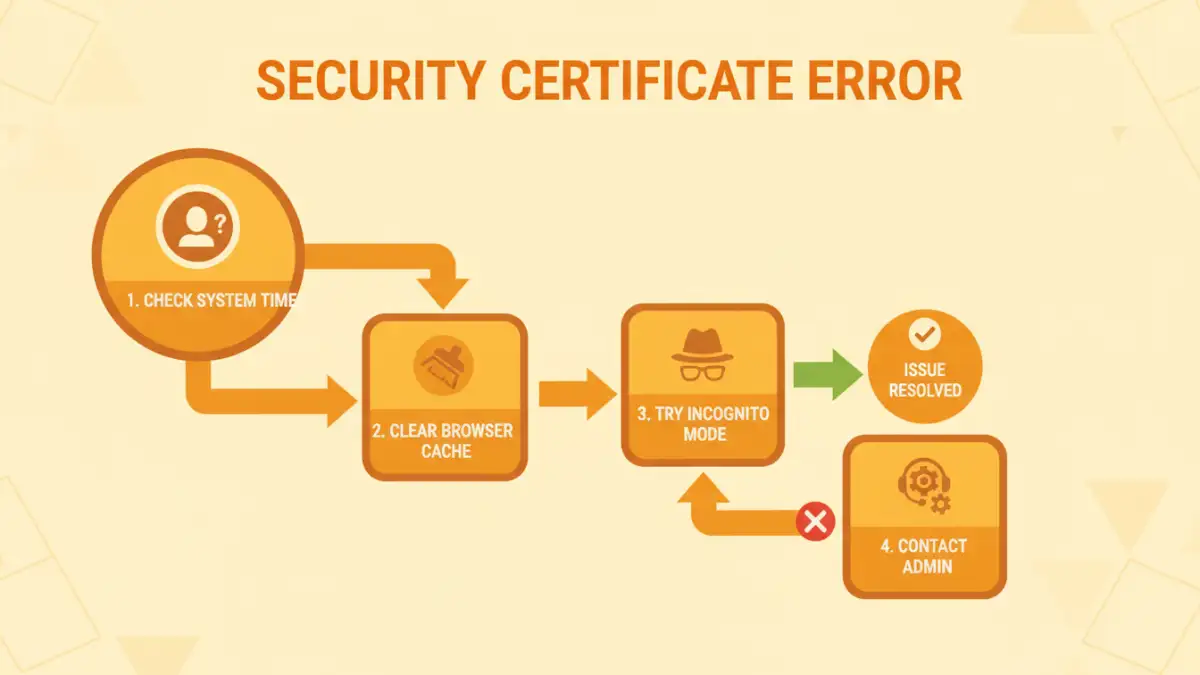
1. Check Your System's Date and Time
This is the number one cause I've encountered for sudden certificate errors. An incorrect clock can throw off the certificate validation timeline. Ensure your computer's date, time, and time zone are set correctly. The easiest way is to enable automatic synchronization with an internet time server in your operating system's settings.
2. Clear Browser Cache and Cookies
Your browser stores data to load websites faster, but sometimes this data can become outdated or corrupted, leading to validation issues. Clearing your cache and cookies forces the browser to fetch a fresh version of the site and its certificate. In your browser settings, look for the 'Clear browsing data' option and select 'Cookies and other site data' and 'Cached images and files'.
3. Try a Different Browser or Incognito Mode
To rule out a browser-specific issue (like a misbehaving extension), first try accessing the portal in an Incognito or Private window. This mode typically disables extensions. If that works, you'll need to disable your extensions one by one to find the culprit. If it doesn't, trying a completely different browser (like Firefox if you're using Chrome) can help determine if the problem is isolated to your primary browser's configuration.
Troubleshooting Steps for Portal Administrators
If multiple users are reporting the same error, the problem likely lies with the server or the certificate itself. As an administrator, you have a different set of checks to perform.
First, verify the certificate's status. Use an online SSL checker tool to analyze the domain. These tools provide a detailed report on the certificate's validity, expiration date, chain of trust, and server configuration. This will immediately flag common issues like an expired certificate or an incomplete certificate chain (missing intermediate certificates).
Next, ensure the certificate is installed correctly on your web server (e.g., Apache, Nginx, IIS). A common mistake is not including the intermediate certificates provided by the Certificate Authority (CA). Without the full chain, browsers can't establish a trusted path back to a root certificate and will throw an error. Finally, confirm that the server is configured to use modern, secure TLS protocols and ciphers, as outdated configurations can also lead to a secure connection failed error in modern browsers.
Common Certificate Error Scenarios
| Scenario | Likely Cause | Who Can Fix It? | Primary Solution |
|---|---|---|---|
| Error on one device, but not others | Client-side issue (date/time, cache) | User | Correct system clock or clear browser cache. |
| All users on a network see the error | Network firewall or proxy issue | Network Administrator | Check firewall SSL inspection rules. |
| All users, everywhere, see the error | Server-side issue (expired certificate) | Portal Administrator | Renew and install a new SSL certificate. |
| 'NET::ERR_CERT_COMMON_NAME_INVALID' | Domain name mismatch | Portal Administrator | Ensure certificate covers all subdomains or get a new one. |
| 'SEC_ERROR_UNKNOWN_ISSUER' | Self-signed or incomplete chain | Portal Administrator | Install the full certificate chain or use a trusted CA. |