
Imagine the panic: you've just spent hours working on a critical, encrypted document, ensuring its contents are fully protected, only to accidentally delete it. I've seen this happen countless times, both to colleagues and even to myself in my early days. The immediate thought is often, "Is it gone forever?" Especially when dealing with secure files, the stakes feel even higher. The good news is that, in many cases, a deleted secure file restoration is possible, provided you act quickly and follow the right steps.
Restoring these sensitive documents requires a systematic approach, understanding how operating systems handle deletions, and sometimes, leveraging specialized tools. This guide will walk you through the essential methods, from the simplest checks to more advanced techniques, helping you recover your valuable data.
Table of Contents
Understanding File Deletion and Security
When you delete a file, it's rarely truly erased from your disk immediately. Instead, the operating system typically marks the space it occupied as 'available' for new data. The file's data remains on the drive until new information overwrites it. This principle is fundamental to understanding why file undelete operations are often successful.
How Secure Files Differ
Secure files, such as those encrypted with BitLocker, VeraCrypt, or even password-protected documents, introduce an additional layer of complexity. If you recover the file but don't have the decryption key or password, the recovered data will remain unreadable. The recovery process focuses on restoring the file's raw data, not on circumventing its security. Therefore, having your encryption key or password readily available after recovery is paramount.
Initial Recovery Steps: The Basics

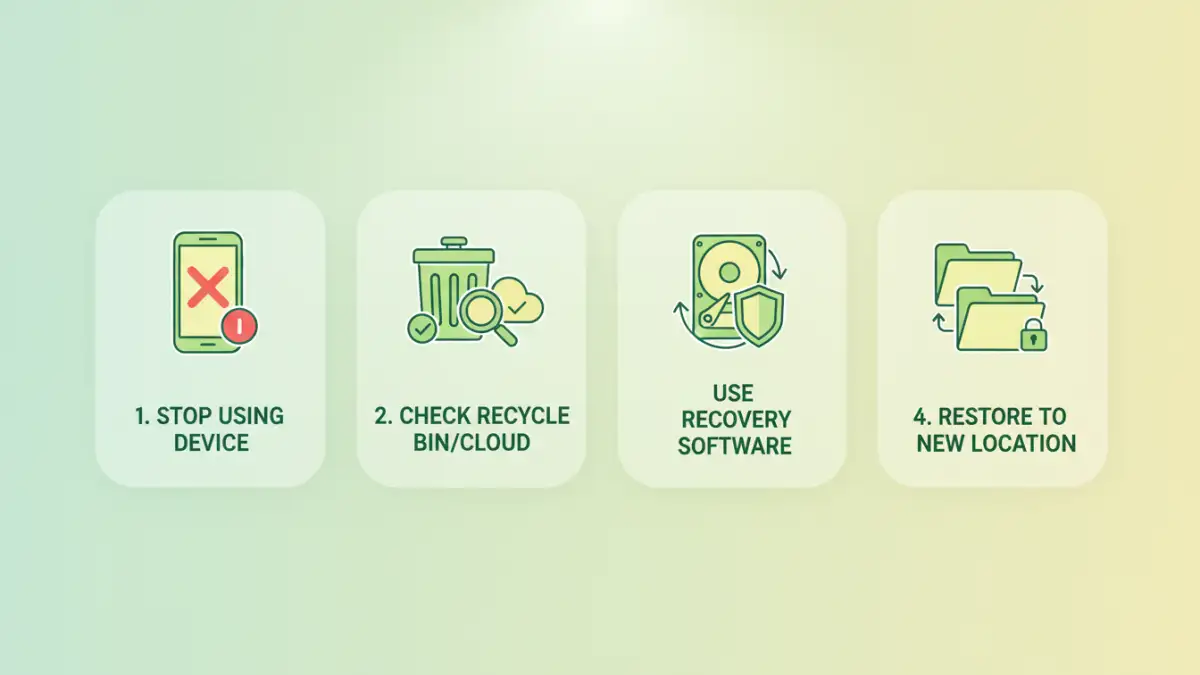
The moment you realize a file is gone, stop using the drive where it was stored. Every action, from browsing the web to saving new documents, increases the risk of overwriting the deleted file's data. Speed is your biggest ally in successful deleted secure file restoration.
Check the Recycle Bin or Trash
This might seem obvious, but it's often overlooked in a panic. Most operating systems move deleted files to a Recycle Bin (Windows) or Trash (macOS) before permanently removing them. Navigate to your Recycle Bin/Trash, locate the file, right-click, and select 'Restore'. This is the quickest and easiest path to recover deleted documents.
Look for Cloud or Backup Versions
Many users now sync their documents to cloud services like OneDrive, Google Drive, or Dropbox. These services often maintain version histories or their own 'trash' folders. Check your cloud storage's web interface for a previous version of the file or a recently deleted items section. Similarly, if you have a local backup solution (like Windows File History or Apple Time Machine), restoring from a recent backup is a very reliable method.
Leveraging Data Recovery Software
If the Recycle Bin or cloud backups don't yield results, specialized data recovery software is your next best bet. These tools scan the raw sectors of your hard drive to find traces of deleted files that haven't yet been overwritten. There are many options, both free and paid, each with varying capabilities.
Choosing the Right Tool
For Windows, tools like Recuva or PhotoRec are popular free options. For macOS, Disk Drill or EaseUS Data Recovery Wizard are often recommended. When selecting software, look for one that supports the file system of your drive (e.g., NTFS, FAT32, APFS, HFS+) and has a good reputation for recovering various file types. Always install the recovery software on a different drive than the one you're trying to recover from, to avoid overwriting the very data you're trying to restore.
The Recovery Process
Once installed, launch the software and select the drive where the file was originally located. The software will perform a deep scan, which can take anywhere from minutes to several hours depending on the drive size and scan depth. After the scan, you'll typically see a list of recoverable files, often with indicators of their recovery potential (e.g., 'Excellent', 'Poor'). Locate your secure file, select it, and choose a different destination drive to save the recovered file. Attempting to save it back to the original drive could lead to further data loss.
Advanced Considerations for Encrypted Files
When dealing with files that were encrypted before deletion, the recovery process is largely the same as for any other file. However, the post-recovery steps are critical. You must have the correct password or decryption key to access the contents of the recovered file. Without it, even a perfectly recovered file will remain an inaccessible block of data.
Dealing with Full Disk Encryption
If the entire drive was encrypted (e.g., using BitLocker or VeraCrypt), and you deleted a file from that encrypted volume, the recovery process requires the drive to be unlocked *before* you attempt data recovery. Most data recovery tools can work on unlocked, encrypted volumes. If the drive itself is corrupted or the encryption key is lost, recovery becomes significantly more complex, often requiring professional digital forensics services.
Preventative Measures and Best Practices
While deleted secure file restoration is often possible, prevention is always better than cure. Implementing robust backup strategies and careful file management can save you immense stress down the line.
Regular Backups are Essential
Automate your backups. Use cloud services, external hard drives, or network-attached storage (NAS) to create redundant copies of your important files. I personally follow the 3-2-1 backup rule: three copies of your data, on two different types of media, with one copy offsite. This strategy offers excellent protection against accidental deletions, hardware failures, and even ransomware.
Version Control and Secure Deletion
For critical documents, consider using version control systems like Git, even for non-code projects. This allows you to revert to previous states of a document. For truly sensitive files you *want* to permanently delete, use secure deletion tools that overwrite the file's data multiple times, making recovery virtually impossible. This ensures that a file undelete operation won't accidentally expose sensitive information.
Data Recovery Method Comparison
| Method | Pros | Cons | Best For |
|---|---|---|---|
| Recycle Bin/Trash | Instant, no software needed, free | Only for recently deleted, not securely erased files | Quick, accidental deletions |
| Cloud/Backup Restore | Reliable, good for older deletions/versions | Requires prior setup, internet access for cloud | Comprehensive data protection |
| Free Data Recovery Software | Cost-effective, good for basic recovery | Limited features, may not recover all files | Minor deletions, budget-conscious users |
| Paid Data Recovery Software | Powerful, higher success rate, advanced features | Can be expensive, steep learning curve | Complex cases, crucial data recovery |
| Professional Data Recovery Service | Highest success rate for severe cases | Very expensive, takes time, privacy concerns | Physical damage, extreme data loss |