In today's fast-paced digital environment, managing documents efficiently is crucial for productivity. Often, we find ourselves needing to consolidate various file types—like Word documents, images, or spreadsheets—into a single, universally accessible PDF format. Doing this one file at a time can be incredibly tedious and time-consuming, especially when dealing with large volumes of data. Fortunately, there are effective ways to handle this process as a batch operation, significantly streamlining your workflow.
My experience as a software engineer has shown me how much time can be saved by automating repetitive tasks. The ability to convert multiple files to PDF in a batch is a prime example of such an efficiency gain. Whether you're preparing a report, archiving project files, or sharing a set of documents with a client, a batch conversion process ensures consistency and speed.
Table of Contents
Understanding Batch Conversion
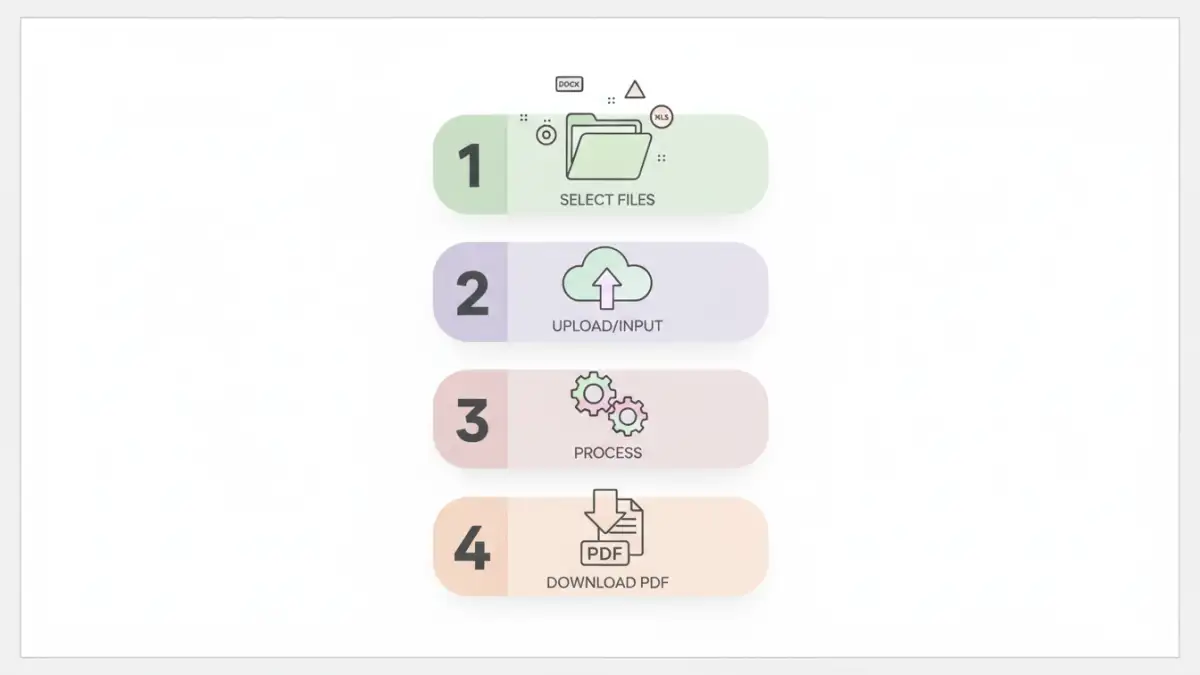
Batch conversion refers to the process of converting multiple files from one format to another simultaneously, without requiring individual attention for each file. This is incredibly useful when you have a collection of documents that need to be standardized into a single format, such as PDF. The primary benefit is a massive reduction in time and manual effort, allowing you to focus on more critical tasks.
Key Benefits of Batch Conversion
The core advantage of batch file conversion is its scalability. It handles dozens, hundreds, or even thousands of files with the same ease as converting just a few. This consistency is vital for maintaining organized digital archives and ensuring that all documents meet specific organizational standards. Furthermore, it minimizes the risk of human error that can occur when performing repetitive manual tasks.
Methods for Batch Conversion
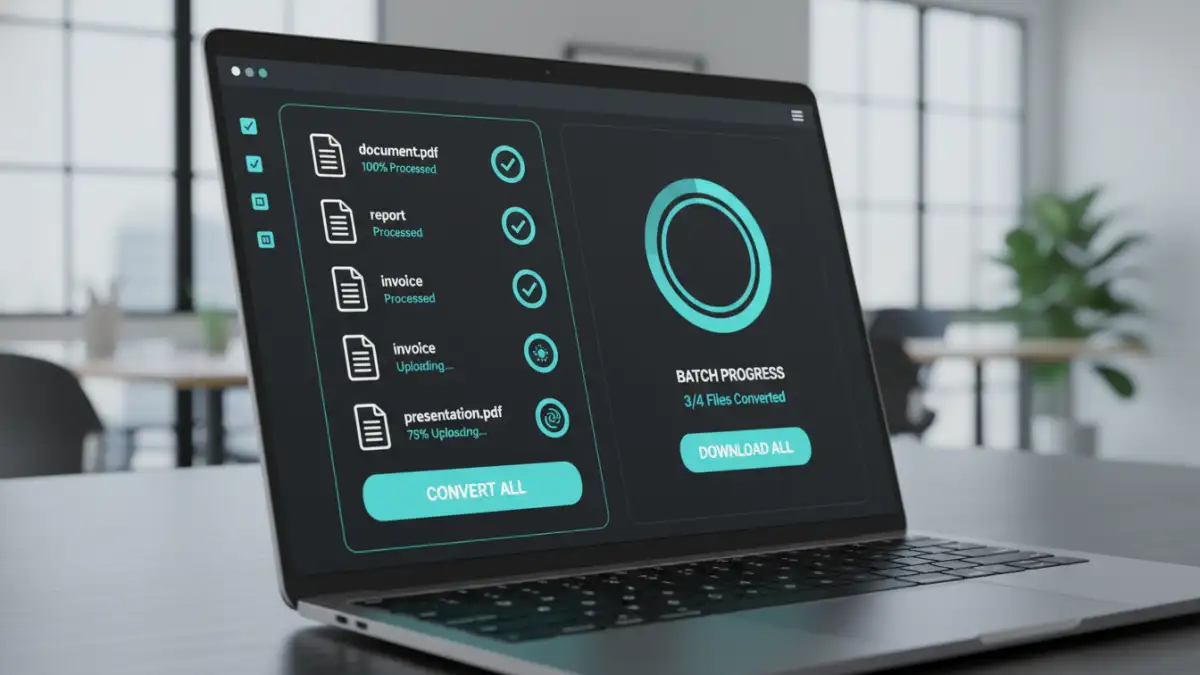
There are several practical ways to achieve batch file conversion to PDF. The best method for you will depend on the types of files you have, the operating system you use, and your comfort level with different software or online tools. Each approach offers a different balance of convenience, functionality, and cost.
Using Dedicated Software
Many desktop applications are designed specifically for document management and offer robust batch conversion features. These often include advanced options like merging files, setting page orientation, and applying security settings during the conversion process. Software like Adobe Acrobat Pro is a prime example, offering comprehensive tools for professional document handling.
Other software solutions, both paid and free, can also facilitate this. For instance, some general file conversion utilities or even advanced text editors might have batch processing capabilities for specific file types. The advantage of desktop software is often its reliability, speed, and the fact that it doesn't require an internet connection once installed, making it ideal for sensitive documents.
Leveraging Online Tools
The internet provides a vast array of online PDF creation tools that support batch conversions. Websites like Smallpdf, iLovePDF, or Adobe's online services allow you to upload multiple files at once and convert them into a consolidated PDF. These tools are incredibly convenient for users who prefer not to install any software and need a quick solution.
However, when using online tools, it's essential to consider data privacy and security. Ensure the service you choose has a clear privacy policy and employs secure protocols, especially if you are converting sensitive or confidential documents. The ease of access and user-friendly interfaces of these platforms make them a popular choice for many.
Utilizing Operating System Features
In some cases, your operating system might offer built-in features that can assist with basic batch conversions. For example, on macOS, you can select multiple files in Finder, right-click, and choose 'Quick Actions' > 'Create PDF'. While this might not offer advanced options, it's a straightforward way to group files into a single PDF.
Windows users can also achieve similar results through various workarounds, often involving printing multiple documents to a PDF printer driver. While not always a direct batch conversion in the strictest sense, these methods can still help consolidate documents efficiently without external software. Exploring your OS's capabilities is always a good first step.
Choosing the Right Tool
Selecting the appropriate tool for your needs hinges on several factors. If you frequently handle large volumes of diverse file types and require advanced features like OCR or batch editing, professional desktop software is likely your best bet. It offers the most power and control.
For occasional use or when dealing with standard document types, online tools present a quick and accessible solution. Just remember to prioritize reputable services that assure data security. If you're looking for a free and simple method for basic consolidation, exploring your operating system's built-in functions can often suffice.
Tips for Efficient Batch Conversion
To maximize the efficiency of converting multiple files to PDF in a batch, consider organizing your files beforehand. Grouping related files in a single folder makes the selection process much easier. Also, be mindful of file naming conventions; some tools allow you to define how the output PDF files will be named, which can be a huge time-saver for organization.
Always test the conversion process with a small batch of files first. This allows you to verify that the output meets your expectations regarding formatting, quality, and any applied settings. It's also a good practice to back up your original files before starting any large-scale conversion, just in case something unexpected occurs.
Comparison Table: Batch PDF Conversion Methods
| Method | Ease of Use | Features | Cost | Security Considerations |
|---|---|---|---|---|
| Desktop Software (e.g., Adobe Acrobat Pro) | Moderate to High | Comprehensive (OCR, editing, security) | Paid (Subscription/One-time) | High (Offline processing) |
| Online Tools (e.g., iLovePDF, Smallpdf) | Very High | Basic to Advanced (depends on service) | Free (with limitations) to Paid | Moderate (Depends on provider's policies) |
| Operating System Features (e.g., macOS Quick Actions) | High | Basic (File consolidation) | Free | High (Local processing) |
| Command-Line Tools (for developers) | Low (Requires technical skill) | Highly Customizable | Free (Open Source options available) | High (Local processing) |